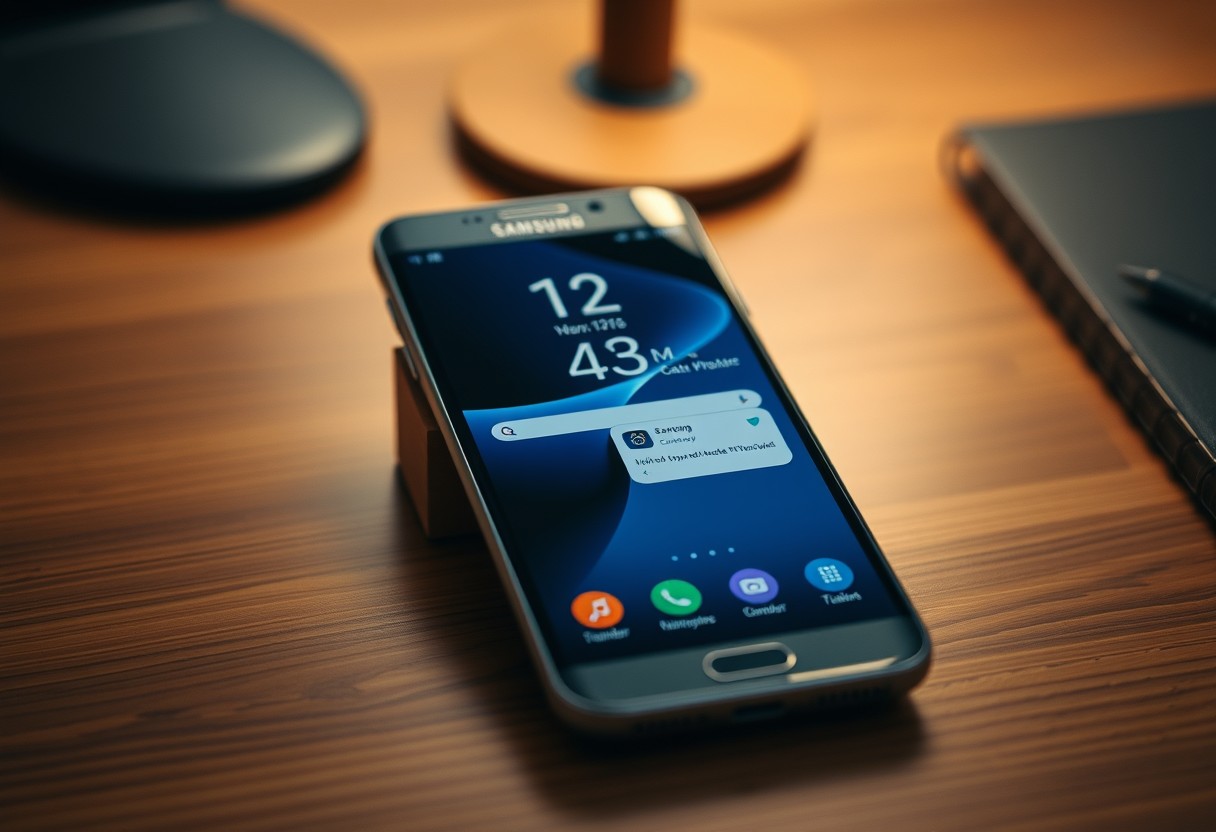
You can transform your Samsung Galaxy lock screen into a smart, functional hub with the right settings. Too many widgets or notifications can slow performance and expose sensitive data, but a clean, intentional layout gives you quick access to what matters. This guide shows you how to add useful tools without sacrificing speed or privacy, ensuring your phone works better the moment you wake it.
Key Takeaways:
- A clean lock screen starts with selective customization-choose only the most frequently used widgets and shortcuts to avoid visual noise while keeping essential information visible at a glance.
- Use Samsung’s Dynamic Lock Screen feature to automatically rotate wallpapers with subtle, useful overlays like weather, date, or battery status, delivering context-aware updates without requiring user interaction.
- Limit notification previews to priority apps only, ensuring sensitive content stays private and reducing distractions, so your lock screen remains informative but not overwhelming.
Tips for Optimizing Lock Screen Notifications
Control how alerts appear on your lock screen to minimize distractions without missing important updates. You can choose which apps show notifications and adjust their visibility levels in Settings. Limit detailed previews for sensitive apps like Messages or email to prevent oversharing in public. Use priority-only interruption mode to allow alerts from key contacts while filtering out noise. Turning off notifications for non-essential apps keeps your screen clean and focused, ensuring only what matters most appears at a glance.
- Set silent alerts for low-priority apps
- Select “Hide content” for privacy-sensitive apps
- Enable “Show silently” to avoid interruptions
- Turn off notification icons for unused apps
Choosing between icons and detailed views
You decide how much information each alert reveals the moment it appears. Selecting “Hide content” shows only an app icon, ideal for shared spaces. Opting for “Show content” displays full message previews, speeding up response times but increasing visual load. You maintain full control per app, so sensitive platforms like WhatsApp or banking apps can stay private while calendar alerts remain visible. Balancing these settings ensures your lock screen stays informative without becoming overwhelming.
Setting transparency levels for a cleaner look
Adjusting notification shade transparency helps your wallpaper stay visible while keeping text readable. A lower opacity blends alerts into the background, creating a more minimalist aesthetic that reduces visual strain. You access this setting under Display > Lock Screen > Notification Shade Appearance. Choosing a semi-transparent style maintains functionality without blocking your screen’s design. This subtle change enhances clarity and supports a calmer, less cluttered experience each time you wake your device.
How to Leverage Lock Screen Widgets for Quick Info
See important updates at a glance by enabling select lock screen widgets that display real-time information without requiring you to unlock your device. The right widgets keep you informed while preserving clarity, so choose only those that deliver immediate value-like calendar events, battery status, or Wi-Fi connectivity. Overloading this space can defeat the purpose, making it harder to spot key details. Stick to one or two high-priority widgets that support your daily routine and reduce unnecessary interactions.
Enabling the music controller and weather display
Access playback controls and current conditions directly from your locked screen by turning on the built-in music widget and weather module. When active, the music controller appears automatically after playing audio, letting you pause, skip, or adjust volume without unlocking. The weather display shows accurate local forecasts with minimal space usage, updating in real time. Enable both through Settings > Lock Screen > Info and apps to ensure timely access without cluttering your view.
Customizing the Always On Display widgets
Select which data points remain visible when your screen is off by adjusting the Always On Display widget settings. You can show calendar appointments, step count, next alarm, or even heart rate depending on your habits. Only include metrics you check frequently-too many elements make the display noisy and less effective. Open Settings > Lock Screen > Always On Display > Information to toggle each item, ensuring only essential insights appear with a quick glance.
Customizing Bottom Corner Shortcuts for Efficiency
Positioning your most-used apps in the bottom corners of the lock screen puts convenience at your fingertips. Samsung allows you to replace the default shortcuts so you can access frequently used tools without unlocking your phone. By assigning high-frequency apps like messaging, email, or your calendar to these corners, you reduce steps and save time each day. Customization is done directly in Settings, under Lock Screen, ensuring changes are both simple and immediate.
Replacing default phone and camera apps
You can swap the pre-set phone or camera icons with apps you actually use every day. Whether it’s a messaging platform, a note-taking tool, or a ride-sharing app, changing these shortcuts tailors your experience. Open Lock Screen settings, select “Shortcuts,” and choose which apps take over the bottom corners. This flexibility ensures one-tap access to what matters most to you, streamlining how you start tasks the moment you pick up your device.
Setting shortcuts for flashlight or calculator
Flashlight and calculator are built-in tools that Samsung surfaces by default in the corners, and for good reason-they’re instantly useful in daily moments. If you often need quick math or visibility in low light, leaving these shortcuts active saves time and effort. Even better, you can reassign one if another utility fits your routine more closely. Keeping one of these defaults ensures you always have immediate access to essential functions, even when your phone is locked.
Balancing Aesthetics with Functional Clock Styles
Choosing the right clock style on your Samsung Galaxy lock screen directly impacts both readability and visual harmony. A clean, minimalist font ensures you can glance at the time without distraction, while overly decorative styles may compromise clarity. Opt for layouts that align with your daily needs-some prioritize date visibility, others focus on simplicity. The wrong choice can turn convenience into confusion, especially in low-light conditions or when viewing from an angle.
Picking a clock face that complements your wallpaper
Your lock screen clock should stand out, not blend in. If your wallpaper features bold colors or detailed imagery, a solid, neutral-toned clock face improves legibility. Dark wallpapers work best with light-colored fonts, and vice versa. Samsung’s default clock styles often adapt automatically, but manual selection gives you control. A well-matched clock face enhances usability without demanding extra attention, letting you read the time at a glance while preserving your phone’s aesthetic.
Adjusting clock color and size for better focus
Size and color determine how quickly you process time upon waking the screen. If you frequently miss notifications or struggle to read the clock, increasing its size can make a noticeable difference. Use high-contrast color presets that oppose your wallpaper’s dominant tones. Too small or dim a clock forces unnecessary strain, especially outdoors. Samsung’s accessibility settings allow granular adjustments, so you can tailor the display to your vision and environment without altering the overall design balance.
Utilizing Dynamic Lock Screen Features
Rotating backgrounds breathe fresh life into your lock screen without adding visual noise. You can set your Galaxy to cycle through a curated selection of high-resolution images daily, keeping the aesthetic engaging while maintaining a clean layout. Samsung’s built-in tools allow smooth transitions between wallpapers, and the feature runs efficiently in the background without draining battery. The automatic refresh means you never see the same image twice in a cycle, offering subtle variety that enhances your experience without overwhelming your screen.
Setting up high-quality wallpaper services
Samsung integrates with premium wallpaper platforms like Wallpapers by Google and its own Galaxy Themes app, delivering stunning, resolution-optimized images directly to your device. Enable the auto-change feature within the Wallpaper settings to receive a new high-quality background each day. These services prioritize image clarity and color harmony, ensuring each wallpaper complements your lock screen’s widget and clock layout. You maintain full control over update frequency and can pause the rotation at any time through the wallpaper history menu.
Using personal photo stacks for a custom rotation
Your favorite memories can become a dynamic part of your daily routine by creating a photo stack from your private albums. Select a curated set of images-say, from a recent trip or family gathering-and assign them to rotate automatically on your lock screen. Samsung’s privacy safeguards ensure these personal photos remain visible only when the device is unlocked, so sensitive moments stay protected. This personal touch adds warmth and uniqueness without sacrificing the minimalist design you’ve carefully crafted.
Factors for Maintaining Privacy and Security
Protecting your personal data starts with controlling what appears when your phone is locked. You don’t want private messages or sensitive alerts visible to anyone nearby. Adjusting who sees what ensures your information stays private without disabling useful features. Simple settings changes can hide preview text from emails, texts, and apps, so only you know the details. This balance keeps your lock screen functional while shielding your privacy from prying eyes.
- Hide notification content on the lock screen
- Use secure lock timers to minimize exposure
- Limit smart lock usage to trusted environments
- Enable face or fingerprint re-authentication after intervals
Adjusting notification content visibility
Tap Settings and go to Notifications to manage what details appear on your lock screen. Choose Hide content for sensitive apps like Messages or Gmail to prevent unauthorized viewing. This means alerts will still show an icon or banner, but without revealing the message body. You retain awareness of incoming activity while ensuring that personal conversations stay private. Even in public, no one can read your texts just by glancing at your phone.
Setting secure lock timers and smart lock features
Open Display settings and adjust your screen timeout to as little as 15 seconds to reduce exposure. Pair this with Smart Lock features like On-body detection or Trusted Places, but remain cautious-these can leave your phone unlocked longer than intended. Disable Smart Lock in crowded areas or shared spaces to avoid unintended access. A shorter lock timer combined with biometric re-authentication strengthens security without slowing you down when it matters most.
To wrap up
You’ve customized your Samsung Galaxy lock screen to deliver timely information without overwhelming your view. By selecting only the most relevant widgets, streamlining notifications, and adjusting clock styles for clarity, you maintain both functionality and visual calm. The shortcuts in the bottom corners give you fast access without extra taps, while privacy settings ensure sensitive details stay protected. You control what appears and how it’s displayed, making every glance productive. Your lock screen now works smarter, not harder, fitting seamlessly into your daily routine.
FAQ
Q: How can I show useful information on my Samsung Galaxy lock screen without overcrowding it?
A: Use the lock screen’s built-in features selectively. Enable glanceable info like weather, calendar events, or battery percentage through Settings > Lock screen. Turn off unnecessary widgets and choose only one or two key pieces of information that change daily, such as your next appointment or current temperature. This keeps the screen clean while still delivering timely updates.
Q: Can I customize which notifications appear with content visible on the lock screen?
A: Yes, go to Settings > Notifications > Lock screen > Notifications on lock screen. Choose “Hide sensitive content” or “Show all content” depending on your privacy needs. Tap “Select apps” to pick exactly which ones display full details-ideal for prioritizing messages from family or work apps while keeping social media alerts minimal or hidden.
Q: Is it possible to add a widget to the lock screen without making it look messy?
A: Samsung allows one active lock screen widget at a time. Pick a compact, high-value widget like Calendar, Weather, or Music player. Avoid rotating or animated widgets that draw too much attention. To change it, swipe right on the lock screen, tap the pencil icon, then select a new option-keeping just one maintains clarity and function.
Q: What are the shortcuts in the bottom corners of the lock screen, and how do I set them efficiently?
A: The bottom left and right corners hold quick-access app shortcuts. Press and hold an empty space on the lock screen, tap “Shortcuts,” then assign frequently used apps-like Camera or Messages-to each side. Choose tools you reach for daily but don’t need constantly displayed, preserving space while cutting down steps.
Q: Does using a dynamic clock style affect battery life or readability?
A: Some clock styles use more screen real estate or brighter elements, especially on AMOLED displays where white pixels consume more power. Opt for minimalist fonts and darker color schemes if battery efficiency matters. Test different styles in your usual lighting conditions to balance legibility and energy use-simple often works best.