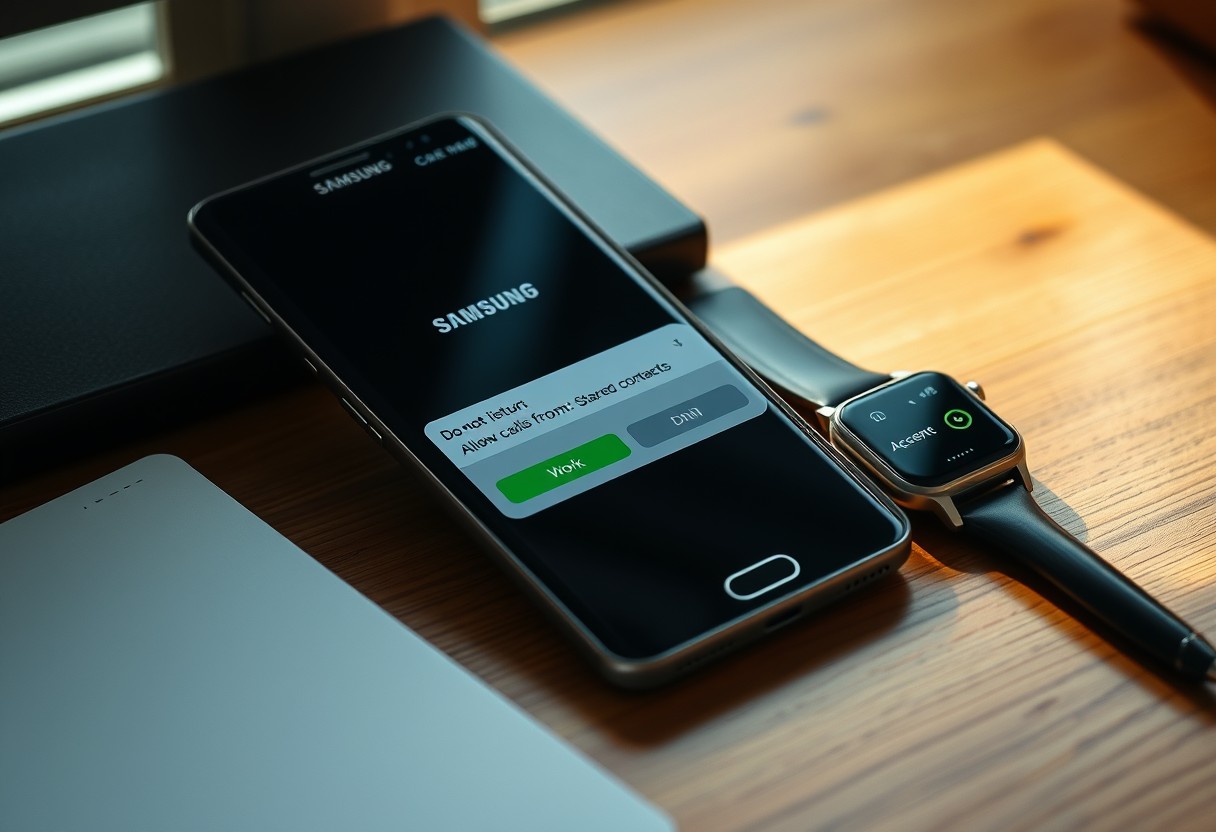
You can silence distractions on your Samsung Galaxy while still receiving calls from loved ones or key contacts. By customizing the Do Not Disturb settings, you ensure that emergency calls bypass restrictions, preserving peace without sacrificing connection. This guide shows you how to block noise but keep critical alerts active using built-in tools and smart exceptions.
Key Takeaways:
- Samsung’s Do Not Disturb mode lets you silence calls and alerts while still allowing messages from selected contacts, so urgent communication isn’t missed.
- You can customize exceptions for specific people, repeated calls, and priority app notifications through the Phone and Sound settings menus.
- Scheduling automatic activation during sleep hours or meetings helps maintain focus without manual adjustments each time.
Understanding Samsung’s Native Do Not Disturb Features
Locating DND in the Quick Settings panel
Finding Do Not Disturb on your Galaxy device starts with the Quick Settings panel. Swipe down from the top of your screen with one finger to reveal the notification shade, then swipe down again to expand it fully. Look for the Do Not Disturb icon, which resembles a crescent moon inside a circle. Tapping it instantly activates DND with default settings, silencing calls, alerts, and notifications. This quick access ensures you can enable quiet mode in seconds, ideal when entering meetings or winding down for sleep.
Customizing the default duration and behavior
After activating Do Not Disturb, you can adjust how long it stays on without returning to settings. Tap and hold the Do Not Disturb icon in Quick Settings to open its configuration menu. From here, choose a preset duration like 15 minutes, 1 hour, or until tomorrow. You can also set it to remain active until manually turned off. This level of control prevents unnecessary silence beyond your intended window, ensuring you resume normal alerts at the right time.
Factors Influencing Notification Priority
Your Galaxy decides which notifications break through Do Not Disturb based on several key variables. The type of alert, such as calls versus messages, plays a major role. Repeat callers within a set timeframe are often allowed, assuming urgency. Your notification settings per app determine whether alerts are classified as high priority. Even device sensors, like movement or charging status, can influence behavior. These factors work together to balance silence with awareness, ensuring only the most relevant interruptions reach you.
- Call type: Emergency or repeated calls may bypass restrictions
- Contact status: Saved contacts often receive higher default priority
- App notification importance: Set in app-level channel settings
- Repeat caller rule: Second call within 15 minutes can be permitted
- Device state: Charging, screen off, or usage patterns affect filtering
Distinguishing between system alarms and media sounds
System alarms, like those from your Clock app, are treated as critical interruptions and will sound even during Do Not Disturb. These alerts are designed to wake you or prompt action, so Samsung defaults to allowing them. Media sounds, such as music, videos, or game audio, are fully suppressed when silence mode activates. You won’t hear background audio playback unless you manually adjust media volume. This separation ensures you don’t miss an early meeting while still enjoying uninterrupted focus during downtime.
Understanding the hierarchy of “Priority Only” interruptions
When you enable Priority Only mode, only alerts from designated sources can interrupt your silence. Calls and messages from starred or frequently contacted numbers often rank higher by default. The system evaluates notification categories you’ve marked as important, such as alarms or reminders. Even within priority mode, not all alerts are equal-some trigger vibrations or sounds while others go to silent logs. Your personal usage patterns help shape this ranking over time, making the experience more tailored to your real-world needs.
How-to Guide for Setting Up Contact Exceptions
To ensure your parents, partner, or key team members can still reach you during focus hours, open the Do Not Disturb settings and tap “Calls from.” Select “Contacts” or “Starred contacts” to allow only those you trust. This prevents disruptions while maintaining access to urgent communication. Some users report confusion with hardware gestures-like how Flip for DND does not stop calls and other notifications on certain devices-so confirming these software settings is essential for full control.
Adding favorite contacts to the allow list
You can let specific people break through your Do Not Disturb mode by adding them to your starred contacts. Open your Phone app, go to Contacts, find the person you want to prioritize, and tap their entry to edit. Star their profile with the heart icon, then return to Do Not Disturb settings and choose “Starred contacts” under “Calls from.” This guarantees their calls will always come through, even when your phone is silenced or flipped face down.
Configuring “Calls from” permissions for specific groups
Your Samsung allows filtering by contact groups, giving you granular control over who can interrupt you. In the Phone app’s contact list, create a group like “Family” or “Work Team” and add relevant members. Then, in Do Not Disturb settings, set “Calls from” to that group. Calls outside this circle will be silenced automatically, but those within it will ring through, ensuring critical connections aren’t missed during downtime.
Advanced Scheduling Tips for Automated Focus
You can set your Samsung Galaxy to activate Do Not Disturb automatically based on time or calendar events, ensuring quiet periods without manual input. This automation keeps you focused during predictable routines while still allowing priority calls. By syncing with your daily rhythm, the phone adapts to your needs without requiring constant adjustments. Properly configured schedules prevent unwanted interruptions during sleep, meetings, or family time, giving you peace of mind. The system works silently in the background, so you stay undisturbed unless someone on your exception list calls.
- Open Settings and tap Notifications
- Select Do Not Disturb and choose Schedule
- Pick Custom schedule to define start and end times
- Enable Event-based activation if using calendar triggers
- Save settings to activate automated behavior
| Feature | Benefit |
| Time-based automation | Ensures consistent quiet hours every day |
| Calendar event sync | Triggers DND when meetings begin |
| Custom start/end times | Allows flexibility for changing routines |
Creating custom sleep and work schedules
Your sleep and work hours differ from others, so a one-size-fits-all approach won’t help. You can create individual schedules for weekdays and weekends, aligning DND with your actual routine. For example, set it to turn on at 10 PM on weekdays and 11:30 PM on Fridays for late-night relaxation. The phone will activate silence automatically, even if you forget. This level of customization ensures uninterrupted rest without sacrificing access to emergency contacts. Weekday alarms still function normally, so you won’t oversleep.
Utilizing event-based triggers through Google Calendar sync
A meeting labeled “Deep Work” or “Doctor Appointment” in your Google Calendar can trigger Do Not Disturb automatically. Once linked, your Galaxy reads event titles or categories and activates focus mode at the scheduled time. This means no manual toggling-your phone responds intelligently to your agenda. If an event ends early, DND turns off as planned unless you extend it. This integration works reliably across devices, so changes made on one calendar reflect instantly on your phone.
Managing App Alerts and Repeated Calls
To maintain peace during focus periods without cutting off urgent communication, you can fine-tune which alerts break through your Do Not Disturb mode. By configuring call exceptions and allowing notifications from select apps, you ensure critical messages are never missed, even when your phone is silenced. Samsung’s granular controls let you balance quiet with responsiveness, so emergency calls and essential updates still reach you while everything else waits. This selective access protects your attention without compromising safety.
Enabling the “Repeat callers” bypass for emergencies
A second call from the same person within 15 minutes can signal urgency, and Samsung lets you use this as a safety net. You can activate the “Repeat callers” option so that if someone calls twice in quick succession, their call will bypass Do Not Disturb automatically. This is especially helpful for family or caregivers who might need to reach you in an emergency. Once enabled, you won’t miss time-sensitive situations while still keeping unwanted interruptions at bay.
Selecting essential third-party applications for notification overrides
Your messaging or health-tracking apps may require immediate attention, even during quiet hours. You have full control to grant notification overrides to specific third-party apps like WhatsApp, Signal, or medical alert services. Navigate to Settings > Notifications > Do Not Disturb > Allow notifications from, then choose which apps can interrupt. This ensures timely updates from trusted tools without exposing you to constant distractions from less important sources.
Testing and Troubleshooting Your Configuration
After setting your priority contacts and exceptions, it’s essential to verify that the system works as intended. The easiest way to confirm your Do Not Disturb configuration is active is by checking your status bar. A small crescent moon icon appears when the mode is on, signaling that notifications are being filtered. If you’ve enabled priority interruptions, this icon serves as a visual confirmation that only selected calls and alerts can reach you-ensuring you won’t be disturbed unnecessarily while staying accessible to key people.
Using the status bar icon to verify active modes
Your Galaxy’s status bar provides real-time feedback about active modes. When Do Not Disturb is enabled, a crescent moon symbol appears in the top-right corner, often near the time or battery indicator. This small but important detail confirms the feature is running. If the icon isn’t visible, swipe down from the screen to open Quick Settings and check if Do Not Disturb is toggled on. Missing this indicator could mean your settings aren’t active, leaving you exposed to unwanted interruptions.
Simulating an emergency contact call to confirm bypass success
To ensure your emergency contacts can truly bypass restrictions, have a trusted person on your priority list place a test call. During Do Not Disturb mode, their call should ring through even if all other callers go straight to silence. If the phone vibrates or rings normally, the exception is working correctly. A failed test-where the call is blocked-means you need to revisit your contact settings. This step protects against missing urgent communication during critical moments, so don’t skip it.
Summing up
You now have full control over your Samsung Galaxy’s Do Not Disturb settings without shutting out critical calls. By customizing allowed contacts, scheduling focus periods, and fine-tuning app notifications, you create a quieter experience that still lets urgent communication through. Setting repeat caller access ensures family or close colleagues won’t be missed. With proper testing, your configuration works reliably in daily use. This balance of silence and responsiveness puts you in charge of your attention.
FAQ
Q: How do I enable Do Not Disturb on my Samsung Galaxy without silencing every call?
A: Open the Settings app, tap “Notifications,” then select “Do Not Disturb.” From there, choose “Calls” and set it to “Allow calls from” your selected contacts or groups. This setting blocks all callers except those you’ve designated, such as family or close coworkers. You can allow calls from specific contacts, starred contacts, or even entire groups created in your Contacts app. The phone will remain silent for everyone else, reducing distractions while keeping key lines open.
Q: Can I allow repeated calls to come through during Do Not Disturb mode?
A: Yes, Samsung includes an option called “Allow repeat callers.” When enabled, if someone calls you twice within a 15-minute window, the second call will ring through even if they’re not on your allowed list. This is useful for urgent situations where a contact might try again immediately. To turn it on, go to Settings > Notifications > Do Not Disturb > Calls and toggle on “Allow repeat callers.” Emergency services and alarms are unaffected by this setting.
Q: Will text messages still be blocked if I use Do Not Disturb with contact exceptions?
A: Messages are controlled separately from calls. By default, Do Not Disturb silences all message notifications unless you adjust the settings. To allow messages from specific contacts, go to “Do Not Disturb” > “Messages” and choose “Allow messages from” your preferred contacts or groups. Like calls, you can use starred contacts or custom groups. This ensures you receive urgent texts while filtering out spam or less important conversations.
Q: Can I schedule Do Not Disturb to turn on automatically and still receive priority calls?
A: Yes, Samsung lets you schedule Do Not Disturb periods under Settings > Notifications > Do Not Disturb > Schedules. You can create recurring times, such as from 10 p.m. to 7 a.m., and the system will honor your call exceptions during those hours. Your allowed contacts and repeat callers will still get through. This automation helps maintain focus or sleep routines without manually toggling the mode each day.
Q: What happens if someone calls me from a hidden or private number during Do Not Disturb?
A: Calls from private, unknown, or blocked numbers are blocked during Do Not Disturb unless you explicitly allow them. There’s no option to permit all private numbers by default. If you expect an important call from an unknown number, you may need to temporarily disable Do Not Disturb or add a rule in advance. This limitation protects privacy and prevents spam, but requires planning for edge cases like doctor’s offices or delivery updates.