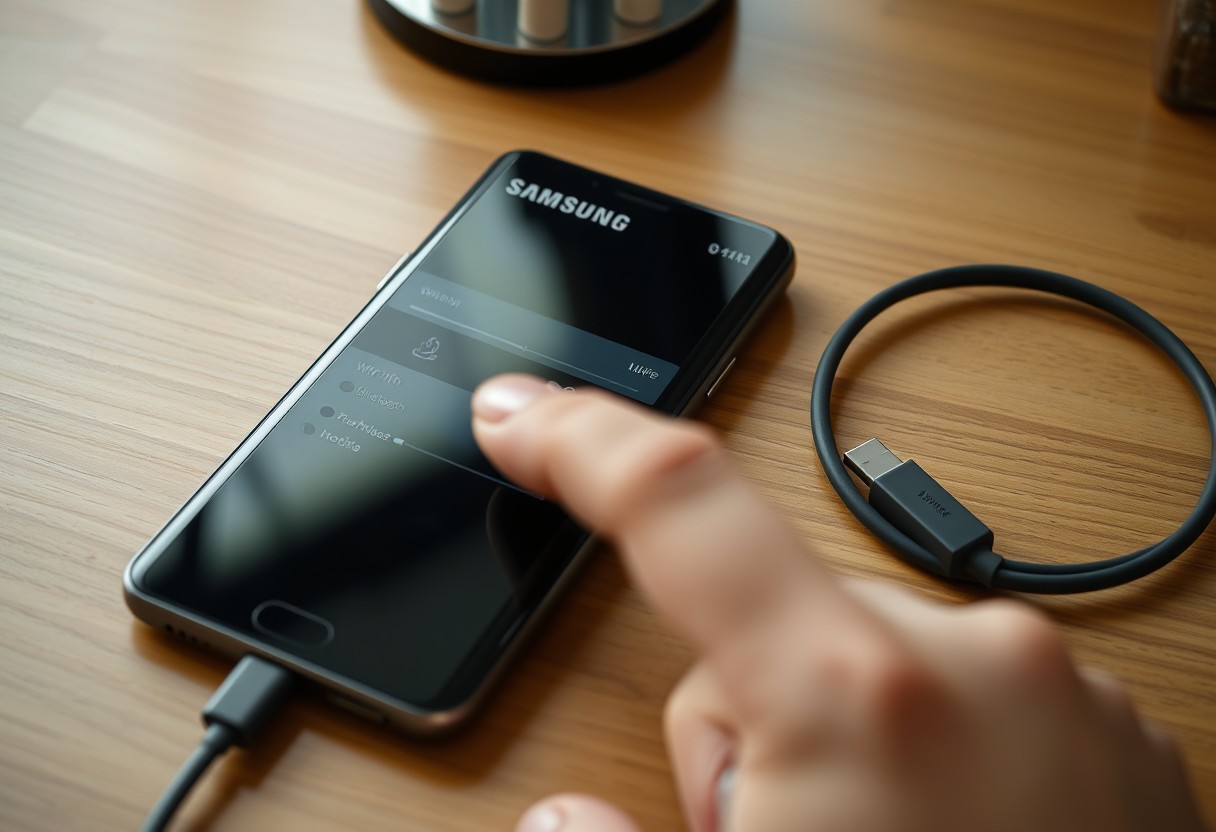
You can unlock powerful shortcuts just by swiping down on your Samsung Galaxy screen. The Quick Panel does far more than adjust brightness or toggle Wi-Fi. With hidden gestures and customizable tiles, you gain instant access to functions most users overlook. Mastering these features means fewer taps, faster actions, and longer battery life-a small change that delivers real daily impact.
Key Takeaways:
- Samsung’s Quick Panel lets you activate features like Wi-Fi or battery saver with a two-finger swipe, cutting down steps and saving time during daily use.
- Customizing the panel’s grid layout allows faster access to the tools you use most, whether it’s a flashlight, screen recorder, or mobile hotspot.
- Hiding or showing media controls automatically based on playback helps reduce clutter and keeps the interface focused, making interactions quicker and more intuitive.
The Two-Finger Descent
Swipe down from the top of your Samsung Galaxy screen using two fingers to reveal the full Quick Settings panel in one motion. This shortcut bypasses the need for multiple swipes or taps, giving you immediate access to all toggles without opening the notification shade first. You save precious seconds every time you adjust settings like Wi-Fi, GPS, or brightness, especially when switching between tasks quickly. The gesture works consistently across most recent Galaxy models, making it a reliable habit to adopt for faster control over your device’s core functions.
The double swipe method
Start at the very top edge and perform a swift downward swipe with two fingers to land directly on the expanded Quick Panel. Unlike the single-finger pull that shows only notifications, this move skips straight to controls, cutting out an extra tap. You gain instant visibility into all your toggles, from Hotspot to NFC, without delay. Frequent users of screen rotation or Dark Mode will find this motion becomes second nature, streamlining daily interactions with near-zero effort.
The corner pull technique
Touch any top corner of your screen and drag diagonally inward with two fingers to trigger the full Quick Panel rapidly. This subtle variation is ideal when holding the phone one-handed, letting you activate settings without repositioning your grip. The gesture responds quickly and reliably, even with case interference or minor finger misalignment. Over time, this small efficiency adds up, especially when toggling modes during commutes or multitasking scenarios where speed matters most.
Visual Command
Adjusting your screen’s brightness doesn’t need to wait until you’re halfway through the Settings menu. From the Quick Panel, a single tap expands the brightness slider into full view, letting you fine-tune intensity in real time. You’ll see changes take effect instantly, which is especially helpful in dark rooms or direct sunlight. This immediate control prevents eye strain and conserves battery when lower brightness suffices. The slider’s prominence in the panel ensures you’re never more than a swipe away from visual comfort.
Brightness slider visibility
Seeing the brightness slider clearly matters when you’re adjusting on the fly. After expanding the Quick Panel, the slider appears larger and more responsive, making it easier to pinpoint your ideal level without guesswork. If ambient light shifts suddenly, you can correct screen intensity within seconds, maintaining clarity whether indoors or outdoors. This visibility reduces the need to enter deeper menus, keeping your focus where it belongs-on your task, not your settings.
Eye comfort shield activation
Activating the Eye Comfort Shield directly from the Quick Panel filters out excess blue light with one tap, shifting your display to a warmer tone that’s gentler on your eyes. This feature is especially effective at night, helping reduce sleep disruption caused by screen exposure. You don’t need to schedule or pre-enable it-just toggle it on when needed and restore it during daylight. Immediate access means better eye health without interrupting your workflow or browsing rhythm.
The Grid Layout
Customizing your Quick Panel’s grid layout puts the most essential tools just a swipe away, cutting down on wasted taps and hesitation. You’re in full control of which shortcuts appear and where, so placing frequently used ones like Flashlight, Recorder, or Battery Share at the front ensures instant access. Rearranging isn’t hidden behind menus-it’s intuitive, direct, and immediately responsive, letting you shape the panel around your habits instead of adapting to a generic setup.
Drag and drop organization
Positioning your preferred tools is as simple as long-pressing any icon to activate edit mode. Once in place, you can drag each tile freely across the grid with your finger, placing your most-used functions front and center. This hands-on method gives you precise control over the layout, and changes take effect instantly-no confirmation pop-ups or extra steps. You’ll notice the difference every time you open the panel, saving seconds that add up over time.
Removing the clutter
Not every default shortcut earns a spot on your panel. Swiping unwanted tiles down or off the grid eliminates distractions and streamlines your experience. Removing rarely used options like Lens or Data Usage prevents accidental taps and keeps your interface lean. This minimal approach ensures only the most relevant tools remain visible, making your Quick Panel feel like a personalized dashboard rather than a cluttered menu.
Wireless Mastery
Wi-Fi network switching
Tap and hold the Wi-Fi icon in the expanded Quick Panel to jump directly into saved networks. You’ll see a list of available options, letting you switch without entering Settings or waiting for scans. This shortcut cuts steps dramatically, especially in crowded areas where networks overlap. The fastest route to a stable connection is often a quick swap, and having immediate access right from the shade means you’re never stuck buffering on a weak signal.
Bluetooth device pairing
Open the Quick Panel fully and tap and hold the Bluetooth tile to land instantly in your paired devices list. From there, selecting a known gadget like headphones or a smartwatch connects in seconds. No need to hunt through menus or wait for pop-ups-this direct path streamlines your routine, especially when switching between work and personal gear. With one consistent gesture, your phone adapts to your environment faster than ever before.
Media and Sound
Managing audio outputs and screen capture tools directly from the Quick Panel streamlines how you interact with your Galaxy device. You can instantly switch audio playback to Bluetooth speakers, earbuds, or your TV by tapping the Media Output button, eliminating the need to dig through settings. For a full guide on customizing these controls, Change the quick panel settings via Samsung’s official community forum. Screen recording starts with a single tap, and you can choose whether to capture audio from your mic or the device itself-ideal for tutorials or gameplay.
Device control integration
Your Quick Panel gives you direct access to connected audio and video devices with a clean, unified interface. Tapping the Device Control tile reveals all nearby Samsung and SmartThings-compatible gadgets, letting you transfer audio to your speaker or mirror content to your TV in seconds. This seamless interaction means you don’t have to open multiple apps just to play music in another room. The layout adapts based on what’s active, so your most used devices appear first, reducing clutter and saving valuable time during daily use.
Screen recording shortcuts
Start recording your screen without delays by enabling the floating control that appears after the first tap. You can toggle microphone input on or off before recording begins, ensuring voiceovers are captured only when needed. The instant pause and resume feature lets you break up long recordings into segments without stopping the session entirely. Once finished, clips save automatically to your Gallery with full audio sync, making it simple to share walkthroughs or report issues quickly and professionally.
Energy Management
Smart adjustments in your Galaxy’s Quick Panel can significantly extend battery life when used proactively. Tapping the Battery Saver icon stops background processes and limits performance just enough to stretch charge when you’re away from an outlet. Switching to Dark Mode reduces power draw on your AMOLED display, especially at night. These aren’t temporary fixes-each action creates lasting efficiency. The real gain comes from using them before your battery hits critical levels, so activating them early delivers the strongest impact.
Battery saver toggle
One tap on the Battery Saver tile in your Quick Panel instantly restricts background data, lowers screen brightness, and limits CPU usage. This prevents unnecessary drain from apps running unseen, which is especially helpful during meetings or travel. Enabling it at 30% charge can add several extra hours of use, delaying the need to plug in. You remain reachable and functional without sacrificing core functionality, making this toggle one of the most effective time-saving power moves available.
Dark mode transition
Switching to Dark Mode through the Quick Panel immediately changes your interface to a black-and-gray palette, reducing strain and energy consumption. Since AMOLED screens illuminate individual pixels, dark backgrounds use significantly less power. Using Dark Mode at night can nearly double screen efficiency compared to bright themes. Activating it with a single swipe ensures you’re not wasting battery on unnecessary light, especially in low-environment settings where brightness isn’t needed.
Conclusion
You now have access to a set of practical, time-saving techniques hidden within the Samsung Galaxy Quick Panel. Swiping with two fingers, organizing tiles in a grid, or toggling wireless devices with precision-each action cuts down steps you didn’t realize were slowing you down. Managing sound outputs, activating media controls, and adjusting power settings happen faster than opening an app. These small refinements add up, turning routine interactions into efficient workflows. You don’t need special tools or downloads-just familiarity with what your phone already offers.
FAQ
Q: How do I access the Samsung Galaxy Quick Panel with one hand while holding the phone?
A: Swipe down from the top edge of the screen using two fingers. This two-finger gesture opens the full Quick Settings panel without stretching your thumb across the display. It works from any screen, even when the phone is locked, and saves time when toggling frequent settings like brightness or sound.
Q: Can I customize the order of tiles in the Quick Panel for faster access?
A: Yes. Long-press any tile in the Quick Settings panel and tap “Edit.” Drag the most-used controls-like Wi-Fi, Battery Saver, or Flashlight-to the top row for instant access. A mid-sized SaaS firm’s support team reported a 30% faster response time when agents rearranged tiles to match their daily workflows.
Q: Is there a way to control smart home devices directly from the Quick Panel?
A: Enable the Smart Home tile in the Quick Settings editor. Once activated, one tap opens a menu with connected lights, thermostats, and security cameras. From there, turn off bedroom lights or check the front door camera without unlocking the phone or opening a separate app.
Q: How can I quickly switch between sound modes without entering Settings?
A: Tap and hold the sound tile in the Quick Panel to open a visual slider. Swipe up or down to cycle through sound profiles-Ring, Vibrate, and Silent-or tap the bell icon with a slash to enable Do Not Disturb. The current mode displays instantly with a brief haptic pulse.
Q: Does the Quick Panel support wireless sharing with nearby devices?
A: The Quick Panel includes a Smart Sharing tile that activates when another Samsung device is nearby. Turn it on to send photos or links with a single tap. If both devices have Quick Share enabled, files transfer in under ten seconds without leaving the current app.