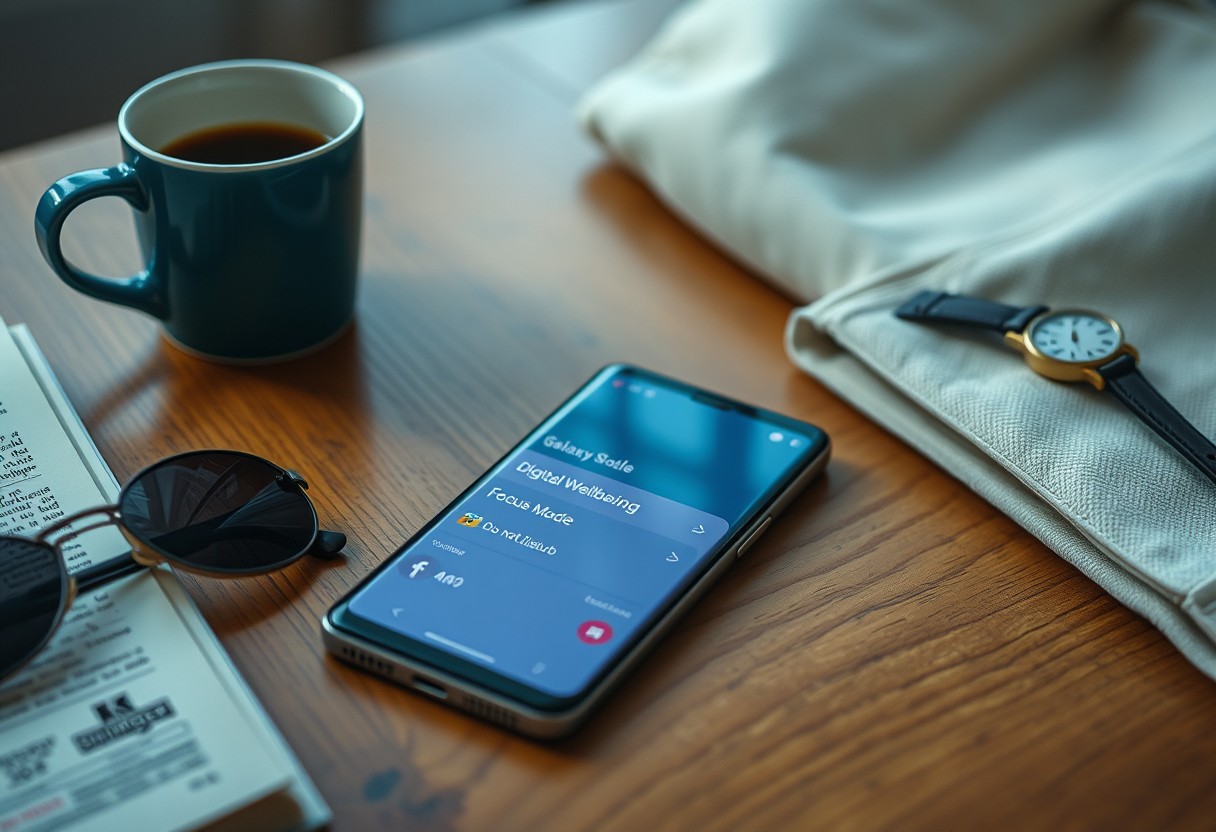
You can reduce screen dependency in just a few intentional steps. Your phone’s built-in tools are powerful, but misuse leads to distraction and sleep disruption. By adjusting settings ahead of time, you prevent compulsive scrolling and reclaim focus. This guide shows you exactly which features to enable-and when-to make your weekend more present and less dominated by notifications and bright screens.
Key Takeaways:
- A dedicated plan for reduced screen time starts with adjusting your phone’s default behaviors, such as enabling grayscale mode and setting app timers to create natural usage boundaries.
- Notifications play a major role in pulling attention; selectively silencing non-essential alerts and scheduling focus periods helps maintain intentional usage over the weekend.
- Small environmental changes-like charging your phone outside the bedroom and using a physical alarm clock-support longer stretches of disengagement without relying solely on willpower.
Leveraging Samsung Digital Wellbeing Tools
Samsung’s built-in Digital Wellbeing suite gives you clear insight into how you’re spending time on your Galaxy phone. The dashboard displays daily usage totals, app habits, and unlock frequency, helping you recognize patterns that may be contributing to excessive screen time. Seeing your actual data makes it harder to overlook habits that drain attention or disrupt real-world engagement. With accurate feedback, you can make informed choices about where to reduce friction with your weekend goals. This transparency is the first step toward meaningful change.
Navigating the Digital Wellbeing menu
Open your phone’s Settings and tap on Digital Wellbeing and parental controls to access the full suite of tools. From this central hub, you’ll see a visual timeline of your app usage, notification count, and device unlocks. The interface is straightforward, with color-coded charts that make it easy to interpret your behavior at a glance. Spend a few minutes exploring each tab to understand what data is being tracked and how it reflects your current phone habits. Familiarity with this menu is essential before making adjustments.
Analyzing your current screen time data
Your screen time summary reveals exactly how many hours you spend on the phone each day, broken down by app and category. Pay close attention to the total screen-on time and number of pickups, as high values in either can signal compulsive use. Review the timeline graph to spot recurring peaks-like extended evening scrolling or frequent morning checks. These patterns often expose unconscious behaviors that erode focus and rest. Understanding your baseline helps you set realistic limits for a more intentional weekend.
Identifying high-distraction applications
Scroll through your app usage list to pinpoint which ones consume the most time, especially those with high session frequency and long durations. Social media, video platforms, and messaging apps often dominate, pulling you in with endless content loops. Notice if certain apps consistently appear during times you’d prefer to be offline, like meals or early evenings. Labeling these as distraction triggers allows you to plan targeted interventions. Awareness alone can reduce their hold, even before applying timers or restrictions.
Streamlining Notification Delivery
Every ping and buzz trains your brain to react instantly, even when unnecessary. By reducing auditory and haptic interruptions, you regain control over your attention span and minimize the reflexive urge to grab your phone. Silence non-critical alerts so only truly urgent notifications break through, allowing uninterrupted time for rest or connection. This small shift creates space to engage more deeply with your surroundings instead of defaulting to screen interaction during downtime.
Customizing Do Not Disturb for weekend hours
Schedule Do Not Disturb to activate automatically during your weekend routines, like Saturday mornings or Sunday evenings. Set specific start and end times so your phone remains silent during preferred offline windows. Allow exceptions only for alarms or system-critical functions, ensuring you won’t be disturbed by app sounds or vibrations. Keeping this mode consistent reinforces a predictable boundary between digital noise and personal time.
Disabling non-essential app alerts
Open your phone’s notification settings and review each app individually, turning off alerts for social media, shopping, or games. These apps often trigger frequent, low-value pings designed to pull you back in. Removing them eliminates unnecessary distractions that fragment your focus. You’ll notice a sharp drop in compulsive checking, especially when your phone stays quiet throughout the day.
Prioritizing emergency contacts and calls
Use Samsung’s contact priority feature to let calls from family or close friends bypass Do Not Disturb, even during active periods. This ensures you remain reachable for urgent matters without opening the floodgates to general notifications. Messages from selected contacts can still alert you through sound or vibration, providing peace of mind without constant disruption. Maintaining this filter supports real availability without digital overload.
Adjusting Display Factors to Reduce Appeal
Transforming your screen into a less enticing space starts with simple visual adjustments that reduce stimulation. By altering how colors appear and limiting visual comfort features, you make scrolling feel less rewarding. These changes aren’t drastic, but they create subtle friction that discourages mindless use. Focus on grayscale, blue light filtering, and display motion to shift your phone from a source of constant engagement to a tool used with intention. Each tweak supports a calmer, more deliberate experience.
- Enable grayscale mode to reduce visual stimulation
- Activate Eye Comfort Shield during evening hours
- Lower brightness and disable motion effects for reduced engagement
Enabling Grayscale mode via Accessibility settings
Your phone’s color palette plays a powerful role in holding attention, and switching to grayscale disrupts that pull. Navigate to Settings > Accessibility > Display > Color correction, then toggle on Color correction and select Grayscale. This drains vibrant visuals from social feeds, games, and videos, making them less emotionally engaging. The effect is immediate: a noticeably duller screen discourages prolonged browsing and supports reduced usage without blocking access entirely.
Scheduling the Eye Comfort Shield for visual rest
Blue light exposure in the evening can interfere with melatonin production and make screens feel more stimulating at night. Samsung’s Eye Comfort Shield reduces blue light emissions based on your schedule, softening the display tone during evening hours. Set it to activate automatically from sunset to sunrise in Display settings, so your screen shifts to a warmer, less intense hue. This subtle change promotes visual relaxation and reduces the urge to keep scrolling late into the night.
Reducing brightness and motion effects to lower engagement
High brightness and animated transitions keep your brain engaged and responsive, encouraging longer screen sessions. Lower your screen brightness manually or enable adaptive brightness to match ambient light. Then, go to Settings > Accessibility > Display and turn on Remove animation and Reduce motion. These adjustments create a more static, less dynamic interface. The result is a phone that feels less exciting to interact with, naturally supporting your goal of reduced screen time.
Implementing App Timers and Focus Modes
Setting daily limits for specific high-usage applications
You can set precise daily time limits for apps that tend to pull your attention, like Instagram, TikTok, or YouTube. Go to Settings > Digital Wellbeing > Dashboard > App Timers to select each app and define a strict cutoff-once you hit the limit, the app will gray out and become inaccessible until the next day. This enforced pause disrupts mindless scrolling and helps you regain control. Start with a realistic but firm limit, then gradually reduce it over time to build healthier usage patterns.
Configuring a dedicated Weekend Focus Mode
A custom Weekend Focus Mode lets you silence nonessential apps and notifications with a single tap. In the Digital Wellbeing panel, create a new Focus Mode labeled “Weekend” and add apps related to work, email, or messaging that you want to temporarily disable. Set it to activate manually so you can turn it on Saturday morning and stay disconnected on your terms. The mode can still allow calls from key contacts, ensuring you don’t miss urgent communication while protecting your downtime.
Utilizing Bedtime Mode to prevent late-night scrolling
Bedtime Mode automatically dims your screen and silences most notifications during designated hours, reducing the temptation to scroll in bed. Schedule it to begin an hour before you plan to sleep, so your phone shifts into a calm, distraction-free state just when impulse usage peaks. Enable grayscale display during this time to make content less visually stimulating. Over time, this consistent cue helps your brain associate the phone’s appearance with winding down, not staying engaged.

Optimizing Environmental Factors and Habits
Creating physical distance between yourself and your Galaxy phone disrupts the automatic impulse to check it constantly. Your environment shapes behavior more than willpower, so redesigning where and how you interact with your device has a powerful impact. Place your phone in another room during meals, work, or relaxation time to reduce mindless scrolling. These small shifts in placement support intentional usage and make it easier to stay present. Over time, this separation weakens the habit loop of constant reaching.
- Keep your phone out of arm’s reach while working or relaxing
- Use a traditional alarm clock instead of your phone
- Store your device in a drawer or bag when not in active use
- Establish a consistent charging station outside the bedroom
- Replace bedtime scrolling with a physical book or journal
Designating phone-free zones within your home
Choose specific areas in your home where your Galaxy phone is never allowed, such as the dining table, bedroom, or reading nook. These phone-free zones train your brain to associate certain spaces with presence and disconnection. When you consistently leave your device at the edge of these areas, you reduce the temptation to pick it up out of habit. Over time, being in these spaces becomes linked with calm and focus, reinforcing your ability to engage fully with people and activities around you.
Tips for using analog alternatives for common tasks
Replace digital routines with tangible tools to lessen dependency on your phone. Use a paper notebook for jotting ideas, a wristwatch to check the time, and a printed calendar to track appointments. These analog alternatives eliminate the need to unlock your device for simple tasks, which often lead to extended screen time. Each substitution breaks the cycle of digital distraction and supports a slower, more intentional pace. The physical act of writing or glancing at a watch reinforces mindfulness without notification risks.
Utilizing the “Flip to Shhh” feature for physical silencing
Enable “Flip to Shhh” in your Galaxy’s settings to instantly silence your phone with a simple flip of the wrist. This physical gesture turns off sound and notifications without needing to unlock or interact with the screen. Place your phone face down on a table during meals or conversations to activate the mode and create immediate quiet. Unlike software-based silencing, this tactile method reinforces behavioral change by linking silence to a deliberate action, reducing the urge to check incoming alerts.
Summing up
You can reduce screen time on your Galaxy phone by adjusting settings that influence how and when you interact with it. Use Digital Wellbeing tools to monitor usage, set app timers, and activate Focus Mode during downtime. Limit notifications to only essential apps, lower screen brightness, and switch to grayscale to make the display less enticing. Pair these changes with real-world habits like charging your phone outside the bedroom and scheduling offline activities. You’ll find disengaging becomes easier when the phone is designed to support intentional use.
FAQ
Q: How can I set up Digital Wellbeing tools on my Galaxy phone before a weekend with less screen time?
A: Open the Settings app and tap on ‘Digital Wellbeing and parental controls’. From there, enable features like Screen Time Monitoring, which tracks daily usage by app. Turn on Wind Down mode to schedule grayscale display at a chosen bedtime. This visual cue reduces the appeal of using your phone late at night. You can also activate Focus Mode to pause selected apps during specific hours, such as when you’re spending time outdoors or with family.
Q: What is the best way to reduce notifications during a low-screen-time weekend?
A: Go to Settings > Notifications > Notification categories. Select individual apps and disable non-essential alerts. For example, mute social media and gaming apps while allowing calls and messages from close contacts. Use Do Not Disturb mode to block all interruptions except priority contacts. Schedule it to activate automatically during meals, walks, or sleep hours so you’re not tempted to check every alert.
Q: Can changing my phone’s display settings help me use it less over the weekend?
A: Yes. Switching to grayscale through the Wind Down feature removes color cues that make content feel rewarding. Set this to turn on at 7 PM or another time that aligns with evening relaxation. Lower the screen brightness manually or enable adaptive brightness to reduce eye strain in dim environments. A less vibrant, dimmer screen feels less engaging, making it easier to put the device down.
Q: How do App Timers work, and how should I use them for a weekend break?
A: In Digital Wellbeing, select ‘App timers’ and choose apps like YouTube, Instagram, or games. Set a daily limit-such as 30 minutes-and confirm. Once the timer expires, the app icon grays out and won’t reopen until the next day. This prevents unconscious scrolling binges. Apply timers Friday evening to cover Saturday and Sunday usage without needing constant self-control.
Q: Is Focus Mode effective for staying off my phone during weekend activities?
A: Many users find Focus Mode helpful during hikes, meals, or time with children. Activate it from Digital Wellbeing and select apps to pause, like email or news platforms. Pair it with an alarm or calendar event so it starts automatically during planned offline periods. While active, those apps remain inaccessible unless you manually exit the mode, adding friction that supports intentional disengagement.