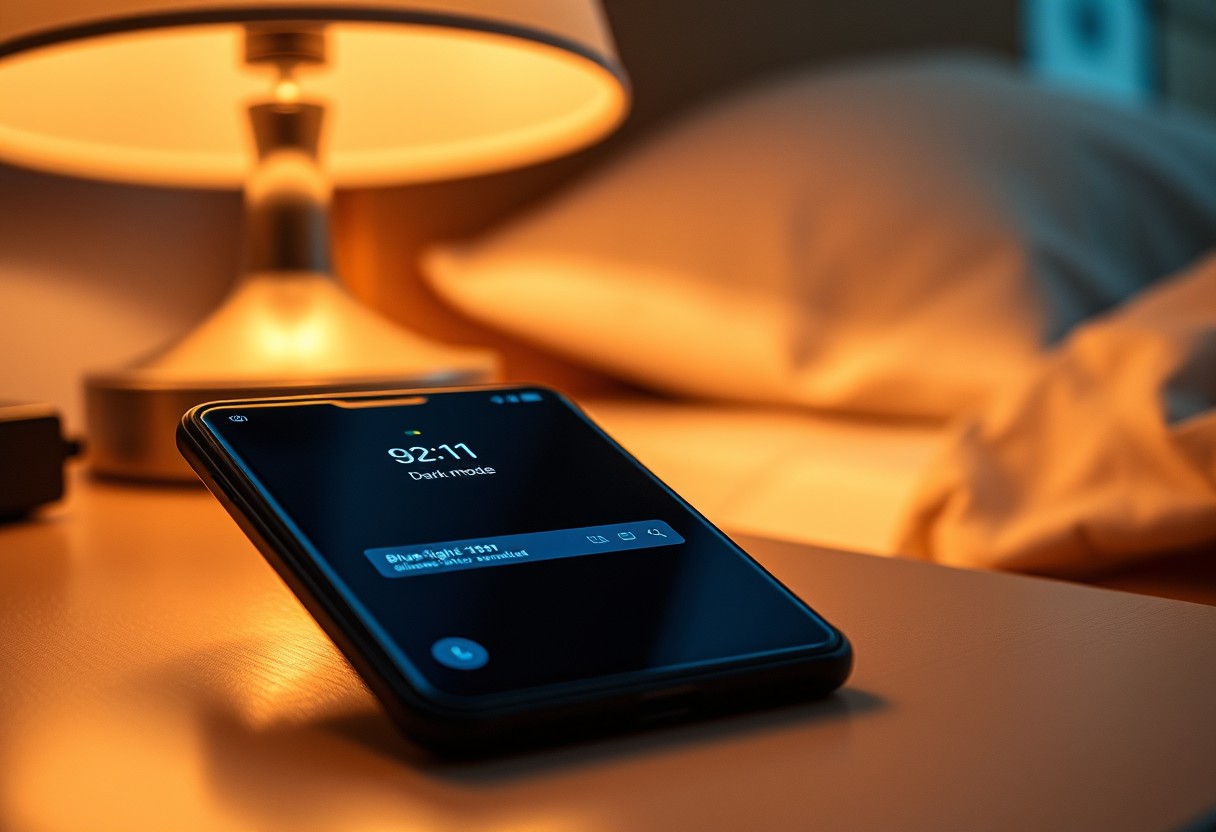
You likely use your Samsung Galaxy in bed, but bright screens can strain your eyes and disrupt sleep. Enabling the right settings reduces blue light and glare, making nighttime use safer for your vision and less disruptive to your circadian rhythm. This guide shows you how to adjust display, sound, and system settings for a smoother, more comfortable nighttime experience.
Key Takeaways:
- Enable Eye Comfort Shield to reduce blue light emission, especially during evening hours, helping minimize eye strain and support natural sleep rhythms.
- Use System-Wide Dark Mode in conjunction with Extra Dim and auto-brightness settings to lower screen intensity and create a softer viewing experience in low-light environments.
- Set up Sleep Mode and customized routines to automatically adjust notifications, sounds, and screen behavior at night, reducing distractions and promoting better rest.
Activating Eye Comfort Shield
Eye Comfort Shield is designed to reduce your exposure to blue light during evening hours, helping to support natural melatonin production and reduce strain on your eyes. Samsung’s implementation filters a significant portion of blue light without overly distorting screen colors, making it suitable for extended nighttime use. Enabling this feature can noticeably decrease eye fatigue and may improve your ability to fall asleep after using the device. The shield operates quietly in the background once configured, adjusting automatically based on your schedule or ambient lighting, depending on your preferences.
How to enable Manual and Adaptive modes
Manual mode lets you activate Eye Comfort Shield at any time with a single tap, giving you full control over when blue light filtering begins. Adaptive mode goes a step further by using your phone’s ambient light sensor and location data to automatically adjust blue light filtering based on your surroundings and the time of day. This means your screen adapts naturally as evening approaches, without requiring any input. You can toggle between these modes in Display settings, ensuring flexibility whether you prefer automation or direct control.
Adjusting color temperature for maximum comfort
After enabling Eye Comfort Shield, you can fine-tune the color temperature to match your visual preference. A warmer screen reduces blue emission further but may shift whites toward amber; finding your ideal balance is key. Too much warmth can distort content, while too little may limit eye protection. Samsung allows gradual adjustment through a slider, so you can set it slightly warm for subtle filtering or go deeper for nighttime reading. This customization ensures clarity without compromising comfort.
| Setting Option | Description and Benefit |
|---|---|
| Eye Comfort Shield (On/Off) | Activates blue light filtering to support natural sleep cycles; reduces eye strain during night use |
| Manual Mode | Allows instant activation; ideal if you want predictable, consistent filtering without automatic changes |
| Adaptive Mode | Uses sensors and sunset data to adjust filtering automatically; best for hands-off, daily protection |
| Color Temperature Slider | Customize warmth level-warmer reduces more blue light but may affect color accuracy; adjust for comfort |
Utilizing Extra Dim and Auto-Brightness
Reducing screen brightness below the standard minimum is essential for nighttime comfort, especially if you’re sensitive to light. Your Galaxy offers an Extra Dim mode that lowers luminescence significantly, making it easier on your eyes in total darkness. This setting works in tandem with auto-brightness to adapt to ambient light conditions, but manual fine-tuning ensures it performs optimally when lights are off. Keeping the screen this dim reduces blue light exposure and minimizes visual strain during late-night use.
Enabling the Extra Dim shortcut for immediate access
- Open Settings and navigate to Display
- Tap on Adaptive brightness and toggle on Extra Dim
- Add the Extra Dim toggle to Quick Settings for instant access
Having instant control means you won’t struggle with a bright screen in the dark. Once enabled, the Extra Dim shortcut appears in your notification panel, letting you activate ultra-low brightness with a single tap. This immediate adjustment is especially helpful right before bed, when sudden light can disrupt melatonin production. Activating it consistently supports better eye comfort and sleep hygiene.
Calibrating brightness factors for low-light environments
Brightness calibration in dim settings directly affects how comfortable your device feels at night. Start by disabling auto-brightness temporarily and manually lowering the slider until the screen is just readable in your current lighting. Extra Dim should activate automatically below a certain threshold, but testing ensures it kicks in at the right moment. Re-enable auto-brightness afterward so the sensor adjusts smoothly. Fine-tuned calibration prevents jarring transitions and keeps your eyes from overstraining during extended use in darkness.
Implementing System-Wide Dark Mode
Switching to the Dark theme manually or via sunset schedule
You can reduce eye strain significantly by switching your Galaxy’s interface to Dark theme, replacing bright whites with softer dark grays and blacks. Go to Settings > Display > Dark theme and toggle it on instantly for immediate relief in low-light conditions. For convenience, enable the sunset to sunrise scheduling option, which automatically activates Dark mode based on your local twilight hours. This consistent shift minimizes disruptive glare without requiring daily manual input.
Forcing Dark Mode in developer options for third-party apps
Samsung allows you to extend darkness beyond built-in apps by enabling forced darkening for unsupported third-party applications. Navigate to Developer Options > Force Dark mode and turn it on to apply a dark overlay across compatible apps that lack native support. While most apps adapt well, some may display visual glitches or uneven contrast, so review each app individually after activation. This override ensures a more uniform nighttime experience even when developers haven’t optimized their software.
Configuring Sleep Mode and Routines
Let your phone adapt to your nightly rhythm by automating display behavior and alert management. Samsung’s Sleep Mode gently dims the screen, filters blue light, and silences non-essential notifications during set hours. When enabled, it helps reduce mental stimulation, supporting better sleep hygiene. You can schedule it to activate automatically, ensuring consistency without daily input. The system integrates with your calendar and habits, so your device supports rest without disrupting urgent alerts.
Setting up the Sleep Mode profile
Start by opening the Health & Wellness section in Settings to configure Sleep Mode based on your bedtime schedule. You can define specific start and end times or link activation to your routine, such as when you open a meditation app. Once enabled, the display shifts to a warmer tone and reduces brightness, while Do Not Disturb silences calls and notifications unless marked as priority. This automation ensures minimal disruption without requiring nightly adjustments.
Tips for creating custom “Before Bed” Modes and Routines
Build a personalized wind-down experience by creating a Before Bed routine in the SmartThings app. Trigger actions like lowering screen brightness, enabling Do Not Disturb, and switching to Dark Mode at a set time or after a specific action. You can also dim smart home lights or play calming sounds to signal bedtime. These tailored sequences reduce mental alertness and prepare your environment for rest, making consistency easier to maintain.
- Use Sleep Mode to automatically dim the display and filter blue light
- Link Do Not Disturb to silence non-urgent alerts during bedtime hours
- Set custom routines to activate based on time, location, or app usage
- Include Dark Mode and reduced screen brightness for visual comfort
- Allow exceptions for important contacts or alarms to stay informed
Adjusting Navigation and Screen Layout
Reaching across your Galaxy’s screen while lying down can lead to wrist strain and discomfort. To reduce physical stress, Samsung offers a one-handed mode that shifts the interface to the lower half of the display. Activating this feature makes tapping and scrolling significantly easier, especially when you’re reclining in bed. Simply enable it through Settings or use a quick edge-swipe gesture for instant access, ensuring the entire screen remains comfortably within thumb range without stretching or repositioning.
Enabling One-Handed Mode for easier reach
One way to minimize hand fatigue during nighttime use is by turning on One-Handed Mode. This function shrinks the screen content so you can interact with the top of the display using just your thumb. You’ll find it under Settings > Advanced Features > One-Handed Mode, where you can choose to activate it via a double tap on the Home button or a swipe from the bottom edge. Once enabled, navigating apps and closing notifications becomes far more comfortable in low-light reclining positions.
Adjusting icon size and font for night-time readability
Large icons and text reduce eye strain and make it easier to tap the right app in dim lighting. In Display settings, you can independently adjust both font size and icon scale to create a cleaner, more legible layout. Increasing these elements helps you interact accurately without leaning forward or squinting. Choose a balanced size that keeps essential controls visible and spaced well apart, enhancing comfort during extended use while lying down.
Managing Notifications and Sound Profiles
Interruptions from apps and calls during nighttime can disrupt your ability to relax or fall asleep. To reduce digital distractions, configure your Samsung Galaxy to limit what alerts reach you after hours. Use built-in tools to silence non-essential notifications while allowing priority messages, like those from family or emergency contacts. This balance ensures you stay informed without constant pings pulling your attention. Keeping your environment calm and interruption-free supports better mental unwinding before bed, making your phone a tool for rest rather than stimulation.
Setting up Do Not Disturb schedules
Your phone can automatically enter quiet mode when you’re most likely to be resting. Open the Settings menu and navigate to Sound > Do Not Disturb to create a custom schedule aligned with your bedtime. During these hours, calls, alerts, and pop-up notifications will be silenced unless they’re marked as exceptions. Allowing only selected contacts or repeated calls to break through ensures urgent matters aren’t missed, while everything else waits until morning. This automation removes the need to manually toggle settings nightly.
Muting touch sounds and haptics for a quiet environment
Even small audio and vibration cues from tapping your screen can disturb a peaceful atmosphere. Go to Sounds and Vibration in Settings and disable touch feedback sounds like taps, scrolls, and keyboard clicks. Turn off system haptics so no buzz accompanies each interaction. Disabling these subtle cues reduces sensory input that can keep your brain alert, especially in a dark, quiet room. With all nonessential sound and vibration silenced, your device becomes less intrusive and more conducive to nighttime calm.
Summing up
You now have the tools to make your Samsung Galaxy easier on the eyes and more intuitive to use after dark. Adjusting display settings like Eye Comfort Shield, Extra Dim, and auto-brightness reduces glare and eye strain. Enabling system-wide Dark Mode improves visual comfort across apps. Setting up Sleep Mode, custom routines, and quiet notifications helps maintain restful evenings. Small changes to navigation and screen layout further enhance usability in low light. You control how your device fits into your nighttime habits-use these features to create a calmer, clearer experience every night.
FAQ
Q: How do I turn on Eye Comfort Shield to reduce eye strain at night?
A: Go to Settings > Display > Eye Comfort Shield to enable the feature. You can schedule it to activate automatically during evening hours or toggle it on manually. The shield reduces blue light emission without distorting screen colors too much, helping minimize eye fatigue in low-light environments.
Q: What is Extra Dim, and how does it help with nighttime visibility?
A: Extra Dim is a display option that allows your screen to go darker than the standard minimum brightness. It can be found in Settings > Display > Brightness level, below the main brightness slider. This setting is useful when ambient light is very low, such as in a dark bedroom, and the regular dim level still feels too bright.
Q: Can I make all apps dark even if they don’t support dark mode?
A: Yes, Samsung offers a system-wide dark mode that inverts colors in apps that don’t natively support dark themes. Go to Settings > Display > Dark mode, then tap “More dark mode options” and enable “Invert colors.” This applies a dark overlay across most apps, though some layouts may appear less accurate due to color inversion.
Q: How can I stop notifications from lighting up the screen at night?
A: Open Settings > Notifications > Advanced settings > Pop-up notification, and select “Don’t allow pop-ups” or “Only important notifications.” You can also disable screen wake-ups by turning off “Wake up screen when notification arrives” in the same menu. This prevents sudden screen flashes from disturbing your night routine.
Q: Is there a way to automate night settings like dark mode and reduced brightness?
A: Yes, use the Routines feature in Settings > Battery and device care > Device maintenance > Routines. Set a custom routine to trigger at bedtime, adjusting screen brightness, enabling dark mode, turning on Do Not Disturb, and activating Eye Comfort Shield all at once. The routine can repeat daily and adjust based on your schedule.