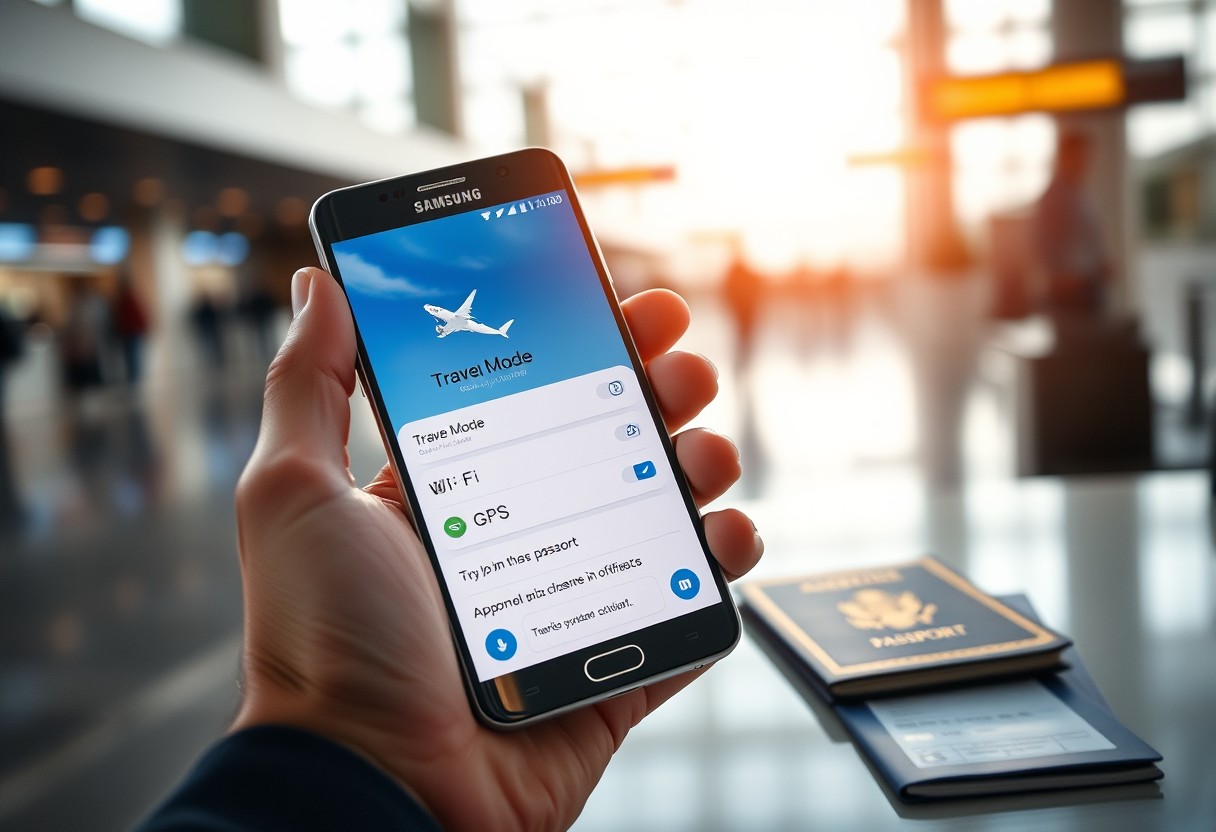
When traveling, your Samsung Galaxy can adapt to your needs with a custom “Travel Mode.” You can set up a temporary profile that limits distractions, reduces data usage, and boosts security with just a few taps. This guide shows you how to configure it quickly and safely, ensuring your device supports your trip without exposing you to unnecessary risks or draining the battery.
Key Takeaways:
- A dedicated “Travel Mode” on your Samsung Galaxy can be created using the Modes and Routines feature, allowing you to automate settings like Wi-Fi, sound, and app access based on time, location, or charging status.
- Customizing travel routines helps reduce distractions by silencing non-essential notifications and enabling only key apps such as maps, translation tools, or boarding pass wallets when arriving at airports or hotels.
- Enabling data-saving options and turning off background sync during travel mode extends battery life and minimizes unwanted roaming charges while maintaining access to critical services.
How-to Configure Modes and Routines for Travel
Automating your Samsung Galaxy’s behavior while traveling simplifies daily use and reduces distractions. You can create customized routines that adjust settings like volume, screen brightness, and app access based on specific triggers. By using the Modes and Routines feature in the SmartThings or Samsung Experience app, you gain direct control over how your phone responds to your habits. This level of automation ensures your device adapts seamlessly without manual input each time your environment changes.
Creating a Custom Travel Routine
Start by opening the Modes and Routines menu and selecting “Add Routine” to build a personalized travel profile. Name it something clear like “Travel Mode” so you can identify it instantly. Choose actions such as enabling Do Not Disturb, turning off Bluetooth, or setting your media volume to zero. These automated adjustments mean your phone will immediately adopt the right settings the moment you begin your trip, reducing interruptions and helping you stay focused from departure to arrival.
Setting Trigger Conditions for Location
Tap “Add Condition” and select “Location” to have your routine activate when you arrive at or leave a specific place. Enter an airport, hotel, or city center as a trigger point with a 500-meter radius for reliable detection. When your Galaxy detects you’ve reached the designated zone, it will automatically switch into travel mode without any action on your part. This hands-free activation ensures consistent performance, especially during hectic transit moments when manually adjusting settings isn’t practical.

Essential Connectivity and Data Factors
To prevent unexpected charges while traveling, take direct control of your Samsung Galaxy’s connectivity settings. Roaming can trigger high data fees, especially abroad, so manually adjusting network preferences ensures you stay within budget. Relying on default settings may lead to automatic connections that drain your data plan before you realize it. Adjust Wi-Fi and roaming behavior based on your destination’s network availability and your usage needs. Fine-tuning these options gives you immediate control over how and when your phone uses data.
- Set data roaming to off unless manually enabled
- Use Wi-Fi preferences to avoid weak or metered networks
- Enable data saver mode to limit background usage
- Select preferred network types (3G/4G) to reduce battery and data drain
Managing International Roaming Limits
Your phone may connect to foreign networks automatically, but that convenience comes with risk. Without restrictions, your device could activate international roaming the moment you land, leading to steep charges. Go to Connections > Mobile Networks > Roaming and toggle the setting off unless you need it. You can also set a data limit warning to alert you before reaching a specific threshold. This proactive step prevents bill shock and keeps your usage predictable throughout your trip.
Configuring Wi-Fi Auto-Connect
Wi-Fi auto-connect can save time, but in travel scenarios, it may link your phone to unsecured or slow networks without your knowledge. Open Wi-Fi settings and disable the “Auto-connect to Wi-Fi” option to maintain control. Instead, choose networks manually, ensuring you only join reliable and password-protected connections. You can still enable “Connect to public networks” if needed, but leaving auto-join on increases the chance of unwanted data exposure and poor performance.
Security Tips for Using Public Networks
When connecting to public Wi-Fi, your personal data is exposed to potential breaches from cybercriminals exploiting unsecured connections. To stay protected, always use a trusted VPN service that encrypts your internet traffic and masks your IP address. Consider enabling automatic Wi-Fi disconnection from unknown networks and avoid accessing sensitive accounts like banking or email on open hotspots. Samsung’s built-in security features work best when paired with proactive habits that prioritize privacy without sacrificing convenience.
- Always connect through a verified VPN before accessing public Wi-Fi
- Enable encryption for stored data using Secure Folder
- Turn off auto-join for nearby networks to prevent unintended connections
- Verify network names with staff to avoid fake hotspots
- Keep software updates current to patch known vulnerabilities
Enabling Secure Wi-Fi Protections
Your Galaxy can detect risky networks and warn you before transmitting data. Turn on Secure Wi-Fi alerts in the settings to receive real-time notifications when a network lacks encryption. This feature actively scans for man-in-the-middle attacks and disables background data on compromised connections. You should also enable private DNS to prevent snooping on your browsing activity, ensuring even basic searches remain confidential while traveling through high-risk zones like airports or cafes.
Utilizing the Samsung Secure Folder
Secure Folder creates an encrypted space isolated from your main device storage, ideal for storing sensitive documents, travel IDs, or financial apps when abroad. Accessible only with your biometric credentials or PIN, it prevents unauthorized access even if your phone is lost or connected to a malicious network. Apps placed inside, such as banking or password managers, run in a protected environment, shielding them from malware commonly distributed over public hotspots.
Battery Optimization Factors for Long Trips
To extend your Samsung Galaxy’s battery life during extended travel, focus on two core areas: display settings and background app behavior. Reducing screen brightness and shortening the screen timeout duration can drastically cut power consumption. Close unused apps and restrict background activity for non-essential services to prevent unnecessary drain. For accommodations like Saket Apartment Borivali, Borivali West, Mumbai – Price on …, where charging access may be limited, these adjustments become even more impactful. Use built-in tools like Adaptive Battery to prioritize power for frequently used apps.
- Lower screen brightness manually or enable Adaptive Brightness
- Set screen timeout to 15-30 seconds
- Enable Adaptive Battery in Battery settings
- Restrict background usage for non-critical apps
- Turn off vibration and haptic feedback when possible
Adjusting Display Settings for Longevity
Lowering your screen brightness is one of the most effective ways to preserve battery life on long trips. Your Galaxy’s display consumes a significant amount of power, especially at maximum brightness. Switch to Adaptive Brightness or manually set it to a comfortable but dimmer level. Reduce the screen timeout to 15 seconds so the display turns off quickly when not in use. Enabling Dark Mode also helps, particularly on AMOLED screens, by turning off pixels in dark areas and reducing overall energy draw during extended viewing sessions.
Limiting Background App Activity
Background apps silently drain battery by refreshing data, sending location updates, or playing audio. Open your device’s App Battery Usage menu to identify which apps consume the most power when idle. Tap on each offender and select “Restrict background data” to limit its activity. Some apps, like social media or weather services, don’t need constant updates. By controlling these processes, you ensure power is reserved for navigation, communication, or emergency use-especially important when traveling through areas with unreliable charging access or extended transit periods.
Notification and Alert Management Tips
Staying focused while traveling means limiting unnecessary interruptions that pull your attention away from your surroundings. Your Galaxy lets you filter which alerts reach you, so only what truly matters gets through. Use built-in tools to silence non-essential apps while allowing key contacts or services to break through. This level of control reduces mental clutter and helps maintain your travel rhythm without missing urgent communications. You remain in command of your attention, not the other way around.
- Enable Do Not Disturb to block calls, messages, and app alerts during specific times
- Allow exceptions for starred contacts or emergency alerts
- Use Priority Notifications to highlight time-sensitive apps like ride-sharing or boarding passes
- Turn off notification badges for social media and games
- Set scheduled focus periods to automate quiet times during transit or sleep
Configuring Do Not Disturb Exceptions
When you activate Do Not Disturb, your phone won’t make a sound for most alerts, but you can still stay reachable in critical situations. You have full control over which calls and messages bypass the silence-such as those from family members or emergency services. Set exceptions for repeated calls, which can indicate urgency, or allow alerts from specific apps like messaging platforms used for travel coordination. This balance ensures you’re not overwhelmed while remaining accessible when it truly matters, giving you peace of mind without constant interruptions.
Setting Priority Notification Badges
Notification badges can create visual noise, but selectively enabling them keeps you informed without distraction. You can assign priority status to apps like your airline, hotel, or navigation tools so their icons display a badge only when something important happens. Disable badges for email, social networks, or games to reduce subconscious checking. This subtle cue helps you spot urgent updates at a glance, making it easier to act quickly when needed while ignoring the rest.
Conclusion
You now have the tools to create a temporary Travel Mode on your Samsung Galaxy that fits your on-the-go needs. By customizing routines in the Modes and Routines settings, you can automate connectivity, notifications, and battery-saving features with precision. Adjusting Wi-Fi, data, and Bluetooth behavior helps maintain performance without draining power. Securing your device on public networks and managing alerts ensures a smoother experience. This hands-on approach puts control directly in your hands, letting you focus on your journey without digital distractions.
FAQ
Q: Can I create a temporary travel mode on my Samsung Galaxy without downloading third-party apps?
A: Yes, you can set up a custom travel mode using Samsung’s built-in Routines feature in the SmartThings app or through Device Care settings. Open the SmartThings app, go to Automations, then create a new routine. Trigger it based on time, location, or manual activation. Assign actions like turning on Airplane Mode, disabling Bluetooth, enabling Do Not Disturb, and setting Wi-Fi to turn off automatically. This gives full control without external apps.
Q: How do I activate travel mode when arriving at an airport automatically?
A: Set a location-based trigger in your Routine by selecting the airport or terminal as the geofenced area. When your phone detects you’ve entered that zone, it executes the predefined settings. For example, upon reaching the airport, your Galaxy can silence notifications, switch to low brightness, and enable Airplane Mode while keeping Wi-Fi active for lounge access if needed. Adjust sensitivity in Location settings to prevent delayed triggers.
Q: Will my alarms still work during travel mode if I enable Do Not Disturb?
A: Yes, alarms bypass Do Not Disturb by default on Samsung devices. Even with all notifications silenced and vibration turned off, scheduled alarms will sound normally. Test this beforehand by creating a one-minute alarm and activating Do Not Disturb manually. This ensures wake-up alerts function during layovers or early flights without interruption.
Q: Can I schedule travel mode to turn off automatically after my trip ends?
A: You can configure the routine to deactivate based on time duration or exit from a location. For instance, set the routine to end two hours after departure time or once you leave the airport premises. Combine multiple conditions such as “Time + Location” to ensure reversion happens only when you’re back in range of home Wi-Fi or within your usual daily routine window.
Q: Does using travel mode help extend battery life during long flights?
A: Activating a tailored travel mode reduces background activity significantly. Turning off mobile data, GPS, Bluetooth, and syncing services cuts power drain. Pair this with Adaptive Battery and a reduced screen timeout-set to 30 seconds or less-and observe noticeable improvements. A Galaxy S23, for example, can gain several extra hours under these conditions, useful during international flights without charging access.