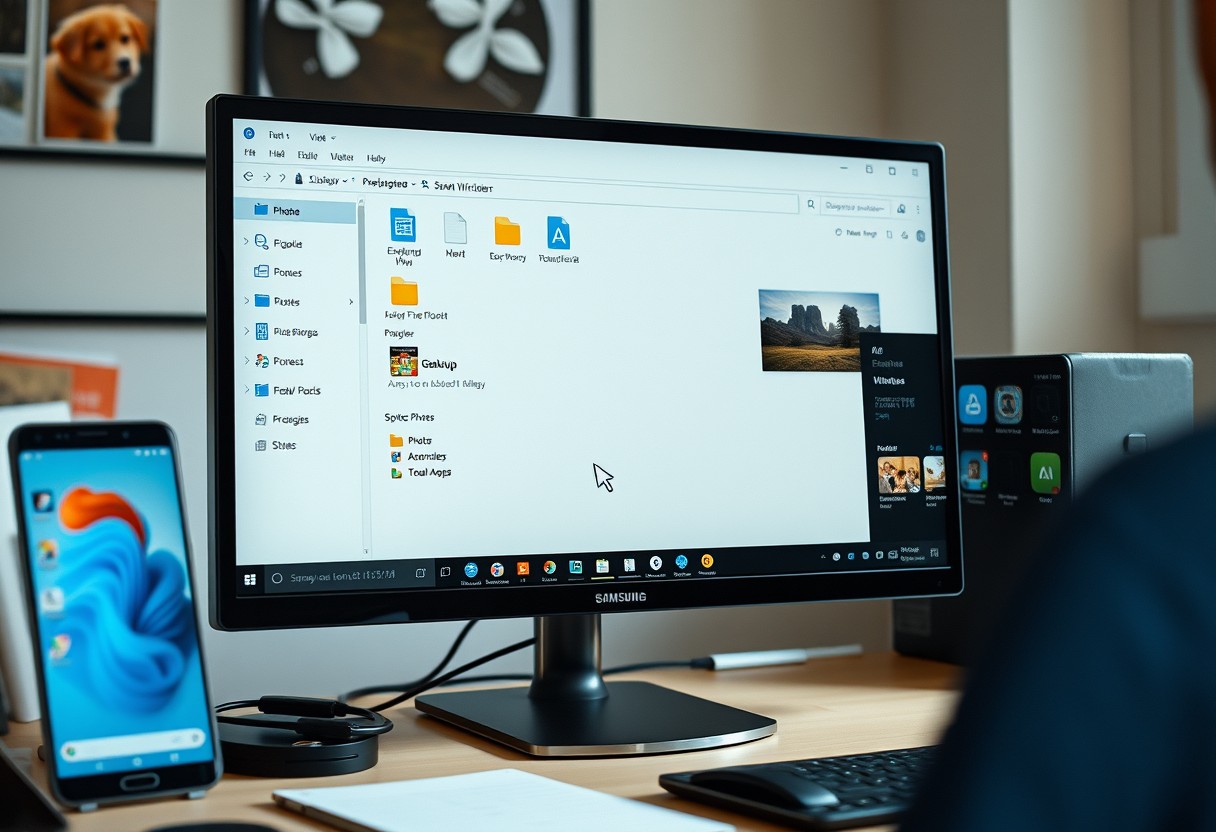
You can stop dragging cables and hunting for photos every time you need to share a file between your Samsung Galaxy and Windows PC. By enabling Link to Windows, you gain direct access to messages, notifications, and media from your desktop. This integration eliminates manual transfers, reducing errors and saving valuable time. You maintain control over what syncs and how it happens, ensuring security isn’t compromised during daily use.

Key Takeaways:
- Pairing your Samsung Galaxy with a Windows PC via the “Link to Windows” feature enables automatic syncing of messages, notifications, and recent photos, reducing the need for manual file transfers.
- With Bluetooth and Wi-Fi connectivity, you can quickly access and respond to texts, calls, and app alerts directly from your PC, streamlining communication without reaching for your phone.
- Mirroring your Galaxy’s screen on your desktop allows for effortless drag-and-drop file sharing and app control, turning your PC into a central hub for mobile tasks.
Setting Up the Link to Windows Integration
Your Samsung Galaxy and Windows PC can work together efficiently once you establish a trusted connection through your Microsoft account. Signing into both devices with the same account enables secure, automatic synchronization of notifications, messages, and screen mirroring capabilities. This pairing forms the backbone of wireless integration, eliminating the need for repeated file transfers. Without this shared account link, core features like message syncing and app streaming won’t function, so ensure your credentials are consistent and two-factor authentication is enabled for safety.
Enabling Link to Windows on your Galaxy device
Open the Settings app on your Galaxy phone and navigate to the “Connected devices” section, then select “Link to Windows.” Tap “Connect” and sign in with the Microsoft account tied to your PC. Your phone will display a QR code or prompt to confirm the connection. Make sure Bluetooth and Wi-Fi are active during this step, as they’re required for initial detection. Once linked, your Galaxy will maintain the connection automatically, allowing uninterrupted access to cross-device features.
Configuring the Phone Link app on Windows
Download and launch the Phone Link app from the Microsoft Store if it isn’t already installed. Choose “Link phone” and select “Android” as your device type. Enter the same Microsoft account used on your Galaxy to begin pairing. The app will search for your phone and display a matching code. Confirm the code matches on both screens to prevent unauthorized connections. After verification, your PC will begin syncing calls, texts, and notifications in real time.
Establishing a secure Bluetooth and Wi-Fi handshake
Your Galaxy and PC rely on a stable Bluetooth connection for instant detection and Wi-Fi for high-speed data transfer between devices. During setup, both must be on the same network and within range. The initial handshake encrypts communication to protect your messages and screen data. If either connection drops, features like notification mirroring or app streaming may pause. Keep both radios enabled and avoid congested wireless channels for consistent performance.
Essential Factors for Seamless Connectivity
A reliable connection between your Samsung Galaxy and Windows PC depends on consistent network performance and proper app permissions. Without a stable environment, features like message syncing or photo access may disconnect unexpectedly. Ensure your devices remain on the same Wi-Fi network and avoid networks with high latency or frequent dropouts. Background permissions for the Link to Windows service must stay enabled so data can flow freely. Disabling these settings risks interrupting real-time updates and file transfers, undermining the entire integration experience.
- Keep both devices connected to the same 2.4 GHz or 5 GHz Wi-Fi band
- Enable background data for Link to Windows in device settings
- Allow necessary permissions: notifications, messages, and phone calls
- Ensure your Galaxy model supports continuous sync with Windows
- Prevent Wi-Fi sleep policies from disrupting connectivity overnight
Verifying Microsoft account and OS compatibility
Your Samsung Galaxy must be linked to the same Microsoft account used on your Windows PC for uninterrupted communication. Mismatched accounts prevent synchronization of messages, notifications, and clipboard sharing. Confirm that your PC runs at least Windows 10, version 2004 or later, as earlier builds lack full support for Link to Windows features. On your Galaxy device, ensure the Link to Windows app is updated and signed in correctly. Incompatible operating systems or unverified logins block core functionality from activating.
Optimizing Wi-Fi signal and frequency settings
Strong and consistent Wi-Fi coverage directly impacts how reliably your Galaxy connects to your PC. Position your router centrally and minimize physical obstructions like walls or metal objects that degrade signal strength. Connect both devices to the 5 GHz band when possible for faster data transfer and lower interference, though ensure coverage remains strong-5 GHz has shorter range than 2.4 GHz. Routers with frequent channel switching or unstable SSIDs disrupt active sessions, so set a fixed channel if available. A weak or fluctuating signal causes timeouts and failed authentication attempts.
Managing battery optimization and background data usage
Battery-saving modes on your Galaxy can restrict Link to Windows from running in the background, cutting off connectivity when the screen turns off. Android’s default power management may suspend the app to conserve energy, leading to missed notifications or failed syncs. Disable battery optimization specifically for the Link to Windows application through your device’s settings. Allow unrestricted background data so the service maintains an active tunnel to your PC. Preventing these restrictions ensures continuous operation without unexpected disconnections during extended use.
How-to Access and Transfer Photos Instantly
With your Samsung Galaxy linked to your Windows PC, you can view your phone’s entire photo library directly from the desktop. No more plugging in cables or uploading images manually-your gallery appears in real time through the Your Phone app. This instant access means every photo you take on your Galaxy shows up moments later on your PC screen, letting you review, organize, or share without touching your phone.
Navigating the integrated photo gallery on your desktop
Your Phone creates a live window into your Galaxy’s photo storage, displaying albums and thumbnails just like they appear on your phone. You scroll through recent shots or dive into folders such as Screenshots or Downloads with a single click. The connection updates continuously, so newly captured images appear within seconds, ensuring you always see the latest content. This direct link removes guesswork and duplication, giving you confidence that what you see is exactly what’s on your device.
Using drag-and-drop for effortless file movement
Once you locate a photo in the integrated gallery, transferring it to your PC takes only a few seconds. Click and hold the image thumbnail, then drag it straight into any folder, email, or document open on your desktop. This simple action copies the file permanently to your computer without altering or deleting it from your phone. You maintain full control over where each photo lands, making organization intuitive and immediate.
Editing mobile images using native Windows software
You can open photos from your Galaxy directly in built-in Windows tools like Photos or Paint without first saving them locally. Double-clicking an image launches it in the default editor, where you crop, rotate, or adjust brightness just as you would with any desktop file. Any edits apply only to the copied version on your PC-your original remains untouched on the phone. This lets you refine images quickly while preserving the source quality.
Handling Notifications and Messages from the Desktop
Stay informed without reaching for your phone by managing real-time alerts directly from your Windows PC. When your Galaxy device is connected, notifications for calls, messages, and apps appear as pop-ups on your desktop, ensuring you never miss a critical update. You can dismiss, act on, or snooze alerts with a click, keeping your focus where it belongs. This immediate access reduces distractions and enhances productivity, especially during deep work sessions when constant phone checks would otherwise break your flow.
Replying to SMS and RCS messages via the PC keyboard
Respond to text messages without touching your phone by typing replies directly from your PC keyboard. Once linked, incoming SMS and RCS messages display on your desktop, and a simple click opens a window where you can craft responses using physical keys. This eliminates the need to switch devices mid-task, streamlining communication during work or multitasking. The feature supports group chats, emojis, and media attachments, so your messaging experience remains full-featured and responsive, all from the comfort of your computer.
Customizing app notification priorities and silencers
Take control of which alerts demand your attention by adjusting notification settings through the Phone Link app. You can choose specific apps whose notifications appear on your PC while muting less important ones, reducing clutter during focused work. Setting priority levels ensures urgent messages stand out, while non-essential updates stay quiet until you’re ready. This selective approach prevents overload and keeps your desktop workspace clean, making it easier to respond only to what truly matters in real time.
Managing incoming calls through PC speakers and microphones
Answer or decline calls from your Galaxy device using your PC’s audio hardware when your phone is nearby and connected. When a call comes in, a pop-up appears on your desktop, and with one click, you can talk using your computer’s microphone and speakers. This hands-free method is especially useful during desk work or video meetings, eliminating the need to hold your phone. The audio quality remains clear, and your phone logs the call automatically, maintaining continuity across devices.
Mirroring Galaxy Apps for Advanced Multitasking
Running Android applications directly on your Windows desktop transforms how you interact with mobile-only tools, turning your PC into a centralized hub for productivity. You can operate apps like banking services, delivery platforms, or two-factor authentication tools without switching devices. Connection stability is essential-when the link drops, app sessions may freeze or close unexpectedly. Keeping both devices on the same Wi-Fi network and ensuring Bluetooth is active minimizes disruptions. A stable connection ensures apps respond quickly and behave as they would on the phone.
- Open the Your Phone app on Windows and pair it with your Galaxy device
- Select “Apps” from the sidebar to view your installed Android applications
- Click on any app icon to launch it in a standalone window
- Resize the window or run it fullscreen like any native program
- Interact using mouse, keyboard, or touchscreen if available
| Feature | Benefit |
| Native input support | Use keyboard shortcuts and right-click menus in Android apps |
| Independent windows | Run multiple mobile apps alongside desktop programs |
| Real-time sync | See updates instantly across devices when connected |
Launching mobile apps in dedicated Windows windows
You can open individual Galaxy apps directly on your PC through the Your Phone app, each running in its own resizable window. This means you’re not limited to mirroring your entire phone screen-you pick which app to use. Messaging, shopping, or productivity apps appear like regular desktop software. The biggest advantage is multitasking: you can have WhatsApp open next to Excel, copying data freely. If an app crashes, simply relaunch it without restarting the entire connection.
Utilizing the universal clipboard for cross-device copy and paste
Your Galaxy and Windows PC share a synchronized clipboard once linked properly. When you copy text on your phone, it’s instantly available to paste on your computer, and vice versa. This works across Android apps and Windows programs without transferring files. Security is maintained through encrypted syncing-your data never passes through third-party servers. Note that only plain text is supported; images and files require separate transfer methods.
Pinning frequently used mobile apps to the Windows taskbar
Access your most-used mobile apps faster by pinning them directly to the Windows taskbar. After launching an Android app via Your Phone, right-click its taskbar icon and choose “Pin to taskbar.” Next time, click the icon to open the app instantly, just like any desktop program. This eliminates the need to navigate through menus or wait for the host app to load first. Pinned apps maintain their state when reopened if the connection remains active.
Expert Tips for Optimizing Your Digital Workflow
Mastering your Galaxy and Windows integration means going beyond basic pairing. Implementing advanced shortcuts like drag-and-drop from phone to desktop or using keyboard hotkeys to trigger phone actions saves valuable seconds that add up. Customize notification mirroring to show only priority apps, reducing clutter. Fine-tune which apps appear in Link to Windows for faster access. These adjustments transform occasional convenience into a consistently efficient experience.
- Use Win + A to open Quick Settings and launch Phone Link instantly
- Enable drag-and-drop file transfer directly from your Galaxy’s notification panel
- Assign custom actions to double-tap or long-press gestures on the link interface
- Pin frequently used Galaxy apps to the Windows taskbar via Link to Windows
Automating file synchronization schedules
Scheduling automatic syncs ensures your most important files stay updated without manual input. Set specific times for photo backups or document transfers when your devices are typically idle, like overnight or during lunch breaks. This prevents interruptions and reduces strain on battery and bandwidth. With consistent automation, you eliminate the risk of forgetting to back up critical data, making your workflow predictable and reliable without daily oversight.
Using the “Open on PC” feature for web browsing continuity
Continue browsing without interruption by sending web pages from your Galaxy directly to your Windows browser. When you find an article or product page, tap Open on PC and it appears instantly in a new tab-no typing or searching required. This feature supports active login sessions and JavaScript-heavy sites, preserving your place exactly as you left it. It’s ideal for shifting from mobile to desktop work seamlessly, especially when larger screens improve readability or editing precision.
Customizing the interface for a distraction-free environment
Reduce visual noise by hiding unnecessary elements in the Link to Windows sidebar. You can minimize app previews, disable message previews from non-priority contacts, and collapse the call log panel when not in use. A cleaner layout means faster access to what matters, improving focus during work sessions. These tweaks create a streamlined, professional interface that supports productivity rather than interrupting it with constant alerts and clutter.
Conclusion
You can keep your Samsung Galaxy and Windows PC working together efficiently without manually shuttling files back and forth. By enabling Link to Windows, using Samsung Flow, and syncing your notifications, messages, and photos, you maintain a continuous workflow. You respond to texts from your laptop, view recent photos without cables, and even run mobile apps on your desktop screen. These integrated features save time and reduce clutter, letting you focus on tasks that matter most. Your devices now operate as a unified system, streamlining everyday digital demands with minimal effort.
FAQ
Q: How do I connect my Samsung Galaxy phone to my Windows PC without using cables?
A: Your Samsung Galaxy phone can connect wirelessly to a Windows PC using the ‘Link to Windows’ feature built into the device. Open the Settings app on your Galaxy phone, tap on ‘Connections’, then select ‘Link to Windows’. Tap ‘Continue’ and follow the prompts to scan a QR code displayed on your PC at aka.ms/LinkToWindows. Once paired, your phone will stay connected over Wi-Fi or Bluetooth, allowing continuous access without plugging in a USB cable.
Q: Can I access my phone’s photos directly from my PC without transferring them first?
A: Yes, you can view and manage your Galaxy phone’s photos directly from your Windows PC using the ‘Your Phone’ app. After pairing your devices, open the Your Phone app on your PC, sign in with your Microsoft account, and select the ‘Photos’ tab. This gives instant access to your most recent images. You can browse full albums, open photos in full screen, and save specific images to your PC with a single click, eliminating the need for manual file transfers.
Q: Is it possible to send and receive text messages from my PC using my Galaxy phone?
A: You can send and receive SMS and RCS messages from your Windows PC through the Your Phone app. Once your Galaxy device is linked, go to the ‘Messages’ tab in the app on your PC. The interface mirrors your phone’s messaging app, letting you type responses using your keyboard, attach photos, and continue group conversations. Replies are sent from your phone number, and all messages sync in real time across devices.
Q: Can I run Android apps from my Galaxy phone on my Windows PC?
A: The Samsung Galaxy Store is available within the ‘Phone Link’ app on Windows, allowing you to install and run select Android apps directly on your PC. After connecting your phone, click the ‘Apps’ tab in Phone Link, sign in with your Samsung account, and install compatible apps. These run in a windowed environment on your desktop, enabling multitasking without switching devices. Performance depends on your PC’s hardware and connection stability.
Q: What should I do if my Galaxy phone disconnects frequently from my PC?
A: Frequent disconnections between your Galaxy phone and PC often stem from Bluetooth interference, Wi-Fi instability, or power-saving settings. Ensure both devices are on the same Wi-Fi network and within close range. Disable battery optimization for the ‘Link to Windows’ service on your phone by going to Settings > Apps > Link to Windows > Battery > Unrestricted. Restart Bluetooth on both devices and re-pair if needed. Keeping both operating systems updated also improves connection reliability.