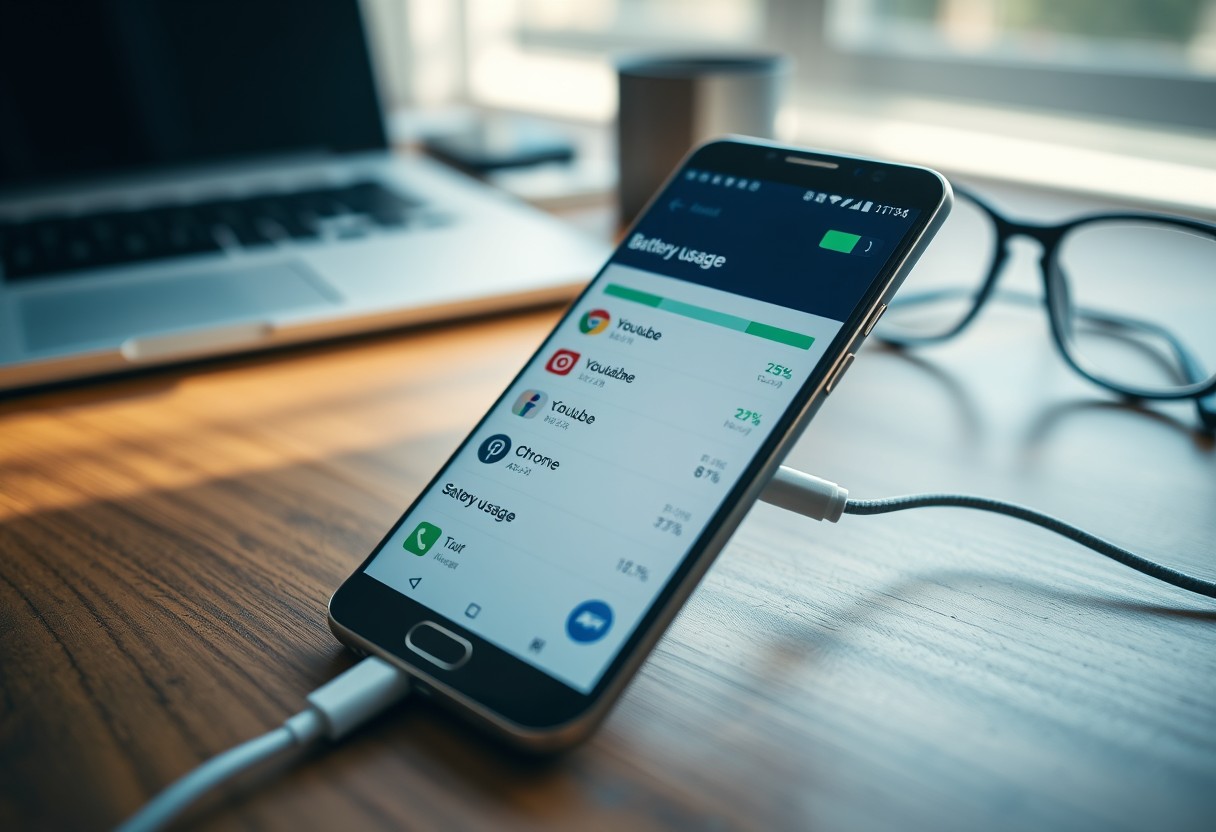
You can see exactly which apps are draining your Galaxy’s battery by checking the built-in usage data. Some apps consume power even when not in use, leading to unexpectedly short battery life. Knowing how to locate this information helps you take control. This process reveals hidden battery hogs and lets you make informed decisions to extend your device’s performance throughout the day.

Key Takeaways:
- Battery usage on your Galaxy phone is displayed directly in the Settings app, with a breakdown of which apps consume the most power over different time periods.
- The battery graph shows real-time and historical data, allowing you to spot patterns like high background activity or spikes in usage tied to specific apps.
- Some apps continue running in the background even when not in active use, and adjusting their permissions or restricting background processes can significantly reduce battery drain.
Navigating to the Battery Usage Menu
Opening Settings and Device Care
You’ll start by opening the Settings app from your Galaxy’s home screen or app drawer-this is where all system-level controls live. Tap on Device Care, a dedicated hub for monitoring your phone’s performance, storage, and power usage. This section gives you immediate access to real-time diagnostics, including battery health and active processes. By entering Device Care, you activate the primary gateway to identifying what’s consuming energy, setting the stage for more detailed analysis.
Locating the Battery Usage Overview
Once inside Device Care, select the Battery option to view an overview of your current charge level and estimated remaining usage time. The screen displays a color-coded chart showing which apps and system functions have drawn the most power since your last full charge. A noticeable spike in one app’s bar could signal unusually high consumption. This visual summary helps you quickly spot potential offenders without needing advanced technical insight.
Interpreting Your Galaxy’s Battery Graph
The battery graph in your Galaxy device visually maps how power depletes throughout the day, letting you pinpoint when drain accelerates. By reviewing this timeline, you can spot sharp drops in charge that signal high-energy periods, even if the screen was off. These patterns often reveal unnoticed usage habits, such as leaving GPS active or prolonged background syncing. A steep decline during work hours or overnight may indicate a malfunctioning app or setting consuming excess power without your knowledge.
Understanding the Since Last Full Charge View
This view displays your battery’s discharge pattern from the moment you unplugged after a full charge, offering a clear window into real-world usage. You’ll see a continuous line showing remaining percentage over time, where flatter segments mean low consumption and steeper slopes reflect heavier use. Any sudden plunge-especially when the screen wasn’t on-suggests background processes are active. Recognizing these moments helps you correlate battery behavior with daily routines and detect abnormal drainage early.
Decoding the Power Consumption Peaks
Peaks in power draw appear as sharp downward spikes on the graph, highlighting when your phone demanded maximum energy. These surges commonly occur during gaming, video streaming, or using augmented reality apps, but they can also stem from system services struggling with connectivity. A single spike draining 10% in minutes is normal under heavy load, but repeated peaks without user activity may point to underlying inefficiencies worth investigating further.
Identifying High-Drain Applications
The ranked list in your Galaxy’s battery settings reveals exactly which apps consume the most power, allowing you to pinpoint problematic software with precision. You’ll see each app’s drain represented as a percentage of total battery use since the last full charge. Some apps may appear unexpectedly high on the list, such as social media platforms or navigation tools running longer than intended. This immediate visibility helps you make informed decisions about usage habits and potential removal or reconfiguration of certain apps.
Sorting Apps by Percentage of Use
Your device organizes apps by the share of battery they’ve consumed, placing the highest users at the top. This percentage reflects actual power draw over time, not just screen-on activity. A single app using 25% or more of your battery in a day is a clear red flag, especially if it doesn’t support essential functions. Sorting this way makes it easy to identify which applications are disproportionately draining your charge, giving you actionable insight into what to address first for better longevity.
Distinguishing Between Active and Background Drain
Beneath each app’s name, your Galaxy displays how much power was used while actively operating versus running in the background. Excessive background consumption often signals poor optimization or permission misuse, like location tracking or constant syncing. An app using more energy when idle than during active use should raise concern. Recognizing this pattern allows you to restrict permissions or disable background activity for those specific apps, directly improving your battery’s real-world performance without sacrificing core functionality.
Factors That Influence Rapid Discharge
Certain hardware settings on your Galaxy device can significantly accelerate battery drain, even when app usage appears minimal. High screen resolution and elevated refresh rates demand more power to render content smoothly, especially on AMOLED displays. Network-intensive functions like 5G connectivity or frequent GPS use also contribute heavily. Adjusting these settings based on your daily needs helps maintain longer battery life. For a clearer view of remaining charge, check out How to show battery percentage | Galaxy S20 5G | support.
- Screen brightness directly affects power consumption
- Refresh rate settings above 60Hz increase energy use
- Higher display resolution requires more battery resources
- Persistent network signaling drains power rapidly
- Active location services contribute to background discharge
Screen Brightness and Refresh Rate Impact
Brightness level is one of the most influential factors in battery longevity. Keeping your screen set to auto-brightness helps balance visibility and efficiency, but manually lowering it in low-light environments can extend usage time. Equally impactful is the refresh rate, particularly on models supporting 120Hz. Running at maximum refresh rate causes the display to redraw more frequently, consuming noticeably more power. Reducing it to 60Hz during regular tasks like reading or messaging results in a measurable improvement in battery performance.
Network Connectivity and Signal Strength
Your Galaxy phone uses more power when struggling to maintain a stable connection. In areas with weak signal strength, the device boosts its radio output to stay connected, which quickly depletes the battery. Staying connected to 5G networks, while faster, often leads to higher drain compared to LTE, especially when coverage fluctuates. Enabling Wi-Fi calling where available reduces strain on cellular radios. Turning off mobile data temporarily in no-service zones prevents constant signal searching and preserves charge.
Managing Background Activity and Permissions
Many apps continue running tasks even when you’re not actively using them, draining your Galaxy’s battery over time. Restricting background data and processing limits how much power idle apps can consume, giving you tighter control over performance and efficiency. You can manually adjust which apps are allowed to refresh in the background, preventing unnecessary network requests and CPU usage that shorten battery life.
Putting Unused Apps to Sleep
Some apps you rarely use may still run background processes that waste energy. By putting these apps to sleep through Device Care or App Power Management, you prevent them from waking up automatically and consuming resources. This action stops syncing, updates, and location checks unless you open the app manually, significantly reducing their impact on battery life while maintaining full functionality when needed.
Adjusting Background Data Restrictions
Controlling which apps can use data in the background directly influences how much power they draw when idle. In your app settings, you can disable background data for specific apps, ensuring they only connect to the internet when actively opened by you. This restriction is especially effective for social media, shopping, or gaming apps that frequently sync content, often without your knowledge, leading to avoidable battery drain over time.
Tips for Optimizing Overall Power Efficiency
Enabling system-wide power saving modes on your Galaxy device dramatically extends battery life by limiting background processes, reducing screen brightness, and optimizing CPU performance. These settings automatically adjust non-essential functions when power is low, ensuring you stay connected longer. You can customize the trigger level for activation, so you maintain control over performance versus efficiency. Activating this mode during heavy usage periods prevents unexpected shutdowns and supports consistent daily usability without frequent charging.
- Turn on Power Saving Mode to restrict background data and vibrations
- Enable Adaptive Battery to prioritize power for your most-used apps
- Set screen timeout to 30 seconds or less to minimize unnecessary drain
- Use Dark Mode system-wide to reduce power on AMOLED displays
- Limit location access to only essential apps for background use
Configuring Power Saving Mode
Power Saving Mode on your Galaxy can be activated manually or set to engage automatically when battery levels drop to 5% or 15%. When enabled, it reduces display resolution, caps processor speed, and disables features like haptic feedback and motion gestures. You retain access to calls, messages, and core apps while non-essential services are paused. This mode delivers an immediate improvement in battery longevity, making it ideal for travel or long workdays without reliable charging access.
Utilizing Adaptive Battery Features
Adaptive Battery learns your daily app usage patterns and allocates power primarily to the apps you rely on most. Over time, it restricts background activity for apps you rarely open, which significantly reduces silent drain. This feature works silently in the background, requiring no daily input once enabled. By focusing resources on what matters to you, it enhances efficiency without compromising your experience, making it one of the most effective built-in tools for sustained battery health.
Conclusion
You now have the tools to identify which apps are consuming the most battery on your Galaxy device. By checking your battery usage menu and reviewing the data over time, you can pinpoint exact culprits behind excessive drain. Taking action on high-usage apps-whether through adjusting settings, limiting background activity, or uninstalling unnecessary ones-puts you in control of your device’s performance. With consistent monitoring and small adjustments, you extend battery life and improve daily usability.
FAQ
Q: How do I access the battery usage information on my Galaxy phone?
A: Open the Settings app, tap on ‘Battery and device care’, then select ‘Battery’. Inside this menu, choose ‘Battery usage’ to view a detailed list of apps and services ranked by their power consumption over the last 24 hours or since the last full charge. The data appears in a percentage format, showing exactly how much battery each app has used.
Q: Why does an app show high battery usage even when I haven’t used it much?
A: Some apps continue running background processes even when not actively opened. For example, social media, email, or location-based apps may refresh content, send notifications, or track your location in the background. These activities draw power over time, which accumulates and shows up as high usage despite limited direct interaction.
Q: Can system services like Android OS or Google Play Services appear as top battery users?
A: Yes, system components such as ‘Android OS’ or ‘Google Play Services’ often appear near the top of the battery list. While they are essential for device operation, unusually high drain might indicate issues like frequent syncing, GPS scanning, or network searching. Checking recent activity under the battery graph can help identify spikes tied to these services.
Q: What does the battery graph in the settings show, and how can I use it?
A: The battery graph displays changes in battery level throughout the day with markers for charging periods, screen-on times, and deep sleep states. Tapping on specific points reveals what the phone was doing at that moment-such as active use, idle, or background activity-helping you correlate drops in battery with certain behaviors or apps.
Q: Is it possible to limit battery usage for a specific app on my Galaxy device?
A: Yes, go to Settings > Battery and device care > Battery > Background usage limits. From there, you can apply restrictions to individual apps using modes like ‘Put unused apps to sleep’ or manually set them to ‘Restricted’ mode. This prevents them from consuming resources in the background, reducing their overall impact on battery life.