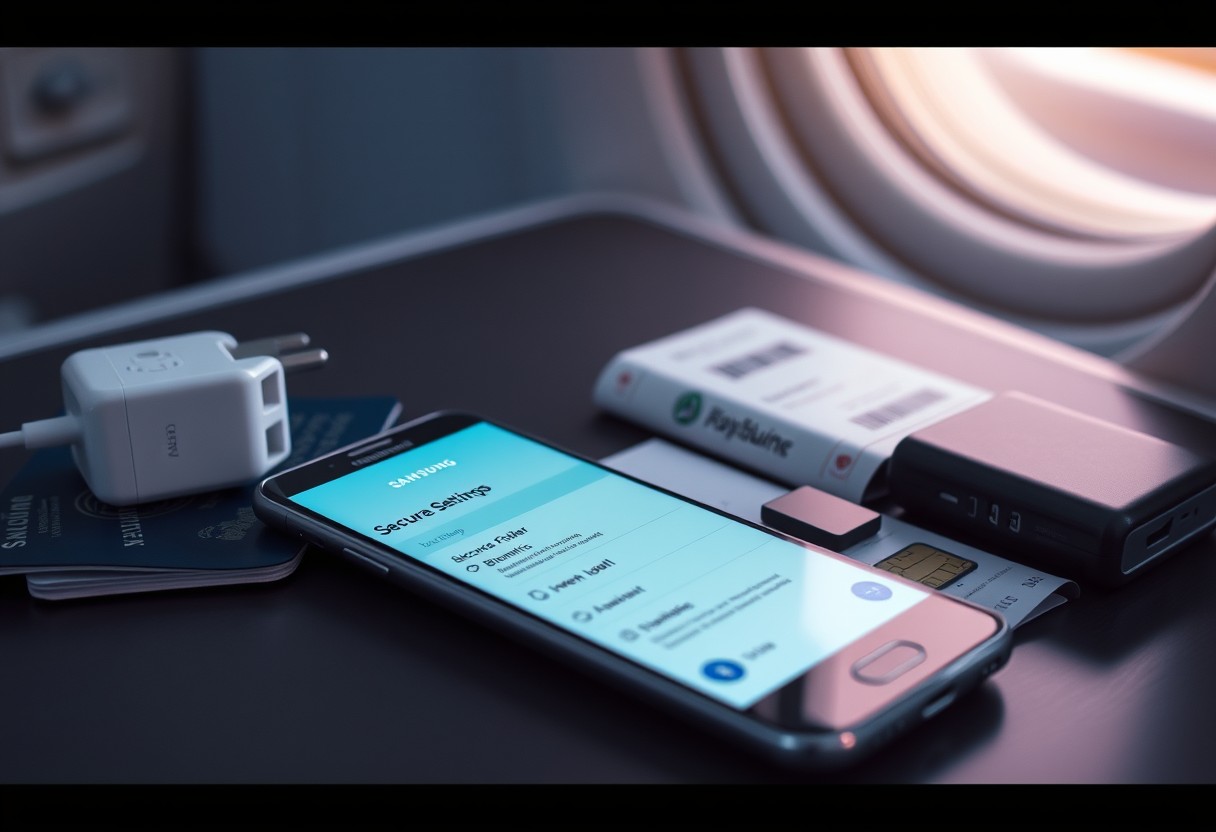
When traveling internationally, your Samsung Galaxy faces heightened risks from data theft, unsecured networks, and device loss. You can significantly reduce exposure by adjusting security settings before departure. Enabling remote tracking and locking ensures control if your phone goes missing. Setting strong authentication and isolating sensitive data protects your personal information in high-risk environments. This guide walks you through essential steps to secure your device effectively.
Key Takeaways:
- Samsung’s Find My Mobile service should be activated before departure, enabling remote tracking, locking, or wiping of your device if lost or stolen abroad-this requires a Samsung account and location services to be enabled.
- The Secure Folder feature lets you isolate sensitive data by creating a separate, encrypted space on your device, which is useful for keeping travel documents or personal files protected from potential local threats.
- Updating your Galaxy’s software and apps before traveling ensures known security vulnerabilities are patched, reducing the risk of exploitation on foreign networks or public Wi-Fi hotspots.
Hardening Lock Screen Security
Your device’s first line of defense starts the moment someone tries to access it physically, and biometric authentication significantly strengthens that barrier. Samsung’s ultrasonic fingerprint scanner and facial recognition systems offer fast yet secure access, but only when configured properly. Ensure you register your biometrics in a well-lit environment and avoid shortcuts like swipe-to-unlock, which reduce protection. Weak or inconsistent biometric setups can allow unauthorized access, especially in high-risk travel zones.
Implementing Strong Biometrics
Face recognition alone isn’t enough on most Galaxy devices, as it can be fooled by photos or similar-looking individuals. Instead, pair your fingerprint with a secondary method like iris scanning for multi-layered biometric security. Register your fingerprint slowly and under different lighting conditions to improve accuracy and resistance to spoofing. Avoid using the same finger you use daily for convenience, as wear patterns could reduce sensor reliability over time.
Setting a Secure PIN or Pattern
A backup passcode remains essential even with biometrics enabled, and simple patterns or four-digit PINs are dangerously easy to guess or observe. Choose a six-digit PIN or longer to drastically increase the number of possible combinations. Avoid obvious sequences like “1234” or “0000,” and disable pattern visibility to prevent smudge attacks. Your passcode must withstand casual probing, especially in crowded or unfamiliar environments.
Activating Samsung Find My Mobile Features
Your Samsung Galaxy can be recovered or secured remotely using Samsung’s built-in Find My Mobile service. First, ensure your Samsung account is signed in and linked to your device. Visit the settings menu, navigate to Biometrics and Security, then enable Find My Mobile. This feature allows you to locate your phone on a map, lock it with a new message, or trigger a siren even if it’s set to silent. Keeping this active gives you critical control if your device is lost or stolen abroad.
Enabling Offline Finding
Even when your Galaxy is disconnected from the internet, Offline Finding can still help recover it. This function uses nearby Bluetooth-enabled Samsung devices to detect your lost phone’s location anonymously. Turn it on through the Find My Mobile settings to ensure continuous tracking. With this active, your device remains traceable in foreign cities or remote areas where Wi-Fi or data may be off. Offline location reporting significantly increases recovery chances when every minute counts.
Setting Up Remote Wipe Capabilities
If recovery seems impossible, remote wipe lets you erase personal data instantly from anywhere. Within Find My Mobile, activate “Remote unlock” and “Send last location” to maximize control before deletion. This ensures your contacts, messages, and login details won’t fall into the wrong hands. Initiate the wipe through the web portal using your Samsung account. Executing this command safeguards sensitive information the moment you suspect your device is compromised.
Isolating Data with Secure Folder
Secure Folder uses Samsung Knox to create a separated, encrypted space on your device where sensitive apps and files are isolated from the main system. This sandbox environment ensures that even if malware compromises your regular Android environment, your data inside Secure Folder remains protected. You can store personal documents, financial apps, and travel credentials here with confidence. For more guidance on digital safety while abroad, check out this resource on How to secure your data, connection, and wallet: Travel tips.
Moving Financial Apps to Encrypted Space
Your banking and payment apps belong in a protected environment when traveling, and Secure Folder offers exactly that. By relocating apps like Samsung Pay, PayPal, or your primary banking app into this encrypted container, you reduce exposure to potential threats on public networks or compromised devices. The app data is shielded by an additional authentication layer, meaning even if someone gains access to your phone, they won’t reach your financial tools without your biometric or password approval.
Protecting Digital Travel Documents
Passport copies, boarding passes, hotel confirmations, and visa documents can all be stored securely within Secure Folder. This ensures they’re hidden from casual access and shielded from apps that might scan or harvest data from your regular storage. Only you can unlock this space, making it ideal for carrying sensitive digital paperwork without risking exposure. Keep everything organized and protected in one place, accessible only through your trusted credentials.
Managing Network Security Factors
When traveling internationally, your Samsung Galaxy may connect to untrusted networks or be at higher risk of physical theft. Protecting your data starts with proactive network-level safeguards. Using a trusted VPN and enabling SIM PIN protection significantly reduces exposure to eavesdropping, impersonation attacks, and unauthorized access. These measures are especially effective in regions with lax data privacy standards or known surveillance practices. Relying solely on public Wi-Fi without protection can lead to credential theft or session hijacking.
- Always activate a reputable VPN service before joining foreign public networks
- Enable SIM PIN locking to prevent unauthorized cellular use if your device is lost
- Avoid connecting to unknown hotspots without first verifying their legitimacy
- Ensure your device does not automatically join open networks without confirmation
- Use only encrypted connections (HTTPS, app-level encryption) when transmitting sensitive data
Using a Trusted VPN for Public Wi-Fi
Public Wi-Fi in airports, hotels, and cafes abroad often lacks basic security, making it easy for attackers to intercept your traffic. You should activate a trusted VPN service before connecting to any foreign network. This encrypts all internet traffic from your Galaxy, ensuring that even on compromised networks, your login details, messages, and browsing activity remain private. Choose a provider with strong no-logs policies and AES-256 encryption to guarantee maximum confidentiality. Never assume a network is safe just because it requires a password.
Configuring SIM Card Locks
Your SIM card can be removed and used in another device to intercept calls or bypass two-factor authentication. You can prevent this by enabling SIM PIN protection in your Galaxy’s settings. Once activated, the device will prompt for the PIN every time the phone restarts or the SIM is reinserted. Use a unique, non-default PIN-never leave it as 1234 or 0000. This simple step thwarts thieves from using your number to access banking apps or reset passwords, preserving control over your digital identity while abroad.
Optimizing System and App Updates
Updating Galaxy System Software
Your Galaxy’s operating system receives regular patches that fix known security flaws. Samsung issues monthly security updates that address critical vulnerabilities exploited by malware and remote attacks. To stay protected, go to Settings, then Software Update, and check for the latest build. If one is available, download and install it immediately over a secure connection. Running an outdated OS increases your risk of data theft, especially on public networks abroad. Keeping your system current ensures maximum protection during international travel.
Auditing App Permissions
Apps with excessive permissions can access your camera, location, contacts, or microphone without justification. Open Settings, select Apps, then Permissions to review which apps can access sensitive data. Revoke access for apps that don’t need it-such as a calculator using your location. Some permissions may have been granted automatically during installation and never questioned. Removing unnecessary access limits potential damage from malicious or compromised apps. This simple audit strengthens your device’s overall security posture before crossing borders.
Summing up
You now have the steps to secure your Samsung Galaxy before crossing borders. Set a strong lock screen, enable Find My Mobile, and isolate sensitive data using Secure Folder. Turn off auto-connect features for Wi-Fi and Bluetooth to avoid rogue networks. Keep your OS and apps updated to patch known vulnerabilities. These actions reduce exposure to theft, surveillance, or data loss in unfamiliar environments. Your device is ready to handle international travel with confidence and control.
FAQ
Q: How do I set a strong lock screen password on my Samsung Galaxy before traveling?
A: Open Settings, tap “Biometrics and security,” then select “Screen lock type.” Choose “Password” instead of PIN or pattern for stronger protection. Enter a unique combination of letters, numbers, and symbols that isn’t linked to personal information like birthdays or common words. Avoid reusing passwords from other accounts. Confirm the entry and ensure “Auto-lock” is set to 30 seconds or less under “Lock screen timeout” to minimize exposure if your phone is unattended.
Q: Can Samsung Find My Mobile help if my phone is lost or stolen overseas?
A: Yes. Find My Mobile must be activated in advance through Settings > Biometrics and security > Find My Mobile. Enable features like “Remote unlock,” “Location tracking,” and “Send last location.” If the device goes missing abroad, log in to findmymobile.samsung.com from another device to locate it, lock it remotely, or erase data. The service works over cellular or Wi-Fi, even with a changed SIM card, as long as the phone has power and connectivity.
Q: Should I use Secure Folder to protect sensitive files when traveling?
A: Yes. Secure Folder creates an encrypted space isolated from the main device storage. Access it via Settings > Biometrics and security > Secure Folder. Sign in with your Samsung account and set a separate lock method. Move private photos, documents, or apps like banking tools into this space. If someone gains access to your phone, they cannot view content inside Secure Folder without unlocking it separately. Data here remains protected even during a factory reset initiated externally.
Q: What network settings should I adjust to avoid security risks on public Wi-Fi abroad?
A: Disable “Automatic Wi-Fi connections” in Wi-Fi settings to prevent joining open or rogue networks unknowingly. Turn off Bluetooth when not in use to block unauthorized pairing attempts. Use Samsung Knox-powered Private DNS (Settings > Connections > More connection settings > Private DNS) and enter a trusted provider like dns.google or cloudflare-dns.com to encrypt domain queries. Pair this with a reputable mobile VPN app downloaded and configured before departure for consistent encryption across networks.
Q: Do I need to update my Galaxy’s software before an international trip?
A: Yes. Outdated software may contain unpatched vulnerabilities. Check for updates by going to Settings > Software update > Download and install. Install any available system, security, or app updates over a secure connection before travel. A mid-sized SaaS firm reported blocked access attempts after employees updated devices prior to overseas assignments, showing real-world impact. Keeping the OS current ensures known exploits are patched and security protocols remain effective during transit and use abroad.