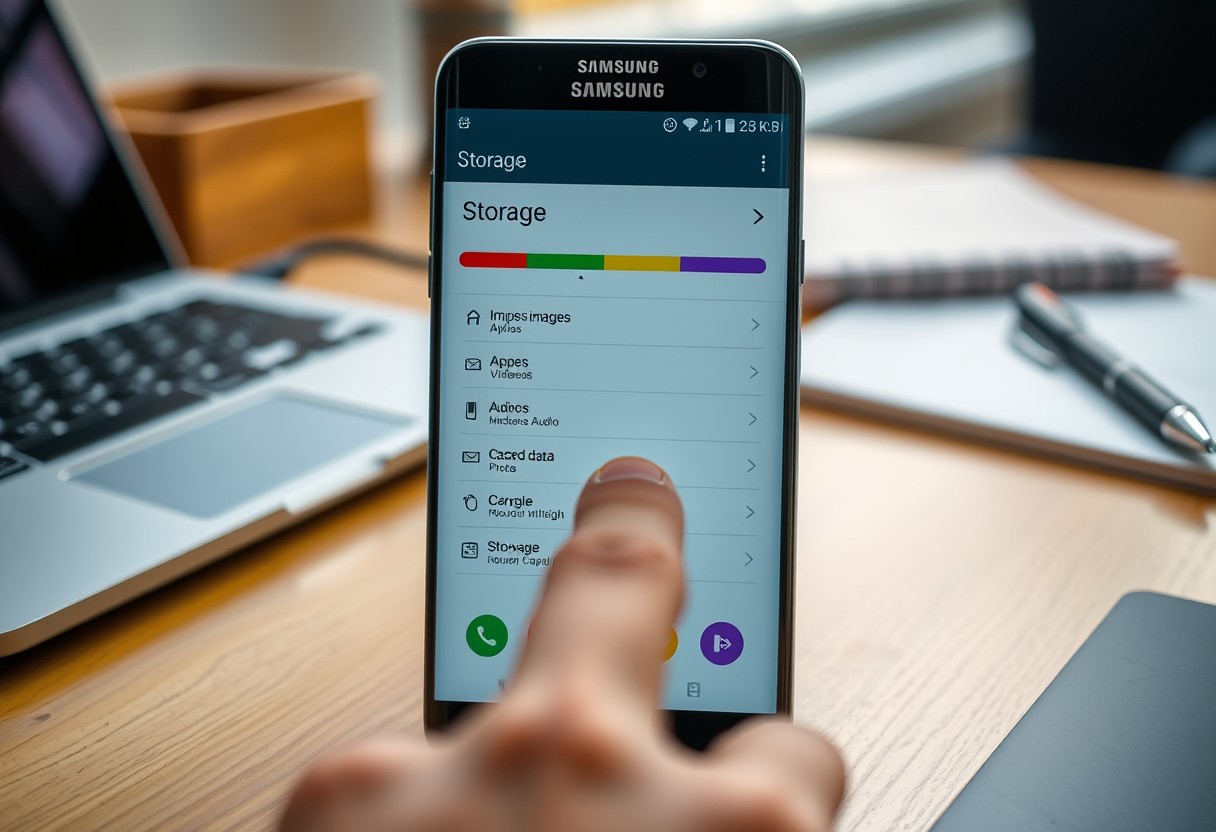
You can quickly run out of storage without realizing what’s consuming it. Your photos, videos, and downloaded apps are often the biggest space hogs. This guide shows you exactly how to identify what’s filling your device. Ignoring storage limits may lead to slow performance or app crashes. Take control now to keep your Galaxy running smoothly.
Key Takeaways:
- Samsung Galaxy devices come with built-in Device Care tools that provide a clear breakdown of storage usage, letting you see exactly how much space apps, photos, videos, and system files are consuming.
- Sorting files by size within the Device Care menu helps quickly spotlight large videos or unused apps taking up significant space, making it easier to decide what to remove or back up.
- Regularly reviewing cloud-synced content and cached data prevents hidden buildup, especially from messaging apps and photo backups, which often occupy storage without immediate visibility.
Navigating to Device Care Settings
Start by opening the Settings app from your Galaxy’s home screen or app drawer-this is where all core system tools are centralized. Once inside, scroll down until you see the “Battery and Device Care” option, which consolidates performance, storage, and security monitoring in one place. Tapping it opens access to real-time diagnostics and management features critical for maintaining phone efficiency. For deeper insights, visit Samsung’s official guide on how to Maximise Your Galaxy Phone’s Storage Space, which outlines best practices directly from the manufacturer.
Accessing the Settings Menu
Tap the Settings icon, usually represented by a gear symbol, either on your home screen or within the app drawer. This opens the central hub for all device configurations, including connectivity, accounts, and system performance. Finding this menu quickly is essential when troubleshooting space issues, as delays can lead to prolonged slowdowns. You’ll notice a clean layout with grouped categories, making navigation straightforward even if you’re not tech-savvy. Keep this interface familiar, as you’ll return frequently during storage optimization.
Locating Battery and Device Care
Battery and Device Care appears near the top of the Settings list on most recent Galaxy models, combining monitoring tools for power, memory, and security. Tap it to enter the dashboard that displays real-time usage stats across key system areas. The storage section here reflects current capacity use, showing exactly how much space remains at a glance. If your model groups it under a broader “Device Maintenance” label, the functionality remains identical. Accessing this area regularly helps catch bloated caches or rogue apps before they impact performance.
Analyzing the Storage Breakdown
Your Samsung Galaxy organizes storage usage into clear categories so you can see exactly what’s consuming space. Images, videos, apps, and cached data each take up a portion of your device’s memory, and the system displays them with color-coded segments. System files often occupy a surprisingly large chunk, which may seem concerning but is typically necessary for smooth operation. By reviewing this breakdown, you gain insight into which areas are growing unchecked, such as photo libraries doubling in size after a vacation or messaging apps storing years of media.
Reading the Storage Map
The visual storage map in your Galaxy’s settings presents a segmented bar or pie chart showing how space is allocated. Each color represents a different file type, like blue for apps and green for photos. Tapping a segment reveals the exact amount of storage it uses, often highlighting unexpectedly large categories such as downloaded files or app data. This immediate visual feedback helps you identify bloated areas at a glance, making it easier to decide where to focus your cleanup efforts without guessing or using third-party tools.
Distinguishing Between Media and System Files
Media files-photos, videos, music-are usually the most visible space hogs and the easiest to manage. These are files you’ve created or downloaded, and they often accumulate silently over time. In contrast, system files include operating system components, firmware, and app caches that support device functionality. While media can be moved or deleted freely, tampering with system files can cause instability or boot issues, so they should generally be left alone unless you’re following a trusted cleanup method. Recognizing this difference prevents accidental damage while targeting the right content for removal.
Identifying Large Files and Unused Apps
Your Samsung Galaxy includes built-in tools that help you pinpoint exactly which files and apps are consuming the most space. Open the Storage section in Device Care to view a ranked list of file types and installed apps by size. Focus on categories like videos, downloads, and photos, where large files often hide unnoticed. Sorting by size lets you quickly identify bloated media or redundant content. Removing just a few oversized files can free up significant room, improving both performance and available storage for what you truly need.
Using the Duplicate File Finder
The Duplicate File Finder tool scans your device for repeated photos, documents, and other files that take up unnecessary space. Access it through the Storage section and let the scan complete to see all matching copies grouped together. You can preview each file before deciding which to keep or delete. Selecting and removing duplicates is safe when you confirm content matches, and doing so can reclaim hundreds of megabytes-especially if you regularly download or save similar files. This feature targets redundancy without risking original data.
Reviewing Rarely Used Applications
Apps you rarely open still occupy valuable storage and may run background processes that drain resources. Scroll through your app list or check usage statistics in Device Care to spot infrequently used programs. Consider uninstalling those you no longer need or use, especially large games or media-heavy tools. Some apps offer a lightweight alternative or can be replaced with web versions. Removing just a few underused apps can restore substantial space while streamlining your home screen for a cleaner, faster experience.
Managing Cloud and System Data Factors
System data and cloud sync processes quietly impact your Galaxy’s available storage. Background services store temporary logs, app updates, and cached content that accumulate over time, often without clear visibility. Your device may also reserve space for system functions like recovery partitions or AI features, which cannot be deleted manually. Cloud synchronization with services such as Google Drive or OneDrive can create local duplicates of files, especially when automatic backup is enabled. These synced files might remain on your device even after being stored in the cloud, consuming valuable internal memory.
- System data includes essential but hidden files used by your OS
- Cloud sync settings may keep local copies of backed-up files
- Automatic backups can duplicate large media files across storage layers
- Some reserved space is invisible and non-removable
Checking OneDrive or Google Drive Sync
Your connected cloud accounts could be silently storing duplicates on your device. Open the OneDrive or Google Drive app and review your sync settings to see which folders are set to save files locally. If camera uploads are active, every photo you take may first land in device storage before syncing, doubling space usage. Disable “Save to device” or “Offline access” for specific files if you don’t need constant local availability. This ensures only necessary data occupies your phone’s memory while still keeping everything safely backed up online.
Clearing System Cache and Temporary Files
The system cache holds temporary data to speed up operations, but over time it can grow into several gigabytes. While harmless, this buildup offers no benefit once outdated. Use the Device Care menu to access the storage section and select “Clear cache” under system data. This action does not delete personal files or app data, so it’s safe to perform regularly. After clearing, restart your phone to ensure all flushed data is fully removed and performance improves with refreshed system resources.
Tips for Ongoing Storage Maintenance
To avoid frequent storage warnings, you should adopt habits that keep your Samsung Galaxy running smoothly over time. Regularly review your app usage and clear cached data to prevent buildup. Set a monthly reminder to delete old screenshots, downloads, and duplicate files. You can also move important documents to a secure cloud storage service to free up local space. Keeping your device clutter-free reduces the risk of slowdowns and ensures apps have room to function properly. Small, consistent actions make a significant difference in maintaining optimal performance without last-minute cleanups.
Automating Weekly Optimization
Your Samsung Galaxy can handle routine cleanup tasks with minimal input. Enable the built-in Storage Booster feature to automatically clear junk files and cached data on a weekly schedule. This setting scans for residual app data, old downloads, and temporary files that accumulate silently. You’ll receive a notification once the process completes, ensuring your phone stays efficient. Over time, this automation prevents storage from filling up unexpectedly and maintains faster app response times. Letting your device manage this weekly reduces manual effort and keeps performance stable.
Offloading High-Resolution Media
Photos and videos from your Galaxy’s camera consume large amounts of space quickly. Use the Smart Cleanup tool to identify and compress high-resolution images without visible quality loss. Alternatively, enable auto-sync with Google Photos or Samsung Cloud to back up and offload originals after upload. This ensures memories are safe while freeing valuable internal storage. You can also manually transfer media to a computer or external drive monthly. Handling large files proactively prevents sudden “Storage Full” alerts during important moments.
Final Words
You now have a clear path to identify what occupies space on your Samsung Galaxy. By using Device Care and reviewing storage categories like apps, photos, and cached data, you gain full visibility into your device’s usage. Regular checks prevent slowdowns and low-storage alerts before they disrupt your experience. Taking a few minutes monthly to review and remove unnecessary files keeps your phone running efficiently. This proactive approach ensures your Galaxy stays responsive and has room for the content you truly value.
FAQ
Q: How do I access the storage information on my Samsung Galaxy?
A: Open the Settings app, then tap on ‘Device Care’. Select ‘Storage’ to view a detailed breakdown of what’s using space on your phone. This screen shows categories like apps, photos, videos, downloads, and system data, giving you a clear snapshot of your current usage.
Q: Can I see which apps are taking up the most space?
A: Yes, inside Device Care > Storage, tap on ‘Apps’ to sort them by size. The list displays each app’s total storage use, including cached data and saved files. Tap any app to see more details or free up space by clearing its cache or uninstalling it directly from there.
Q: How can I find large files quickly on my Galaxy phone?
A: Use the ‘Files by Samsung’ app. Open it and go to the ‘Categories’ tab, then select ‘Large files’. This view organizes files by size, letting you spot oversized videos, documents, or downloads that may be consuming significant storage. You can preview and delete items directly from this list.
Q: Does system data really take up a lot of space on Galaxy devices?
A: System data often accumulates over time and can occupy several gigabytes. It includes firmware updates, logs, and temporary system files. In Device Care > Storage > System, you’ll see how much space is used. While some of this is necessary, restarting your phone occasionally or updating the OS may reduce unnecessary buildup.
Q: Is cloud storage included in my device’s storage analysis?
A: No, the storage meter in Device Care only reflects local data on your phone. Files stored in Samsung Cloud, Google Drive, or other services aren’t counted in the internal storage total. However, backed-up photos or synced messages might still have local copies-check the ‘Backups’ section under Device Care > Storage to manage those.