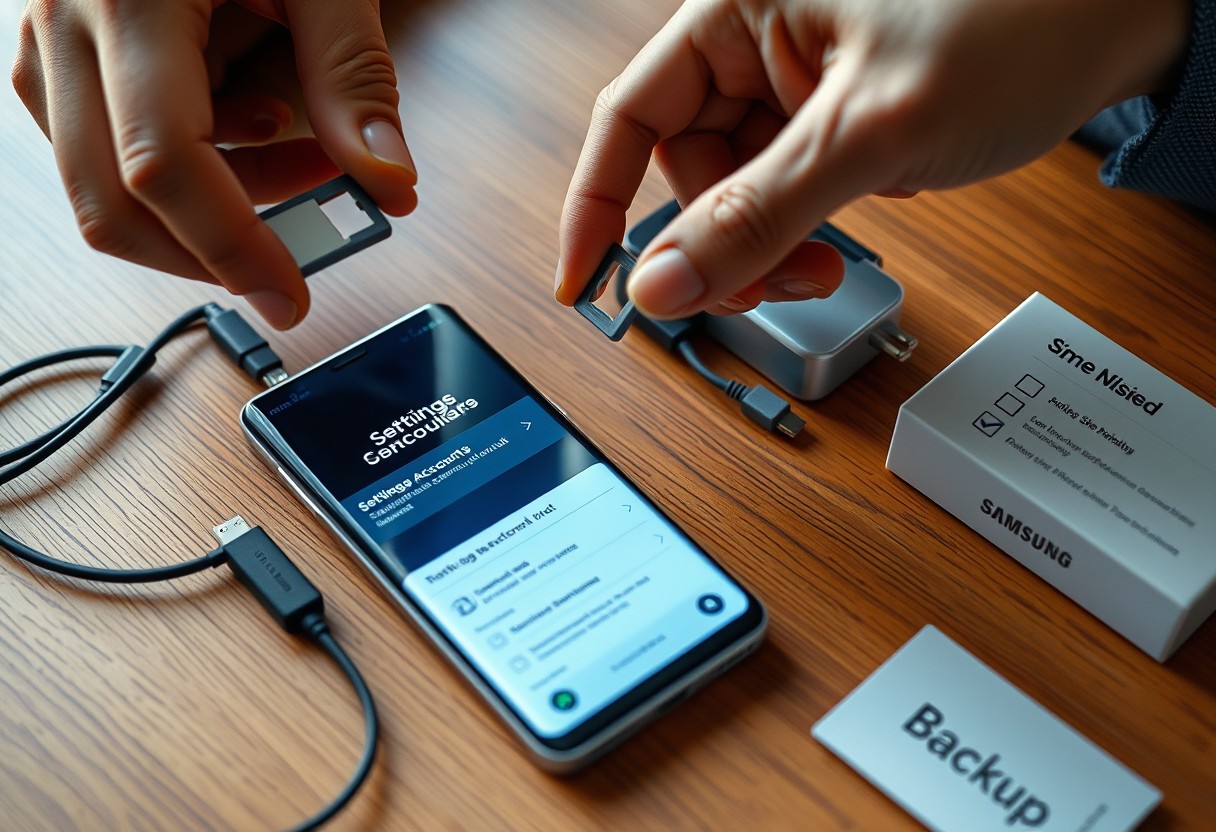

Before handing over your Samsung Galaxy, you must erase all personal data to protect your privacy. Failing to remove your Google or Samsung account can lock the new user out of the device. You’ll also want to back up photos, messages, and apps. A factory reset is essential, but only after completing every other step. This guide walks you through each action to ensure a secure, smooth transition.
Key Takeaways:
- Back up all personal data-photos, messages, and app settings-using Samsung Cloud or a computer before resetting the device.
- Sign out of all accounts, especially Samsung and Google, to prevent activation locks and ensure the new user can set up the phone without issues.
- Unpair connected Bluetooth devices and remove any screen lock methods to hand over a clean, ready-to-use phone.
How to Back Up Your Essential Data
Your personal files, photos, messages, and app data must be securely preserved before transferring ownership. Using Samsung Cloud ensures your device-specific content like contacts, calendar entries, and settings are stored safely online. Enable automatic backup through the Smart Switch app for a complete copy of your system state. Failure to back up can result in irreversible data loss, especially if you rely solely on internal storage. Always verify that the upload completed by checking the backup timestamp in your account.
How-to guide for Samsung Cloud and Google Drive
Open the Settings app and navigate to your Samsung account under “Accounts and Backup.” Tap “Back up data” and select what to include-contacts, messages, or Wi-Fi settings. Confirm the backup completes successfully; a green checkmark indicates readiness. For Google Drive, go to Google Settings, choose “Backup,” and ensure your apps, call history, and device settings are included. Your photos and videos should already sync automatically if Google Photos is enabled, but double-check the backup status in the app.
Factors for selecting external storage backups
- Choose an external drive with sufficient capacity-at least equal to your phone’s used storage space
- Prioritize drives with USB 3.0 or higher for faster transfer speeds and reduced downtime
- Use encrypted storage devices to protect sensitive information during physical transfers
- Ensure compatibility with your computer and Android version to avoid file access issues
- Select a drive with a durable build if you plan to store it long-term or transport it frequently
How to Remove Accounts and Security Locks
To prevent unauthorized access and bypass Factory Reset Protection, you must sign out of all linked accounts before handing over your Samsung Galaxy. Start by removing your Google and Samsung accounts from the device, as leaving them signed in can block the new user from setting up the phone properly. For a detailed walkthrough, check out this guide on Easy Steps To Erase Samsung Phone Data Before Selling, which outlines each step clearly to ensure full account removal.
How-to sign out of Google and Samsung accounts
Open the Settings app and navigate to Accounts or Users and accounts to view all linked profiles. Select your Google account, tap Remove account, and confirm your choice. Repeat this for your Samsung account under the same menu. Skipping this step may result in activation locks, making the device unusable for the new owner. Always verify that no account emails or credentials remain visible in any app or system setting after removal.
Tips for disabling biometric and screen lock features
Before signing out, disable all biometric authentication methods like fingerprint, face unlock, and screen lock patterns. Go to Settings, then Biometrics and security, and remove stored fingerprints or facial data. Leaving biometrics active won’t compromise your data after a reset, but it ensures a clean setup for the next user. Also, turn off screen lock by selecting None or Swipe under Screen lock type after entering your current passcode.
- Always sign out of your Google account to avoid Factory Reset Protection issues
- Remove your Samsung account to prevent service restrictions
- Clear saved biometric data like fingerprints and face scans
- Turn off screen lock to simplify the reset process
- Verify account removal by checking the Accounts section one final time
How to Unpair Connected Bluetooth Devices
Before passing your Samsung Galaxy to someone else, disconnect all paired Bluetooth accessories to ensure they’re ready for a new host. Leaving devices like headphones, speakers, or wearables connected can cause pairing conflicts and prevent the new user from seamlessly connecting their own gear. Go to Settings, then Bluetooth, and tap the gear icon next to each listed device to unpair it individually. Confirm each removal to ensure no accessory remains linked to your phone’s profile.
Tips for managing synced wearable devices
Synced wearables such as Galaxy Watches or fitness trackers must be unlinked from your phone to avoid data overlap and maintain privacy. Open the Wearable app (like Galaxy Wearable) and select your device to begin the separation process. Once disconnected, the wearable will revert to factory settings, making it easier for the next owner to set up.
- Always unpair the wearable through the companion app, not just via Bluetooth
- Ensure the wearable itself is powered on during the unpairing process
- Confirm that health data and notifications no longer sync after removal
Factors for removing the device from SmartThings Find
Leaving your phone registered in SmartThings Find could allow you to inadvertently track the new owner or block their use of location features. Access SmartThings Find in Settings and remove your Galaxy from the list of tracked devices to prevent remote lock or locate attempts after transfer. This step protects both your privacy and the recipient’s ability to use the device freely.
- Make sure your phone is signed out of SmartThings Find before handing it over
- Removing the device stops location tracking and disables remote commands
- Failure to remove it may trigger alerts if the new user enables ‘Find My Mobile’
How to Execute a Factory Data Reset
How-to perform a standard system wipe
Begin by opening the Settings app and navigating to the General Management section. Tap on Reset, then select Factory data reset to initiate the process. You’ll see a list of data types that will be erased-this includes apps, messages, photos, and account credentials. Confirm your choice and enter your PIN, pattern, or password if prompted. The device will reboot and begin wiping all user data from the system. This erasure is permanent and cannot be undone, so ensure your backup is complete before proceeding.
Tips for confirming a successful reset
- Watch for the initial setup screen to appear after the reboot, signaling the reset completed
- Verify that no personal accounts are pre-filled or listed during the startup process
- Check that the lock screen does not prompt for a previously set PIN or password
- Ensure the Google sign-in screen appears as it would on a brand-new device
Once the phone restarts, observe the startup sequence closely. If the device boots directly into the welcome interface without requesting your previous credentials, the reset was successful. Avoid skipping this verification step, as an incomplete wipe could leave sensitive information accessible.
How to Prepare the Physical Hardware
Factors for safe SIM and microSD card removal
Always power down your Galaxy completely before attempting to remove the SIM or microSD card. Use the correct ejector tool for the SIM tray to avoid damaging the slot or leaving fragments behind. If your phone uses a tray, gently insert the tool into the pinhole and apply even pressure until the tray releases. Never force the tray or pull at an angle. Keep the removed cards in a safe place if you plan to reuse them, as losing a carrier SIM may require a replacement.
- Power off the device before removing the SIM tray
- Use only the provided or manufacturer-approved ejector tool
- Handle the microSD card by the edges to prevent static damage
- Store removed cards in a protective case to avoid loss or corruption
Tips for sanitizing the screen and chassis
Clean the screen and exterior using a soft, lint-free cloth slightly dampened with isopropyl alcohol. Avoid spraying liquids directly onto the device-moisture can seep into ports and cause internal damage. Focus on high-touch areas like the sides, camera housing, and charging port. Never use abrasive cleaners or rough materials that can scratch the display coating. A clean surface not only looks better but reduces the risk of transferring germs to the new user.
- Use a microfiber cloth to prevent screen scratches
- Apply cleaning solution to the cloth, not the phone chassis
- Pay attention to the power buttons and charging port area
- Ensure the device is fully dry before handing it over

Conclusion
You’ve now completed every necessary step to securely hand over your Samsung Galaxy. You backed up personal data, removed Google and Samsung accounts, unpaired Bluetooth devices, and wiped the device with a factory reset. Cleaning the hardware and including essential accessories ensures the next user receives a functional, like-new device. Taking this thorough approach protects your privacy and prevents future access issues. You’ve handled the transfer responsibly, maintaining control over your digital footprint while passing on a clean, ready-to-use phone.
FAQ
Q: What data should I back up before transferring my Samsung Galaxy to someone else?
A: Your personal photos, videos, contacts, messages, calendar entries, and app data should be backed up. Use Samsung Cloud or Google Drive to save most of this information automatically. Connect your device to Wi-Fi, go to Settings > Accounts and backup > Backup and restore, then trigger a full backup. For media files, consider copying them manually to a computer or external storage using a USB cable to ensure nothing is missed.
Q: How do I remove my Google and Samsung accounts from the phone?
A: Open Settings > Accounts and backup > Manage accounts. Select each account-Google, Samsung, Microsoft, or others-and tap Remove account. Confirm the action when prompted. Removing these accounts prevents activation locks and ensures the new user won’t face sign-in issues during setup. Skipping this step may block the recipient from using the device normally.
Q: Do I need to unpair Bluetooth devices before resetting my Galaxy phone?
A: Yes, unpairing devices like wireless earbuds, smartwatches, and car systems helps protect your privacy. Go to Settings > Connections > Bluetooth, tap the gear icon next to each paired device, and select Unpair. This also prevents the new owner’s device connections from interfering with your existing gadgets, especially if they use the same brand accessories.
Q: Will a factory reset delete everything permanently?
A: A factory data reset erases all user data, apps, settings, and media stored on the internal memory. After going to Settings > General management > Reset > Factory data reset, confirm the action and wait for the process to complete. The phone returns to its original out-of-box state. Note that without prior account removal, some services may still prompt for the previous account credentials after reset.
Q: Should I clean the phone physically before handing it over?
A: Wipe the screen and body with a microfiber cloth slightly dampened with water or screen-safe cleaner to remove fingerprints and smudges. Avoid using alcohol-based solutions unless specified by Samsung. Remove the SIM card and any memory card using the eject tool. Check ports for dust and ensure the device powers on one final time to confirm functionality before transfer.