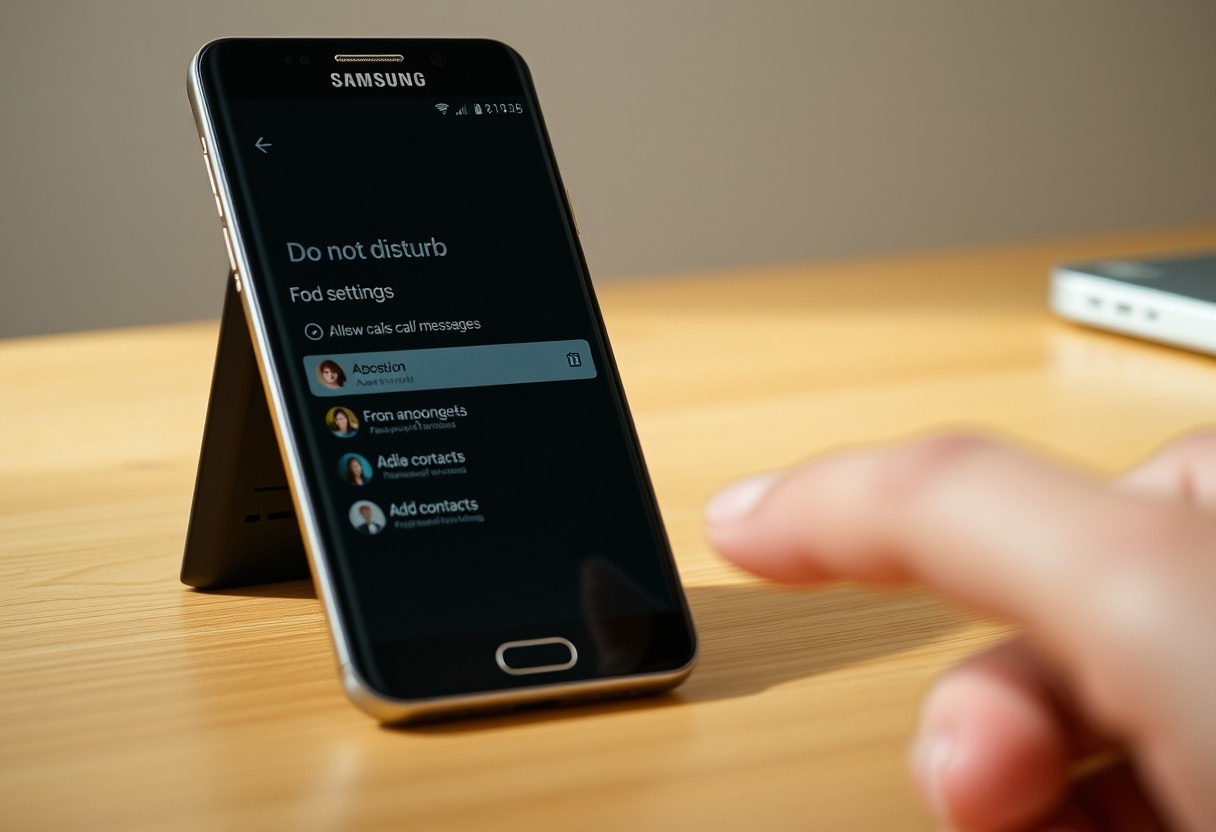
You can silence distractions during Focus Time without missing urgent calls. By customizing your Galaxy phone’s settings, specific contacts like family or close coworkers can still reach you, even when notifications are blocked. This setup ensures you stay available in emergencies while maintaining productivity-striking the right balance between focus and accessibility.
Key Takeaways:
- Samsung’s Focus mode lets you silence distractions while still allowing selected contacts to reach you, ensuring you stay available for urgent calls or messages.
- You can whitelist specific people in your contacts so their alerts bypass Focus mode, using the Digital Wellbeing settings to customize who gets through during scheduled quiet periods.
- Setting up automatic Focus sessions and combining them with contact exceptions helps maintain balance between productivity and accessibility without manual adjustments each time.
Accessing Samsung’s Digital Wellbeing Tools
Navigating the Settings Menu
Open the Settings app on your Galaxy phone to begin adjusting your focus preferences. Scroll down and tap on Notifications, where you’ll find tools that control how and when alerts reach you. Within this menu, Do Not Disturb and Focus Mode are listed clearly, making it simple to locate the exact feature you need. These settings are grouped logically under alert management, so you won’t have to search through unrelated sections to silence distractions.
Distinguishing Between Do Not Disturb and Focus Mode
Do Not Disturb blocks calls, notifications, and alerts based on your selected criteria, offering a strict quiet period. Focus Mode, introduced in newer One UI versions, builds on this by pausing apps and notifications to reduce digital interruptions during work or rest. While both appear in the same menu, Focus Mode provides more granular control over app behavior. Knowing the difference ensures you choose the right tool for uninterrupted focus without missing urgent alerts.

Whitelisting Critical Contacts for Constant Access
To ensure you stay reachable by the people who matter most, Samsung’s Focus mode allows you to grant bypass permissions to select contacts. You can designate specific family members or essential colleagues whose calls and messages will always come through, even during strict focus sessions. This exception list acts as a safety net, so urgent updates from your spouse, child, or manager won’t be missed. The system honors these permissions reliably, preventing unintended isolation during critical moments. Setup is intuitive and can be adjusted at any time to reflect changing priorities in your personal or professional life.
Adding Favorites to the Exception List
Start by opening your Phone app and marking key individuals as Favorites, since this status streamlines their inclusion in bypass lists. Once someone is a Favorite, go into Focus mode settings and enable the option to allow calls from this group regardless of active restrictions. Your mother calling from an unknown number won’t slip through if she’s saved and flagged correctly. This method reduces setup time and ensures consistency across devices linked to your Samsung account. Periodically review this list to remove outdated entries or add new priorities as relationships and responsibilities evolve.
Managing Calls and Messages from Specific Groups
You can fine-tune access by permitting interruptions not just from individuals but from entire contact groups you’ve created in your address book. For instance, a group labeled “Family” or “On-Call Team” can be authorized to bypass Focus mode entirely. This granular control means your sister’s text during a crisis or your doctor’s office calling from a shared line won’t be silenced. Be cautious not to overpopulate these groups, as too many exceptions weaken the effectiveness of your focus sessions. Adjust group memberships in your Contacts app to keep permissions accurate and purposeful.
Evaluating Key Factors for Emergency Exceptions
When configuring Focus mode on your Galaxy phone, you must decide which notifications can interrupt you during protected time. Allowing emergency exceptions ensures you remain reachable in urgent situations without compromising concentration. Consider enabling repeat callers and prioritizing alerts from specific apps like messaging or medical services. Each choice balances connectivity and focus-too many exceptions weaken the mode’s effectiveness, while too few risk missed critical communication. Evaluate each factor based on real-life urgency, not convenience.
Enabling the Repeat Callers Factor
A second call from the same person within a short window often signals urgency. Your Galaxy phone can be set to allow repeat callers to bypass Focus mode after one initial unanswered call. This means if someone calls, hangs up, and dials again immediately, their second attempt will ring through. It’s an effective safeguard against missing true emergencies while filtering out casual interruptions. This behavior mimics real-world urgency cues, helping you respond when it matters most.
Customizing App-Specific Notification Priorities
Certain apps demand immediate attention even during focused periods. You can specify which apps are allowed to send high-priority notifications that break through Focus mode. Messaging platforms used by family, healthcare apps, or workplace tools may warrant exception status. Navigate to notification settings and assign interruption priority only to those services where delay could cause harm or serious disruption. Limiting these exceptions preserves mental clarity while ensuring critical digital lifelines stay active.
How-to Schedule Focus Sessions Automatically
You can set precise times for your Focus mode to activate automatically through your Galaxy phone’s built-in scheduler. Open the Focus settings and select “Scheduled sessions” to define when you want interruptions blocked. This ensures your work windows begin without fail, even if you forget to start them manually. Choose specific days and times that align with your natural rhythm, like weekday mornings from 9 to 11:30 a.m., allowing uninterrupted deep work. The system respects these boundaries consistently, reinforcing disciplined routines.
Creating a Custom Schedule for Work and Rest
Design separate Focus periods for work sprints and personal downtime by customizing multiple schedules. Assign different rules for weekdays versus weekends to reflect shifting priorities. Your phone will switch modes automatically, silencing non-essential alerts during concentration blocks while allowing flexibility in off-hours. For example, a mid-sized SaaS firm employee might schedule focus from 8:30-10:30 a.m. and 2-4 p.m., preserving lunch and commute time for connection. This tailored approach supports sustained productivity without burnout.
Triggering Focus Modes Based on Location or App Usage
Let your environment dictate your availability by enabling location-based activation of Focus mode. When you arrive at the office or library, your Galaxy phone can detect the change and engage Focus automatically. You may also trigger it when launching specific apps like Microsoft Teams or Notion for work. These smart triggers remove reliance on memory, making consistency effortless. Just ensure location services are enabled for Samsung Focus to maintain accuracy across transitions.
Pro Tips for Optimizing Your Focused Environment
To maintain uninterrupted productivity without cutting off urgent communication, use auto-replies and visual cues that set clear expectations for others. When your Focus mode is active, callers will see a customized message explaining your unavailability-ideal for colleagues or family who might otherwise worry. Pair this with a home screen widget indicating your focus status, so even those nearby understand not to interrupt. These small signals reduce distractions while preserving important social and professional courtesies.
- Auto-reply messages inform callers you’re in Focus mode
- Visual status indicators help prevent unnecessary interruptions
- Customized responses maintain professional courtesy
- Real-time cues support better communication boundaries
Setting Up Auto-Reply Messages for Blocked Callers
Your Galaxy phone can automatically respond to calls from blocked numbers with a personalized text, ensuring no one is left wondering why you didn’t answer. Go to the Focus settings and enable auto-replies under call management-this feature works silently in the background. You can customize the message to reflect your current status, such as “In a meeting, will respond later.” This way, even if someone isn’t on your approved list, they receive immediate feedback instead of silence.
Utilizing Hidden Notification Reminders
A subtle vibration or LED flash can alert you to repeated calls from priority contacts without disrupting deep work. Enable notification reminders so that if the same person calls twice within 15 minutes, the second alert gets through-even during Focus mode. This balances focus with responsiveness, especially useful when waiting for time-sensitive updates. The system uses smart escalation to surface only what’s likely urgent, reducing noise while keeping you informed.
Summing up
You now have full control over your Galaxy phone’s Focus mode while ensuring the people who matter most can still reach you. By thoughtfully selecting which contacts bypass interruptions, you balance productivity with peace of mind. Setting up these exceptions takes just a few minutes but delivers lasting benefits in both work and personal life. You maintain boundaries without cutting essential connections, and with scheduled sessions and smart settings, your phone supports your priorities instead of disrupting them.
FAQ
Q: How do I enable Focus Mode on my Galaxy phone without blocking important people?
A: Open the Settings app, tap on “Digital Wellbeing and parental controls,” then select “Focus mode.” Toggle Focus mode on and tap “Pause notifications” to activate it. To ensure key contacts can still reach you, go to the Focus mode settings and choose “Exceptions.” From there, add specific contacts or call groups that should bypass the silence rule during Focus sessions.
Q: Can family members or emergency contacts call me during Focus Time?
A: Yes, if you manually whitelist them. In Focus mode settings, select “Calls” under exceptions and choose “Allowed contacts.” You can pick individuals from your address book, such as your partner, parents, or child. These contacts will be able to call or message you even when Focus mode is active. The phone will ring normally for their calls, while others go straight to silent.
Q: What happens if someone not on my allowed list tries to call multiple times?
A: Samsung has a repeat caller feature that lets someone reach you if they call twice within three minutes. This is useful in urgent situations where a contact isn’t pre-approved but needs immediate attention. You can enable this under Focus mode settings by turning on “Allow repeat callers” so the second call breaks through the silence.
Q: Can I let certain apps notify me even during Focus Time?
A: Yes, you can allow notifications from specific apps. While in Focus mode settings, tap “Notifications” under exceptions and select which apps can interrupt. For example, you might allow messaging from WhatsApp if your doctor uses it, or keep your home security app active. This ensures you stay informed about urgent matters without general distractions.
Q: Is it possible to schedule Focus Time and still receive emergency calls?
A: Yes, scheduled Focus sessions work the same way as manual ones regarding exceptions. Set up a routine in Digital Wellbeing by going to Focus mode > Schedule. Once scheduled, your allowed contacts and repeat callers will still be able to reach you during those times. A mid-sized SaaS firm found this setup helped employees stay focused during work blocks while remaining reachable in urgent cases.