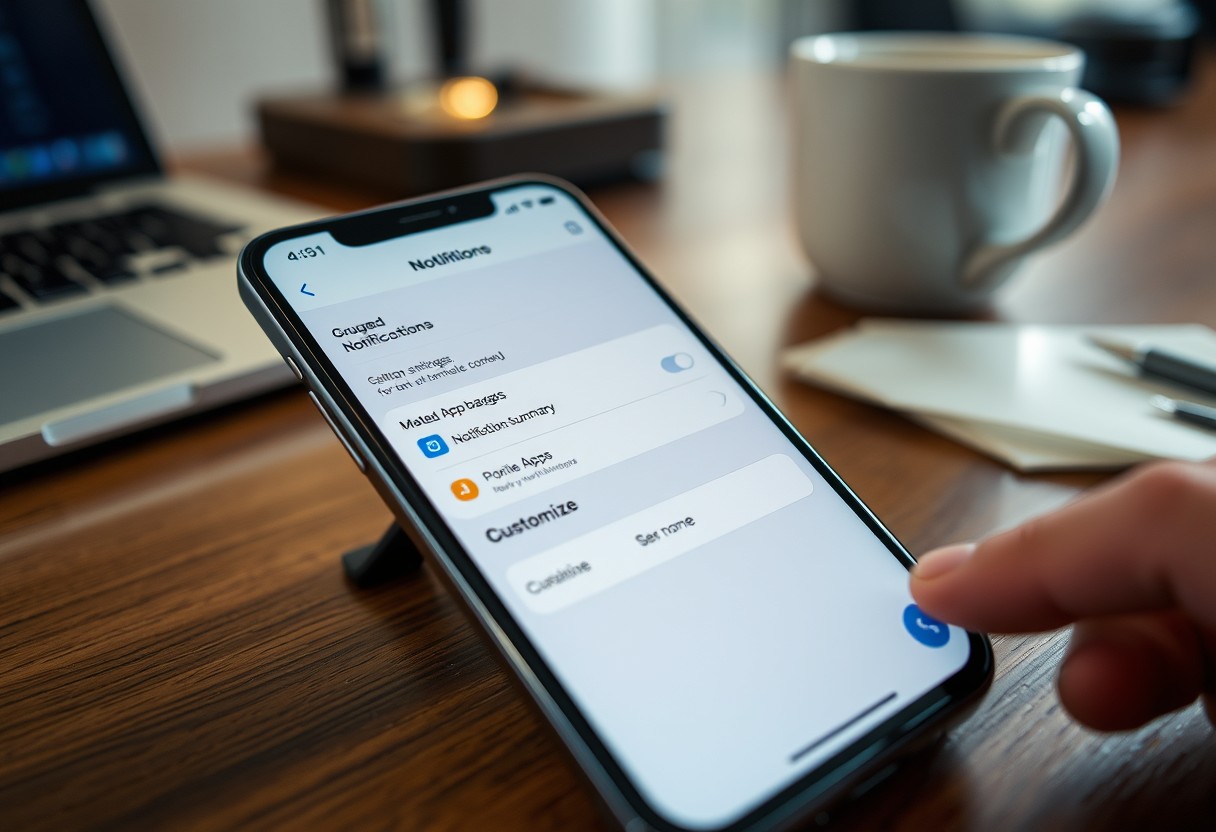
You’re not alone if your phone feels overwhelming-constant pings and banners drain focus and increase stress. Ignoring notifications isn’t the solution, but blanket muting risks missing important updates. The key is strategic control. Learn how to keep essential alerts active while eliminating digital noise. For help with background disturbances, check this guide on how do I turn off silent notifications?.
Key Takeaways:
- Customizing notification settings per app helps you stay informed on what matters while filtering out constant interruptions from less important sources.
- Scheduling specific times to review grouped or summary alerts reduces mental fatigue and supports deeper focus throughout the day.
- Turning off non-essential badges and visual indicators minimizes subconscious distractions without losing access to timely updates.
Assessing Your Personal Notification Landscape
Every alert that interrupts your day carries a cost-some deliver real value, while others erode focus without justification. Begin by reviewing the last 24 hours of notifications across your devices to determine which ones required immediate attention and which you dismissed instantly. Critical alerts often relate to time-sensitive communication, such as messages from family or work deadlines, whereas non-essential alerts include promotional updates or social media likes. Recognizing this distinction forms the foundation for a calmer, more intentional digital experience.
Distinguishing Between Critical and Non-Urgent Alerts
You likely receive alerts that claim urgency but offer little real impact on your daily responsibilities. A message from a colleague confirming a meeting is truly urgent, while a notification that someone liked your post three hours ago is not. Focus on whether the alert demands action now or simply prompts curiosity. Over time, repeated exposure to low-value alerts conditions your brain to react impulsively, weakening concentration. Prioritize only those that support safety, productivity, or meaningful connection.
Factors Influencing Notification Fatigue and Stress
Constant pings fragment your attention and elevate cognitive load, especially when alerts arrive during deep work or personal time. The unpredictability of notifications triggers dopamine-driven responses, making it harder to disengage. Volume matters-receiving dozens of non-critical alerts daily contributes to chronic stress and decision fatigue. Consider how app design exploits psychological tendencies, using colors, sounds, and badge counts to pull you back in. Awareness of these influences is the first step toward reclaiming control.
- Critical alerts require immediate action and are tied to real-world obligations
- Non-urgent alerts often serve marketing or engagement goals, not user needs
- Notification fatigue stems from excessive, unpredictable interruptions over time
- Dopamine-driven feedback loops make it difficult to ignore even trivial alerts
- Visual and auditory cues are deliberately engineered to capture attention
Leveraging System-Wide How-To Configurations
Modern operating systems offer centralized controls that shape how every app delivers alerts, giving you broad influence without adjusting each one individually. By setting global priority levels, you define which notifications can interrupt you and which remain passive. This foundational control ensures consistency across your device and reduces the need for repetitive in-app tweaks. You maintain authority over your attention while preserving important updates.
Setting Up Global Priority Levels
Your device’s priority settings let you filter notifications into tiers based on urgency and relevance. You choose which alerts are allowed to make sound, appear on-screen, or bypass focus modes. Apps not marked as high priority will still deliver messages-just more quietly. The real power lies in suppressing low-value interruptions while ensuring time-sensitive updates reach you immediately, creating a cleaner, more intentional experience by default.
How-to Configure “Deliver Quietly” Options
You can direct non-urgent notifications to appear silently in your notification center without triggering banners or sounds. This keeps information accessible while preventing constant disruptions. On iOS and Android, enabling “Deliver Quietly” for certain app categories means they won’t break your focus-but you can review them at your convenience. The benefit is clear: staying informed without being overwhelmed by real-time alerts from less critical sources.
Fine-Tuning Individual App Notification Tips
Each app you use has its own notification behaviors, and adjusting them individually puts you in control of what truly matters. Instead of accepting default settings, explore each app’s notification menu to disable nonessential alerts and retain only those that support your daily goals. You’ll find most platforms allow granular control over alert types-such as comments, mentions, or updates-so you can eliminate noise while staying informed on high-value interactions. This precision ensures your attention isn’t hijacked by trivial updates.
- Enable alerts only for direct messages or tagged content in social apps
- Turn off in-app reminders that duplicate calendar events
- Allow notifications for security alerts like logins or purchases
- Disable progress updates from fitness or habit-tracking apps unless actionable
Disabling Promotional and Marketing Pings
Marketing messages often masquerade as important updates, but they rarely require immediate attention. Open each app’s notification settings and locate the section labeled “Promotions,” “Offers,” or “Newsletters.” These are the sources of non-essential distractions that erode focus. By disabling them, you reclaim mental space and reduce the risk of missing time-sensitive alerts buried beneath sales pitches. Most apps still let you access promotional content manually, so you won’t lose access-just the interruption.
Tips for Customizing Alert Sounds and Vibrations
Differentiating alerts by sound and vibration helps you respond appropriately without checking your device constantly. Assign distinct tones to high-priority apps like messaging or email, and use subtle or silent patterns for low-importance ones like games or shopping. On Android and iOS, you can set custom vibrations for specific contacts or app categories, making it easier to identify who or what is notifying you. Avoid default sounds shared across apps-they create auditory confusion and increase reactive checking.
- Use short, sharp tones for urgent communication apps
- Set longer, softer chimes for non-urgent updates
- Assign unique vibration patterns to family members or team members
- Disable vibration entirely for social media and news apps
Implementing Scheduled Summaries and Batching
Grouping non-urgent alerts into a single daily digest allows you to stay informed without being pulled from your workflow every few minutes. By configuring your device to batch notifications, you reduce mental fragmentation and maintain deeper focus during critical hours. The most effective approach is scheduling summaries for times when you can process information calmly, such as mid-morning or after lunch. This method keeps updates meaningful rather than disruptive, turning chaos into clarity with minimal effort.
How-to Enable Notification Summaries on Mobile Devices
Your smartphone likely supports native tools that consolidate messages from low-priority apps into one summary delivered at a time you choose. On iOS, visit Settings > Notifications > Scheduled Summary and toggle on apps whose alerts don’t require immediate attention. Android users can use Google’s Digital Wellbeing features to enable similar bundling through notification categories. Enabling these settings ensures you won’t miss important updates while avoiding constant buzzes and pings. Once configured, the system learns which notifications are safe to group, improving accuracy over time.
Scheduling Focus Modes Based on Time and Location
You can align your device’s behavior with your daily rhythm by setting automated Focus modes that activate based on time or physical location. For example, entering your office could trigger “Work” mode, silencing social apps and routing only priority messages through. Similarly, a nightly schedule can suppress non-essential alerts two hours before bed. These rules run automatically, so you’re protected from distraction without needing willpower. Over time, this consistency trains both your mind and contacts to respect focused intervals.

Minimizing Visual Clutter and Badge Distractions
Red badge icons and persistent lock screen previews trigger a constant low-level stress response, pulling your attention even when you’re not actively using your phone. These visual cues are designed to create urgency, but over time they contribute to mental fatigue and reduce your ability to focus. By removing unnecessary visual alerts, you create a calmer digital environment that supports sustained concentration. The absence of constant pings and numbered indicators helps your brain stay in a more relaxed, productive state throughout the day.
Disabling App Icon Badges for Non-Essential Services
App icon badges often exaggerate urgency, making even minor updates appear pressing. You can disable these small red dots for social media, shopping apps, or games through your device’s notification settings. This simple change reduces the psychological weight of unread counts and prevents the subconscious pull to “clear the number.” Removing badges from non-essential apps significantly decreases visual noise without cutting off important alerts, giving you back control over what truly demands your attention.
Managing Lock Screen Visibility for Improved Privacy
Notifications that appear directly on your lock screen expose personal information to anyone nearby, creating both privacy risks and unnecessary distractions. You can adjust settings to hide sensitive content or limit which apps show previews when your phone is locked. Choosing to display only app names-or nothing at all-keeps your data secure and prevents headlines or messages from hijacking your focus the moment you glance at your device. This small adjustment supports both discretion and mental clarity.
Establishing a Sustainable Digital Audit Routine
Consistency in reviewing your device’s app permissions prevents unnoticed notification creep over time. New apps or updates often request access to send alerts, and without regular checks, your tray can quickly become overwhelming again. Set a recurring calendar event monthly to assess which apps are actively sending notifications and whether they still serve your current workflow. This habit ensures you maintain control, allowing only meaningful alerts to reach you while reducing digital fatigue and preserving focus throughout the day.
Factors to Consider During a Monthly Notification Audit
When reviewing your notification settings each month, pay close attention to which apps have gained new permissions or increased alert frequency. Ask yourself whether each notification adds value or simply distracts. Consider the timing, frequency, and urgency of alerts, and whether they align with your daily priorities. You may find that certain apps notify excessively for minor updates, while others deliver critical information quietly. Use this insight to adjust or remove access accordingly.
- Evaluate if notifications are time-sensitive or can be deferred
- Check for apps requesting unnecessary permissions post-update
- Identify apps with high alert volume but low usefulness
- Determine whether sound and badges are justified for each app
Tips for Re-Evaluating App Needs Periodically
Over time, your relationship with apps changes-what once felt essential may now contribute more noise than value. Take a few minutes each month to reassess whether each app still supports your goals or habits. Uninstall or disable notifications for tools you rarely use, especially those that automatically re-enable alerts after updates. Prioritize apps that enhance productivity or communication without overwhelming your attention. This ongoing refinement helps sustain a cleaner, more intentional digital environment.
- Remove notifications from apps used less than once a week
- Disable alerts for apps that duplicate information from primary sources
- Turn off notifications for apps that trigger emotional or impulsive responses
- Revoke permission for apps that track or nudge behavior without clear benefit
To wrap up
You manage your attention by controlling what interrupts you, not by reacting to every alert. Turning off nonessential notifications, grouping updates, and setting specific times to review messages reduces mental load without disconnecting entirely. You already decide what information matters-use your device settings to reflect those priorities. Small adjustments like disabling badges or scheduling summary alerts create space for focus. Consistency over time turns these choices into habits that support clarity, not distraction.
FAQ
Q: How do I stop getting so many app notifications without turning them all off?
A: Start by sorting notifications into categories like ‘urgent’, ‘useful later’, and ‘rarely needed’. Most smartphones let you adjust notification types per app-choose only alerts that require immediate attention, such as direct messages or calendar reminders. For everything else, disable banners and sounds but allow the app to log activity silently in the background. This way, you stay informed without constant interruptions.
Q: Can I group similar notifications to reduce pop-ups?
A: Yes, both iOS and Android support notification grouping. On Android, open Settings > Apps & notifications > Notifications > App notification preferences, then enable bundle alerts for apps like messaging or email. On iPhone, go to Settings > Notifications, select an app, and choose ‘Stack’ or ‘Count’ under grouping options. A single collapsed banner will show multiple items, cutting down on screen flashes and alert sounds.
Q: What’s a good way to handle non-urgent app alerts like social media updates?
A: Schedule a daily summary instead of real-time pings. Some apps, like Twitter or Instagram, offer built-in digest settings that compile likes, comments, and follows into one end-of-day update. If the app doesn’t support this, use third-party automation tools like Apple Shortcuts or Tasker to generate a summary at a set time. This keeps engagement tracking intact while reducing distraction frequency.
Q: How can I reduce badge numbers on app icons without disabling them entirely?
A: Badges often create visual stress even when you’re not actively using your phone. Go into your device’s notification settings and turn off badge counts for apps that don’t need them, such as news or shopping platforms. For essential apps like email, reset the badge manually after review or set up rules-like marking all messages as read during a morning check-in-to keep counts low through routine, not suppression.
Q: Is it possible to have different notification rules for work and personal apps?
A: Absolutely. Use profile modes like ‘Work’ or ‘Focus’ to apply distinct notification policies. Assign specific ringtones, allowed contacts, and permitted apps to each mode. For example, during work hours, only allow alerts from Slack, email, and calendar invites, while muting games, social networks, and entertainment apps. Switch profiles automatically based on time or location using routines in your phone settings.