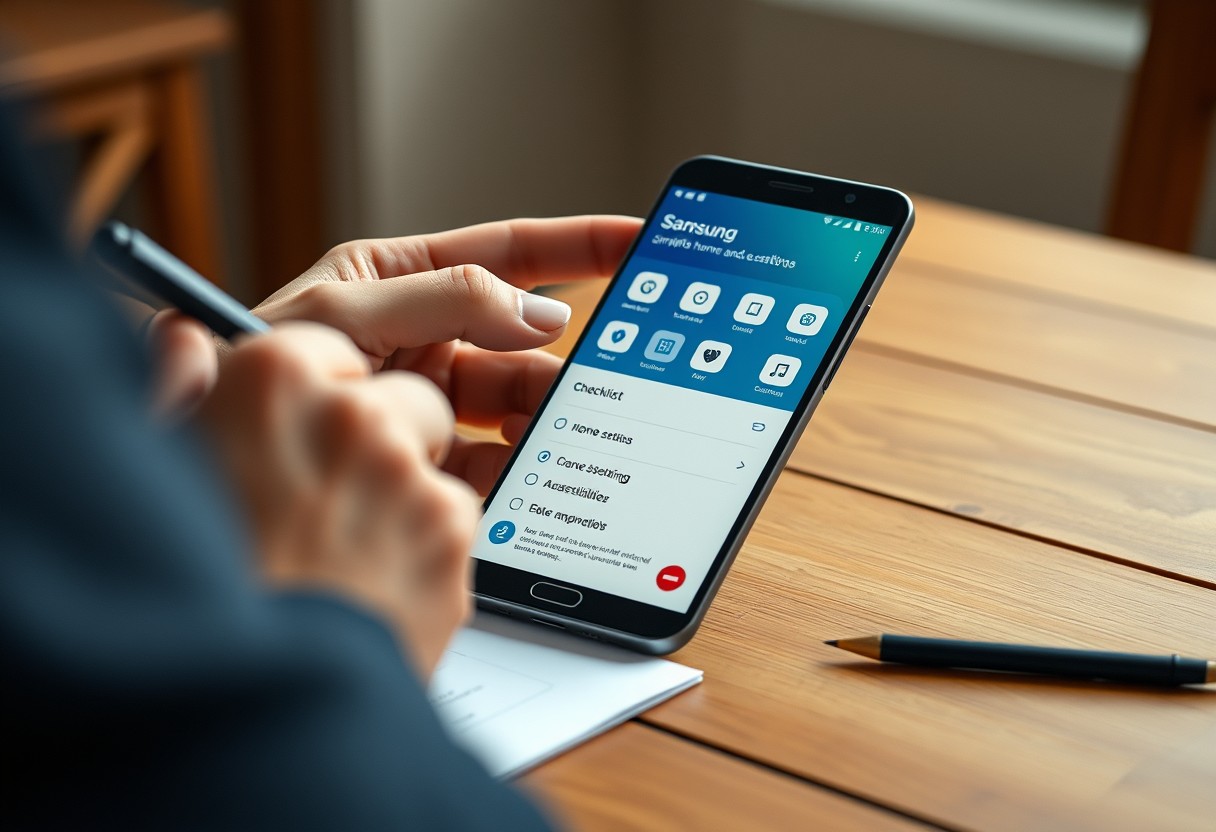
You can set up a Samsung Galaxy for a family member quickly and confidently by focusing on clarity and safety. Start with a clean setup, skip unnecessary apps and services, and prioritize emergency features and large, easy-to-use icons. Avoid sharing sensitive data during setup-never enable unknown sources or sideloaded apps. The right approach makes the device simple, secure, and stress-free for less tech-savvy users.
Key Takeaways:
- Begin by using Samsung’s Smart Switch during initial setup to transfer contacts, photos, and settings from an old device-this reduces steps for the user and ensures familiar content appears right away.
- Set up a Google account during configuration to enable access to apps like Gmail, Maps, and Photos, but skip optional bloatware installations by unchecking extra app downloads before finalizing setup.
- Use the “Easy Mode” feature to simplify the home screen layout, limiting app visibility to only the most essential ones and increasing icon size for better readability, especially helpful for older or less tech-savvy users.

Evaluating Essential User Factors
Understanding the person’s comfort level with technology ensures the setup supports their actual needs. Digital literacy and prior experience with smartphones shape how much guidance they’ll require daily. Some users may have never owned a touchscreen device, while others might be transitioning from older phones with physical keypads. Consider their ability to manage basic tasks like sending messages or making calls without assistance. Misjudging this factor can lead to frustration and device abandonment, so take time to observe or ask about their past interactions with similar tools.
- Your family member’s previous device experience affects how quickly they adapt
- Confidence with touchscreens determines necessary training steps
- Frequency of using apps like messaging or video calls reveals digital engagement level
- Fear of breaking the phone may require reassurance through guided practice
- Independence in troubleshooting impacts long-term usability
Assessing digital literacy and previous device experience
You learn a lot by asking simple questions about what they’ve used before-whether it was an old flip phone, a tablet, or another Android device. Someone who has only used a basic phone will need more hand-holding than someone familiar with apps and Wi-Fi. Watch how they tap, scroll, or respond when shown a demo screen. If they struggle with fundamental gestures, simplify settings accordingly. Their confidence often matters more than skill-those anxious about mistakes benefit from locked-down layouts and clear labels.
Identifying necessary accessibility features for vision or hearing
Visual or hearing impairments significantly impact how someone interacts with a Galaxy phone. You should check if they rely on larger text, screen readers, or high-contrast displays to read content comfortably. Samsung’s built-in tools like Voice Assistant,放大 display, or mono audio can make a major difference. If they wear hearing aids, confirm Bluetooth compatibility and adjust sound profiles to reduce distortion. Ignoring these needs risks rendering the device nearly unusable, so test each feature with them in real lighting or noise conditions.
How to Execute the Initial Software Setup
Begin by powering on the Galaxy device and following the on-screen prompts until you reach the Wi-Fi selection screen. Connect to a trusted network, as a stable connection is required for account sign-in and data transfer. When prompted, sign in with a Google account-this step unlocks core functionality like app downloads and backup restoration. If setting up a new account, choose a simple, memorable email address and set a strong password that includes a mix of letters, numbers, and symbols to protect personal information.
Creating secure Google and Samsung account credentials
Select a unique email address that’s easy to recall but not tied to sensitive personal details like birthdates or family names. Use a distinct password for each account-never reuse passwords across services-to reduce the risk of multiple accounts being compromised if one is breached. Enable two-factor authentication on both Google and Samsung accounts, as this adds an extra layer of protection by requiring a second verification step during login attempts. Store recovery options in a safe, accessible place.
Transferring essential contacts and photos from an old phone
Use the Smart Switch app on the new Galaxy device to pull over key data from the old phone, whether it runs Android or iOS. Start the transfer over a reliable Wi-Fi network or via a USB cable for faster, more stable results. The process securely moves contacts, photos, calendar entries, and messages without altering the source device. Confirm all critical items appear after setup-especially contact names and numbers-as incomplete transfers can happen if the connection drops mid-process.
How to Streamline the User Interface for Simplicity
Simplifying the interface reduces confusion and helps your family member focus on what matters. Samsung’s Easy Mode is built specifically to declutter the screen with larger icons and text, making navigation far more intuitive for less tech-savvy users. You can activate it directly from the Settings menu under “Display,” where the system reorganizes apps into clear categories. This change drastically improves readability and touch accuracy, especially for older adults or those with visual impairments, ensuring they aren’t overwhelmed by small elements or complex layouts.
Enabling Samsung Easy Mode for larger text and icons
Start by opening the Settings app and tapping “Accessibility,” then select “Easy Mode.” Once enabled, you’ll notice the home screen automatically switches to show fewer, much larger app icons and increased text size. The simplified layout groups core apps like Phone, Messages, and Camera front and center, minimizing accidental taps on irrelevant functions. This mode removes advanced menus and secondary features, leaving only essential tools visible. It’s one of the most effective ways to make the phone feel less intimidating at first glance.
Organizing the home screen and locking the layout
After enabling Easy Mode, manually arrange the remaining apps so the most important ones are on the first home screen page. Long-press an app icon and drag it to a preferred spot, keeping utilities like Contacts and Calendar easily accessible. Remove any shortcuts or widgets that aren’t necessary to reduce distractions. Once satisfied, lock the layout by going to Settings > Home screen > Lock home screen layout. This prevents accidental shifts when pressing and holding the screen, which is common among new users unfamiliar with touch gestures.
How to Set Up Emergency and Safety Features
Start by enabling SOS emergency alerts, which lets you quickly contact help during critical moments. On your Samsung Galaxy, go to Settings > Safety and emergency > Send SOS messages to configure this feature. You can set the device to automatically send a message with your location to trusted contacts when the power button is pressed rapidly. Be sure to include essential details like medical conditions or allergies in the emergency information section so first responders can access them even if the phone is locked. For more guidance on strengthening family safety through digital tools, explore 3 Ways Parents Can Boost Their Family’s Digital Security.
Programming emergency contacts and medical information
Open the Settings app and navigate to Safety and emergency > Medical information to enter key health details such as blood type, allergies, and medications. This data appears on the lock screen under “Emergency” and can be accessed by anyone without unlocking the device-a potentially life-saving detail during urgent situations. Assign emergency contacts in the same menu so they’re notified instantly when an SOS is triggered. Make sure each listed contact has up-to-date phone numbers and clear labels like “Daughter” or “Neighbor” for fast recognition.
Activating Find My Mobile for remote device tracking
Go to Settings > Biometrics and security > Find My Mobile and turn on features like Remote unlock, Lock my device, and Erase my data. With these enabled, you can locate the phone on a map, sound an alarm, or wipe personal information if it’s lost or stolen-even if it’s offline, Samsung’s offline finding may still help recover it. Enabling this service ensures peace of mind knowing the device remains traceable and protected no matter where it ends up.
Tips for Managing Apps and Reducing Bloatware
Keeping the app drawer clean helps your family member focus on what matters. Start by identifying unnecessary pre-installed apps that serve no immediate purpose, like trial games or unused services. Use the App Drawer settings to hide or disable these apps so they don’t clutter the screen. Turn off notifications from non-essential apps to prevent confusion and reduce distractions. A simplified app environment means fewer mistakes and a more enjoyable experience for less tech-savvy users.
- Disable pre-loaded trial apps to reduce distractions
- Hide rarely used apps to keep the interface clean
- Turn off annoying or redundant notifications
- Organize remaining apps into labeled folders
- Regularly review app usage to maintain simplicity
Uninstalling or disabling non-essential pre-installed software
Some apps that come with your Galaxy can’t be uninstalled, but most can be disabled. Tap and hold any app in the app drawer, select “App info,” then choose “Disable” if “Uninstall” isn’t available. This removes the app from view and stops it from running in the background. Focus on removing duplicate services, such as extra weather or finance apps, which may confuse the user. Disabling bloatware improves performance and reduces the chance of accidental data usage or unwanted charges.
Pinning vital communication tools to the main dock
Your family member should have instant access to the apps they use most. Long-press the Phone, Messages, and any video calling app like Google Meet or WhatsApp, then drag them to the dock at the bottom of the home screen. These pinned apps stay visible on every screen, making them effortless to reach. Avoid overcrowding-limit the dock to four icons so it remains simple. Placing communication tools front and center ensures they can always stay in touch without searching through menus.
Tips for Establishing Long-Term Remote Maintenance
Keeping your family member’s Samsung Galaxy running smoothly over time means setting up reliable ways to help them when issues arise. You don’t need to be nearby to fix common problems-modern tools make remote troubleshooting simple and secure. By enabling the right apps and settings now, you can view their screen, guide them through fixes, or adjust settings in real time. This kind of ongoing support reduces frustration and prevents small glitches from turning into bigger issues, ensuring a more stable and stress-free experience for less tech-savvy users.
- Enable remote screen sharing through trusted Samsung-approved apps
- Set up automatic system updates during off-peak hours
- Use secure authentication to protect access during remote sessions
- Monitor device health with built-in Samsung diagnostics tools
- Establish a routine check-in to catch issues early
Installing remote support applications for screen sharing
Start by installing a trusted screen-sharing app like Samsung’s own Quick Support or Google’s Chrome Remote Desktop directly from the Play Store. These tools let you see your family member’s screen in real time, making it easier to guide them through error messages or misconfigured settings. You’ll need to grant permission and complete a quick pairing process, but once set up, you can offer immediate visual assistance. This level of access can resolve confusion fast and prevent unnecessary stress for the user.
Scheduling automated system updates and device restarts
Ensure the device stays fast and secure by enabling automatic system updates through Samsung’s Software Update settings. You can schedule these downloads for nighttime hours to avoid interrupting daily use. For added reliability, set up a weekly restart using a built-in routine or third-party automation app to clear memory and maintain performance. Over time, this reduces app crashes and keeps the phone feeling fresh without requiring manual intervention from the user.
Summing up
You now have a clear path to set up a Samsung Galaxy for a family member without overwhelming them. By focusing on their comfort with technology, simplifying the interface, and preconfiguring essential safety features, you make daily use more accessible. Installing only necessary apps and removing distractions keeps the device running smoothly. Remote support tools let you assist with issues from afar, reducing stress for both of you. This hands-on approach builds confidence-not just for them, but for you as their helper.
FAQ
Q: How do I start setting up a Samsung Galaxy phone for an older family member without overwhelming them?
A: Begin by powering on the device and selecting the “Set up as new” option during startup. Skip unnecessary accounts or services that aren’t essential, like third-party apps or cloud backups. Use the “Easy Mode” setup option when prompted-it simplifies the home screen with larger icons and fewer menus. Walk them through connecting to Wi-Fi and adding only one email account, typically their primary Gmail or Samsung account. Avoid introducing too many features at once, such as Samsung Pay or Bixby Routines, so they can focus on core functions like calling, texting, and using the camera.
Q: Can I prepare the phone ahead of time and finish setup later with the family member present?
A: Yes, you can complete most of the initial configuration before handing over the phone. Install key apps, enable accessibility settings, and organize the home screen in advance. Stop just before signing into personal accounts or transferring data. When your family member is ready, resume setup together so they see where their password goes and feel involved in the process. This balance lets you handle technical steps while ensuring they understand how to access their own information.
Q: What are the best ways to make the interface easier to use for someone with limited tech experience?
A: Turn on Easy Mode from the Home screen settings-this limits app visibility to the most common ones and increases icon size. Adjust font and display size under Accessibility settings to make text clearer. Place frequently used apps like Phone, Messages, Camera, and Contacts on the home screen. Disable live wallpapers and animations that can distract or confuse. Set up swipe gestures instead of on-screen navigation buttons if the person prefers simpler touch controls. These visual and functional changes reduce clutter and improve usability.
Q: How can I add emergency contacts and medical info without making it complicated?
A: Open the Settings app, go to Safety and emergency, then tap Emergency information. Fill in medical details like blood type, allergies, and medications. Add emergency contacts directly in the Contacts app and label them with “Emergency” or “ICE” (In Case of Emergency). Show the family member how to quickly access this info by pressing the power button briefly and tapping “Emergency” on the lock screen. Practice accessing it once together so they know it works even when the phone is locked.
Q: Is there a way to fix issues remotely after I’ve set up the phone?
A: Samsung’s “Help Me” feature allows temporary remote access to the device. Enable it under Settings > Battery and device care > Help me. Once activated, you can request control during a video call to adjust settings, reinstall apps, or troubleshoot problems. Share the access code only when needed and end the session immediately after resolving the issue. Pair this with a regular check-in via FaceTime, WhatsApp, or phone calls to stay updated on how they’re managing the device.