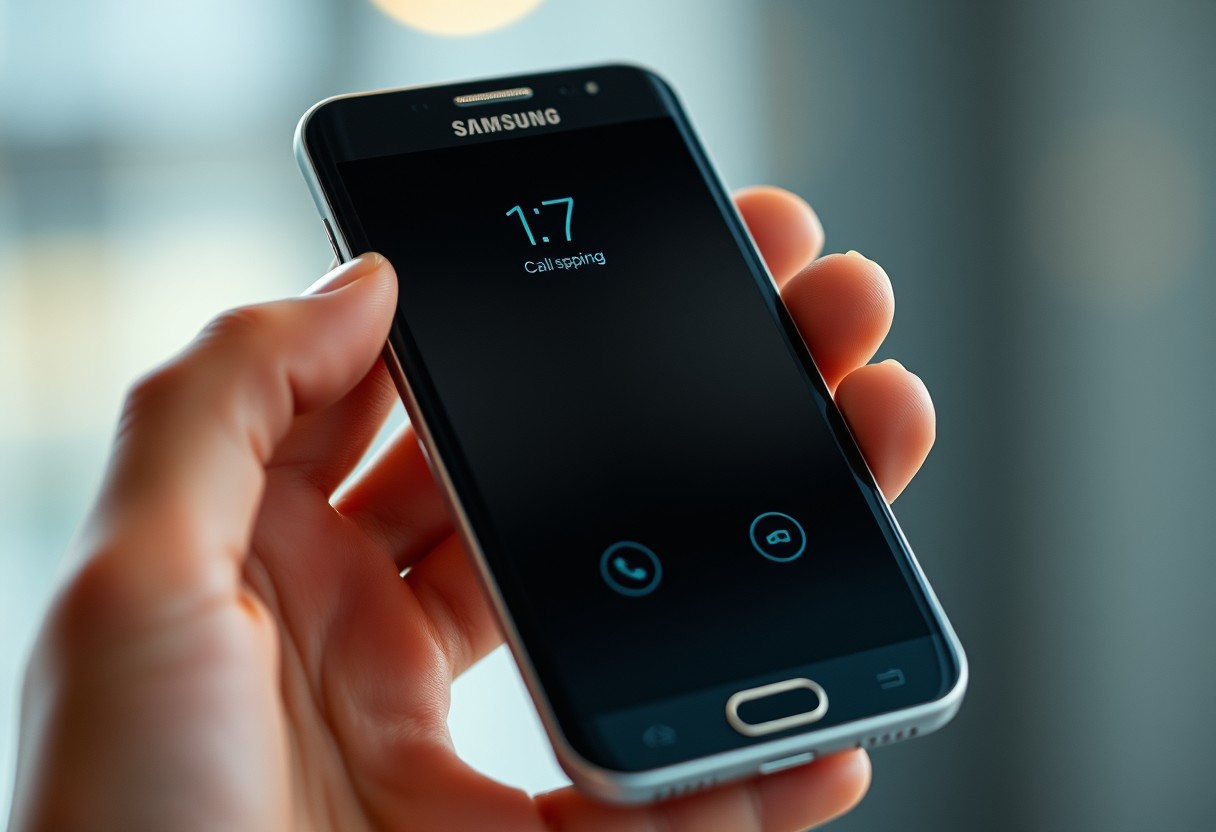
You may notice your Samsung Galaxy screen turns off during calls even when you’re actively speaking, which can lead to accidental touches or dropped conversations. This behavior is tied to the proximity sensor’s design, meant to prevent unintended inputs. While the feature protects against pocket dials, it becomes problematic when the sensor misreads distance, leaving you unable to access the touchscreen at critical moments.
Key Takeaways:
- The proximity sensor on Samsung Galaxy phones automatically turns off the screen during calls to prevent accidental touches, but dirt, screen protectors, or cases can block it and cause unexpected behavior.
- Software settings, including options in Accessibility or during call features, may override default sensor behavior, leading the screen to stay off even when it shouldn’t.
- Clearing the cache partition or updating the phone’s software often resolves sensor-related glitches without requiring a factory reset or hardware repair.
The Glass and the Sensor
Your Galaxy phone uses a proximity sensor to detect when the device is near your face during a call. This small component, usually located near the earpiece, signals the screen to turn off to prevent accidental touches. If the sensor is blocked-even by a smudge, case edge, or screen protector-the phone thinks it’s against your ear and keeps the display dark. Physical obstructions are the most common reason for unexpected blackouts, and they often go unnoticed until the issue persists. Cleaning the glass around the sensor or adjusting how you hold the phone can resolve the problem quickly.
The Code in the Phone
Your phone’s behavior during calls hinges on software that interprets signals from the proximity sensor. After a system update, the logic controlling this response can change unexpectedly, causing the screen to turn off even when no obstruction is present. You might notice this happening more frequently following an Android or Samsung One UI upgrade, as new code sometimes misreads sensor data. While the hardware remains intact, faulty firmware interpretation disrupts normal function, leading to frustration mid-conversation. This isn’t a defect you can clean away-it’s embedded in the operating layer itself.
The Menus of Change
Your screen’s behavior during calls is often controlled by settings you can adjust directly. Look in the display or device maintenance menu for an option labeled “Stay on during calls” or similar-enabling this prevents the screen from turning off unexpectedly. Some Samsung models also include a proximity sensor toggle, letting you manually override automatic dimming. If the screen still cuts out, double-check that power-saving modes aren’t forcing display timeouts. Adjusting these settings gives you direct control over when and how your screen responds, reducing frustration mid-conversation.
The Clean Slate
Resetting your Samsung Galaxy to factory settings might resolve persistent screen issues during calls, but it should never be your first step. This action erases all data-photos, messages, apps-and returns the software to its original state, which can eliminate deep-seated bugs affecting the proximity sensor. While effective, a full wipe is drastic and time-consuming to recover from. If you’ve exhausted every other fix and still face problems, some users have found answers in community discussions like this Problem with proximity sensor : r/whatsapp. Only proceed here if you’re certain no other software adjustment will help.
Summing up
You experience the Samsung Galaxy screen turning off during calls when it shouldn’t, and it disrupts your conversation. This behavior usually stems from a misreading between the proximity sensor and the software logic meant to conserve power. You’ve checked settings, ruled out third-party apps, and confirmed the hardware isn’t obstructed. Even so, occasional glitches persist due to firmware quirks or sensor calibration issues. A factory reset often resolves deep-seated bugs, but you can try clearing the cache partition first. Keeping your device updated ensures known issues are patched promptly.

FAQ
Q: Why does my Samsung Galaxy screen turn off during calls even when I’m not near my ear?
A: The screen turns off because the proximity sensor detects something nearby, even if you don’t see it. This sensor is designed to prevent accidental touches during calls by turning off the display when it senses an object close to the phone, like your ear. If the screen shuts off unexpectedly, the sensor might be misreading its environment due to a blocked sensor, screen protector interference, or a software glitch.
Q: Can a screen protector cause the screen to turn off during calls?
A: Yes, some screen protectors-especially thick or poorly aligned ones-can partially cover the proximity sensor. This sensor sits near the earpiece and can mistake the edge of a misaligned protector for an object nearby. Removing the screen protector temporarily can help confirm if it’s the cause. If the issue stops after removal, consider switching to a thinner or better-fitted version.
Q: How do I test if the proximity sensor is working correctly?
A: Dial *#0*# to enter Samsung’s built-in diagnostic mode. Tap “Proximity Sensor” to run the test. The screen should turn black when you wave your hand over the top of the phone and light up again when you pull your hand away. If the screen doesn’t respond, the sensor may be blocked, damaged, or affected by a software issue.
Q: Could a third-party app be making the screen turn off during calls?
A: Some call recording or battery-saving apps interfere with normal sensor behavior. These apps may override default phone functions, including screen management during calls. Try booting the phone in Safe Mode to disable third-party apps temporarily. If the screen stays on during a call in Safe Mode, an installed app is likely the culprit. Uninstall recently added apps one by one to isolate the problem.
Q: What if cleaning the sensor and removing the screen protector don’t fix the issue?
A: If basic fixes fail, the problem could stem from a hardware defect or deeper software conflict. Start by resetting app preferences in Settings > Apps > Reset app preferences to clear misbehaving app configurations. If the issue persists, back up your data and consider a factory reset. If the screen still turns off after a reset, contact Samsung support or visit a service center, as the sensor may need replacement.