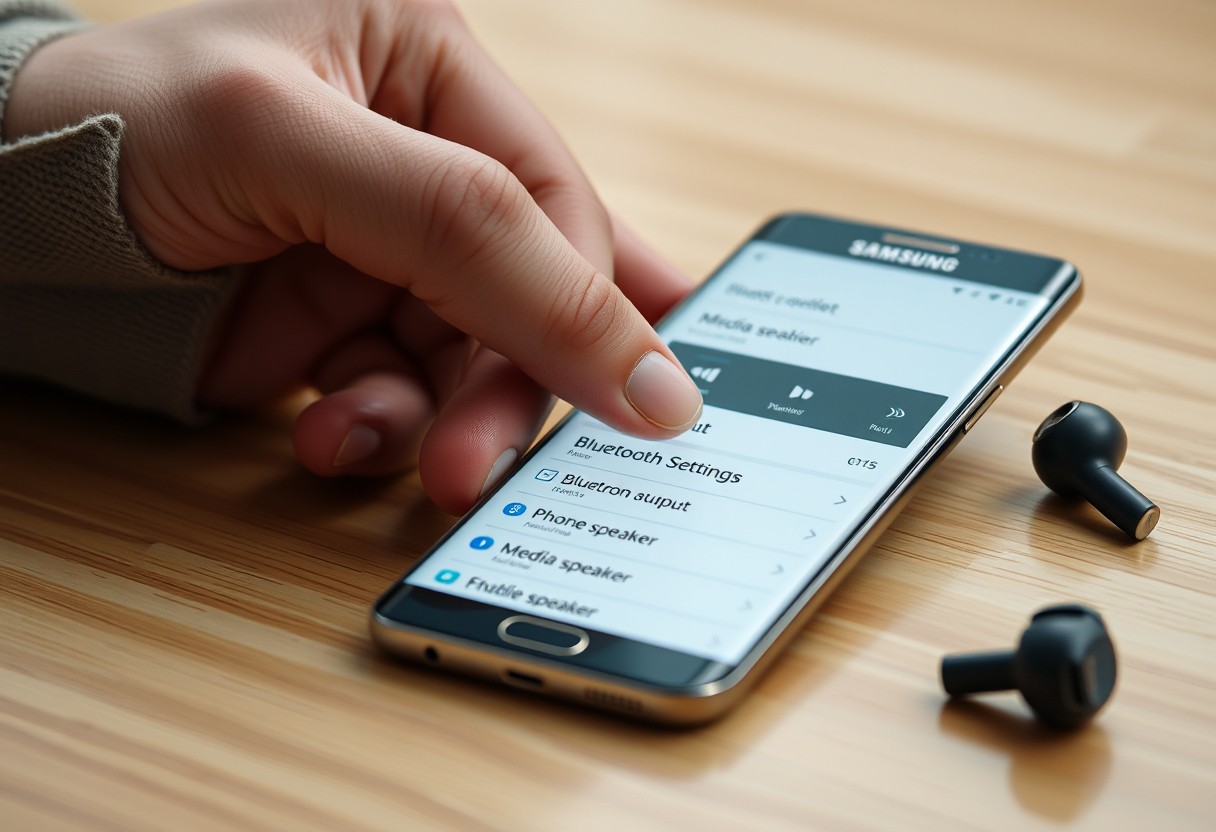
You’ve paired your Samsung Galaxy to a Bluetooth device, but the audio still plays through the phone speaker instead of your headphones or speaker. This issue can disrupt calls and media playback, but the fix is often a quick setting adjustment. You don’t need technical expertise-just the right steps to redirect audio output correctly and prevent future routing errors.
Key Takeaways:
- Samsung Galaxy users may experience Bluetooth connection issues where audio plays through the phone speaker instead of the connected device, often due to incorrect audio routing settings after pairing.
- The problem can usually be resolved by manually selecting the correct audio output device in the Bluetooth settings menu or using the media audio toggle during an active connection.
- Resetting network settings or clearing Bluetooth cache can address persistent routing errors, especially after software updates or when multiple devices are paired simultaneously.
Common Factors Causing Audio Routing Issues
Audio routing problems on your Samsung Galaxy often stem from software-level conflicts or misconfigured settings rather than hardware failure. Background apps can interfere with Bluetooth audio streams, while outdated firmware may lack proper support for certain devices. Your phone might also default to the wrong output due to a recent update or app installation. Ensuring your Bluetooth settings, media volume, and connected device profiles are correctly configured helps eliminate common digital roadblocks affecting sound delivery.
- Check if another app is using the audio output
- Verify that Bluetooth media audio is enabled for the connected device
- Look for recent system updates that may have reset audio preferences
- Confirm your Galaxy isn’t routing sound through Do Not Disturb or Speakerphone mode
- Review third-party apps that manage connection behavior or audio routing
Identifying Media Output Conflicts
You might notice sound playing from your phone’s speaker even when Bluetooth is connected because another app has taken control of the media stream. Streaming services, voice assistants, or navigation tools can override your intended audio path without clear warnings. Check your notification panel to see which app is sending audio and close any unnecessary ones. Disabling media audio for non-essential apps in Bluetooth settings prevents them from hijacking playback and ensures your music or calls route properly to your wireless device.
Understanding Bluetooth Profile Limitations
Not all Bluetooth connections support high-quality audio streaming by default. Your Galaxy may connect successfully but use the Hands-Free Profile (HFP) instead of the Advanced Audio Distribution Profile (A2DP), resulting in low-fidelity sound routed through the phone’s earpiece. This commonly happens after pairing resets or with older accessories. Look for a profile setting in your Bluetooth device options and manually select A2DP for media playback. Keeping this profile active ensures richer sound and proper routing to your headphones or speaker.
Checking Hardware and Physical Connections
Your Samsung Galaxy must be within close range-ideally less than 30 feet-of the Bluetooth device for reliable audio transmission. Physical barriers like walls or large metal objects can interfere with the signal, causing unexpected disconnections or audio that defaults back to the phone speaker. Ensure both devices support compatible Bluetooth profiles such as A2DP for high-quality audio streaming, as mismatched capabilities often result in improper routing. A weak connection may not immediately disconnect but can silently redirect sound output, so maintaining clear line-of-sight during pairing improves reliability.
Verifying Battery Levels and Power Modes
Low battery on either your Galaxy or the connected Bluetooth device can force power-saving behaviors that disrupt audio flow. Some headphones or speakers automatically reduce functionality or disable stereo streaming when电量 is critically low, which might allow connection without sound output. Your phone may also limit background processes, including Bluetooth audio routing, when in extreme battery saver mode. Maintaining both devices above 20% charge during use prevents unexpected interruptions and ensures full feature availability for uninterrupted playback.
Testing with Alternative Bluetooth Devices
If audio still plays through the phone, try pairing with a different set of Bluetooth headphones or a speaker to isolate the issue. A successful connection with another device indicates the problem lies with the original accessory, possibly due to firmware limitations or hardware defects. Conversely, if multiple devices fail to receive audio, the fault likely resides in the phone’s radio or configuration. This test provides clear direction for troubleshooting-either replacing faulty hardware or focusing on internal settings.
How-to: Adjusting Bluetooth Settings and Audio Output
Using the Media Output Menu
Open your phone’s Quick Panel by swiping down from the top of the screen with two fingers. Tap on the media output icon, usually labeled “Media” or showing connected devices. A list of available audio destinations appears-select your Bluetooth device to route sound correctly. If the phone speaker remains active, this step forces the system to redirect audio. Ensure the selected device shows an active connection status; a grayed-out option may indicate disconnection or pairing issues. This method instantly resolves most cases where audio plays locally despite a linked accessory.
Enabling Separate App Sound Features
Your Samsung Galaxy can send different app sounds to separate outputs using the Separate App Sound feature. Go to Settings > Connections > Bluetooth, tap the three dots, and select Advanced. Toggle on “Separate App Sound” to allow individual control over which apps play through the Bluetooth device. When enabled, notifications or calls might use one output while media uses another. Assigning specific apps ensures consistent routing and prevents unexpected shifts back to the phone speaker during playback.
How-to: Resetting Network and Bluetooth Configurations
Restoring your Samsung Galaxy’s network and Bluetooth settings to their defaults can resolve persistent audio routing problems caused by corrupted or misconfigured connections. This process clears saved Wi-Fi networks, Bluetooth pairings, and mobile settings, giving your device a clean slate for re-establishing stable links. The reset eliminates background glitches that may interfere with proper audio transmission, especially after software updates or third-party app conflicts. You’ll need to re-pair your devices afterward, but the trade-off is a more reliable connection framework moving forward.
Unpairing and Repairing the Device
Start by removing the problematic Bluetooth device from your Galaxy’s paired list to clear any corrupted connection data. Go to Bluetooth settings, tap the gear icon next to the device, and select “Forget” or “Unpair”-this step is essential for breaking faulty links. Afterward, turn off Bluetooth for 30 seconds, then re-enable it and pair the device again as if it were new. This fresh pairing often resolves audio routing errors by forcing the phone to re-negotiate the connection using default protocols instead of relying on outdated or damaged settings.
Executing a Network Settings Reset
Performing a full network settings reset will erase all saved Wi-Fi networks, Bluetooth configurations, and mobile preferences in one action. Navigate to Settings > General Management > Reset > Reset Network Settings, then confirm the process-this cannot be undone automatically, so note down any important network passwords beforehand. Once complete, your Galaxy will reboot with factory-default connectivity configurations. The clean setup frequently corrects deep-seated Bluetooth audio issues by removing conflicting or corrupted network-level instructions that interfere with proper audio routing.
Tips for Optimizing Wireless Audio Stability
To maintain a stable wireless audio connection on your Samsung Galaxy, consider enabling Developer Options and adjusting key Bluetooth settings that influence performance. Some devices allow you to select preferred Bluetooth audio codecs or disable Bluetooth Absolute Volume, which can prevent unexpected audio routing. You should also review recently installed apps, as certain services may interfere with audio streams. Disabling or uninstalling such apps often resolves conflicts and restores proper sound output through your connected device.
- Enable Developer Options by tapping Build Number seven times in About Phone
- Disable Bluetooth Absolute Volume to regain control over volume levels
- Select high-quality audio codecs like aptX or LDAC if supported
- Close or uninstall apps that run background audio services
- Use wired headphones temporarily to isolate software-related issues
Adjusting Bluetooth Audio Codecs
Your Galaxy’s audio quality and stability depend heavily on the codec used to transmit data to your headphones. In Developer Options, you can manually choose a preferred codec like SBC, AAC, aptX, or LDAC. Selecting LDAC enables higher bitrates but may cause stuttering on congested networks, while SBC offers wider compatibility but lower fidelity. If you notice audio dropouts, switching to AAC or disabling LDAC might improve reliability. This setting directly affects how smoothly audio streams and should be tested under real listening conditions.
Managing Background App Interference
Background apps can hijack your phone’s audio focus without your knowledge, redirecting sound back to the device speaker. Music players, voice assistants, or notification-heavy apps often trigger this behavior. You should check which apps have permission to access audio and restrict those not essential. Force stopping suspicious apps or using Safe Mode temporarily helps identify the culprit. Once isolated, disabling or updating the app typically prevents future interference and ensures your Bluetooth device remains the default audio path.
Advanced Troubleshooting and Support Factors
If software fixes haven’t resolved the Bluetooth audio routing problem, you may need to consider more decisive actions. A factory reset erases all data and returns your Galaxy device to its original state, which can eliminate deep-seated software conflicts causing incorrect audio output. This step should only follow full backups, as it cannot be undone. In some cases, the issue may stem from damaged internal components like the audio processor or Bluetooth module, requiring professional repair. Consider contacting authorized service centers if symptoms persist after a reset.
- Back up all important data before initiating a factory reset
- Perform the reset through Settings > General Management > Reset
- Re-pair your Bluetooth device after the phone restarts
- Contact Samsung Support if the problem continues post-reset
- Request hardware diagnostics for suspected internal faults
| Action | When to Use It |
| Factory Reset | After exhausting all software troubleshooting steps |
| Professional Repair | When audio issues persist without any software cause |
| Samsung Support Consultation | To confirm warranty status and validate hardware defects |
Booting in Safe Mode to Isolate Issues
Starting your Samsung Galaxy in Safe Mode disables all third-party apps, helping you determine if a downloaded application is interfering with Bluetooth audio routing. Press and hold the power button, then tap and hold “Power off” until the Safe Mode prompt appears. If audio plays correctly through the Bluetooth device in this mode, an app is likely responsible. Uninstall recently added apps one by one to identify the culprit. Return to normal mode once the conflict is resolved to restore full functionality.
Contacting Samsung Support for Hardware Evaluation
Your Galaxy device might have an underlying hardware defect affecting Bluetooth audio transmission, especially if prior steps yielded no improvement. Reach out to Samsung Support directly to describe the issue and provide troubleshooting history. They can run remote diagnostics or direct you to an authorized service center for physical inspection. Devices under warranty may qualify for free repair or replacement. Avoid third-party repair shops to maintain safety standards and preserve warranty eligibility.
Final Words
You’ve confirmed your Samsung Galaxy pairs successfully with your Bluetooth device, yet audio still plays through the phone’s speaker. This issue often stems from incorrect audio routing or app-specific output settings. You can resolve it by manually selecting the correct audio output in the device’s Bluetooth settings or restarting both the phone and accessory. If problems persist, review Samsung’s official guidance on Troubleshooting speaker and sound issues on a Samsung Galaxy device, which provides detailed steps tailored to your model.

FAQ
Q: Why does my Samsung Galaxy connect to Bluetooth but play audio through the phone speaker?
A: This issue typically occurs when the connected Bluetooth device, such as headphones or a car stereo, is not set as the default audio output for media. Even though the devices appear paired, Android may still route sound through the phone’s internal speaker. Check your phone’s Bluetooth settings and ensure that “Media Audio” is enabled for the connected device. Some accessories support multiple Bluetooth profiles, and the phone might be using only the headset profile for calls instead of the A2DP profile required for music and videos.
Q: How can I tell if my Bluetooth device is properly handling media audio on my Galaxy phone?
A: After pairing, go to Settings > Bluetooth, tap the gear icon next to the connected device, and verify that “Media Audio” is turned on. If it’s off, toggle it on and test playback. You should also see a media volume slider appear when you press the volume buttons while audio is playing-if the call volume slider appears instead, the device is likely in call-only mode. Try disconnecting and reconnecting the device to trigger proper profile activation.
Q: Can restarting my Samsung Galaxy fix Bluetooth audio routing problems?
A: Yes, a simple restart can resolve temporary software glitches affecting audio routing. Power cycle your phone and reconnect to the Bluetooth device. After rebooting, play a video or song and manually select the Bluetooth device as the output from the media panel in the notification shade. This forces the system to re-establish the correct connection path and often restores proper audio flow to the accessory.
Q: What happens if I forget and re-pair the Bluetooth device?
A: Removing the device from your Bluetooth list and pairing it again resets all connection permissions and profiles. This process clears any corrupted settings that may prevent media audio from routing correctly. After forgetting the device, restart both the phone and the accessory, then pair them again. During setup, make sure to allow media audio access when prompted. This method has resolved persistent audio issues in cases involving older wireless headsets and car infotainment systems.
Q: Could app-specific settings affect Bluetooth audio output on my Galaxy phone?
A: Yes, certain apps like YouTube, Spotify, or WhatsApp manage audio output independently. An app might default to phone speaker regardless of system settings. Open the app while connected to Bluetooth and start playback, then use the volume controls to switch to media volume and confirm the Bluetooth device is selected. Some apps also have built-in audio routing options-Spotify, for example, allows choosing output devices directly within its interface under “Connect to a Device.”