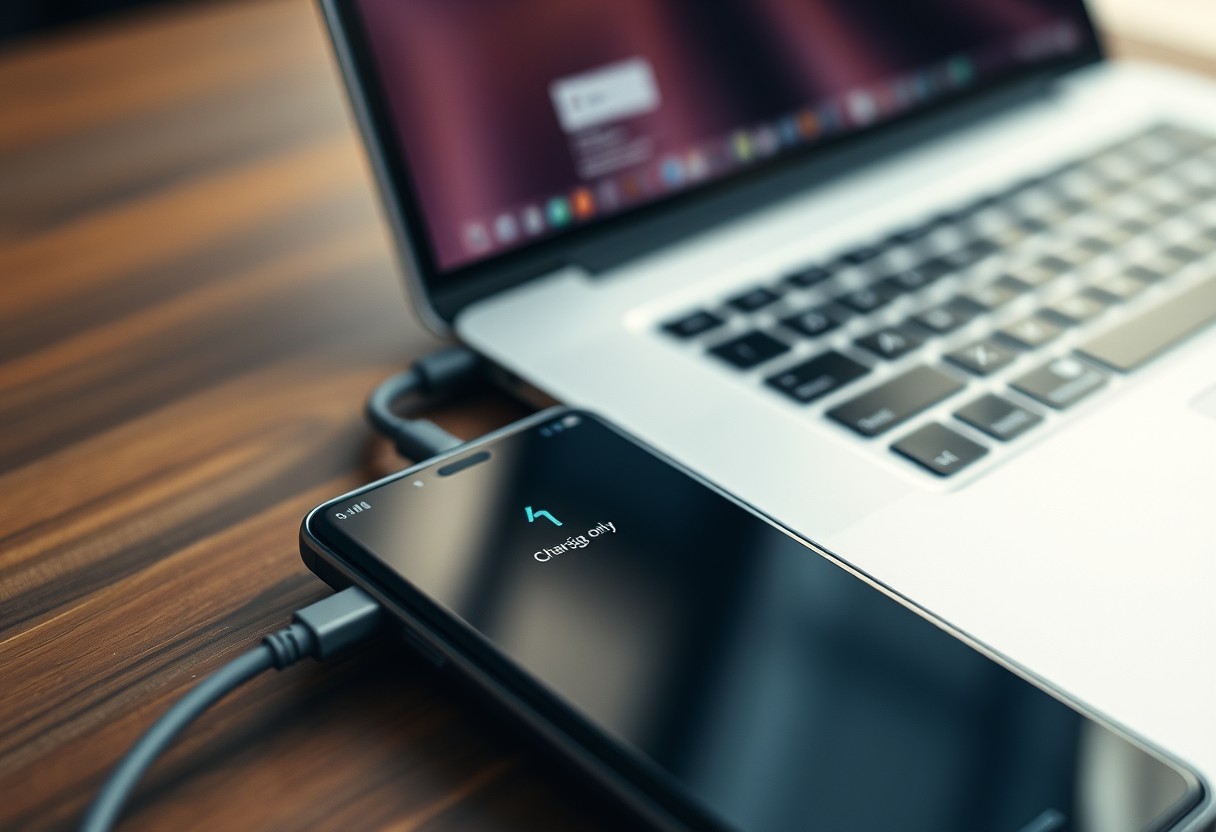

You’ve connected your Samsung Galaxy to your computer, and while it charges normally, your files remain inaccessible. This common issue often stems from a simple setting or faulty cable. Ignoring it could lead to data loss, but the fix is usually quick. You don’t need technical expertise-just the right steps to restore full connectivity and regain control over your device’s data transfer functions.
Key Takeaways:
- Samsung Galaxy devices may charge via USB while failing file transfer due to using a faulty or low-quality cable that supports only power delivery, not data transmission.
- File transfer issues often stem from incorrect USB settings on the phone, such as being set to “Charging only” instead of “File Transfer (MTP)” mode when connected.
- Outdated or missing USB drivers on the connected computer can prevent proper recognition of the device, blocking file access even if charging works normally.
The Cable Mystery
Not every cable that powers your Samsung Galaxy can transfer files, and assuming otherwise leads to unnecessary frustration. A damaged or low-quality wire may deliver current but fail to transmit data due to broken internal conductors. You’ve likely seen devices charge successfully while file transfer remains unresponsive-this is often the first clue. The presence of power does not guarantee a functional data connection, as separate pathways within the cable handle each task. Inspecting your cable’s construction and testing with a known working unit can save hours of troubleshooting.
It is a capital mistake to assume a wire transmits data merely because it conveys a spark of power.
Charging requires only a minimal electrical pathway, but data transfer depends on intact data lines inside the USB cable. Your Galaxy may recognize the connection as a power source while remaining blind to file commands. Frayed wires, bent connectors, or internal breaks often disrupt data flow long before charging fails. Even slight physical damage can sever the delicate conductors responsible for communication. If drag-and-drop fails, the issue may not be your phone or software-it could be a silent hardware flaw in the cable itself.
Many generic leads are designed solely for charging, lacking the vital copper paths required for information exchange.
These cables contain simplified internal wiring that supports power delivery but omits the data transmission lines. You might plug in and see the charging icon, yet your computer never detects the device as a storage option. Not all USB cables are built to the same specification-some skip data-capable wiring to cut production costs. A well-constructed cable labeled “data sync” or “high-speed” includes the necessary conductors. When file transfer is the goal, your choice of cable isn’t just a detail-it defines whether the connection works at all.
The Software Configuration
One must venture into the hidden Developer Options to manually dictate the USB behavior of the handset.
You won’t find USB configuration settings in the main Android menu-they’re tucked away behind Developer Options, a menu normally disabled by default. To access it, go to Settings > About Phone and tap the Build Number seven times until the system confirms you’ve become a developer. Once enabled, return to the main settings and open Developer Options. There, you’ll see a default USB configuration entry that likely defaults to charging only. Changing this setting allows persistent file transfer mode unless physically reconnected.
Selecting the Media Transfer Protocol ensures the device speaks a language the computer can readily interpret.
When you connect your Galaxy phone, a notification appears showing how the device is connected. Swipe down and tap that USB notification to reveal connection modes. Select File Transfer or Media Transfer Protocol (MTP) explicitly-this tells the phone to expose its storage in a way compatible with Windows and macOS. Without choosing MTP, your computer sees no files even though power flows normally. This selection resets on some devices after unplugging, so confirming it each time ensures consistent access.
The Driver Discrepancy
When your Galaxy charges but refuses file transfer, a hidden conflict in Windows Device Manager might be to blame. Outdated, corrupted, or mismatched MTP (Media Transfer Protocol) drivers often prevent your PC from recognizing the phone’s file system. You may see the device listed under “Portable Devices” or “Other Devices” with an error symbol. Resolving this means addressing the driver directly through proper reinstallation or updates within the system’s management tools. A clean fix here can restore full communication without needing hardware repairs.
The yellow mark of warning in the Device Manager is a clue that the MTP driver has failed its duty.
That yellow triangle beside your Samsung device in Device Manager signals a driver-level failure, not a hardware fault. It means Windows detected the phone but couldn’t load the correct MTP driver needed for file transfer. Right-click the device, choose “Update driver,” and select “Browse my computer for drivers.” Then, point it to the proper MTP entry or uninstall the driver completely and let Windows reinstall it fresh. This simple correction often brings file transfer back online immediately.
A clean reinstallation of the Samsung mobile interface software often restores the link between the two machines.
Samsung’s official USB drivers and Smart Switch components can degrade over time, especially after OS updates. Uninstall these tools completely through Control Panel, then download the latest version directly from Samsung’s support site. Install them before reconnecting your phone. Fresh software ensures full compatibility and reestablishes the secure channel needed for data exchange. Your PC will recognize the device as a media device, unlocking file access once more.
The Physical Examination
Inspecting the USB-C port on your Samsung Galaxy device often reveals issues invisible during regular use. Start by switching off the phone and examining the port under a bright light. Look closely for signs of physical damage, corrosion, or misaligned internal pins. Even slight bending from repeated improper cable insertion can disrupt data transmission while still allowing power flow. If the port appears intact but suspect, proceed with targeted tests-your ability to identify subtle flaws here determines whether hardware repair becomes unavoidable.
Pocket debris lodged within the USB-C cavity can prevent the data pins from making a firm and necessary contact.
Lint, dust, or pocket grit frequently accumulates deep inside the USB-C port, especially after prolonged daily carry. This debris may block the slender data pins while leaving enough space for charging contacts to connect, explaining why power transfers but file access fails. Use a wooden toothpick or compressed air to gently dislodge buildup-avoid metal tools that could cause irreversible short circuits. After cleaning, retest the connection; many users restore full functionality through this simple, low-risk step.
To isolate the culprit, one must observe if the handset connects to an alternative computer terminal.
Your phone’s behavior when linked to another computer provides definitive insight into where the fault lies. Connect the Galaxy device to a different laptop or desktop and watch for notification prompts like “File Transfer” or “MTP mode.” If the second system recognizes the phone instantly, the original computer likely holds the issue. A consistent failure across machines points squarely at the device’s port or internal circuitry, narrowing the path to resolution.
Conclusion
You now understand that a Samsung Galaxy device charging but not transferring files via USB can stem from multiple sources. The issue may lie in the cable’s design, your computer’s software settings, outdated or missing drivers, or even minor physical damage to the port. Each troubleshooting step you take brings you closer to identifying the root cause. By methodically checking connections, adjusting settings, and updating software, you restore functionality. This process ensures your device communicates properly when connected, not just charges.
FAQ
Q: Why does my Samsung Galaxy charge via USB but not transfer files when connected to my computer?
A: This behavior usually points to a mode mismatch between the devices. When you connect your phone, it defaults to charging mode unless manually switched. Pull down the notification shade on your Galaxy and tap the USB connection notification. Select “File Transfer” or “MTP mode” from the options. If the prompt doesn’t appear, try disconnecting and reconnecting the cable while the screen is on.
Q: Can a damaged USB cable cause file transfer issues even if charging works fine?
A: Yes. USB cables contain multiple internal wires: some handle power, others manage data. A cable with a broken data line can still charge your device but fail to transfer files. Test with a known working cable, preferably the original one that came with your phone. Look for cables labeled as “data sync” capable, not just charging cables.
Q: Why doesn’t my Windows PC recognize my Samsung Galaxy for file transfer?
A: Windows may not detect the device if the correct drivers are missing or outdated. Samsung phones rely on specific MTP drivers to communicate with PCs. Connect your phone, open Device Manager, and check under “Portable Devices” or “Other Devices.” If your phone appears with a yellow warning icon, right-click and update the driver software. You can also reinstall Samsung USB drivers from the official Samsung website.
Q: Does developer options or USB debugging affect file transfer?
A: USB debugging is a separate setting used mainly for app development, but enabling it can sometimes resolve connection issues. Go to Settings > About Phone and tap “Build Number” seven times to unlock Developer Options. Then go to Developer Options and turn on USB Debugging. Try connecting again. Disable it afterward for security if not needed.
Q: Could a software update on my Galaxy cause USB file transfer to stop working?
A: Software updates occasionally reset USB preferences or introduce bugs in connectivity functions. If the issue started after an update, check for additional system patches in Settings > Software Update. You can also reset USB settings by going to Settings > Developer Options > Revoke USB Debugging Authorizations, then reconnect the device and reauthorize the computer.