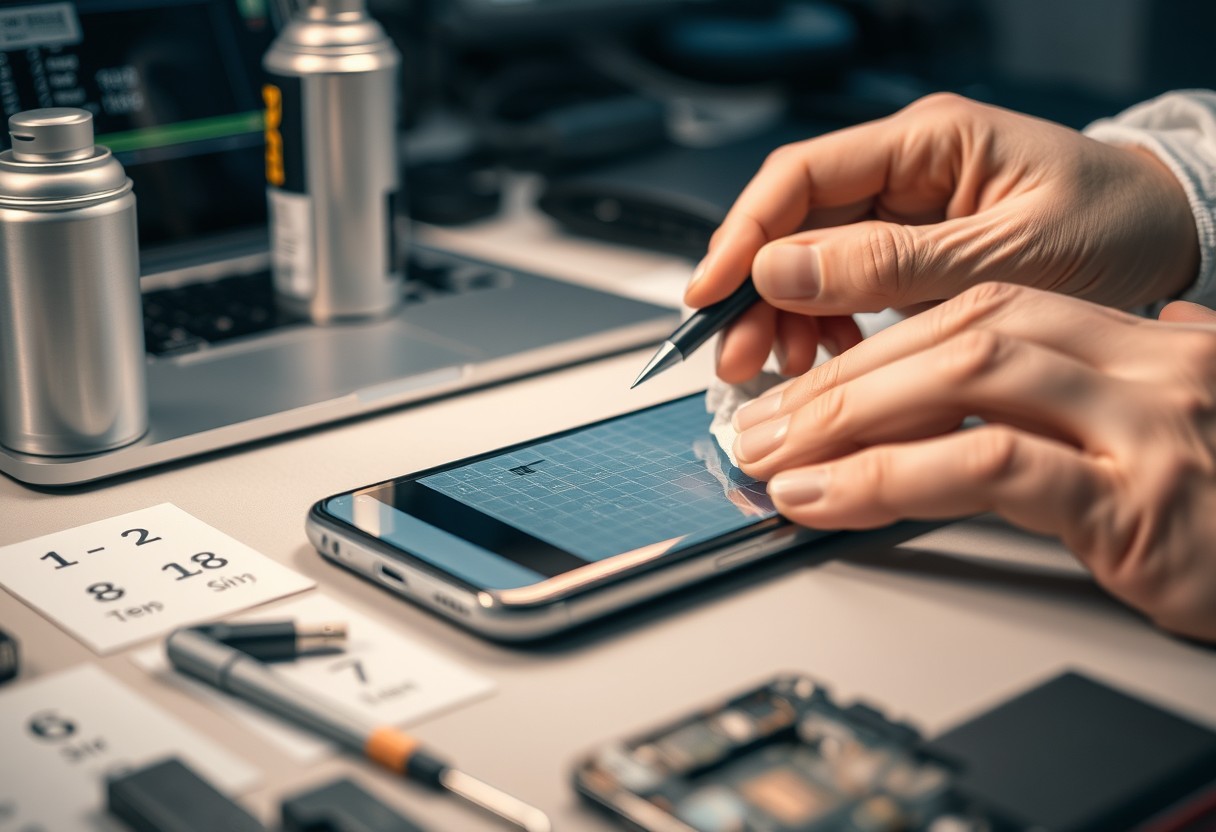
Your Samsung Galaxy touchscreen should respond instantly to your touch, but when it works only sometimes, daily tasks become frustrating. This guide walks you through proven fixes-starting with simple resets and ending with repair decisions. Some issues stem from software glitches you can fix in minutes; others may signal serious hardware damage. Acting early can prevent permanent failure and save you money.
Key Takeaways:
- A soft reset or forced restart often resolves temporary software glitches causing intermittent touchscreen response, especially after updates or app crashes.
- Removing screen protectors and cases during troubleshooting helps rule out physical interference that may disrupt touch sensitivity or calibration.
- Safe Mode testing can identify if a third-party app is conflicting with touchscreen functionality, allowing targeted uninstallation without data loss.
Types of Touchscreen Failure Modes
Different malfunction patterns can reveal the root cause of your Samsung Galaxy’s touch issues. Ghost touching occurs when the screen registers taps without input, while dead zones fail to respond in specific areas. Some devices experience intermittent lag, where touch input delays or skips, and others show partial responsiveness, reacting only on edges. Environmental factors are not covered here-this section focuses strictly on behavioral symptoms. Identifying your specific failure mode helps determine whether software fixes or hardware repair are needed.
- Ghost touching: screen activates without user input
- Dead zones: certain areas do not respond to touch
- Intermittent lag: delayed or skipped touch response
- Partial responsiveness: only parts of the screen work
- Total unresponsiveness: no reaction to any touch input
| Failure Mode | Observed Behavior |
| Ghost Touching | Random selections, typing errors, app launches without input |
| Dead Zones | Specific screen areas ignore touch, especially corners or center |
| Intermittent Lag | Touch trails behind finger or registers seconds later |
| Partial Responsiveness | Only top, bottom, or side regions respond consistently |
Ghost Touching and Random Input Symptoms
You may notice your Samsung Galaxy making selections on its own, opening apps, or typing characters without your touch. This behavior, known as ghost touching, often stems from a disrupted touch controller or firmware glitch. The screen appears overly sensitive, reacting to non-existent input, which can make normal use nearly impossible. In severe cases, the device may become unusable due to constant unintended actions. Cleaning the display and disabling gestures won’t fix the core issue if the firmware or digitizer is compromised.
Total Unresponsiveness vs. Intermittent Lag
Your touchscreen might stop responding completely, ignoring every tap and swipe, or it could behave unpredictably with delays between input and response. Total unresponsiveness usually points to a hardware failure, such as a disconnected digitizer cable or damaged screen assembly. In contrast, intermittent lag often relates to software overload or minor sensor interference. A screen that works one moment and freezes the next suggests a fluctuating connection or firmware conflict rather than permanent damage.
Factors Influencing Screen Performance
Your Samsung Galaxy touchscreen’s responsiveness can degrade due to a mix of internal and external influences that directly affect hardware integrity. Environmental conditions, physical handling, and component lifespan play significant roles in determining how reliably the screen registers input. While software issues may mimic touch problems, true hardware-related malfunctions stem from tangible changes in the device’s physical state or exposure history. Understanding these factors helps distinguish between recoverable glitches and actual hardware deterioration.
- Environmental and temperature extremes can temporarily disable touch functionality
- Physical impacts or pressure may damage internal sensor layers
- Long-term use leads to gradual degradation of conductive materials
- Moisture or liquid exposure disrupts electrical conductivity
- Manufacturing variances influence durability across models
Environmental and Temperature Impacts
Extreme temperatures can impair your Galaxy’s touchscreen by altering the conductivity of its underlying layers. Cold environments slow down capacitive response, making the screen feel unresponsive or jumpy, while excessive heat may trigger temporary shutdowns of touch functionality. High humidity or rapid temperature shifts can also introduce condensation beneath the display, interfering with signal transmission. Operating your device within Samsung’s recommended climate range ensures consistent performance and prevents avoidable stress on sensitive electronics.
| Condition | Effect on Touchscreen |
|---|---|
| Below-freezing temperatures | Delayed or erratic touch response |
| Excessive heat (above 35°C) | Temporary touch disablement |
| High humidity or moisture | False touches or complete failure |
| Rapid temperature changes | Internal condensation risk |
Physical Wear and Component Aging
Over time, repeated use takes a measurable toll on your touchscreen’s internal structure. Each press and swipe contributes to microscopic wear in the conductive grid beneath the glass, leading to localized dead zones or inconsistent detection. Dropping the phone, even from small heights, can misalign sensor layers or weaken connections. The adhesive bonding the screen layers may also degrade, creating air gaps that disrupt touch accuracy. These age-related changes are irreversible and often progress gradually, making early detection essential for managing usability.
Step-by-Step Software Troubleshooting
When your Samsung Galaxy touchscreen responds only occasionally, software irregularities may be to blame. Resetting system functions and recalibrating internal processes can resolve ghost touches, unresponsiveness, or erratic behavior without requiring hardware intervention. The following procedures target core software layers that manage touch input, helping restore normal operation. Follow each step carefully, ensuring you complete one process before moving to the next.
| Solution | Action Required |
| Safe Mode Activation | Boot device in Safe Mode to disable third-party apps temporarily |
| Cache Partition Clear | Use Recovery Mode to wipe system cache without data loss |
| Touch Sensitivity Settings | Adjust responsiveness level under Display settings |
| Firmware Update | Install latest OS version via Settings or Smart Switch |
Safe Mode and System Cache Partitioning
You can isolate app-related interference by booting your Galaxy device into Safe Mode. Press and hold the power button, then long-press the “Power off” option until a prompt appears asking to restart in Safe Mode-tap OK. In this state, only preinstalled apps run, so if the touchscreen works perfectly here, a downloaded app is likely causing the issue. To clear deeper glitches, enter Recovery Mode by holding Volume Up + Bixby + Power simultaneously, then select “Wipe cache partition.” This does not erase personal data but can eliminate corrupted temporary files affecting touch response.
Touch Sensitivity Adjustment and Firmware Updates
Your Galaxy phone includes built-in tools to fine-tune how the screen registers contact. Navigate to Settings > Display > Touch sensitivity and toggle the mode on to improve responsiveness, especially when wearing gloves or using a stylus. This adjustment may correct minor lag or missed inputs. For more comprehensive fixes, check for firmware updates through Settings > Software update. Installing the latest patch can resolve known bugs related to touchscreen drivers. Keeping your system updated ensures you benefit from manufacturer-level optimizations designed specifically for your model’s display hardware.
Maintenance Tips for Optimal Sensitivity
To keep your Samsung Galaxy touchscreen responding accurately, regular maintenance is essential. Dirt, oils, and static can degrade touch sensitivity over time, leading to erratic behavior. Clean your device properly and inspect protective accessories to maintain consistent performance. Using improper cleaning methods can permanently damage the screen’s coating, so always follow manufacturer-recommended practices. A well-maintained display not only improves usability but also extends the lifespan of your device.
- Clean the screen weekly with a microfiber cloth
- Use only screen-safe cleaning solutions or distilled water
- Remove oil residue from fingerprints regularly
- Store your phone away from dusty or humid environments
- Disable glove mode when not needed to reduce false inputs
Removing Debris and Static Buildup
Over time, dust and pocket lint accumulate along the screen edges, interfering with touch accuracy. Power off your Galaxy before cleaning to prevent accidental input. Gently wipe the surface with a dry microfiber cloth to lift debris without scratching. If smudges persist, lightly dampen the cloth with distilled water-never spray liquid directly. Static buildup can repel finger contact, so avoid synthetic fabrics when wiping. Regular removal of contaminants ensures consistent sensor response across the entire display area.
Evaluating Screen Protector Interference
A poorly applied or low-quality screen protector may disrupt touchscreen functionality. Air bubbles, misalignment, or thick film layers reduce sensitivity and cause unresponsive zones. Inspect the protector for lifting edges or trapped particles underneath. Peel it off carefully if issues align with its coverage area. Opt for tempered glass designed specifically for your Galaxy model to preserve touch precision. Reapplying a high-grade protector correctly restores protection without sacrificing performance.
Pros and Cons of Repair Strategies
Deciding whether to repair your Samsung Galaxy touchscreen yourself involves weighing cost savings against potential risks. While DIY fixes can reduce expenses, they may void warranties or lead to further damage if not executed correctly. Professional repairs ensure compatibility and reliability but often come at a higher price. Understanding these trade-offs helps you make an informed decision based on your technical skill and budget. For insights from other users experiencing similar issues, visit this discussion on No screen and system ui not responding.
| Factor | Assessment |
|---|---|
| Cost | DIY is cheaper; authorized service costs more but includes guarantees |
| Technical Skill Required | High for self-repair; none needed with professional service |
| Warranty Impact | Self-repair usually voids manufacturer warranty |
| Part Quality | Uncertain with third-party screens; OEM guaranteed professionally |
| Time Investment | Longer due to research and errors when DIY |
| Risk of Further Damage | High if improper tools or techniques are used |
| Labor Guarantee | Typically offered by authorized providers only |
| Repair Environment | Home setups lack anti-static controls, increasing failure risk |
| Diagnostic Accuracy | Professionals use calibrated tools for precise fault identification |
| Long-Term Reliability | Authorized repairs generally last longer and perform better |
DIY Component Replacement Risks
Replacing the touchscreen yourself exposes you to several hazards that could permanently disable your device. Without proper tools, you risk damaging fragile connectors or scratching internal components during disassembly. Incorrectly installed parts may result in unresponsive touch input or distorted display output. Even minor misalignments can compromise water resistance. The absence of calibration equipment at home often leads to subpar performance, making the effort counterproductive despite initial cost savings.
Manufacturer Warranty and Authorized Service
You retain full protection under Samsung’s warranty only when using certified technicians for repairs. Any tampering by unauthorized parties immediately nullifies coverage, leaving you responsible for future issues. Authorized service centers use genuine parts and factory-approved procedures, ensuring optimal functionality post-repair. This safeguards both the longevity of your device and its software integrity. If your Galaxy model is still under warranty, pursuing official support is almost always the most reliable and cost-effective path forward.
Conclusion
You now have a clear path to diagnosing and resolving intermittent touchscreen issues on your Samsung Galaxy device. By systematically addressing software glitches, adjusting settings, checking for physical damage, and evaluating repair options, you can restore reliable touch functionality. Regular maintenance and informed decisions about repairs help extend your device’s usability. The steps outlined provide a practical, proven approach that aligns with technician-level insights, ensuring you take effective action without unnecessary cost or delay.
FAQ
Q: Why does my Samsung Galaxy touchscreen only work sometimes?
A: Intermittent touchscreen behavior can stem from software glitches, conflicting apps, or system updates that disrupt touch input processing. Physical factors like screen protectors, dirt, or moisture on the display may also interfere with responsiveness. In some cases, minor hardware issues such as loose internal connections or early signs of digitizer failure contribute to inconsistent performance. Identifying whether the issue occurs in specific apps, after a recent update, or under certain conditions helps narrow down the root cause.
Q: Can a screen protector cause my Galaxy’s touchscreen to malfunction?
A: Yes, low-quality or improperly applied screen protectors can create air gaps or add thickness that reduces touch sensitivity. Bubbles, dust underneath, or overhangs near the edges may confuse the touchscreen’s detection system, leading to missed taps or phantom inputs. Removing the protector temporarily can quickly determine if it’s the source of the problem. If touch performance improves without it, consider replacing it with a high-adhesion, thin model designed for your specific Galaxy model.
Q: Does safe mode help diagnose touchscreen issues on Samsung phones?
A: Running the phone in safe mode disables all third-party apps, which helps isolate whether a downloaded application is interfering with touchscreen functionality. If the screen works normally in safe mode, the issue likely stems from an app running in the background-such as a gesture tool, overlay service, or battery optimizer. Review recently installed apps and uninstall them one by one to identify the culprit. Safe mode does not affect hardware performance, so consistent problems in this mode point toward system or hardware concerns.
Q: How do I recalibrate the touchscreen on my Samsung Galaxy?
A: Samsung does not provide a built-in touchscreen calibration tool, but certain third-party apps from the Google Play Store claim to improve touch response by adjusting input sensitivity. More effective methods include restarting the device, clearing the cache partition through recovery mode, or resetting app preferences to eliminate software conflicts. Some users report improved responsiveness after enabling and disabling TalkBack or adjusting pointer speed in accessibility settings, though these are indirect fixes.
Q: When should I seek professional repair for an unresponsive Galaxy touchscreen?
A: If software troubleshooting, cleaning, and removing accessories fail to resolve the issue, and the problem worsens over time-such as larger unresponsive areas or complete failure-professional service is recommended. Persistent intermittent behavior after a factory reset suggests potential hardware damage, possibly from prior drops, water exposure, or wear. Authorized Samsung service centers can test the digitizer, check for internal connection issues, and replace components using genuine parts, preserving device integrity and warranty status where applicable.