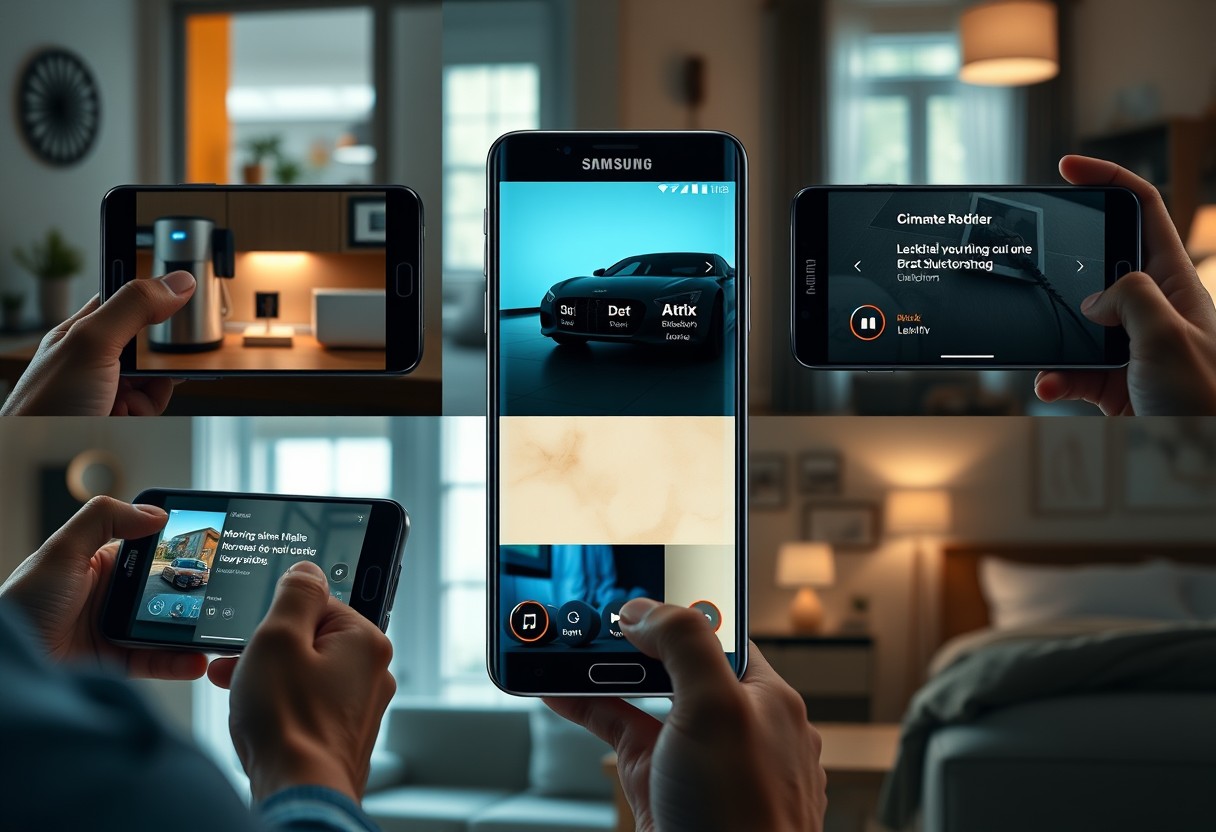
You can automate your phone to adapt to your daily life with Samsung Routines, saving time and reducing distractions. By triggering actions based on location, time, or device usage, you gain real control over notifications, sounds, and app behavior. These smart automations respond to your habits-like silencing calls during work or turning on night mode at bedtime-without manual input.
Key Takeaways:
- Samsung Routines can automate everyday tasks like adjusting volume, launching apps, or turning on smart home devices based on time, location, or device usage, reducing manual input throughout the day.
- A well-configured routine in the morning can trigger alarms, turn on lights, and start the coffee maker through connected gadgets, streamlining the start of the day without extra effort.
- Users can create context-aware triggers-such as silencing notifications when driving begins or activating dark mode at sunset-to support focus, safety, and comfort with minimal setup.
The Morning Start
When your alarm goes off, Samsung Routines can trigger a series of actions that make waking up easier and more effective. You can set your phone to automatically switch to Do Not Disturb mode during sleep hours and then turn off the setting when your morning routine begins, allowing calls from key contacts if needed. At sunrise, your smart lights can gradually brighten, mimicking natural light to help regulate your circadian rhythm. Your coffee maker, connected through SmartThings, could start brewing as soon as your alarm stops, ensuring a fresh cup is ready within minutes. This automation reduces decision fatigue right after waking, giving you a smoother transition into the day with minimal effort.
The Long Drive
When you begin a long drive, your phone automatically switches to Car Mode, silencing non-essential notifications and launching your preferred navigation app. Your messages are read aloud through Bixby, letting you stay connected without taking your eyes off the road. If you often forget to charge your phone before trips, Samsung Routines can trigger a battery-saving mode once you’re in motion. Playing your favorite playlist starts as soon as you connect to your car’s Bluetooth, turning routine commutes into enjoyable experiences. This automation reduces distractions and keeps you focused on driving safely.
The Deep Work
When you need uninterrupted focus, Samsung Routines can automatically activate Do Not Disturb, dim your screen, and switch to Dark Mode the moment you open a productivity app like Samsung Notes or Google Keep. This minimizes distractions and signals to your brain that it’s time to concentrate. You can set it to silence all notifications except from specific contacts, ensuring only urgent messages break through. By triggering this routine with a single tap or based on location-like arriving at your office-you make deep work a default state, not a struggle to achieve.
The Physical Strain
Spending hours at a desk often leads to stiffness, poor posture, and unnoticed tension in your neck and shoulders. With Samsung Routines, you can set a daily trigger based on time or activity that prompts you to stand, stretch, or take a short walk. This automatic reminder significantly reduces the risk of repetitive strain injuries and supports long-term musculoskeletal health. When your body starts to feel the toll of stillness, your phone or watch activates a gentle alert-no willpower needed. You stay protected from the silent damage of prolonged sitting, turning passive moments into active recovery.
The Welcome Home
Returning to your house triggers a chain of automatic actions when you enable Samsung Routines’ “Welcome Home” setting. Your phone detects your arrival and instantly turns on the lights, adjusts the thermostat, and resumes your favorite playlist. You no longer fumble for switches or wait for the AC to kick in. This routine eliminates repetitive tasks and makes your space feel responsive and personal. With just one trigger-your location-your entire environment adapts to your presence, creating a consistently smooth transition from outside to in.
The Final Hours
As evening winds down, your phone can help signal to your body that it’s time to shift into rest mode. You can set a routine to activate when you open a meditation app or plug in your phone after 9 PM, dimming the lights and turning on Do Not Disturb. This automatic shift reduces blue light exposure and notifications, two major disruptors of quality sleep. Your Galaxy Buds might start playing white noise, and your smart plug could power down the TV. Letting Samsung Routines handle these steps ensures consistency, which your nervous system responds to over time, making it easier to fall asleep and stay asleep.
To wrap up
You now have practical ways to make your daily life simpler using Samsung Routines. Each scenario shows how small automated actions-like adjusting volume when driving or dimming lights at bedtime-add up to meaningful convenience. You control when and how these triggers activate, ensuring they fit your habits instead of disrupting them. Over time, these routines reduce decision fatigue and help maintain consistency across devices. You don’t need technical expertise to set them up, just a clear idea of your typical day. By aligning automation with real-life patterns, you gain moments back without compromising control.
FAQ
Q: How do I set up Samsung Routines to start automatically when I leave home?
A: Open the SmartThings app, go to the Routines section, and select ‘Add Routine’. Choose the trigger ‘When I leave a location’ and set your home address as the location. Then pick actions like turning off lights, locking smart locks, or stopping the robot vacuum. Save the routine, and it will activate whenever your phone detects you’ve left the designated area.
Q: Can Samsung Routines adjust my thermostat based on the weather?
A: Yes, you can create a routine that checks weather conditions and adjusts your smart thermostat accordingly. In the Routines menu, set a trigger like ‘When weather changes’, then specify conditions such as ‘temperature above 85°F’. Pair this with an action to turn on the air conditioning or activate a fan through a compatible smart plug or HVAC system.
Q: Is it possible to have different morning routines on weekdays versus weekends?
A: You can create separate routines for different days. Make one routine triggered by ‘Weekdays at 7:00 AM’ that turns on lights gradually and starts the coffee maker. Then build another routine for ‘Saturdays and Sundays at 9:00 AM’ with a gentler wake-up sequence, like playing soft music and dimming bedroom lights slowly.
Q: What if my phone doesn’t trigger the routine even though I’m in the right place?
A: Location-based routines rely on GPS, Wi-Fi, and mobile data. Ensure location services are enabled for SmartThings, and battery optimization is turned off for the app. If issues persist, increase the location radius slightly in the routine settings to improve detection accuracy.
Q: Can Samsung Routines help reduce screen time at night?
A: Create a routine called ‘Wind Down’ that activates at a set evening time. It can lower screen brightness, enable grayscale mode, turn on Do Not Disturb, and dim bedroom smart bulbs. Link it to a single tap or a schedule so it runs automatically, helping signal to your body that it’s time to rest.