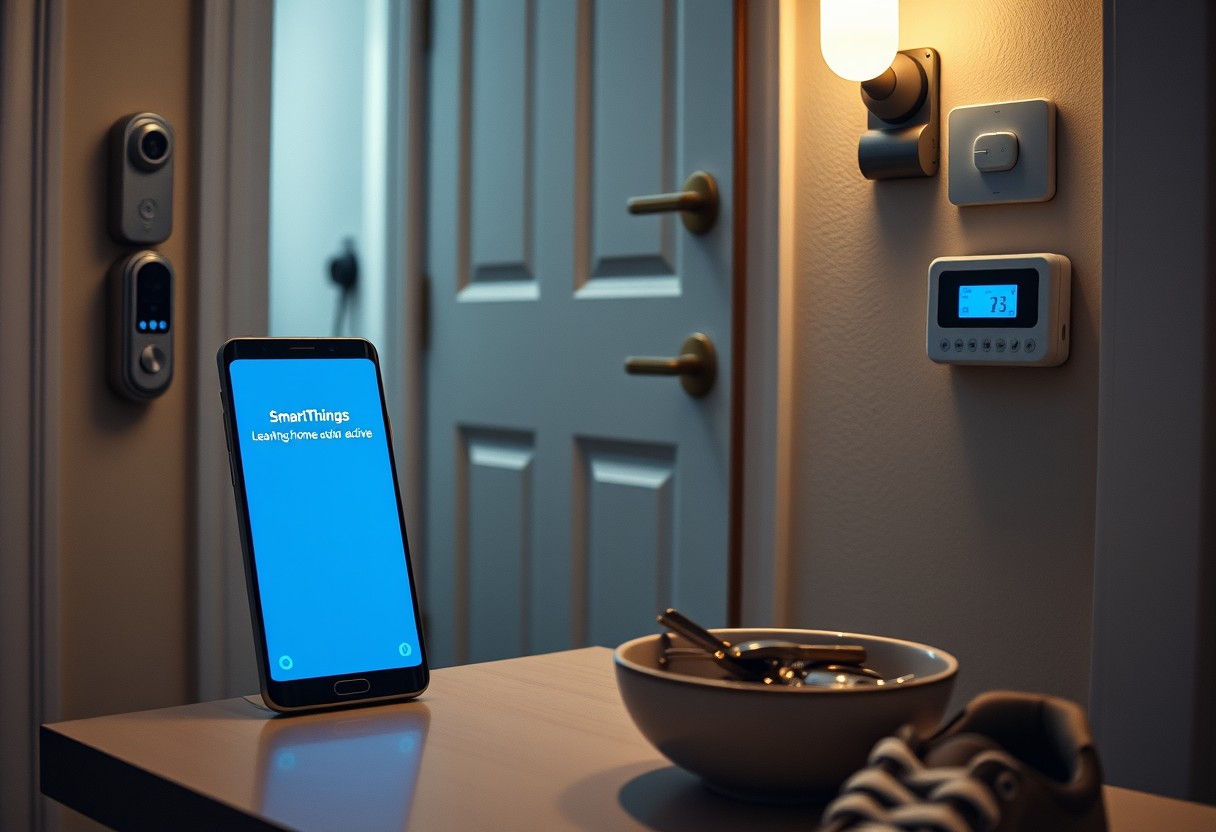
You can automate key tasks every time you walk out the door by setting up a “Leaving Home” routine on your Galaxy device. This feature turns off lights, locks doors, and arms security systems without manual input. With precise triggers and customized actions, your routine runs reliably-but incorrect setup may lead to missed alerts or unwanted behavior. You’ll gain convenience and peace of mind when configured correctly.
Key Takeaways:
- A “Leaving Home” routine on your Galaxy device automates actions like turning off smart lights, disabling Wi-Fi, and activating GPS only when you exit your home, reducing manual tasks and conserving battery.
- The routine relies on location-based triggers tied to your home’s GPS coordinates, so setting an accurate departure radius ensures actions start at the right moment without false activations.
- You can customize the routine with multiple actions across Galaxy-compatible devices, such as pausing music, sending a text reply, or locking smart doors, all through the SmartThings app without third-party tools.
How to Access Modes and Routines
Start by opening the Settings app on your Galaxy device, then scroll to and select “Modes and Routines.” This is the central hub for all automation features, where you can create, edit, or disable custom routines based on your daily patterns. The menu is neatly organized and accessible on most recent Galaxy models running One UI. You’ll find preset options like “Goodnight” and “Do Not Disturb,” but the real power lies in building your own-starting with locating the right interface.
Locating the Modes and Routines Menu
Your first step is tapping “Modes and Routines” within Settings, usually found near the bottom of the main list or under “Device care” depending on your software version. Once inside, you’ll land on a screen showing active routines and mode shortcuts. Look for the “Routines” tab if there’s a split view-this section controls automated actions. Accessing this menu regularly will help you stay in control of how your phone responds to your habits without manual input.
Understanding the Routine Interface
The Routine interface displays each custom sequence as a card with clear labels for triggers and actions. Tapping a routine expands it to show exact conditions and responses in chronological order. A blue plus icon lets you add new steps, while sliders let you toggle routines on or off instantly. Seeing everything laid out visually helps prevent conflicts, such as one routine undoing another’s settings. This layout ensures you maintain full oversight of how automation shapes your device behavior.
How to Configure the Departure Trigger
Selecting the Location-Based Condition
Your Galaxy device uses geofencing to detect when you leave a designated area, making location the most reliable trigger for a “leaving home” routine. Open the automation settings and choose “Location” as your trigger condition. Set it to activate when you exit the defined perimeter around your home. This ensures actions begin only when you’re truly on the move, not during brief trips to the backyard or garage. The system runs silently in the background, activating the moment you cross the boundary.
Setting the Geofence Radius for Your Home
A well-calibrated radius prevents false triggers while ensuring timely execution. Start with a 200-meter radius centered on your home-this covers typical neighborhood exits without being too sensitive to minor movements. If you live in an apartment complex or dense area, reduce it to 100 meters to avoid premature activation. A smaller radius may miss the trigger if your phone’s GPS signal lags, so test different sizes during actual departures. The right balance improves accuracy and keeps your routine dependable over time.
How to Define Automated System Actions
Choose specific actions your Galaxy phone and connected devices will take when you leave home to ensure convenience and security. You can toggle Wi-Fi off, enable battery-saving mode, and start location tracking automatically. Disabling unnecessary connections reduces power drain immediately, while activating GPS ensures accurate arrival and departure detection. Select only the settings that align with your daily habits to prevent over-automation. Each action should serve a clear purpose, like improving battery life or enhancing privacy when away.
Adjusting Connectivity and Battery Settings
Switch off Wi-Fi, Bluetooth, and NFC the moment you exit your home zone to extend battery life. Your phone will stop searching for networks and devices, preserving charge throughout the day. You can also set the screen brightness to auto-dim or activate Battery Saver mode automatically. Avoid leaving mobile data on unless needed, as it can drain power quickly. Tailor these toggles to match your typical usage patterns for maximum efficiency without sacrificing essential functionality.
Controlling Smart Home Devices Remotely
Secure your home by having lights turn off, locks engage, and cameras activate as you leave. Your smart thermostat can switch to energy-saving mode, reducing heating or cooling when no one is present. Confirm each device responds correctly by testing the routine in real time. Ensure your smart hub remains online and connected to your Galaxy phone for reliable execution. Automating these actions ensures your home operates safely and efficiently the moment you step away.
Key Factors for Reliable Automation
For your “Leaving Home” routine to execute without fail, you must ensure the Galaxy system has the necessary permissions and power management settings. Background location access allows your phone to detect when you exit a geofenced area, while disabling battery optimization prevents the OS from suspending automation services. Without these configurations, even the most thoughtfully designed routine may not activate. Grant location permissions and adjust battery settings to maintain consistent performance.
- Enable background location access for the SmartThings app
- Disable battery optimization for automation services
- Ensure location services are turned on at the system level
- Keep your Galaxy device’s software up to date for reliable geofencing
Granting Background Location Permissions
Your phone needs continuous access to location data to detect when you leave home. Without background location permissions, the geofence trigger fails silently, and your routine won’t start. Open app settings for SmartThings, navigate to permissions, and set location access to “Allow all the time.” This setting is essential for accurate departure detection and ensures your automation runs precisely when you exit the designated area.
Managing Battery Optimization Conflicts
Android’s battery optimization can interrupt background processes, including automation triggers. If the system suspends SmartThings or Bixby Routines to conserve power, your “Leaving Home” action may not execute. Go to battery settings, locate the automation app, and select “Don’t optimize.” This prevents the OS from deactivating critical services and maintains the reliability of your routine, especially during short or frequent departures.
Pro Tips for Advanced Routine Customization
To maximize your Galaxy’s automation potential, incorporate complex conditions like time of day, weather data, or device battery levels before triggering actions. Third-party integrations expand functionality by syncing with non-Samsung smart devices and services, enabling richer automation scenarios. Incorrect logic chains can cause unexpected behavior, so test each condition in isolation first. Use precise thresholds-such as “only if phone battery is below 30%”-to prevent over-automation.
- Set conditional triggers based on sensor data from connected devices
- Combine multiple applets using logical operators (AND/OR) within a single routine
- Schedule routines to activate only during specific days or times
- Use geofencing radius adjustments to fine-tune departure detection accuracy
- Link routines to external events like sunrise or sunset via weather APIs
| Feature | Benefit |
| Time-based conditions | Prevents lights from turning off during evening departures |
| Device health checks | Skips actions if a smart lock has low battery |
| Weather integration | Cancels window opening if rain is detected |
Implementing Multi-Step Logic and Delays
Your routine can execute actions in sequence by introducing timed delays between steps, ensuring devices respond in the correct order. For example, wait 15 seconds after locking the front door before arming the security camera-this gives you time to exit the geofence without triggering an alert. Improper delay settings may cause overlapping commands, leading to failed executions. Structure multi-step logic so that dependent actions only proceed when prior ones report success, increasing reliability across interconnected systems.
Integrating With Third-Party Smart Apps
You can connect your Galaxy routine to platforms like Google Home, Philips Hue, or August Locks through SmartThings or IFTTT integrations. This access allows your departure sequence to dim compatible lights, adjust thermostats, or start robot vacuums automatically. Misconfigured permissions may block command transmission, so verify app access regularly. Choose apps that support background execution to ensure commands go through even when your phone screen is off.
How to Troubleshoot Common Routine Issues
Sometimes your Galaxy device fails to launch the “Leaving Home” routine despite correct setup, and connectivity or permission gaps are often to blame. If the routine doesn’t activate when you exit your geofenced area, your phone may not be granting the necessary background permissions to SmartThings or the device’s location services. Disabling battery optimization for SmartThings and ensuring Location is set to “High Accuracy” can resolve many silent failures. A weak or delayed GPS signal might also prevent timely triggering, especially in areas with poor satellite reception.
Diagnosing GPS Signal Failures
GPS inaccuracies can delay or block your routine from starting as you leave home. If your phone struggles to detect location changes, it may be due to weak satellite signals caused by tall buildings, underground parking, or dense foliage. Your device needs a clear line of sight to multiple satellites for reliable geofencing, and indoor positioning systems like Wi-Fi and Bluetooth can help bridge gaps. Test your GPS by opening a map app outside and waiting for a precise fix-consistently slow or inaccurate results suggest a hardware or software issue affecting routine performance.
Refreshing Routine Sync and Permissions
Outdated sync states or revoked app permissions can silently disable automation. If your routine appears active but doesn’t run, check whether SmartThings or Bixby Routines has lost access to Location, Battery Optimization, or Device Administration rights after a system update. Re-enabling these permissions and manually syncing your routines through the SmartThings app often restores functionality. Force-closing the app and restarting your phone can also clear temporary glitches that interfere with background automation processes, ensuring your device responds the moment you step out the door.
Conclusion
You now have the tools to set up a reliable “Leaving Home” routine on your Galaxy device using SmartThings. By configuring precise location-based triggers and selecting meaningful automated actions, your routine can streamline daily life without manual input. For further insight into user experiences and troubleshooting tips, visit the Routine trigger when I leave location – SmartThings Community thread. With proper setup and periodic review, your automation will function efficiently, adapting seamlessly to your lifestyle while conserving battery and maintaining security.
FAQ
Q: What is a “Leaving Home” routine on a Galaxy device?
A: A “Leaving Home” routine is an automated sequence of actions that triggers when your Galaxy phone detects you’ve left a designated location, usually your home. This feature uses the Device Maintenance and SmartThings apps to monitor your movement via GPS, Wi-Fi, or Bluetooth signals. Once the system confirms you’re no longer within range of your home network or geofence, it can execute tasks like turning off smart lights, locking compatible doors, stopping music playback, or enabling Do Not Disturb mode. The automation helps reduce manual steps and improves energy efficiency by ensuring connected devices are not left active unnecessarily.
Q: Can I set up a “Leaving Home” routine without using SmartThings?
A: No, the full automation for a “Leaving Home” routine requires the SmartThings app, as it handles location-based triggers and integrates with Galaxy’s Routines feature. While basic automations exist in the Device Care section, they lack precise geofencing and multi-device coordination. SmartThings enables reliable detection of departure by monitoring when your phone disconnects from your home Wi-Fi or exits a defined GPS perimeter. Without it, the system cannot confirm you’ve left with sufficient accuracy, leading to missed or false triggers.
Q: How accurate is the departure detection in Galaxy routines?
A: Departure detection accuracy depends on several factors, including GPS signal strength, Wi-Fi stability, and battery optimization settings. Under normal conditions, the system typically registers departure within 2 to 5 minutes after leaving the geofenced area. Delays may occur if location services are restricted, power-saving modes limit background activity, or if the phone takes time to confirm disconnection from the home network. For best results, keep Location enabled on High Accuracy mode and ensure SmartThings has permission to run in the background.
Q: Which smart home devices can be controlled in a “Leaving Home” routine?
A: You can control any SmartThings-compatible device during a “Leaving Home” routine, including Samsung SmartThings plugs, LED lights, thermostats, door locks, robot vacuums, and security cameras. For example, the routine can turn off lamps connected to smart outlets, lock August or Yale smart locks linked to SmartThings, adjust the temperature on a Samsung HVAC system, or start recording on a compatible indoor camera. Each action must be pre-configured in the SmartThings app and assigned to the routine through the Automation tab.
Q: Why didn’t my routine trigger when I left home?
A: Common reasons include disabled location services, background restrictions on SmartThings, or an improperly sized geofence. If Battery Optimization is turned on for SmartThings, the app might be suspended before it can detect departure. Similarly, if the geofence radius is too small-less than 50 meters-it may fail to register exit events due to GPS fluctuations. Restarting the phone, toggling Location off and on, or re-creating the routine can resolve persistent issues. Checking the SmartThings activity log also helps identify whether the trigger was detected but the action failed to execute.