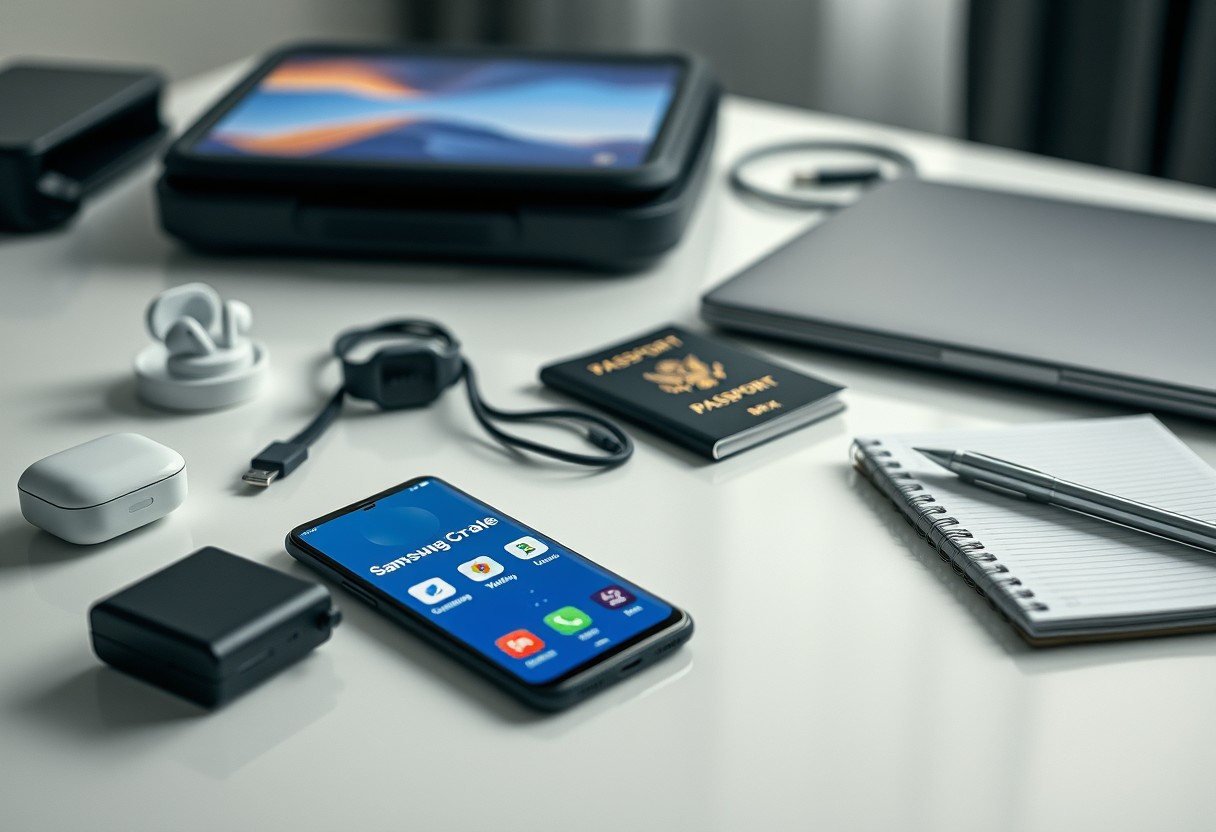
You can manage work, travel, and personal life efficiently with the right Samsung Galaxy setup. A poorly configured device risks data leaks, but a streamlined system improves productivity and security. This guide shows you how to configure your Galaxy phone, DeX, and accessories so they work seamlessly across environments without compromising privacy or performance.
Key Takeaways:
- A single Samsung Galaxy smartphone paired with DeX mode can replace multiple devices, serving as a work computer, travel companion, and personal hub without needing separate gadgets.
- Using Samsung’s built-in security features like Knox and biometric locks allows users to create separate work and personal profiles, keeping sensitive data isolated and reducing privacy risks.
- Expanding functionality with ecosystem accessories such as a wireless keyboard, portable monitor, and power bank transforms the phone into a mobile office that works reliably in cafes, hotel rooms, or airport lounges.
Selecting Your Primary Galaxy Hardware
Choosing the right Galaxy device shapes how effectively you handle work, travel, and personal tasks. Your decision hinges on usage patterns, portability needs, and long-term reliability. Flagship smartphones like the S-Series deliver powerful performance and excellent cameras in a compact form, while the Z Fold offers a tablet-like experience for multitasking. Tablets provide expansive screens ideal for media and productivity but may lack the always-on readiness of a phone. The wrong pick can limit functionality or lead to device fatigue over time.
Evaluating the S-Series versus the Z Fold for multitasking
You get a fluid experience with the S-Series, but the Z Fold transforms how you interact with multiple apps. Its foldable screen allows you to run three apps side by side, drag content between windows, and use split-screen effortlessly. If you frequently review documents while messaging and browsing, the Z Fold’s larger inner display gives you a distinct advantage in productivity. However, the S-Series remains more durable and pocketable for daily carry, making it better if you value reliability over screen real estate.
Assessing storage and RAM requirements for long-term use
Your device must handle years of updates, apps, and media without slowing down. Start with at least 256GB of storage if you work with large files or travel often without cloud access-running out of space later can disrupt critical workflows. For RAM, 8GB meets basic needs, but 12GB or more ensures smoother performance when juggling video calls, browsers, and productivity tools. Choosing higher specs upfront avoids obsolescence and supports consistent performance across work and personal use.
Setting Up Your Mobile Office with Samsung DeX
Transform your Samsung Galaxy device into a full desktop experience using Samsung DeX, a built-in feature that lets you work efficiently with a familiar interface. Connect your phone to a monitor via USB-C to HDMI adapter or wirelessly to a compatible display, then launch DeX mode to access apps in resizable windows. You can run multiple Android and DeX-optimized apps simultaneously, mimicking a traditional computer workflow. DeX does not require additional downloads, activating instantly when connected, giving you immediate access to documents, emails, and productivity tools in a desktop layout.
Connecting to external displays and wireless peripherals
Plug your Galaxy phone into a monitor using a USB-C to HDMI adapter or cast your screen wirelessly to a Samsung Smart Monitor or TV with built-in DeX support. Once connected, your phone screen becomes a touchpad or stays independent for quick access. Pair Bluetooth keyboards, mice, and even external storage devices to complete your mobile workstation. Most modern peripherals connect instantly, with minimal lag, ensuring smooth typing and navigation. Avoid using low-power hubs or outdated adapters, as they may cause display flickering or disconnects during critical tasks.
Tips for optimizing multi-window layouts and taskbar shortcuts
Open frequently used apps in split-screen or pop-up view by dragging them from the taskbar or using the “Open in Galaxy Tab” option in app menus. Pin essential programs like email, calendar, and note-taking apps to the DeX taskbar for one-click access. Resize windows by dragging borders and save preferred layouts for consistent workflows across sessions. Using keyboard shortcuts like Alt + Tab improves app switching speed, while dragging files between windows supports drag-and-drop efficiency. Limit running apps to three to four at once to maintain system responsiveness.
- Use Samsung DeX to access a desktop-like interface directly from your Galaxy phone
- Connect to displays via USB-C to HDMI or wireless DeX on compatible screens
- Pair Bluetooth keyboard and mouse for full desktop functionality
- Enable multi-window mode and save custom app layouts
- Pin key apps to the DeX taskbar for faster access
Optimizing the Setup for Seamless Travel
When crossing time zones or flying into remote areas, staying productive means planning for limited connectivity. Preload offline maps through Google Maps or Samsung’s integrated navigation tools so you can access directions without data. Sync essential documents using Samsung Notes or a trusted cloud provider set to automatic offline backup, ensuring files remain accessible even when Wi-Fi is spotty. Enable selective sync settings to limit storage use while preserving critical folders like boarding passes, itineraries, and work drafts.
How-to manage offline maps and document synchronization
- Download regional map data in Google Maps under “Offline Maps” before departure to avoid unexpected charges or dead zones
- Use Samsung Notes with offline sync enabled to keep meeting minutes and travel logs updated without internet
- Configure your preferred document app to mark specific folders as “Available Offline” so contracts or presentations stay accessible
- Limit large file downloads to Wi-Fi only to prevent accidental data overages during international trips
Utilizing Power Saving modes and international connectivity factors
Extended flights and layovers demand smart battery management. Activate Adaptive Battery in Settings to restrict background usage for non-essential apps, extending charge life by hours. When abroad, disable auto-updating apps and push email to conserve power and avoid roaming drain. Use Ultra Power Saving Mode when below 15% to maintain basic functions for calls and messaging. Remember that dual-SIM models may consume more energy-disable one line if unused. Charging via low-wattage airport ports works efficiently when enabling airplane mode during top-ups.
Balancing Personal Privacy and Work Security
Using Samsung’s Secure Folder lets you keep work apps and files isolated from your personal data, all protected by encryption tied directly to your device hardware. You can install separate instances of email, Teams, or documents inside the folder, ensuring no accidental sharing between profiles. For frequent travelers, this separation becomes essential when crossing borders or using public networks-consider reviewing real-world configurations like this Traveler’s setup ✈️ : r/SamsungDex to see how others maintain digital boundaries on the move.
How-to guide for configuring the Samsung Secure Folder
Open Settings and search for Secure Folder, then follow the prompts to set it up with your preferred lock method-PIN, pattern, or biometrics. Once activated, you can move work-specific apps like Outlook or OneDrive into the folder, where they operate independently from your personal versions. Any file saved inside remains encrypted and inaccessible outside the folder, even if someone gains access to your main profile. This strict separation protects sensitive projects and login credentials without requiring a second device.
Implementing Modes and Routines for automatic profile switching
Your Galaxy phone can automatically adjust settings based on time, location, or connected devices using Modes and Routines. Create a Work Mode that disables personal notifications, switches to dark theme, and launches your Secure Folder when you arrive at the office or connect to your desk. Outside work hours, revert to a Personal Mode that restores music, social apps, and camera access. These automated shifts ensure consistent boundaries between roles while reducing manual toggling across environments.
Curating Essential Ecosystem Accessories
Choosing the right accessories elevates your Galaxy device from a smartphone to a responsive, reliable extension of your daily workflow. The right combination of charging gear, audio tools, and input devices can dramatically improve efficiency whether you’re in a meeting, on a plane, or unwinding at home. Focus on compatibility, build quality, and real-world performance rather than feature overload. A well-chosen ecosystem minimizes friction and keeps you moving without interruption.
Selecting the right S Pen and Galaxy Buds for your workflow
You need precision when capturing ideas or editing documents, and the S Pen included with Galaxy Note or Ultra models delivers low-latency responsiveness and pressure sensitivity that generic styluses can’t match. Match it with Galaxy Buds-preferably the latest Pro series-for adaptive noise control and seamless Bluetooth pairing. These buds offer reliable all-day wear and spatial audio that enhances focus during calls or deep work, ensuring your auditory environment supports your productivity rhythm without distraction.
Essential portable power solutions and protective travel gear
A high-capacity power bank with USB-C PD ensures your Galaxy phone and accessories stay charged between flights and remote work sessions, especially one that supports simultaneous multi-device output. Look for compact designs with rugged casing to survive transit. Pair it with a slim, drop-tested case that doesn’t block the wireless charging coil. Magnetic car mounts or foldable stands add convenience without bulk, letting you maintain access while protecting your investment from everyday drops and spills.
Maintaining Peak Performance and Syncing
Regular software updates ensure your Samsung Galaxy devices remain secure, efficient, and compatible with the latest productivity tools. Delaying updates can expose your device to preventable vulnerabilities, so enable automatic system updates under Settings > Software Update. For consistent access to files across devices, configure cloud synchronization using both Samsung Cloud and Microsoft OneDrive. Your data stays protected with end-to-end encryption on Samsung Cloud, while OneDrive integration supports real-time collaboration on Office documents. Keep sync settings active over Wi-Fi to maintain fresh backups without draining battery.
How-to sync data across Samsung Cloud and Microsoft OneDrive
To keep files accessible across platforms, set up automatic syncing from your Galaxy phone to both Samsung Cloud and Microsoft OneDrive. Open the Samsung Cloud app and toggle on Contacts, Calendar, and Photos for backup-these restore instantly if you switch devices. Then install the OneDrive app, sign in with your work or personal Microsoft account, and enable camera upload and folder backup. With both services active, you maintain redundancy: one breach or outage won’t lock you out of critical data. Check sync status weekly to confirm all folders are current.
Routine system cleaning and battery health maintenance tips
Your Galaxy device performs best when storage isn’t cluttered and battery cycles are optimized. Use Device Care to clear cached data monthly and uninstall apps you no longer use-excess background processes degrade response time over weeks. Avoid charging to 100% daily; instead, keep battery levels between 20% and 85% to prolong lifespan. Schedule a full power cycle once every few weeks by letting it discharge completely, then charge uninterrupted. Extreme heat or cold accelerates battery wear, so never leave your phone in direct sun or freezing car interiors.
- Enable automatic software updates to protect against security flaws
- Sync Contacts, Calendar, and Photos via Samsung Cloud
- Back up Office files to Microsoft OneDrive for cross-platform access
- Run Device Care monthly to clear cache and monitor performance
- Maintain battery between 20% and 85% for optimal longevity
Final Words
You now have a clear path to building a simple yet effective Samsung Galaxy setup that adapts to your work demands, travel routines, and personal life. By choosing the right devices, using DeX for productivity, and securing your data across environments, you maintain control without unnecessary complexity. Syncing settings, managing privacy, and adding only essential accessories keep your system efficient. A mid-sized SaaS firm employee recently streamlined their workflow using this exact approach, reducing daily app-switching by half. You can achieve similar results with consistency and intentional use.
FAQ
Q: How do I set up Samsung DeX on my Galaxy phone for a desktop-like work experience?
A: Samsung DeX transforms your Galaxy phone into a desktop environment when connected to a monitor, keyboard, and mouse. To activate it, connect your phone to a compatible TV or monitor using a USB-C to HDMI adapter or a DeX Station. Once connected, the screen automatically switches to DeX mode. You can also enable wireless DeX by selecting ‘Smart View’ and casting to a nearby DeX-compatible device. From there, open multiple app windows, drag and drop files, and use familiar keyboard shortcuts to boost productivity.
Q: Can I use one Galaxy device effectively for both work and personal tasks without mixing data?
A: Yes, Samsung’s Secure Folder feature lets you create a separate, encrypted space on your device for work apps and files. This isolated environment uses Samsung Knox to protect sensitive data. Install work email, messaging platforms, and cloud storage inside Secure Folder while keeping personal apps outside. The two environments run independently, with distinct app icons and login credentials. Switching between them requires authentication, ensuring personal browsing or media use doesn’t interfere with work security.
Q: What accessories should I carry to make my Galaxy setup travel-friendly?
A: A compact USB-C hub with HDMI, Ethernet, and USB-A ports enables quick connections to projectors, external drives, or hotel docking stations. Pair it with a foldable Bluetooth keyboard and a slim protective case with built-in stand functionality. Carry a high-capacity power bank that supports Power Delivery and Wireless PowerShare to charge your phone, earbuds, or even another device. Include a global travel plug adapter if crossing time zones. These items fit easily in a small tech pouch and maintain full functionality on the go.
Q: How do I keep my files synced across devices without relying only on cloud services?
A: Use Samsung Smart Switch for direct transfers between Galaxy devices via Wi-Fi Direct or cable, ideal when internet access is limited. Enable Auto Sync across your phone, tablet, and DeX setup using Samsung Cloud or integrate third-party services like Proton Drive or Nextcloud for end-to-end encryption. Set specific folders in My Files to sync locally over network drives when connected to trusted Wi-Fi networks, such as at home or in the office. This hybrid method reduces dependency on public clouds while maintaining real-time access.
Q: Is it safe to use public Wi-Fi with my Galaxy work setup, and how can I protect my connection?
A: Public Wi-Fi exposes your device to potential eavesdropping, but Samsung’s built-in protections help mitigate risks. Always disable auto-join for unknown networks and turn off file sharing in Wi-Fi settings. Enable Samsung Knox Vault to safeguard biometric data and passwords. For secure browsing and communications, activate Samsung Secure Wi-Fi, which encrypts traffic using a free integrated VPN. Alternatively, connect through a trusted third-party VPN service within your preferred browser or use a mobile hotspot from your own carrier plan instead of public networks.