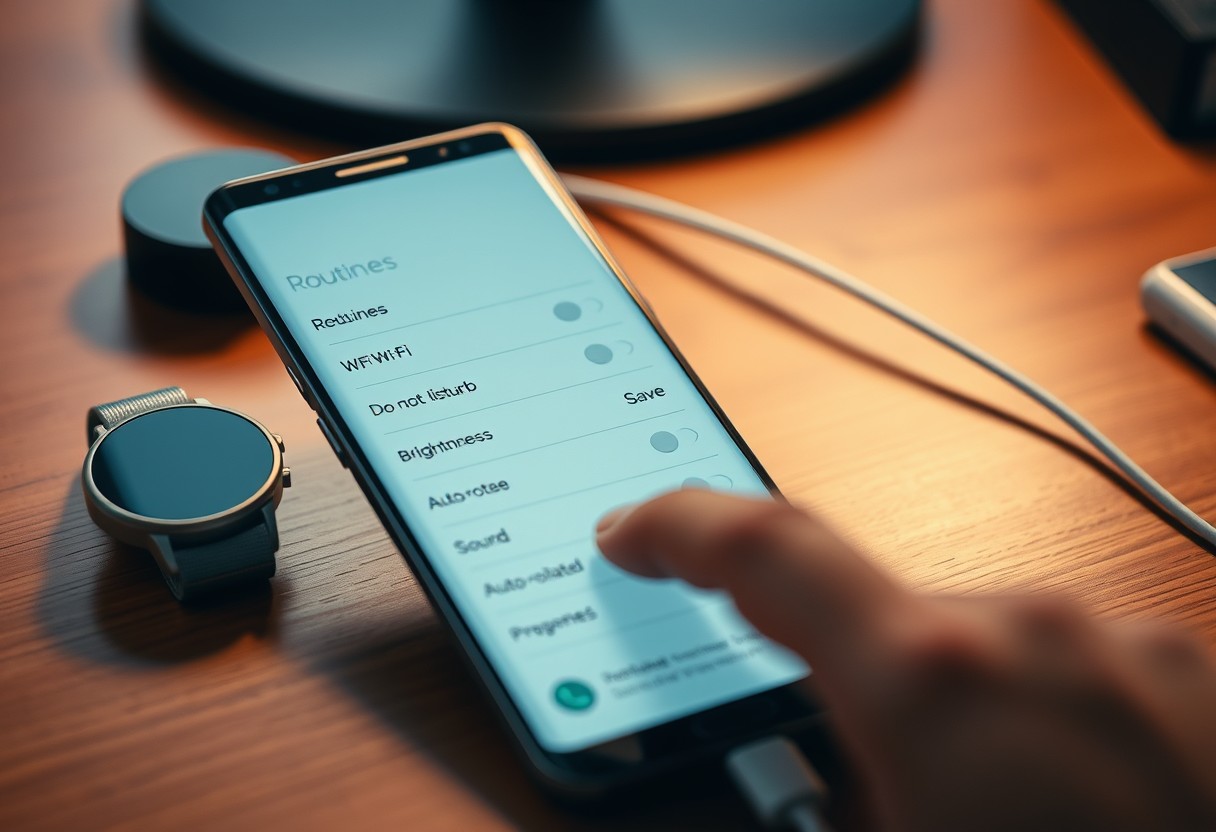
You can automate your Samsung Galaxy phone to adjust settings like volume, Wi-Fi, and brightness based on your habits. This saves time and reduces distractions. With built-in Routines in the SmartThings app, your device responds to time, location, or charging status. A single misconfigured routine could drain battery or disable notifications you need, so setting it up correctly matters.
Key Takeaways:
- Samsung Galaxy Routines use triggers like time, location, or device charging to automate settings changes, reducing manual adjustments throughout the day.
- You can combine multiple actions-such as turning on Do Not Disturb, lowering volume, or enabling Wi-Fi-into a single routine for personalized, hands-free control.
- Routines are customizable and reversible, allowing users to edit or disable automations as daily habits or needs evolve.
Understanding Modes and Routines
Samsung’s interface separates system modes from user-created routines, giving you distinct tools for different needs. Preset modes like Dark Mode or Power Saving adjust single aspects of your phone with one tap, offering immediate but limited changes. In contrast, custom routines automate multiple settings at once-like switching Wi-Fi, toggling sound, and launching apps-based on your behavior. These automated sequences provide deeper personalization, adapting your device intelligently without manual input each time.
The evolution of Bixby Routines to current software
Bixby Routines began as a voice-driven automation tool, relying heavily on Samsung’s AI assistant to trigger actions. Over time, it evolved into a more flexible system integrated directly into Device Care, shedding the Bixby dependency. Now, you can create complex triggers and actions without needing voice commands or an active assistant. This shift increased reliability and accessibility, making automation feel like a core feature rather than a gimmick tied to one app.
Benefits of system-level automation for battery and focus
You gain real advantages when automation works beneath the surface, quietly managing resources. By scheduling low-power mode during sleep hours or disabling background data in meetings, your phone conserves battery without interrupting usage. Equally, silencing notifications and activating grayscale in the evening reduces distractions and supports better sleep hygiene. These behind-the-scenes adjustments deliver a smoother, less intrusive experience, letting you stay focused while extending device longevity naturally.
Identifying Key Factors for Automation
To build effective Galaxy Routines, you must first evaluate the environmental and device-based triggers that influence your daily phone usage. These automated actions work best when tied to consistent, predictable patterns in your behavior and surroundings. By identifying the right combination of external conditions and internal device states, you create a responsive system that adapts without manual input. Focus on measurable, reliable signals that reflect real-life changes.
- Trigger-based automation relies on accurate time, location, and device status inputs
- Environmental cues like entering a place or time of day initiate context-aware adjustments
- Consistency in trigger behavior ensures routines activate only when needed
- Battery efficiency improves when settings change based on actual usage patterns
- Unreliable triggers can lead to unwanted actions and user frustration
Analyzing time and location-based triggers
Time and location are among the most reliable triggers for automating your Galaxy device. Setting actions based on specific hours-like silencing notifications at bedtime-ensures your phone adapts to your schedule. Similarly, using GPS or Wi-Fi networks to detect when you arrive at work or home allows your phone to shift modes automatically. These triggers are highly accurate when enabled with precise permissions and stable connectivity. Avoid overly broad zones or vague timing to prevent inconsistent behavior.
Assessing device status and connectivity factors
Your phone’s current state-such as battery level, screen status, or connected accessories-can power highly personalized automations. When your earbuds connect, your device can launch music playback or switch audio output. A low battery can trigger dark mode and restrict background apps to extend usage. These device-driven cues respond instantly to changes you may not notice. Real-time responsiveness makes them especially effective for improving convenience and conserving power without user effort.
- Battery level can prompt power-saving adjustments before shutdown occurs
- Connected accessories like headphones or wearables enable context-specific actions
- Wi-Fi or Bluetooth detection adds precision to location-based decisions
- Screen on/off events support automation tied to active use periods
- Charging status offers a simple but powerful signal for routine activation
How to Set Up Your First Routine
Accessing the Modes and Routines menu in settings
Open the Settings app on your Samsung Galaxy device and scroll to find the Modes and Routines option, typically located near the bottom of the list or within the “General Management” section. Tap it to enter the automation hub where all your custom routines will live. This is where your phone begins to adapt to your lifestyle. From here, you’ll see preset options and a “+” icon to create your own. Selecting this launches the Modes and Routines – Tips and Tricks framework built into the system.
Defining specific “If” conditions and “Then” actions
Tap the “+” button to start building your routine and choose a trigger under the “If” category, such as connecting to a Wi-Fi network, arriving at a location, or a specific time of day. Once set, move to the “Then” section to select automated responses like enabling Do Not Disturb, switching to dark mode, or adjusting media volume. Each pairing creates a smart response that executes without manual input. You can add multiple actions under one condition for broader control, ensuring your phone adapts exactly how you want when the trigger occurs.
Pro Tips for Maximizing Efficiency
To get the most out of your Samsung Galaxy routines, combine multiple triggers like time, location, and device state to create highly specific automation. This level of precision ensures your phone only activates a routine when all conditions are met, reducing false triggers. You can also fine-tune notification behavior by allowing only priority alerts during certain routines, keeping distractions to a minimum. Setting exceptions within routines adds another layer of control, giving you a smarter, more responsive experience tailored to your real-world habits.
- Use time and location together for context-aware automation
- Enable Battery Mode triggers to conserve power automatically
- Restrict notifications using priority-only interruptions in focused routines
- Set Wi-Fi and Bluetooth toggles based on recurring daily patterns
- Test complex routines in real-world scenarios before full reliance
Combining multiple triggers for precision automation
You gain far greater accuracy when you link several conditions-such as arriving at work, the current time, and whether headphones are unplugged-before triggering a routine. For example, setting your phone to mute only activates if you’re at the office between 9 AM and 5 PM and not using audio devices. This prevents unwanted changes during meetings or commutes. Using layered triggers makes your automation smarter and less prone to errors, ensuring settings adapt exactly as needed without manual input.
Utilizing routine-specific wallpaper and sound profile settings
Your environment shifts throughout the day, and your phone’s appearance and sound should follow suit. Assigning unique wallpapers and ringtone profiles to each routine provides instant visual and auditory feedback when an automation activates. Switching to a calming background and silent mode with vibration during evening routines signals a wind-down period. These personalized cues reinforce habit formation and reduce the need to check settings manually, making your device feel more intuitive and aligned with your lifestyle.
Managing and Troubleshooting Your Automations
Editing, disabling, and reordering existing routines
You can adjust your routines at any time to better fit your daily flow. Open the Routine section in the Samsung Galaxy settings to modify triggers or actions, such as changing when Do Not Disturb activates or updating which apps launch at a specific location. Disable a routine temporarily without deleting it if you’re traveling or altering your schedule. Reordering routines ensures the most priority-based automation runs first, preventing unexpected behavior when multiple conditions are met simultaneously.
Resolving overlapping or conflicting system settings
Conflicts occur when two routines attempt to control the same setting, like brightness or sound mode, under similar conditions. Your phone may apply only one action, leading to unpredictable or ignored changes. Review all active routines to identify overlaps, especially those using time-based or location triggers. Adjust the conditions to be more specific-such as refining location radius or time windows-so only the intended routine activates. This prevents competing instructions and keeps your automations reliable.
Conclusion
You now have the tools to shape your Samsung Galaxy experience around your daily life. By setting up routines that adjust settings automatically, you save time and reduce distractions. Whether it’s silencing notifications at night, turning on driving mode when you leave work, or dimming the screen at bedtime, your phone adapts without you lifting a finger. With consistent use and small refinements, your routines become a natural part of how you interact with your device, making technology work for you, not the other way around.
FAQ
Q: What is a Samsung Galaxy Routine and how does it work?
A: A Samsung Galaxy Routine is an automation feature in the Samsung SmartThings app that lets you change your phone’s settings based on specific triggers like time, location, or device state. For example, setting your phone to silent when you arrive at work or turning on Do Not Disturb at bedtime. These routines use combinations of actions-such as adjusting volume, toggling Wi-Fi, or launching apps-triggered by conditions you define. The system runs these adjustments automatically once the trigger condition is met.
Q: Where do I find the Routines feature on my Samsung Galaxy phone?
A: You can access Routines through the SmartThings app, which comes preinstalled on most recent Galaxy devices. Open SmartThings, tap the “Automation” tab at the bottom, then select “Routines.” From there, you can create, edit, or delete routines. Some older models may have a similar function under Settings > Advanced Features > Device Care > Automation, but newer phones rely on SmartThings for full functionality.
Q: Can I create a routine that activates when I connect to a Bluetooth device?
A: Yes, connecting to a Bluetooth device-like your car’s audio system-can serve as a trigger for a routine. In the SmartThings app, when creating a new routine, choose “Device” as the trigger type, then select “Bluetooth connection.” After pairing your phone with the target device, assign actions such as launching Google Maps, increasing media volume, or switching to speakerphone mode. This setup applies every time your phone reconnects to that Bluetooth device.
Q: How many routines can I set up on a single Galaxy phone?
A: There is no fixed limit imposed by Samsung on the number of routines you can create, but performance may degrade if too many run simultaneously or overlap frequently. Most users successfully manage between 5 and 10 active routines without issues. Each routine must have a unique combination of triggers and actions to avoid conflicts. Testing each one individually helps ensure they operate as intended.
Q: Why didn’t my routine activate even though the trigger condition was met?
A: Several factors could prevent a routine from activating. Location-based routines require GPS to be enabled and may fail indoors where signal strength is weak. Battery optimization settings might restrict background activity for SmartThings, stopping automated tasks. Make sure the SmartThings app has permission to run in the background and access location, sensors, and battery settings. Restarting the phone or re-saving the routine often resolves temporary glitches.