You can recover significant storage space by locating oversized files hidden across your Samsung Galaxy. Some of these files may be hundreds of megabytes or even gigabytes in size, silently consuming resources. The good news is you don’t need to browse every folder. Samsung’s built-in tools make it fast and safe to uncover what’s taking up room, including old downloads, cached data, and forgotten media.

Key Takeaways:
- A Samsung Galaxy’s built-in storage analyzer, accessible through Settings > Storage, quickly highlights large files and file categories without manual folder searches, saving time and effort.
- Sorting files by size within the device’s My Files app reveals hidden space hogs like old video recordings, downloaded installers, or cached data from rarely used apps.
- Duplicate photos, screenshots, and document copies often accumulate unnoticed; using the device’s suggested cleanup actions can remove redundant data with minimal user input.
Utilizing the Built-in Storage Analysis Tool
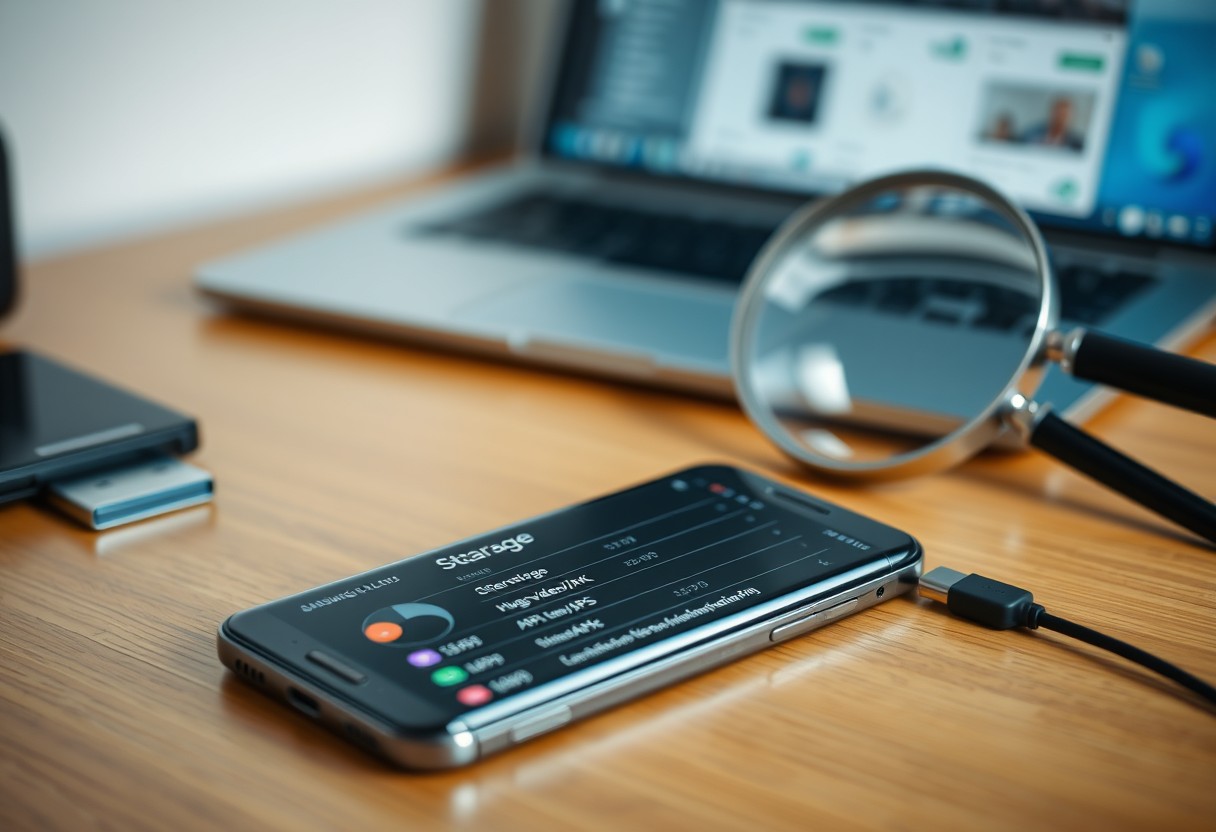
Your Samsung Galaxy includes a powerful diagnostic feature that reveals exactly what’s consuming your storage without requiring manual folder searches. By launching the built-in analyzer, you gain an instant visual breakdown of space usage across apps, photos, videos, and system files. This tool runs directly on your device, so no permissions or downloads are needed. The most dangerous space hogs-like bloated app caches or forgotten video downloads-often appear immediately, letting you act fast.
Navigating to the Device Care Menu
Open the Settings app and scroll to find the Device Care option, typically located near the top of the list. Tap it to enter a dashboard that monitors your phone’s performance, battery, and storage health. From there, select Storage to trigger a real-time scan. This path gives you direct access to Samsung’s native analysis engine, which is both reliable and optimized for your device’s hardware configuration.
Interpreting the Storage Breakdown Graphic
Once the scan completes, you’ll see a color-coded chart dividing your storage into clear categories such as Apps, Photos, Videos, and Downloads. The largest segments represent the biggest consumers of space, making it easy to spot outliers at a glance. A single oversized bar could indicate a hidden cache or an accumulation of media files you didn’t realize were stored. Pay close attention to unexpectedly large sections, as they often point to forgotten or redundant data.
Sorting and Filtering Files by Size
Sorting files by size in your Samsung Galaxy’s My Files app reveals exactly which individual items consume the most space. Open the app and navigate to the storage location you want to inspect, such as internal storage or an SD card. Tap the three-dot menu and select Sort by, then choose Size to rearrange files from largest to smallest. This immediate visual hierarchy highlights oversized videos, downloaded installers, or forgotten backups without scanning each folder manually.
How-to Steps for Sorting by File Size
Selecting the correct sort option gives you instant access to the biggest files on your device. In the My Files app, go to any directory and tap the menu icon. Choose Sort by and pick Size from the list. Your files will reorder with the largest at the top, making it easy to spot a 2GB video or a forgotten download archive. Review these top entries carefully-deleting just one large, unused file can reclaim significant space quickly.
Tips for Identifying Hidden Media Folders
- Check folders named .thumbnails, .cache, or DCIM/.trash-they often store large, invisible media remnants
- Enable Show hidden files in My Files settings to uncover system-level folders holding bulky content
- Look inside Download, WhatsApp/Media, and Alarms directories where apps quietly store oversized files
- Pay attention to folders with no clear purpose; names like _temp or OfflineMaps may hide gigabytes of data
Hidden media folders are common storage hogs because they operate behind the scenes. Once visible, you can decide whether their contents are safe to remove.
Identifying Duplicate and Redundant Data
Duplicate files often consume far more space than expected, especially in photo, video, and document libraries. You might have multiple copies of the same file saved in different folders, often without realizing it. Removing these exact duplicates frees up storage quickly and safely, since the original remains intact. This process targets only identical byte-for-byte matches, so there’s little risk of losing unique data. Focus on media and downloads directories first, as they typically hold the most redundant content.
Using the Duplicate File Finder Tool
The built-in duplicate file finder scans your device for identical copies across supported file types, including images, audio, and documents. You can access it through the storage settings menu, where it groups matching files together for easy review. Each cluster shows one instance marked as primary, while duplicates are flagged for removal. Selecting them for deletion takes only a few taps, and the space recovery can be immediate and substantial. Always verify file names and locations before confirming, to avoid removing a version you actually need.
Factors to Consider Before Deleting System Cache
- System cache stores temporary data to speed up app performance, so clearing it may cause short-term slowdowns
- Cache files are not user-generated and can usually be safely removed without affecting personal content
- Some apps may take longer to load the first time after cache deletion
- Regular cache buildup is normal, but unusually large caches might indicate an app malfunction
- Always ensure your device is stable and not in the middle of an update before clearing system-level temporary files
External App Factors for Deep Cleaning
Third-party tools can reveal hidden data clusters buried deep within your Galaxy’s storage, including cache files and app residuals that the system doesn’t normally display. These applications provide advanced visualization through disk maps and tree diagrams, making it easier to spot space-hogging directories. Not all apps are trustworthy-some may overstate their capabilities or collect personal data. Always verify developer credibility and user feedback before installation. The right tool gives you granular control, exposing forgotten media, logs, and temporary files other methods miss.
- Advanced visualization helps identify hidden large files in system-reserved areas
- Reputable software avoids data harvesting and excessive battery use
- Granular control allows precise deletion without affecting core system functions
- Real-time scanning detects bloated folders as they grow
Selecting Reputable Storage Management Software
You should prioritize apps with transparent privacy policies and high user ratings from trusted sources like the Google Play Store. Look for tools developed by known tech companies or those specializing in Android optimization, as they’re more likely to deliver accurate file mapping without hidden costs. Avoid applications requesting unnecessary permissions such as SMS access or call logs. A clean interface with a disk usage heatmap is a strong indicator of effective design. Stick to free versions first to evaluate performance before upgrading.
Granting Necessary File Access Permissions
Your chosen app needs full access to internal storage to scan all directories, including those protected by Android’s privacy model. When prompted, enable File and Media permissions through Settings > Apps > [App Name] > Permissions. Without this, the tool can’t read content in Downloads, DCIM, or Android/data folders, leading to incomplete results. Some devices require enabling “Show hidden files” in the file manager first. Granting access ensures the scanner detects orphaned files and oversized caches others overlook.
Automating Future Storage Maintenance
Setting up automated routines keeps your Samsung Galaxy running efficiently without requiring constant oversight. Modern Android devices include background optimization tools that silently manage cache files, clear residual app data, and suggest app hibernation when usage drops. By enabling these features, you reduce clutter before it becomes a problem. For deeper insight into file management, explore community discussions such as this guide on how to search for files on an android phone?, where users share real-world tips beyond default settings.
Enabling Auto-Optimization Features
Your Galaxy likely runs optimization tasks already, but full benefits come from adjusting them to your habits. Open the Device Care app and activate automatic storage cleaning to remove junk files weekly. Allow the system to monitor app usage patterns and suspend those consuming space without being used. These settings work quietly in the background, ensuring your phone maintains peak responsiveness. Over time, this reduces the need for manual cleanups and prevents sudden storage warnings during critical tasks.
Tips for Scheduling Periodic Storage Reviews
Even with automation, a brief monthly checkup reinforces long-term device health. Set a calendar reminder to review storage every few weeks and confirm auto-clean functions are active. Focus on large media files that slip past filters, like old screen recordings or downloaded content. Use the built-in search with size filters to spot outliers quickly. This habit catches issues early and ensures your automation settings adapt as your usage evolves, maintaining consistent performance without surprises.
- Enable automatic junk file removal in Device Care
- Allow background app monitoring to detect unused apps
- Set monthly reminders to verify storage status
- Use file size filters during quick reviews
- Review download folder and DCIM backups regularly
Summing up
You can efficiently locate large, forgotten files on your Samsung Galaxy without manually opening every folder. The device’s built-in storage analysis tool gives you a clear breakdown of what’s consuming space, letting you sort files by size and identify hidden culprits like old downloads or cached data. Third-party apps offer deeper scans when needed, while duplicate file finders help eliminate redundant photos and videos. Setting up periodic reviews and automatic cleanup routines keeps storage optimized over time, reducing the need for constant oversight.

FAQ
Q: How can I quickly locate large files on my Samsung Galaxy without browsing folders one by one?
A: Use the built-in Storage section in Settings. Open Settings, tap ‘Storage’, then wait for your device to analyze usage. Tap ‘Files’ or ‘Sort by size’ depending on your model and Android version. This view lists the largest files first, including videos, downloads, and app data, letting you identify space-heavy items in seconds.
Q: Can Samsung’s storage tool detect old screenshots and camera files taking up space?
A: Yes, the ‘Files’ view under Storage groups common file types. Screenshots, camera photos, and downloaded images appear in categorized sections. Sorting by size highlights oversized media, while filtering by date range in the My Files app helps uncover older ones buried in DCIM or Pictures folders.
Q: What should I do if the built-in tool doesn’t show certain large files?
A: Try Samsung’s My Files app directly. Open it, tap ‘Categories’, then go to ‘Large files’. This scans all directories and displays files over 100 MB by default, adjustable in settings. It often reveals hidden logs, offline maps, or archived backups missed in the main Storage menu.
Q: Are duplicate files included when checking for forgotten large data?
A: The native storage analyzer doesn’t flag duplicates automatically. To find them, use the ‘Cleaner’ feature in Device Care. Run a scan to detect repeated photos, similar images, or multiple copies of documents. Confirm each match before deleting to avoid removing important variants.
Q: Is it safe to delete large files found through these tools?
A: Review each file’s details before removal. Check the file type, location, and last opened date. Avoid deleting items from system folders like Android/data unless identified as cache. For example, a 2 GB video in Downloads with no recent access is likely safe to remove, but one in WhatsApp/Media may be a saved chat backup.