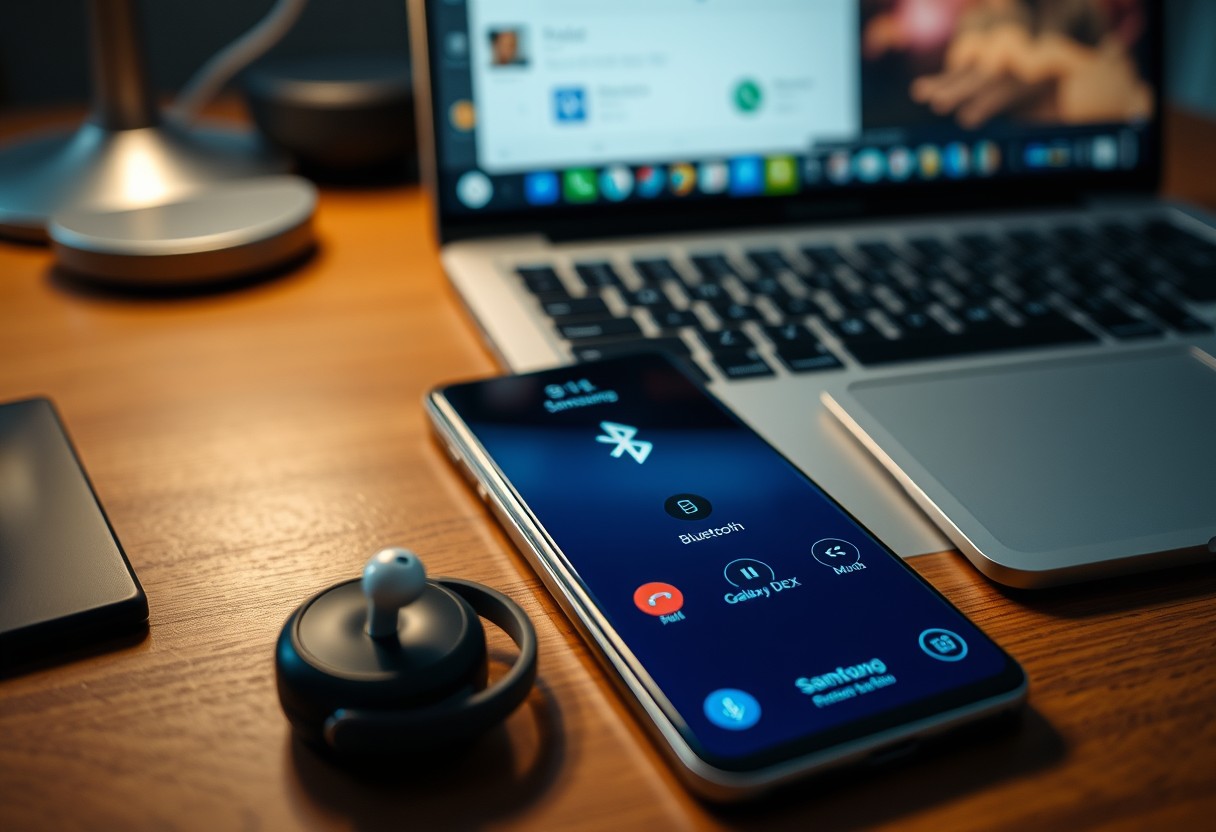
You unlock enhanced functionality from your Samsung Galaxy the moment you pair a Bluetooth device. What seems like simple connectivity actually activates powerful, underused features-from remote camera control to audio streaming with spatial awareness. Some of these integrations improve convenience, while others provide critical safety benefits you might not expect from a smartphone alone.
Key Takeaways:
- Samsung Galaxy phones can automatically launch specific apps when a Bluetooth device connects, like opening Spotify when earbuds pair or launching a camera app when a Bluetooth shutter button is detected.
- Audio routing becomes smarter with connected Bluetooth devices, allowing users to send calls or media to earbuds or car systems without manual switching, improving convenience during commutes or work.
- Pairing with Bluetooth accessories unlocks hidden productivity features, such as using a Galaxy Buds case as a remote shutter for the camera or turning on Do Not Disturb mode when connecting to a car’s audio system.
The Sound of Two
Dual Audio on your Samsung Galaxy lets you share music, videos, or podcasts with someone else without splitting a single pair of earbuds. You can connect two separate Bluetooth headsets and listen in sync, making it ideal for long flights, shared commutes, or watching a movie together on a single device. This feature ensures both listeners receive balanced audio and experience no lag, preserving the quality of your media. Whether using Galaxy Buds or third-party headphones, the pairing process is straightforward and built directly into the Bluetooth settings.
Separate App Sound
Your Galaxy can route different audio streams to each connected headset when using Dual Audio. You might listen to navigation prompts on one earbud while your companion hears music on the other, all from the same phone. This level of control prevents interruptions and keeps both users in sync with their preferred content. It’s especially helpful during travel or workouts where one person needs alerts while the other focuses on entertainment. The system manages app-specific outputs without requiring extra apps or manual switching.
Dual Audio Controls
Each connected headset maintains independent volume control through your Galaxy’s audio panel. You can adjust levels for each listener individually, ensuring comfort without affecting the other. The interface clearly labels each device, so you always know which headset you’re adjusting. If one person pauses playback using their earbuds’ touch controls, the entire stream stops for both, maintaining synchronization. This balance of shared playback and personal control makes shared listening feel natural and intuitive.
The Lens from Afar
Stepping back from your Samsung Galaxy to frame the perfect shot becomes effortless when you pair a Bluetooth remote. This simple accessory gives you the space to compose group photos, selfies, or video logs without guesswork. With a dedicated button press from several feet away, you trigger the shutter precisely when needed. The ability to control your camera remotely eliminates awkward stretches and missed moments, turning your phone into a reliable photography tool no matter the distance.
Remote Shutter Utility
Triggering your Galaxy’s camera without touching the screen prevents shake and improves clarity, especially in low light. A Bluetooth remote acts as an extension of your hand, letting you capture sharp images from up to 10 meters away. You gain full control over timing, which is essential for action shots or when placing the phone on a tripod. Whether photographing pets, landscapes, or family gatherings, this function ensures you’re in the frame-calmly and confidently.
S Pen Gestures
When your Galaxy device supports the S Pen and is connected to a Bluetooth remote, gesture controls unlock a new level of convenience. You can flip through presentation slides, scroll web pages, or advance photos with a flick of the wrist. The combination of precise input and wireless control turns your phone into a responsive command center. This responsiveness is especially useful during live demonstrations or when directing photo shoots from a distance, giving you smooth, hands-free operation without reaching for the screen.
The Heavy Work
DeX Mode Navigation
Connecting a Bluetooth mouse transforms how you interact with your Samsung Galaxy device in DeX mode. You gain precise cursor control, making multitasking feel more like a traditional desktop environment. Clicking between windows, dragging files, and accessing menus become intuitive actions, reducing reliance on touch gestures. This level of responsiveness allows you to manage complex workflows directly from your phone. With a mouse, DeX stops feeling like an extension and becomes a full productivity platform.
Physical Keyboard Shortcuts
A Bluetooth keyboard unlocks powerful shortcuts that dramatically speed up your workflow in DeX. Instead of tapping through menus, you can use key combinations to copy, paste, switch apps, or open new tabs instantly. Ctrl+C, Ctrl+V, and Alt+Tab work just as they do on a PC, giving you immediate access to familiar functions. This efficiency turns your Galaxy into a serious tool for writing, editing, or managing spreadsheets, especially during long sessions where speed and comfort matter most.
The Constant Guard
Your Samsung Galaxy adapts to your presence through Smart Lock, removing the friction of repeated authentication when a trusted Bluetooth device is nearby. When your phone detects a paired smartwatch or wireless earbud within range, it stays unlocked automatically, streamlining access without compromising security. This persistent awareness ensures convenience in daily use, especially in environments where you frequently set down your phone near connected devices. The system intelligently locks the screen only when the trusted accessory moves out of reach.
Smart Lock Settings
You configure trusted accessories directly in your Galaxy’s Smart Lock menu under Security settings. After enabling Smart Lock and verifying your credentials, you can pair specific Bluetooth devices like your watch or headphones as trusted companions. Once linked, your phone will remain unlocked as long as that device is detected nearby, eliminating constant PIN entry while maintaining protection against unauthorized access when you walk away.
Trusted Device Range
Your Galaxy maintains a secure connection with trusted Bluetooth devices within a limited proximity, typically up to 10 meters depending on environmental conditions. If you move beyond this range, the phone automatically locks after a short delay, safeguarding your data if left unattended. This responsive behavior ensures security kicks in the moment separation occurs, offering peace of mind without requiring manual intervention each time you step away from your device.
The Automatic Life
Bluetooth connectivity transforms your Samsung Galaxy into a responsive companion that adapts to your surroundings without manual input. When you pair your phone with a device like your car or office headset, it can automatically switch to Do Not Disturb, launch your navigation app, or adjust media volume based on predefined rules. This smart behavior reduces distractions and keeps you focused where it matters most. Explore how your devices work together through Samsung’s Connected Experience | Samsung US platform, designed to make daily transitions effortless.
Connection Triggers
Your Galaxy recognizes when it connects to a trusted Bluetooth device and acts accordingly. Entering your car might prompt the phone to launch Bixby Routines, turning on GPS and playing your favorite podcast playlist. These automated responses eliminate repetitive tasks, letting you stay in motion without fumbling for settings. Whether it’s enabling driving mode or syncing calendar alerts through a connected dashboard, your phone anticipates needs based on active links, making each interaction feel intuitive and timely.
Location Based Modes
You arrive at the office, and your phone detects a paired Bluetooth speaker or keyboard, signaling it’s time to shift into productivity mode. The screen brightness adjusts, notifications are prioritized, and Wi-Fi connects automatically. This context-aware flexibility ensures your device behaves appropriately in different environments without requiring manual intervention. By combining location data with Bluetooth pairing history, your Galaxy delivers a personalized experience that aligns precisely with your daily routines and workspace expectations.
Conclusion
You unlock a new layer of functionality on your Samsung Galaxy device when you connect a Bluetooth accessory. Your phone transforms from a standalone tool into a central hub that interacts with headphones, speakers, and wearables in meaningful ways. Simple tasks like answering calls or reviewing photos become more intuitive. You control your environment with less effort and greater precision. Over time, these small improvements form a more efficient, personalized experience that fits naturally into your routine.

FAQ
Q: Can I use my Galaxy Buds to control the camera on my Samsung phone?
A: Yes, when connected to your Samsung Galaxy smartphone, Galaxy Buds can act as a remote shutter for the camera. Pressing and holding either earbud activates the volume controls or camera shutter depending on settings. This feature is especially helpful for taking selfies or group photos without needing to touch the screen, reducing camera shake during long-exposure shots.
Q: How does connecting a Bluetooth keyboard improve productivity on a Galaxy device?
A: Pairing a Bluetooth keyboard turns your Galaxy tablet or phone into a mini workstation. With apps like Samsung DeX, typing documents, responding to emails, or editing spreadsheets becomes faster and more comfortable. A mid-sized SaaS firm reported employees using Galaxy Tab S9 with external keyboards completed report drafting 30% faster compared to on-screen typing alone.
Q: Does audio quality improve when using Samsung earbuds with a Galaxy phone?
A: Samsung devices support codec optimizations like Scalable Codec and AAC when paired with compatible Galaxy Buds. These allow higher bit-rate streaming and better synchronization between audio and video. Users watching movies on YouTube or playing games notice less lag and richer sound detail, especially in crowded wireless environments.
Q: Can I answer calls from my smartwatch while it’s connected to my Galaxy phone?
A: Once paired via Bluetooth, a Galaxy Watch lets you take calls directly from the wrist, even if your phone is in another room. The watch uses its own microphone and speaker, routing the call through the connected phone’s network. Voice clarity remains high thanks to noise reduction algorithms shared between Samsung devices.
Q: What happens when I connect my Galaxy phone to a Bluetooth car system?
A: Your phone integrates with the car’s infotainment system to enable hands-free calling, voice-assisted navigation through Google Maps, and media playback control via steering wheel buttons. Samsung’s auto-resume feature remembers paused podcasts or audiobooks, restarting them the next time you enter the vehicle and pair the same phone.