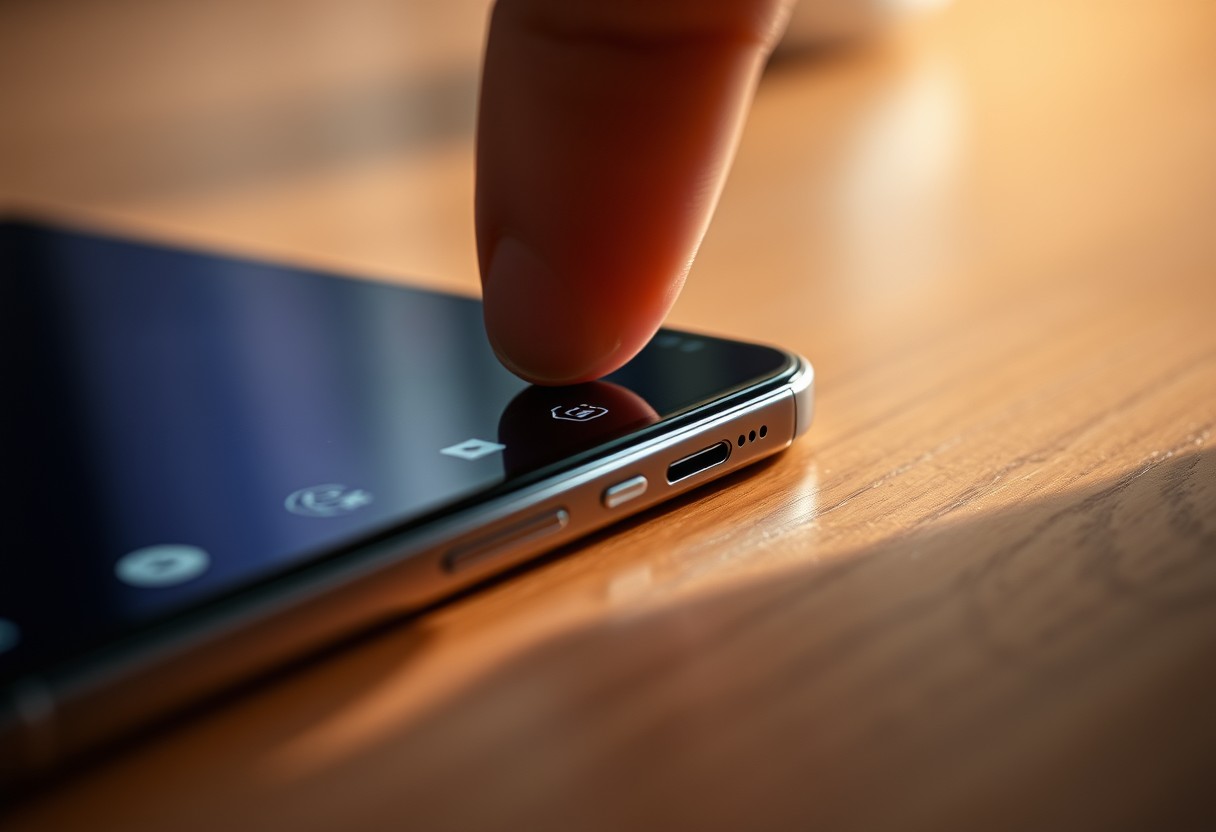
You probably press your Galaxy’s side button just to turn the screen on and off, but ignoring its hidden functions means missing powerful tools right at your fingertips. A double press can launch your camera instantly, even when the phone is locked, which is extremely useful in fast-moving moments but also a potential privacy risk if left unsecured. With the right setup, this small button becomes one of the most responsive and positive enhancements to your daily experience.
Key Takeaways:
- The Galaxy side button can trigger quick actions like opening the camera or flashlight with a simple double press, a feature many users overlook despite its daily utility.
- Holding the button longer activates Bixby or Google Assistant, but customizing this action lets you launch any app, turning the side button into a personalized shortcut key.
- Combining the side button with accessibility features enables discreet navigation for users with visual or motor challenges, offering a practical use case beyond standard functions.
The Double Press
You can map the double press of your Galaxy’s side button to open any app you choose, turning a simple tap-tap into a powerful shortcut. This feature skips home screen scrolling and widget hunting-just two quick presses and you’re inside your desired app. What makes this especially useful is speed and accessibility, particularly when you’re in motion or need fast access without unlocking your phone fully.
Launching the Camera
Double-pressing the side button instantly opens your camera if it’s set as the default action. This responsiveness can mean the difference between capturing a fleeting moment and missing it entirely. Samsung prioritizes speed here, often bypassing the lock screen securely while still protecting your privacy. You don’t need to swipe or unlock first, making this one of the fastest ways to launch photo mode from sleep or standby.
Setting the App
Your device settings let you change the double-press function to launch apps beyond the camera, like WhatsApp, Google Maps, or a fitness tracker. Navigate to Advanced Features > Side Key to assign your preferred app. Be cautious not to overwrite it with an app you rarely use, as changing it too often reduces efficiency. Once set, the response is immediate and consistent across reboots.
The Long Hold
Customizing the long press of your Galaxy side button gives you direct access to tools you actually use instead of launching Bixby by default. You can disable Bixby’s activation entirely and reassign the long hold to open the Power Menu or launch Google Assistant with a single, fluid motion. This change takes seconds in settings but dramatically improves efficiency, especially when powering off or accessing emergency modes. No more accidental voice assistant triggers-just reliable, immediate control at your fingertips.
Killing Bixby
Disabling Bixby from the long press removes one of Samsung’s most intrusive defaults. Open Settings, navigate to Advanced Features, then Side button, and select “Power off menu” or “Google Assistant” under long press. This stops Bixby from launching no matter how long you press, eliminating frustrating interruptions during urgent moments. Once disabled, you’ll regain predictable behavior from a button that should respond to your intent-not Samsung’s preferred app.
Finding the Menu
Navigating to the correct setting requires precision since Samsung buries it within nested menus. Go to Settings > Advanced Features > Side button > Long Press. There, you’ll see the option currently assigned to the action, likely set to “Bixby routine.” Tap it and choose “Power off menu” for instant access to shutdown, restart, and emergency options. Selecting this transforms the side button into a reliable system control hub, exactly where it should be for daily use.
The Sensory Tools
Striking the Light
You can train the Galaxy side button to activate your flashlight with a single press, giving you instant access in dark environments. This shortcut bypasses the lock screen and works even when the phone is off, ensuring rapid response during emergencies. Unlike default gestures, this setup stays consistent across software updates. The feature is especially useful when searching in dim spaces or walking at night, putting safety literally at your fingertips without fumbling through menus or toggles.
Seeing the Screen
Magnification becomes effortless when assigned to the side button, letting you zoom into fine text or small interface elements on demand. A quick press activates the screen magnifier, transforming how you interact with dense content like contracts or maps. This function is invaluable for users with visual sensitivity, offering discreet assistance without relying on third-party apps. You maintain full control over what’s enlarged and for how long, making everyday reading clearer and more comfortable with minimal effort.
The House Command
Transform your Galaxy’s side button into a smart home hub with a simple press sequence. By assigning smart device controls to the long hold or double press, you can toggle connected lights, adjust thermostats, or lock doors without unlocking your phone. This feature works seamlessly with SmartThings and other compatible platforms, letting you manage your environment from your pocket. One tap can plunge your home into darkness when bedtime arrives, all without fumbling for switches or apps.
Managing the Lamps
Lighting changes can happen instantly when you program your side key to control smart bulbs. Set a long press to turn off all lamps in your living area, or assign a double tap to dim them for movie night. You’re not limited to one fixture-group multiple lamps under a single command for full-room adjustments. Even if the phone is locked, the command executes immediately, giving you fast, reliable access to ambient lighting tailored to your routine.
Running the Routines
Routines let you automate several actions at once, and triggering them from the side button adds convenience. Press and hold to activate “Good Morning,” which turns on lights, adjusts the thermostat, and starts your coffee maker through connected devices. The same gesture can launch “Away Mode,” locking doors, disabling lights, and arming security cameras. Your physical button becomes a direct line to whole-home automation, reducing steps and keeping control within easy reach.
The Secure Wallet
Tap the side button twice to unlock quick access to Samsung Pay, letting you pull up your default card without swiping through your phone. This shortcut works even from the lock screen, so you can pay at checkout in seconds. Keep your finger on the sensor during the tap to authenticate instantly, reducing fumbling in busy moments. Whether you’re grabbing coffee or riding public transit, this setup turns your phone into a true digital wallet with minimal effort.
Paying the Bill
Double-pressing the side button launches Samsung Pay in under a second, placing your linked card front and center. You don’t need to wake the screen or unlock your phone first, which speeds up transactions at contactless terminals. Set your most-used card as default to avoid last-second switches, and rest assured that tokenized payments keep your data secure. This feature shines when your hands are full or you’re in a rush-just hold the phone near the reader and go.
Calling for Help
Press the side button five times in quick succession to trigger the emergency SOS function. Your phone will automatically call local emergency services and send a message with your location to trusted contacts, even if your phone is locked. This can be a lifesaver during medical crises, accidents, or unsafe situations where discreet action is critical. Make sure your emergency contacts are updated and that the feature is enabled, as every second counts when help is needed most.
The Hard Key
Over time, the Galaxy side button can lose its responsive click due to dust, oils, or case misalignment. You need to ensure the button moves cleanly with a crisp tactile feedback each time you press it. A muffled press or soft resistance often signals debris under the housing or pressure from an ill-fitting cover. Ignoring this can lead to inconsistent function, especially when relying on quick actions like launching Bixby or taking emergency screenshots. Keep the mechanism in peak condition to maintain reliability.
Cleaning the Steel
If the side button feels sticky or unresponsive, power off your device and inspect the gap around the metal shaft. Use a soft-bristled brush or compressed air to dislodge particles trapped near the hinge point. Never apply liquids directly or use sharp tools that could scratch the surface or damage internal components. Gently wiping the surrounding area with a microfiber cloth slightly dampened with isopropyl alcohol removes grime without risking moisture intrusion. Regular maintenance preserves both appearance and performance of the button’s metallic housing.
Fitting the Case
A poorly designed case can press against the side button, preventing full release or causing accidental triggers. You should check that the cutout aligns precisely with the button’s travel path and allows complete depression without added tension. Continuous pressure from a tight fit may wear out the switch prematurely, leading to permanent activation or failure. Opt for cases engineered specifically for your model, ensuring structural support without compromising physical input accuracy or long-term durability of the mechanism.
Final Words
You now hold access to features your Galaxy’s side button was designed to deliver but rarely showcases on its own. From launching emergency tools with a long press to triggering smart home routines or discreetly opening your wallet, these functions blend convenience with control. You don’t need third-party apps or root access-just the right settings tweaks. Once configured, each press, hold, or double-tap becomes a direct line to actions tailored to your daily rhythm. This is functionality that works quietly, efficiently, and exactly when you need it.
FAQ
Q: Can I customize the side button to launch an app with a double press?
A: Yes, Samsung Galaxy devices running One UI allow users to assign a specific app to open with a double press of the side button. This setting is found in Settings > Advanced Features > Side Button. Users can choose from commonly used apps like Camera, Messages, or any third-party app installed on the device. A mid-sized SaaS firm employee might set this to open a note-taking app for quick meeting logs.
Q: What happens if I hold the side button and volume down together?
A: Pressing and holding the side button along with the volume down button triggers the emergency screenshot function, capturing the current screen and saving it automatically. This shortcut works across most Samsung models and does not require additional setup. It’s useful when the standard screenshot method isn’t responsive.
Q: Is it possible to disable Bixby when pressing the side button once?
A: Yes, users can reprogram a single press of the side button to perform actions other than launching Bixby. In the Side Button menu, the single press option lets you switch to Power Off menu, Do Not Disturb, or silence alerts. Many longtime Galaxy owners change this within the first week of use to avoid accidental Bixby activation.
Q: Can the side button activate accessibility features like magnification?
A: The side button itself doesn’t directly trigger magnification, but when assigned through Accessibility settings using external tools like Button Mapper (requires third-party app), it can. Some users with visual needs set a long-press action to zoom into the screen instantly. This requires installing a compatible utility from the Play Store and configuring it separately from system defaults.
Q: Does using the side button for custom actions drain the battery faster?
A: No, assigning different functions to the side button does not increase power consumption. The hardware switch simply sends a signal that the operating system interprets based on user settings. Even complex actions like launching apps or toggling modes use negligible extra energy, similar to tapping an icon on the home screen.