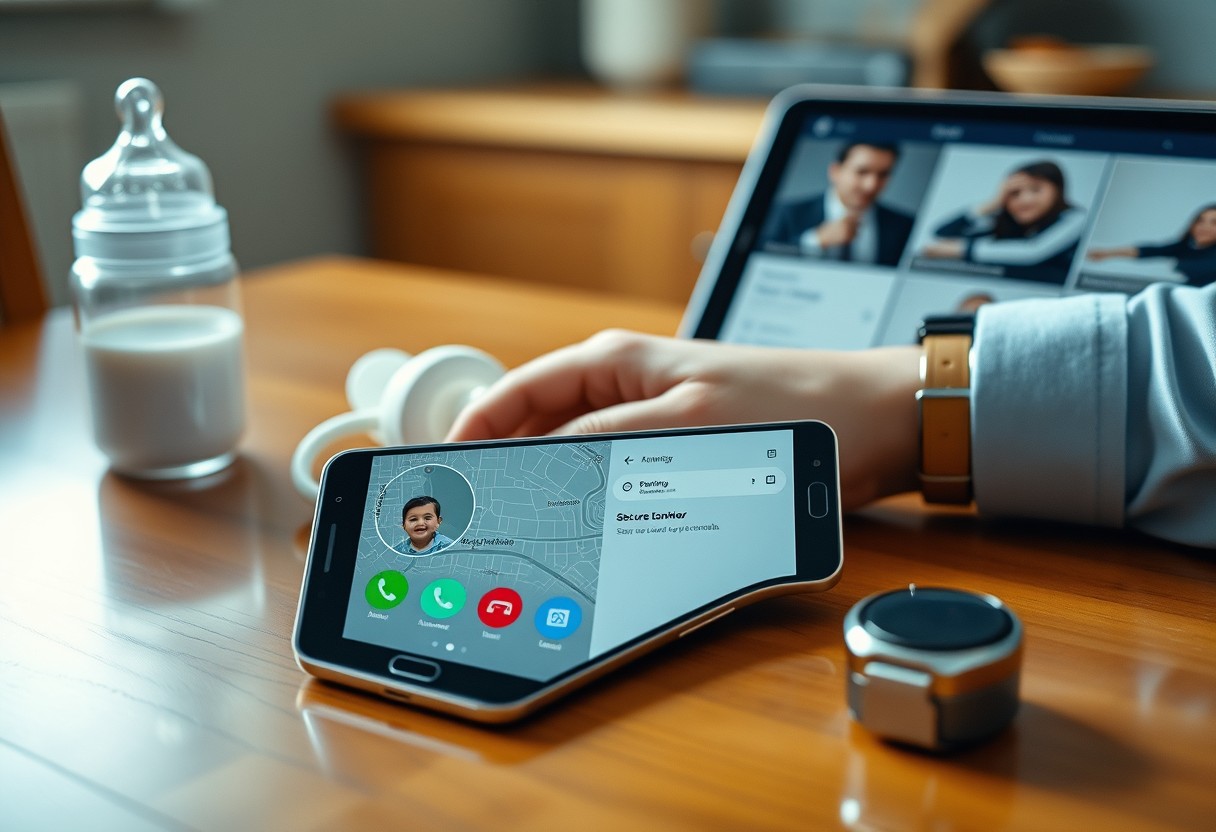
You likely use your Samsung Galaxy for calls, photos, and streaming, but hidden tools can transform how you protect and connect with your children. These underused features offer real-time location tracking, emergency alerts, and screen safeguards most parents never discover. Knowing them could make the difference between a minor scare and a serious situation.
Key Takeaways:
- Samsung’s Family Safety app lets parents set geofenced zones that trigger automatic alerts when a child arrives at or leaves specific locations like school or home, giving real-time peace of mind without constant checking.
- The Quick Panel on Galaxy devices includes a hidden camera shutter button-swipe twice with three fingers to instantly open the camera, useful for capturing unplanned moments even with a locked screen.
- A built-in sleep mode in the Digital Wellbeing dashboard allows parents to schedule automatic Do Not Disturb activation during bedtime hours, reducing distractions and helping younger users wind down without needing nightly reminders.
The Digital Fence
Setting up a secure environment on your child’s Samsung Galaxy starts with defining clear digital boundaries. You can restrict access to apps, websites, and content by age level, ensuring only appropriate material is available. The device becomes a safer space simply by configuring built-in controls that limit what can be downloaded or viewed. This layer of protection operates silently in the background, allowing your child to explore without exposure to harmful content.
Kids Mode Setup
Launching Kids Mode transforms the home screen into a simplified, child-friendly interface. You select which games, educational apps, and videos are accessible, tailoring the experience to your child’s age and interests. Time limits can be set directly within the mode, helping manage screen usage without constant supervision. Once activated, the standard Android interface is hidden, making it difficult for young users to exit accidentally-or intentionally.
Secure Folder Isolation
Isolating sensitive data begins with activating Secure Folder, a sandboxed area protected by biometrics or PIN. Your personal photos, messages, and financial apps remain completely hidden from any activity within Kids Mode. Even if your child gains temporary access to the device, they cannot view or alter anything stored inside this encrypted container. It ensures private information stays private, regardless of how freely the rest of the device is used.
The Watchful Eye
Monitoring your child’s digital behavior doesn’t require constant over-the-shoulder supervision when Samsung’s built-in tools give you real-time insight from your own phone. You can see exactly which apps they use most, how long they spend online, and even receive alerts when usage spikes unexpectedly. This direct window into their screen habits helps you guide healthy tech routines without invading their privacy. With just a few taps, you turn passive concern into proactive parenting-all from the device in your pocket.
Family Link Connectivity
Your Samsung phone can connect directly to your child’s device through Family Link, creating a private channel for oversight and control. Once linked, you gain the ability to set app limits, approve downloads, and remotely lock their screen if needed. The connection syncs instantly across devices, so changes you make on your end apply in real time. This means if bedtime arrives and one last game is still running, you can end it with a single tap-no shouting down the hallway required.
Screen Time Reports
Detailed daily and weekly summaries show you exactly how your child spends their time on the device, broken down by app category and duration. These reports update automatically and highlight spikes in activity, such as sudden surges in social media or video use. Recognizing these patterns early allows you to start informed conversations about balance and boundaries. You’re not just tracking time-you’re gaining insights that help shape healthier digital behaviors over time.
The Map of Home
Knowing where your child is can bring real peace of mind, especially in crowded or unfamiliar places. Samsung’s built-in location tools let you view your child’s phone in real time, so you’re never left guessing. If the phone is nearby but out of sight, you can trigger a ring even if it’s on silent, helping you locate it quickly. This feature works without additional apps, relying only on your Samsung account, making it a reliable tool when you need it most.
SmartThings Location Sharing
You can share your child’s location securely through SmartThings by linking their device to your account. Once enabled, you’ll see their current position on a map with accurate updates, ideal when they’re walking home or attending after-school activities. No third-party apps are needed, and location data stays encrypted, ensuring privacy. You can check their whereabouts at any time, giving you confidence without compromising security or battery life.
Emergency SOS Triggers
When your child feels unsafe, a simple press sequence on the power button activates Emergency SOS, automatically sending their exact location to your phone. This signal includes a timestamp and can be sent to multiple trusted contacts you’ve pre-selected. The alert arrives even if the phone is muted or set to Do Not Disturb, ensuring you’re notified immediately. It’s a direct line of help that could make all the difference in urgent situations.
The Fast Shutter
When your child darts across the room with a grin you know won’t last a second longer, your Galaxy’s speed can make all the difference. By double-pressing the power button, the camera launches instantly-no swipes, no delays. This near-instant access ensures you’re never fumbling while the moment escapes. Whether it’s a first step, a spontaneous dance, or a messy bite of food, your phone is ready the moment you are. The feature works even from sleep mode, giving you a real shot at capturing fleeting, unrepeatable expressions.
Single Take Action
Samsung’s Single Take Action mode does more than record-it captures multiple video clips and photos in a single 15-second burst, automatically generating stills from motion. This means if your toddler sprints into view and spins mid-laugh, the phone extracts usable images from the video, even if you didn’t tap the shutter at the perfect millisecond. The AI-powered selection saves you from sorting through dozens of blurry frames, delivering crisp, shareable moments without effort. It’s like having a backup for when your reflexes fall short.
Voice Control Photography
You can trigger your Galaxy’s camera hands-free using simple voice commands like “Cheese” or “Smile.” This is especially helpful when both your hands are occupied holding a wiggling toddler or steadying a stroller on uneven ground. Saying the word activates the shutter instantly, so you don’t miss the moment your child points at a bird or giggles at a dog. The built-in responsiveness works reliably in noisy environments, recognizing your command even amid playground chatter or wind.
The Silent Room
When your child is using their Galaxy device during quiet time, you don’t want sudden sounds disrupting the peace. Samsung’s Separate App Audio lets each app control its own volume independently, so a video won’t blast at full volume while a game stays muted. This means if your child switches from watching a cartoon to using an educational app, the audio transitions smoothly without surprise noises. You maintain control over which apps can make sound and how loud they can get, reducing stress in shared spaces.
Separate App Audio
Samsung allows you to adjust audio levels for individual apps through Sound settings, giving you precise control over what can be heard. One app might play videos at 60% volume while another stays completely silent, even if it tries to autoplay content. This prevents startling noises from popping up during homework or bedtime routines. You set the rules once, and the phone follows them automatically-no need to constantly monitor what’s playing.
Bedtime Mode Automation
Your Galaxy can automatically mute non-essential sounds when bedtime begins, based on a schedule you define. Once activated, alarms stay active but calls, notifications, and media are silenced unless marked as priority. The screen dims and greys out, signaling it’s time to wind down. You can pair this with Do Not Disturb to ensure your child isn’t tempted by games or messages after lights out, creating a consistent, distraction-free routine.
The Long Battery
When you’re out with your kids, the last thing you want is a dead phone. Samsung Galaxy devices consistently deliver extended battery life, often lasting well beyond a full day of heavy use. This means you can keep the screen on for navigation, entertainment, or communication without constant worry. The ability to stay powered through long trips or unexpected delays ensures you remain connected when it matters most. Even with multiple apps running, the efficient power management keeps your device responsive and ready.
Emergency Power Limits
You might not think about battery restrictions until you’re in a bind. Samsung’s Emergency Power Mode lets you extend your battery by limiting functionality to calls, texts, and essential apps. Once activated, it disables background processes and reduces performance to squeeze out extra hours. This mode can deliver up to 1,000 minutes of standby time on minimal charge, making it a reliable fallback during emergencies. You stay reachable even when charging isn’t an option, giving you peace of mind when traveling or during outages.
Wireless PowerShare Basics
Your Galaxy phone can double as a portable charger for other devices. With Wireless PowerShare, you simply place a compatible gadget-like your child’s earbuds or smartwatch-on the back of your phone to begin charging. It works efficiently in a pinch, especially when outlets are scarce. Activating it takes just a few taps in the quick settings panel. While it uses your battery, the convenience of keeping small but important devices powered during outings makes it a surprisingly handy feature for parents on the move.
Summing up
You already have powerful tools at your fingertips to support your family’s digital well-being. Hidden features like Family Safety, Focus Mode, and Screen Time tracking give you real control over your children’s device use without constant monitoring. Samsung’s built-in tools make it easier to set boundaries while encouraging responsibility. For more guidance, explore 3 Ways Parents Can Boost Their Family’s Digital Security to strengthen your approach with practical, real-world strategies.
FAQ
Q: How do I set up a digital boundary for my child’s whereabouts using my Samsung Galaxy phone?
A: Samsung’s Family Location feature, part of the SmartThings app, lets you create geofenced areas around places like school or home. Open SmartThings, go to the Family section, select your child’s registered device, and tap “Add Geofence.” Choose a location on the map, adjust the radius between 100 meters and 5 kilometers, then name it-like “School Zone.” You’ll get a notification when your child enters or leaves that area. A parent in Austin used this to confirm their middle-schooler arrived safely at soccer practice without making a call.
Q: Can I monitor my child’s screen time remotely with a Galaxy phone?
A: Yes, through the Digital Wellbeing tab in Settings. Link your child’s Galaxy device to your Samsung account via Family Sharing. From your phone, open Digital Wellbeing, select their profile, and view daily usage stats. You can set app timers, schedule downtime during homework hours, or block games after 8 PM. One parent in Portland limited TikTok access to one hour per day, which reduced late-night scrolling.
Q: Is there a way to quickly find my child’s lost Galaxy phone without calling it?
A: The “Find My Mobile” service on Samsung allows you to locate, lock, or ring a lost device from any web browser. Visit findmymobile.samsung.com, log in with the child’s Samsung account, and see the phone’s real-time location on a map. Even if it’s on silent, clicking “Ring” will play an alert at full volume for one minute. A mother in Denver recovered her daughter’s phone from a library couch using this feature after it was left behind.
Q: Does the Galaxy camera have a hidden function that helps parents capture kids in motion?
A: Hold the camera shutter button to shoot a burst of photos automatically-up to 30 frames per second. Slide the captured images left or right in Gallery to pick the best shot, like the exact moment a toddler hits a jump rope stride. This works even when using third-party camera apps that support long-press functionality. A dad in Seattle caught his son scoring a soccer goal using this trick during a rainy match.
Q: Can I extend my Galaxy phone’s battery life in a way that helps during long family outings?
A: Enable Power Saving Mode manually through Quick Settings or automate it with Bixby Routines. Set a routine to activate when battery drops below 30%: dim screen brightness, turn off Bluetooth, and limit background data. Some parents tie this to GPS locations-like “When leaving the park, enable power save.” A family road-tripping through Utah stretched their S23’s battery by over two hours using scheduled low-power triggers.