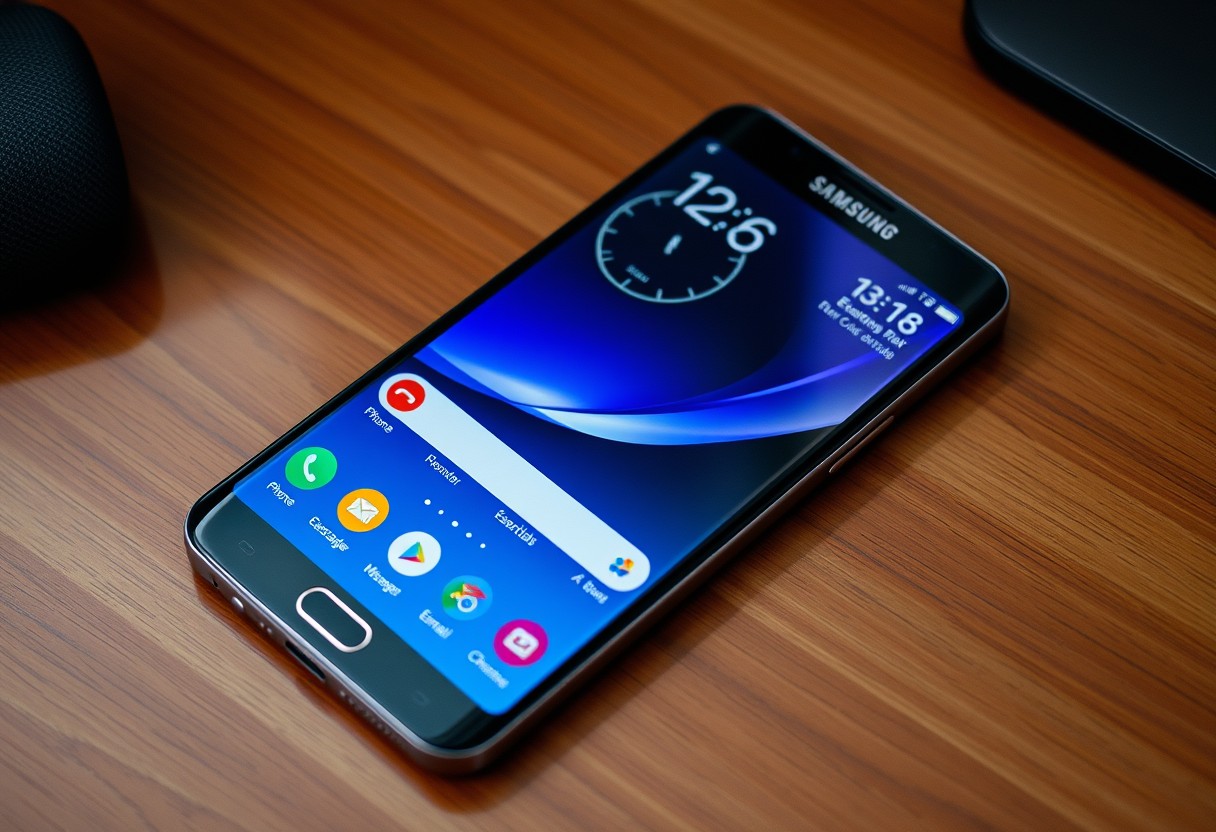
You can cut the time it takes to reach your most-used apps, tools, and settings by rethinking how you structure your Samsung Galaxy’s interface. By placing high-frequency actions within thumb’s reach, using smart folders and edge panels, and enabling context-aware routines, you reduce clutter and boost efficiency. This guide shows you exactly how to streamline access so daily tasks take fewer taps and less mental effort.
Key Takeaways:
- A well-organized home screen with frequently used apps and widgets reduces navigation steps, allowing access to essential tools in one tap instead of three or more.
- Customizing Edge Panels with shortcuts for tasks like notes, timers, or screen recording provides instant access without leaving the current app.
- Setting up personalized routines through Bixby Routines can automatically adjust settings like volume, Wi-Fi, and brightness based on time or location, minimizing manual adjustments.
Optimizing the Home Screen Layout
Maximize efficiency by arranging your home screen to reduce finger movement and minimize taps. Position your most-used apps within natural thumb reach, focusing on the lower half of the display where your grip allows for effortless access. A well-structured grid improves visibility and touch accuracy, especially when on the move. Avoid overcrowding by limiting widgets and prioritizing app icons that deliver daily value. Your home screen should feel intuitive, not cluttered, allowing you to open apps in a single tap without scrolling or searching.
Factors for selecting the ideal grid size for visibility
Choosing the right grid size balances screen real estate with tap accuracy. A denser grid fits more apps but risks accidental presses, while a larger grid enhances visibility and ease of use. Consider your phone’s screen size and how often you interact while moving. Adjusting the grid impacts how quickly you locate apps without zooming or straining your eyes.
- Use a 5×6 grid for maximum app visibility on larger displays
- Select a 4×5 layout if you prioritize tap accuracy with one hand
- Increase icon size in Settings > Display > Home screen grid for better thumb precision
- Test different configurations for a week to assess long-term comfort and speed
Tips for placing high-frequency apps in the bottom dock
Reserve the dock for apps you open multiple times a day, ensuring they’re always within reach regardless of which home screen you’re on. This area is the most accessible zone, minimizing strain and accidental unlocks. By anchoring core tools here, you cut navigation steps and build muscle memory for faster access.
- Keep Messages, Phone, and Camera in the dock for instant response
- Replace default apps with your actual most-used alternatives, like WhatsApp or Gmail
- Place your preferred navigation app in the dock if you drive frequently
- Limit dock apps to four to maintain clean spacing and prevent mis-taps
Organizing the App Drawer and Folders
Grouping apps by function or color simplifies navigation and cuts down visual search time significantly. When similar tools live together-like productivity, social media, or finance apps-you can locate them faster without scrolling through a cluttered list. A post on Facebook highlights that Samsung Galaxy has a lot of useful tools, but most people only use the basics. Taking control of your app drawer transforms how efficiently you interact with your device.
How-to guide for creating functional app folders
Open your app drawer and long-press one app, then drag it over another to create a new folder. Name it based on its purpose-“Finance,” “Fitness,” or “Travel”-to make the contents instantly clear. You can add up to 16 apps per folder, keeping related tools in one place. This method reduces clutter and supports muscle memory, so you tap less and accomplish more. Repeat this process for each category to build a streamlined system.
Tips for sorting the app drawer to improve recognition
- Sort apps alphabetically for predictable placement, making it easier to anticipate where each one lands
- Use consistent naming patterns like “Bank – [Name]” or “Chat – [App]” to enhance scanning speed
- Consider icon color as a secondary cue; grouping blue-toned social apps together creates a visual cluster
- Remove or disable unused apps to reduce noise and improve focus on what matters
Configuring Edge Panels for Instant Tool Access
Accessing frequently used tools doesn’t require multiple app launches when Edge Panels are properly configured. Swipe from the edge of your screen to reveal a customizable sidebar that holds shortcuts to contacts, apps, and utilities. You can keep your workflow uninterrupted by placing immediately useful functions like quick notes, translation, or favorite contacts within reach. The panel stays accessible across apps, ensuring consistent and rapid access without disrupting your current task. Adjusting its behavior ensures it supports your habits instead of interfering with them.
How-to select the most productive Edge Panel modules
Choose modules that reflect your daily digital behavior to maximize efficiency. If you message the same contacts repeatedly, add them directly to the panel for one-swipe communication. Tools like Samsung Notes, Calculator, or Translate appear instantly when pinned, reducing reliance on app switching. Evaluate each module by asking whether it saves at least three taps per use. Prioritize high-impact, low-effort functions and remove redundant or rarely used ones to keep the panel lean and responsive to your actual needs.
Factors for adjusting handle transparency and position
- Set the handle visibility to a level where it’s noticeable but not distracting-semi-transparent works well for most users
- Position the handle on the left or right edge based on your dominant hand; right-handed users often prefer the left side to avoid accidental triggers
- Use auto-hide in full-screen apps to prevent interference during videos or reading
- Test different opacity levels in bright and dim environments to maintain visibility without glare
Mastering Gesture Controls and Side Key Shortcuts
Modern Samsung Galaxy phones replace outdated navigation buttons with fluid swipe gestures, giving you more screen space and faster access to core actions. Swiping up from the bottom returns to the home screen, while a swipe and hold launches Recent Apps. These movements feel natural over time and reduce thumb travel significantly. You gain a cleaner display and quicker transitions between tasks without relying on static buttons that clutter your view.
How-to set up fluid navigation gestures for speed
Open Settings and go to Display, then select Navigation Bar to switch from buttons to gestures. Choose Full screen gestures to eliminate the bar entirely. Practice swiping up from the bottom edges to navigate: left and right corners switch apps, while a center swipe returns home. This system maximizes your screen’s usable area and cuts tap counts in half during multitasking. Consistent use builds muscle memory within a day.
Tips for mapping the Side Key to launch specific apps
- Assign the Side Key to open your most-used app with a double or triple press
- Go to Settings > Advanced Features > Side Key to customize press behavior
- Set shortcuts to apps like Camera, Messages, or Flashlight for instant access
- Avoid assigning functions that trigger accidentally during pocket pulls
- Test the delay setting to prevent unintended launches
Mapping the Side Key reduces reliance on unlocking and tapping through icons. A double press can launch Camera in under a second, ideal for quick shots. Choose apps you open more than five times daily to maximize efficiency. This small adjustment saves dozens of taps each day while keeping essential tools within immediate reach.
Streamlining the Quick Settings and Notification Panel
Pull down once from the top of your screen to access the Quick Settings panel, and make sure your most-used system toggles are immediately visible. Rearranging these icons lets you activate features like Wi-Fi, Bluetooth, Dark Mode, and Do Not Disturb in a single tap, reducing reliance on opening full menus. Samsung allows drag-and-drop customization, so prioritize controls you interact with daily. Keep less common settings tucked away in the expanded view to maintain a clean, efficient top row.
Factors for prioritizing top-row system toggles
Your daily routine should dictate which toggles earn prime placement in the Quick Settings row. Consider how often you switch between Wi-Fi and mobile data, enable Hotspot for other devices, or use NFC for payments. Frequent travelers may benefit from Airplane Mode or Location at the top. If you rely on audio connectivity, keep Bluetooth easily accessible. Prioritize based on real-world usage, not just convenience-placing the wrong toggle up front leads to wasted taps over time.
- Frequency of use: Choose toggles you engage with multiple times per day
- Situation-specific needs: Include context-driven tools like Hotspot or Rotation Lock
- Energy impact: Place high-drain functions like GPS where they’re easy to disable quickly
- Accessibility: Ensure vision or hearing aids linked via Bixby Routines aren’t mistakenly enabled
Tips for managing notification categories to reduce clutter
You don’t need every app shouting for attention-refining notification categories ensures only meaningful alerts reach the lock screen. Open each app’s notification settings and disable non-essential types like banners, sounds, or badges. Promote time-sensitive alerts such as messages or calendar events while silencing promotional updates. Use priority interruptions to let calls and alarms cut through even when muted. This keeps your panel useful, not overwhelming.
- Lock screen visibility: Hide sensitive or irrelevant content from public view
- Banners and sounds: Disable distractions that don’t require immediate action
- Notification history: Turn off apps that clog the panel with outdated alerts
- App channels: Customize behavior for specific alert types within one app
Implementing Modes and Routines for Contextual Automation
Let routines handle repetitive tasks so your phone adapts without you lifting a finger. Samsung’s Modes and Routines use triggers like time, location, or device state to automatically adjust settings, reducing manual input throughout your day. Connectivity shifts, sound profiles, and display settings can all change seamlessly when you arrive at work or return home. By aligning your phone’s behavior with your daily patterns, you save taps and maintain focus on what matters most.
How-to create location-based routines for work and home
Start by opening the SmartThings or Samsung Wearable app and navigating to Routines. Select “Add Routine” and choose a location trigger, such as arriving at or leaving your home or office. Assign actions like switching to silent mode, launching a playlist, or turning on Wi-Fi. Accurate GPS detection ensures routines activate reliably, so verify location permissions are enabled. These automatic shifts mean fewer distractions and consistent settings tailored to each environment.
Factors for setting up automated battery and connectivity shifts
- Ensure location services are enabled to support trigger accuracy
- Set routines to activate Battery Saver mode when charge drops below 20%
- Automate Wi-Fi and Bluetooth toggles based on trusted networks or paired devices
- Use time-based triggers to enable Dark Mode during evening hours
- Limit background activity in routines to extend battery life without user input
Automation works best when it anticipates your needs without draining resources. Configure battery and connectivity changes based on reliable triggers like time, power level, or network availability. Over-reliance on GPS for triggers can reduce battery efficiency, so balance precision with power consumption. A well-structured routine adapts quietly, preserving energy while enhancing usability.
Summing up
You now have a clear path to restructure your Samsung Galaxy phone for speed and simplicity. By tailoring your home screen, organizing apps into labeled folders, and using edge panels and gesture shortcuts, you reduce clutter and steps. Customizing quick settings and setting up routines means common tasks happen with fewer taps or automatically. Consistent adjustments based on your daily patterns turn repetitive actions into effortless habits, putting control exactly where you need it.
FAQ
Q: How can I reduce the number of taps to access my most-used apps?
A: Place your most frequently used apps as shortcuts on the home screen or in the dock at the bottom. Open the app drawer, long-press an app icon, and drag it directly to the desired spot. Keeping messaging, camera, phone, and email within one tap from the lock screen or home screen cuts down navigation time significantly.
Q: What’s the best way to organize apps so I can find them quickly?
A: Group similar apps into labeled folders such as “Social,” “Finance,” or “Travel.” Open the app drawer, long-press one app, and drag it over another to create a folder. Tap the folder name to rename it with something intuitive. This reduces scrolling and makes navigation predictable after minimal use.
Q: Can Samsung Edge Panels really speed up daily tasks?
A: Yes, Edge Panels let you swipe from the curved side of the screen to access contacts, tools, reminders, or favorite apps without leaving your current screen. Go to Settings > Display > Edge panels to enable and customize them. Adding quick tools like a calculator, ruler, or frequent contacts means fewer app switches during tasks.
Q: How do I customize the Side Key to launch an app instantly?
A: Press and hold the Side Key (power button) for a few seconds to set double press or long press actions. In Settings > Advanced Features > Side key, assign a double press to open the camera or voice assistant, and a long press to trigger Bixby or power off. Choosing camera allows instant photo capture in under a second.
Q: Is it possible to rearrange Quick Settings tiles for faster access?
A: Swipe down once from the top of the screen to reveal the notification panel, then touch and hold a tile to enter edit mode. Drag commonly used tiles like Wi-Fi, Bluetooth, GPS, or Dark Mode to the first row. Rearranging ensures essential settings are visible without extra taps or digging through menus.