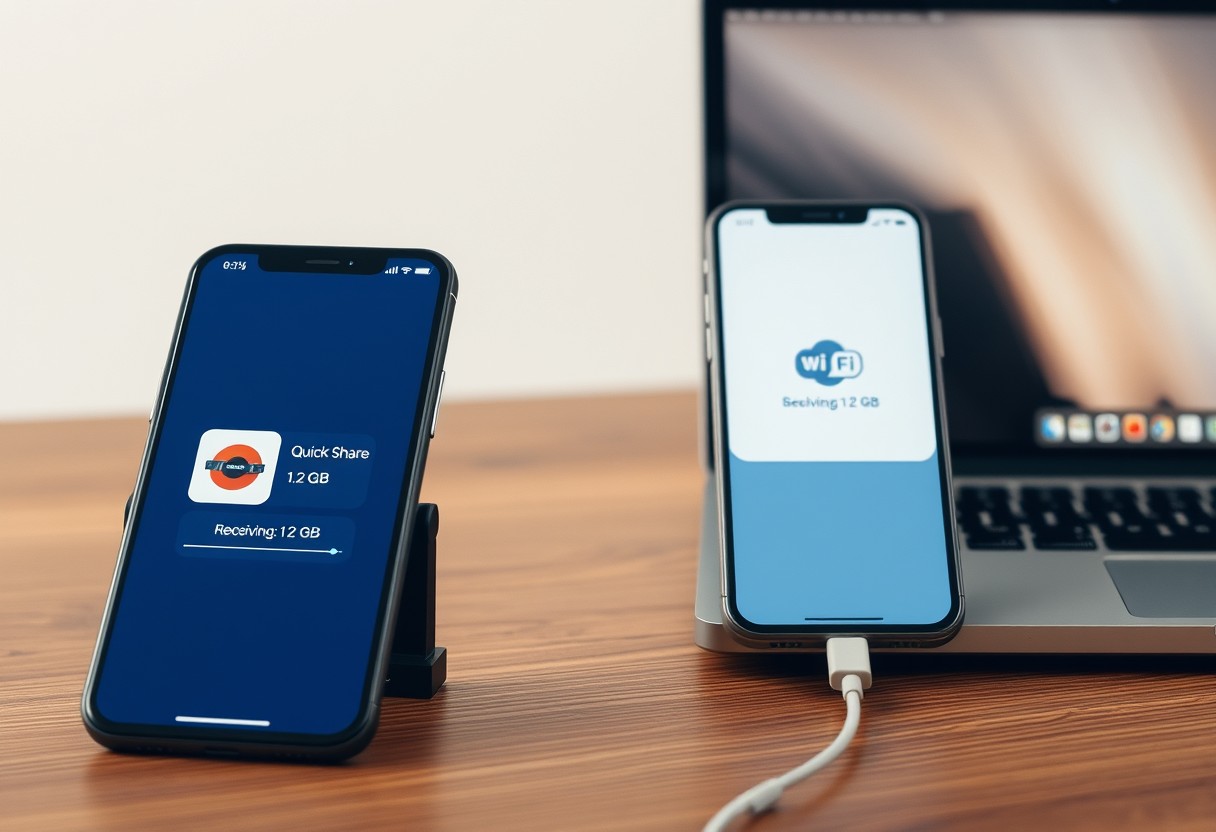
You can transfer files up to 5GB in size directly between devices using Quick Share, bypassing messaging apps entirely. This method works offline, relies on Bluetooth and Wi-Fi Direct, and preserves your data limits. Security is built-in, with one-time permissions and no cloud storage required. Start by ensuring both devices support the feature and are signed into their respective ecosystems.
Key Takeaways:
- Quick Share allows direct file transfers between nearby devices without relying on messaging apps or cloud storage, making it ideal for large files that exceed app size limits.
- The transfer speed and success depend on both devices having Bluetooth, Wi-Fi Direct, and location services enabled, with proximity playing a key role in connection stability.
- No account creation or internet connection is required, reducing setup time and preserving privacy while sharing high-resolution videos, folders, or backups instantly.
Preparing Your Devices for a Seamless Connection
To establish a reliable Quick Share connection, both devices must be discoverable through Bluetooth and Wi-Fi Direct. Begin by turning on Bluetooth and ensuring that Wi-Fi is enabled-not just connected to a network-on both the sending and receiving devices. Without both connections active, file detection will fail, even if the devices are within close range. Make sure location services are enabled on Android, as they’re required for device visibility. Keep screen locks minimized during setup to avoid disconnections.
Enabling Quick Share on Android and Windows
You can access Quick Share by opening the Settings app on your Android device and navigating to Connected devices or Google > Devices & sharing. Toggle on Quick Share to activate it. On Windows, download the Link to Windows app from the Microsoft Store if not already installed, then sign in with your Microsoft account. The first-time setup may require syncing permissions across devices, so allow notifications and background activity to prevent interruptions during discovery.
Adjusting visibility settings for nearby contacts
Your visibility setting determines who can detect your device when attempting to send files. Tap the visibility menu in Quick Share and select either “Everyone” for open access or “My Contacts” to limit detection to saved numbers. Choosing “Everyone” increases convenience but exposes your device to nearby strangers temporarily, so revert to “My Contacts” after use for better privacy. These settings update instantly and don’t require restarting the service.
Step-by-Step Guide to Sending Large Files
Initiate the transfer by opening the file you intend to send, then select the share option from the app’s menu. Your device will scan for nearby devices with Quick Share enabled. Choose the recipient from the list of detected devices, and confirm the action on both ends to begin the transfer. Both devices must remain within close proximity and awake during the entire process to avoid interruptions. Once the file is fully transmitted, a notification confirms successful delivery.
| Action | Requirement |
| Enable Quick Share | Turn on in system share menu or settings |
| Device visibility | Set to “Everyone” or “Contacts only” |
| File selection | Single or multiple files up to 5 GB total |
| Connection type | Direct Wi-Fi or Bluetooth handshake |
| Transfer confirmation | Accept prompt on recipient’s device |
Selecting high-resolution media and documents
Choose files directly from your gallery, file manager, or document app before tapping the share icon. High-resolution photos, RAW videos, and large PDFs transfer without automatic compression, preserving original quality. You can select multiple items, but ensure the total size stays within Quick Share’s current limit. The preview screen shows file names and sizes-verify these details before proceeding to avoid sending incorrect data.
Executing the transfer via the share menu
After selecting Quick Share from the share menu, wait a few seconds for nearby devices to appear. Tap the intended recipient’s device name, which triggers a notification on their screen. The recipient must accept the incoming transfer within 30 seconds to maintain connection integrity. Once accepted, the file moves directly to their default download folder, and a completion alert appears on both devices. Do not lock your screen until the progress bar reaches 100%.
Factors That Influence Transfer Performance
Transfer speed and reliability depend heavily on the file size and the physical distance between devices. Larger files naturally take more time to process and transmit, especially if the originating or receiving device has limited processing power. You may notice slower performance when sending high-resolution videos or compressed archives compared to smaller documents or images. Keep both devices within close proximity, as Bluetooth and Wi-Fi Direct signals weaken with distance, leading to interrupted or failed transfers. Interference from walls or other wireless signals can also degrade connection quality.
Impact of file formats on processing time
File formats directly affect how quickly your data is prepared for transfer. Compressed formats like ZIP or RAR may reduce overall size but require extra time to package before sending and unpack upon receipt. Video files in formats such as MKV or AVI often transfer slower than MP4 due to encoding complexity and lack of universal optimization. You’ll experience faster results with widely supported, efficiently encoded formats. Sending multiple small files in a single batch can also slow processing compared to a single consolidated file of the same total size.
Distance and hardware limitations
Even with a strong initial connection, increasing the distance between devices weakens signal stability. Quick Share relies on Wi-Fi Direct and Bluetooth for discovery and transfer, both of which have limited range-typically under 30 feet in ideal conditions. Obstacles like walls or electronic interference reduce this further. Older devices with outdated antennas or slower processors may struggle to maintain consistent transfer speeds. For best results, keep both devices in the same room and ensure they support modern wireless standards.
Troubleshooting Common Quick Share Errors
Resolving device discovery issues
If your devices aren’t appearing in the Quick Share list, first ensure both have Bluetooth, Wi-Fi, and location services enabled, as all three are required for proper device detection. Restarting the Bluetooth module or toggling Airplane mode on and off can reset stale connections. Make sure the receiving device isn’t set to “Invisible” in its Quick Share visibility settings-this is a common cause of failed discovery. In some cases, outdated system software may interfere, so check for OS updates to maintain compatibility and stable peer-to-peer recognition.
Handling interrupted or failed data packets
When a transfer stalls or fails mid-process, verify that both devices remain within close physical proximity, as signal loss can break the direct Wi-Fi connection used by Quick Share. Interrupted transfers do not resume automatically, so you’ll need to restart the send process from the beginning. Avoid locking your phone or switching apps during transmission, since background activity restrictions can pause the connection. If failures persist, reboot both devices to clear temporary network glitches affecting the P2P tunnel integrity.
Essential Security Tips for Safe Sharing
Protecting your data during file transfers ensures sensitive information doesn’t fall into the wrong hands. Always enable device authentication to confirm the identity of receiving devices before initiating a transfer. Use private sharing modes whenever possible, which prevent nearby unknown devices from detecting your share request. Avoid public Wi-Fi networks when sending files, as they increase exposure to interception risks. Only proceed with transfers when both devices display matching verification codes to confirm a secure connection.
- Enable two-factor device confirmation for added access control
- Limit visibility to trusted contacts only
- Ensure end-to-end encryption is active during transmission
- Reject any unexpected or unverified incoming share prompts
- Delete transferred files from temporary storage after delivery
Restricting transfers to known contacts
Your Quick Share settings should only allow connections with pre-approved devices to minimize exposure to unauthorized users. Disable open sharing options that let anyone nearby initiate a transfer, especially in crowded areas like cafes or transit hubs. When prompted to accept a connection, verify the device name matches the recipient’s actual device. Accepting requests from unfamiliar devices may expose your system to malware injection or data theft, even if the file appears harmless.
Verifying file integrity before opening
Before opening any received file, check its digital signature or hash value if provided by the sender, ensuring it hasn’t been altered in transit. Unexpected file extensions or mismatched sizes are red flags indicating possible tampering. Your device may automatically scan files, but manually running an antivirus check adds another layer of protection. Opening corrupted or modified files can trigger silent data breaches, so always confirm authenticity first.
Organizing and Locating Your Received Files
Finding the Quick Share download folder
Your transferred files land automatically in a dedicated folder named “Quick Share” within your device’s main storage. On most Android devices, this is located under Internal Storage > Downloads > Quick Share, though some manufacturers may place it directly in the root of Internal Storage. You can access it using any file manager app, and it’s essential to check this location first after every transfer. Failing to verify the correct destination could lead to missing files or accidental deletion if you assume they’ve arrived elsewhere.
Moving large files to cloud or external storage
Once received, large files consume significant space on your device, so relocating them promptly helps prevent storage issues. Open your file manager, navigate to the Quick Share folder, select the files, and use the move function to transfer them to an external drive or upload them to your preferred cloud service like Google Drive or Dropbox. Keeping these files on your phone long-term risks slowing down performance or blocking future transfers due to insufficient memory.
Summing up
You now have a clear path to send large files quickly without relying on messaging apps. Quick Share offers a direct, efficient connection between devices, especially within the Samsung ecosystem. You can transfer high-resolution videos, extensive photo albums, or large documents with minimal effort once your devices are properly set up. Your transfers benefit from stable Wi-Fi and proximity, and you retain control over privacy with permission settings. By following best practices for security and file management, you ensure each exchange remains smooth and safe.
FAQ
Q: What is Quick Share and how does it help send large files without messaging apps?
A: Quick Share is a file-sharing feature developed by Google for Android and Chromebook devices that enables direct transfers over Wi-Fi or Bluetooth without relying on internet-based messaging platforms. It allows users to send photos, videos, documents, and other large files directly from one device to another, similar to Apple’s AirDrop. Because it doesn’t require third-party apps or cloud uploads, Quick Share maintains transfer speed and privacy while bypassing size limits imposed by SMS or messaging services.
Q: Can I use Quick Share between an Android phone and a Windows PC?
A: Yes, Google has extended Quick Share support to Windows 10 and Windows 11 through a downloadable app from the Microsoft Store. Once installed, the Windows app appears as a contact in your Quick Share menu on supported Android devices. This integration lets users send large files such as 4K videos or project folders directly from their phone to a PC without cables or cloud intermediaries. Both devices must be signed in with the same Google account for smoother pairing.
Q: Is there a file size limit when using Quick Share?
A: Quick Share does not enforce a strict file size limit like email or messaging apps. Users have successfully transferred files over 5 GB, such as full-length movies or large photo archives. Transfer speed depends more on proximity and Wi-Fi signal strength than file size. However, extremely large folders with hundreds of items may take longer to process before the transfer begins, so grouping files into compressed archives can improve efficiency.
Q: Do both devices need to be connected to the same Wi-Fi network?
A: No, Quick Share creates a direct peer-to-peer Wi-Fi connection between devices, so they don’t need to be on the same network or even have internet access. The feature uses Bluetooth to initiate pairing, then switches to a secure, temporary Wi-Fi Direct link for the actual file transfer. This method ensures fast speeds and reduces reliance on external networks, making it ideal for sharing large files in areas with poor connectivity.
Q: Why isn’t my device showing up in another user’s Quick Share menu?
A: A device may not appear if location services or Bluetooth are turned off, as both are required for discovery. Make sure both devices have Quick Share enabled and are unlocked during the pairing process. If the issue persists, restarting Quick Share or toggling Airplane mode on and off can reset the connection. Some manufacturer-specific settings, like battery optimization features on Samsung or Xiaomi phones, may also interfere and need adjustment in settings.