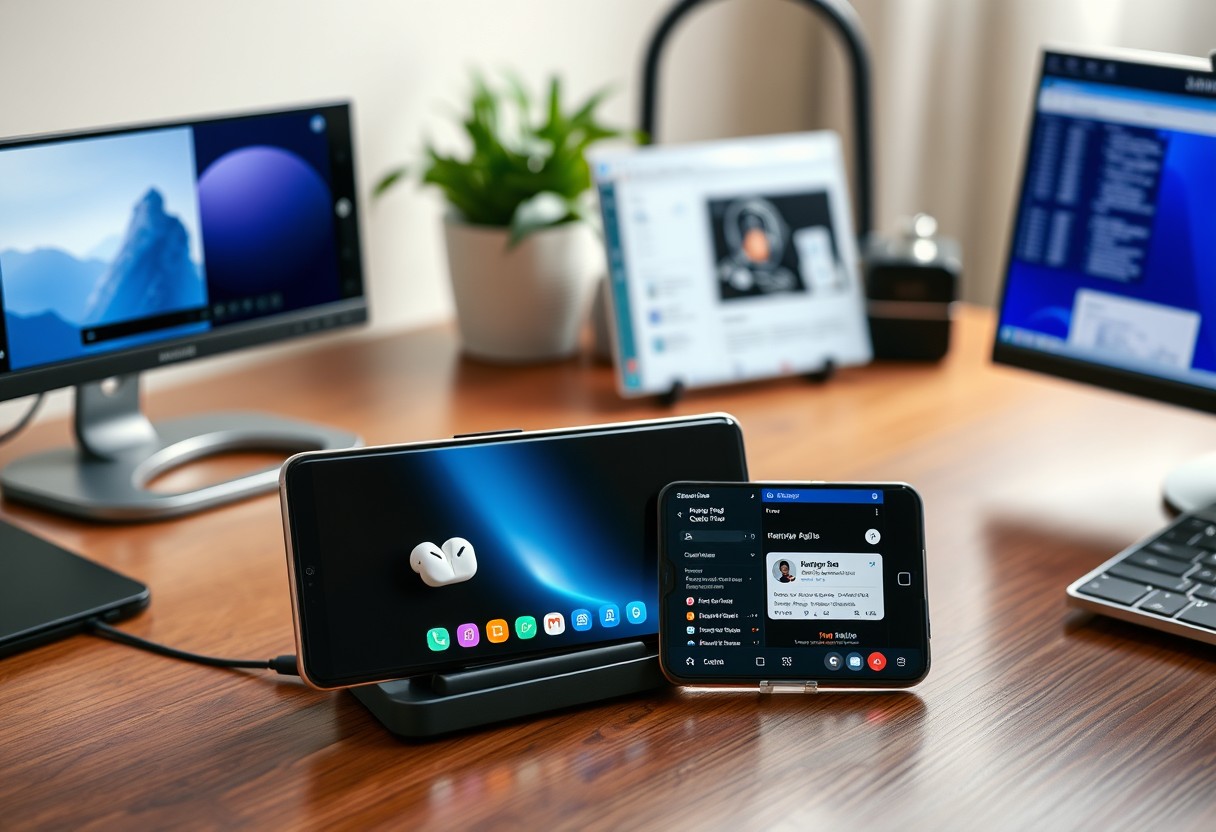
You might overlook certain Samsung Galaxy features because their names sound vague or technical, but some of the most powerful tools hide behind underwhelming labels. What seems like a simple mode or minor setting can transform how you use your phone daily. These underrated functions offer security, efficiency, and creativity boosts-often without requiring extra apps or subscriptions.
Key Takeaways:
- Samsung’s Modes and Routines automate phone behavior based on time, location, or activity, turning simple settings into personalized workflows that adapt throughout the day.
- Secure Folder isolates sensitive apps and files using hardware-backed encryption, effectively creating a private space that functions like a second device.
- Samsung DeX transforms your Galaxy phone into a desktop environment with windowed apps and mouse support, enabling productivity without needing a laptop.
Modes and Routines
You can shape your phone’s behavior around your daily life using Modes and Routines, a feature buried slightly in Samsung’s settings but packed with potential. Instead of adjusting brightness, sound, or connectivity each day, you let your phone do it for you. This automation reduces distractions and saves time, especially when routines activate based on time, location, or device state. You’re not just toggling settings-you’re building a phone experience that adapts to you, not the other way around.
Automate phone settings daily
You can set your phone to switch to Dark Mode at sunset, enable Do Not Disturb during sleep hours, and turn off Wi-Fi when you leave home-all without lifting a finger. These automated adjustments help preserve battery and support healthier screen habits. By scheduling routines for morning, work, or bedtime, you ensure your device aligns with your priorities. For example, your alarm volume can rise gradually each weekday, while your screen dims automatically after 10 PM.
Trigger actions based on location
Your phone can detect when you arrive at work, home, or the gym and respond accordingly. You might have your Galaxy switch to silent mode upon reaching the office or launch Spotify when you enter your car. Location-based triggers make your phone proactive, not just reactive, and they work reliably using GPS and saved Wi-Fi networks. While frequent location tracking could raise privacy concerns, Samsung keeps this data on-device, meaning your movements aren’t sent to external servers.
Secure Folder
You can isolate sensitive data and apps from the rest of your phone using Samsung’s Secure Folder. This feature leverages the Knox security platform to create a fully encrypted environment, meaning if your phone is lost or stolen, the contents remain inaccessible. You control what goes inside, from photos to banking apps, and access it only with your chosen authentication method. Even if someone gains access to your main device, they cannot see or open anything in the Secure Folder without your credentials.
Private encrypted storage space
Your Secure Folder uses 256-bit encryption to protect all files stored within it, making it one of the most secure personal storage options on any consumer smartphone. You can save documents, images, or videos knowing they are completely isolated from the main system. This encrypted space is not accessible through cloud backups by default, which adds another layer of protection. If your phone is compromised, this data remains locked and unreadable.
Create duplicate app accounts
You can run two instances of apps like WhatsApp, Instagram, or Facebook by installing them inside the Secure Folder. This allows you to manage personal and professional accounts on the same device without switching logins. The second instance operates independently, with its own data and notifications. Only you can access the cloned app through Secure Folder authentication, ensuring that sensitive work chats or private messages stay hidden from casual users.
Samsung DeX
You transform your Galaxy phone into a desktop-style workstation with Samsung DeX, bypassing the need for a traditional computer. By connecting to a monitor or using your TV, you gain access to resizable windows, drag-and-drop file management, and full web browsing-just like a laptop. This functionality turns your phone into a legitimate productivity tool, especially when traveling or working remotely. Even demanding tasks like editing documents or managing emails become more efficient. The interface adapts smoothly, letting you multitask with ease and maintain complete control over your workflow without carrying extra devices.
Desktop experience on monitor
You get a full desktop interface when you connect your Galaxy device to a monitor via HDMI or USB-C. The system recognizes the display and launches DeX automatically, presenting a familiar layout with a taskbar, start menu, and windowed apps. You can open multiple apps side by side, move files between them, and use a mouse and keyboard for precision. This setup is ideal for presentations, content creation, or handling complex tasks. Even apps that normally run in full screen on your phone adapt to windowed mode, giving you a level of flexibility most mobile systems can’t match.
Wireless productivity suite access
You can access DeX wirelessly on compatible smart TVs or monitors without any cables. Simply select your display from the quick settings panel and start working in seconds. This wireless capability means you can turn any supported screen into a temporary office, ideal for impromptu meetings or collaborative work. You maintain full access to your files, apps, and clipboard across devices, ensuring continuity. With secure authentication built in, your data stays protected even on shared screens. No other Android-based system offers this level of wireless desktop integration out of the box.
Edge Panels
You access Edge Panels by swiping from the right edge of your Samsung Galaxy screen, revealing a customizable sidebar that holds apps, tools, and information. While it may seem like a simple shortcut menu, its real power lies in reducing clutter and boosting productivity without requiring you to leave your current app. You can tailor it to display exactly what you need-whether that’s quick notes, contacts, or translation tools-making multitasking feel natural and efficient.
Side bar for apps
You can pin frequently used apps directly into the Edge Panel for instant access while working in other applications. This means you can check messages via WhatsApp or respond to a Slack notification without minimizing your browser or document, preserving your workflow. Unlike floating windows that take up screen space, these app shortcuts stay hidden until needed, giving you more control over how and when you interact with them.
Quick access to tools
You can add built-in utilities like Calculator, Calendar, Translator, and even web search directly into the Edge Panel. The most impactful feature is real-time translation: highlight foreign text and instantly see a translated version without switching apps. This level of integration turns passive reading into active interaction, especially when browsing content in unfamiliar languages or communicating across borders. The panel becomes an always-available toolkit tailored to your habits.
Quick Share
You may think Quick Share is just Samsung’s version of AirDrop, but it does far more than transfer photos between devices. It works across Android and Windows, requires no internet connection, and supports files up to 1GB. The speed and reliability stand out-transfers happen in seconds using Wi-Fi Direct. Even if you’re not near your PC, you can still share content seamlessly, making it one of the most practical tools for daily file exchange.
Fast wireless file sharing
You can send large videos, documents, or app APKs from your Galaxy phone to another device without touching a cable or cloud service. Quick Share uses a direct peer-to-peer connection, so your data never passes through a server, reducing exposure risks. The process starts instantly when devices are near each other, and both sender and receiver get full control over permissions. You don’t need to pair devices beforehand, which makes sharing as fast as tapping a name.
Create temporary download links
You can generate a shareable link that lets others download files directly to their device, even if they don’t have a Samsung phone. These links expire automatically after a set time, limiting how long the file remains accessible. This reduces the danger of long-term exposure compared to permanently hosted cloud links. You retain control by revoking the link anytime, ensuring sensitive documents don’t stay online longer than necessary.
Smart Select
You can do far more than just capture screenshots with Smart Select. This feature lets you draw custom shapes, rectangles, or even freehand selections around content on your screen, saving them instantly or sharing them without opening another app. The tool stays accessible from any screen, giving you fast access when you need to grab part of a webpage, message, or image. You’re not limited to static captures-Smart Select supports scrolling captures on compatible pages, letting you save long articles or conversations in one continuous image.
Capture specific screen areas
You don’t need to screenshot an entire page when only a small section matters. With Smart Select, draw directly on the display to isolate exactly what you want-whether it’s a graph in a report or a menu item. The precision selection prevents unnecessary cropping later and works across nearly all apps. Once captured, you can annotate, share, or save the selection immediately. This level of control makes it easier to focus on what’s relevant without distractions from surrounding content.
Extract text from images
You can pull readable text directly from image-based content using Smart Select’s intelligent recognition. After selecting a portion of a photo or screenshot containing text, tap “Text recognizer” to convert the visual words into editable characters. This eliminates the need to manually retype information like phone numbers, addresses, or quotes. The accuracy is high for clear fonts and clean images, making it a reliable shortcut for transferring data between devices or apps without errors.
Link to Windows
You can seamlessly connect your Samsung Galaxy device to a Windows PC using the built-in “Link to Windows” feature. This integration allows you to access messages, notifications, and calls directly from your desktop. You don’t need third-party apps or complex setups-just Bluetooth and Wi-Fi to pair. Be aware that leaving your phone linked to a public PC could expose personal data if the computer is compromised. Once connected, your experience becomes more efficient, especially when multitasking across devices.
Control phone from PC
You can manage your phone’s interface directly from your Windows PC with mouse and keyboard inputs. This means answering calls, replying to messages, or navigating apps without touching your device. The connection uses Microsoft’s Your Phone app, which requires both devices to remain on the same network for real-time control. If your PC locks or goes offline, the link disconnects automatically, protecting your privacy. This feature works best with newer Galaxy models running Android 10 or higher.
Mirror apps to desktop
You can mirror individual Android apps from your Galaxy phone to your PC screen, allowing full interaction through windows on your desktop. This is useful for using mobile apps with a larger display and physical keyboard. Only one app can be mirrored at a time, and performance depends on a stable Wi-Fi connection. Some apps, like banking or secure messaging platforms, may restrict screen mirroring for security. You maintain full control over which apps you choose to display, ensuring sensitive data stays protected.
Object Eraser
You can remove unwanted elements from your photos without opening a professional editing app, thanks to Object Eraser on your Samsung Galaxy device. This feature uses advanced AI to analyze the background and seamlessly fill in the space after an object is removed. The results are often indistinguishable from the original scene, making it ideal for cleaning up crowded backgrounds or eliminating photobombers. You don’t need any editing experience-just select the object and let the tool do the rest.
Remove objects from photos
Tap and drag to highlight any person, object, or distraction you want gone from your photo, then confirm the edit and let Object Eraser work automatically. The tool excels at removing small to medium-sized elements like trash, signs, or stray pedestrians. While larger subjects may require multiple attempts, the AI adapts to lighting and textures for natural-looking results. You’ll see a preview before saving, so you can ensure the edit doesn’t create visible artifacts or distortions in the image.
Erase shadows and reflections
Shadows or mirror-like reflections can ruin an otherwise perfect shot, but Object Eraser handles these subtle flaws with precision. You can selectively erase dark patches under objects or remove unwanted glares from glass or water surfaces. This capability is especially useful in product photography or indoor portraits, where lighting imperfections are common. The tool preserves surrounding details, so edited areas blend smoothly without over-smudging or blurring critical parts of the image.

Bixby Text Call
When your phone rings at an inopportune moment, Bixby Text Call gives you a smarter way to respond without saying a word. Instead of ignoring calls and risking miscommunication, you can automatically send a text reply using predefined or custom messages. This feature shines in meetings or quiet spaces where silencing your phone isn’t enough-you stay connected without disruption. Discover more hidden efficiencies like this with 10 Secret Samsung Tricks Only Power Users Know (One …), and transform how you interact with your Galaxy device.
Answer calls using text
You can instantly reply to incoming calls with a text message directly from the call screen, no need to pick up or unlock your phone. When a call comes in, tap “Send Message” and choose a preset response like “I’m busy, I’ll call you later” or customize your own. This keeps communication open while maintaining your focus-especially helpful during work hours or family time. The caller receives a real SMS, making it feel personal and immediate, not automated. You stay in control of when and how you engage.
Screen spam calls silently
Facing a surge of unwanted telemarketers or scam callers? Bixby Text Call lets you silence suspected spam by sending an automatic text without answering. The call goes straight to voicemail while the system dispatches a message, often prompting spammers to reveal themselves by replying. This reduces interruptions and helps identify dangerous numbers without exposing your availability. Over time, you gain peace of mind knowing your phone handles nuisances intelligently, filtering noise while preserving important connections.
Good Lock
You unlock a powerful layer of personalization when you install Good Lock from the Galaxy Store. This free Samsung app lets you reshape how your device behaves and looks, far beyond what standard settings allow. Some modules can alter system behavior deeply, requiring caution, but the flexibility is unmatched. You gain granular control over notifications, volume steps, lock screen appearance, and more. Samsung regularly updates the app with new modules, making it a long-term asset for users who want their phone to feel truly their own.
Deeply customize system UI
You can change the look and feel of your entire interface using the LockStar and HomeUp modules. You’re not limited to Samsung’s default fonts, icon sizes, or navigation bar styles-replace them with configurations that match your preferences. Adjust notification panel transparency, tweak the status bar layout, or resize app icons on the home screen. These changes go beyond superficial themes, letting you craft a visual experience that reflects your usage patterns. The level of detail available puts you in full control of your phone’s aesthetic and usability.
Unlock hidden software features
You activate advanced functionalities not available in standard Android through modules like Task Changer and App Connector. These tools let you override default app behaviors and create custom task shortcuts in the recent apps view, streamlining how you switch between workflows. Some features even allow gesture-based app launching or modify how pop-up windows behave. While installing multiple modules at once can occasionally cause instability, careful selection ensures a smoother experience. This access to buried capabilities transforms how you interact with your device on a daily basis.
To wrap up
You’ve seen how Samsung’s features often do far more than their simple names imply. Bixby isn’t just a voice assistant-it reads messages aloud during calls. Object Eraser removes photobombers with a tap. Secure Folder isolates sensitive apps like banking and medical records from the rest of your phone. Even Quick Share transfers files across devices without needing Wi-Fi or data. These tools quietly enhance your daily use, blending practicality with smart design. You don’t need to be a tech expert to benefit-just aware of what’s already built into your device.
FAQ
Q: What is Edge Panels and how can it improve daily phone use?
A: Edge Panels lets you access apps, contacts, and tools by swiping from the curved edge of a Samsung Galaxy screen. Instead of just using it for quick app shortcuts, you can customize panels for specific routines-like a workout panel with music, timer, and maps, or a work panel with email, calendar, and notes. This reduces time spent navigating through the home screen or app drawer, making multitasking faster and more intuitive.
Q: How does Secure Folder go beyond simple app locking?
A: Secure Folder creates a completely isolated Android environment using Samsung Knox, meaning it’s not just hiding apps but running a separate instance of the OS. You can log into different accounts for the same app-like two WhatsApp numbers or separate personal and work email profiles-without switching devices. It also stores private photos, files, and downloads that won’t appear in the main system gallery or file manager.
Q: Can Samsung DeX work without a monitor or PC?
A: Yes, Samsung DeX can run directly on your Galaxy phone or tablet, offering a desktop-style interface even without external hardware. This mode is useful when connecting a mouse and keyboard via Bluetooth or USB. Some users prefer DeX on the phone screen for precise control during document editing, spreadsheet work, or managing multiple browser tabs with resizable windows.
Q: Is Quick Share only useful for transferring files between Samsung devices?
A: Quick Share works across Android and Windows devices, and now supports limited iOS functionality through a downloadable app. Beyond sending photos or videos, it can transfer Wi-Fi passwords, share links directly from the browser menu, and even send files to nearby PCs using drag-and-drop in Samsung’s “Link to Windows” integration. It operates without needing internet, using Wi-Fi Direct for fast, secure transfers.
Q: What makes Smart Select more than just a screenshot tool?
A: Smart Select captures non-rectangular content, converts text from images into editable format, and records scrolling screenshots of entire web pages or documents. You can also turn a selection into a GIF by capturing motion in real time. Once captured, content can be pinned as floating windows or sent directly to apps like Messages or Keep, making it a productivity tool for research, note-taking, or sharing dynamic content.