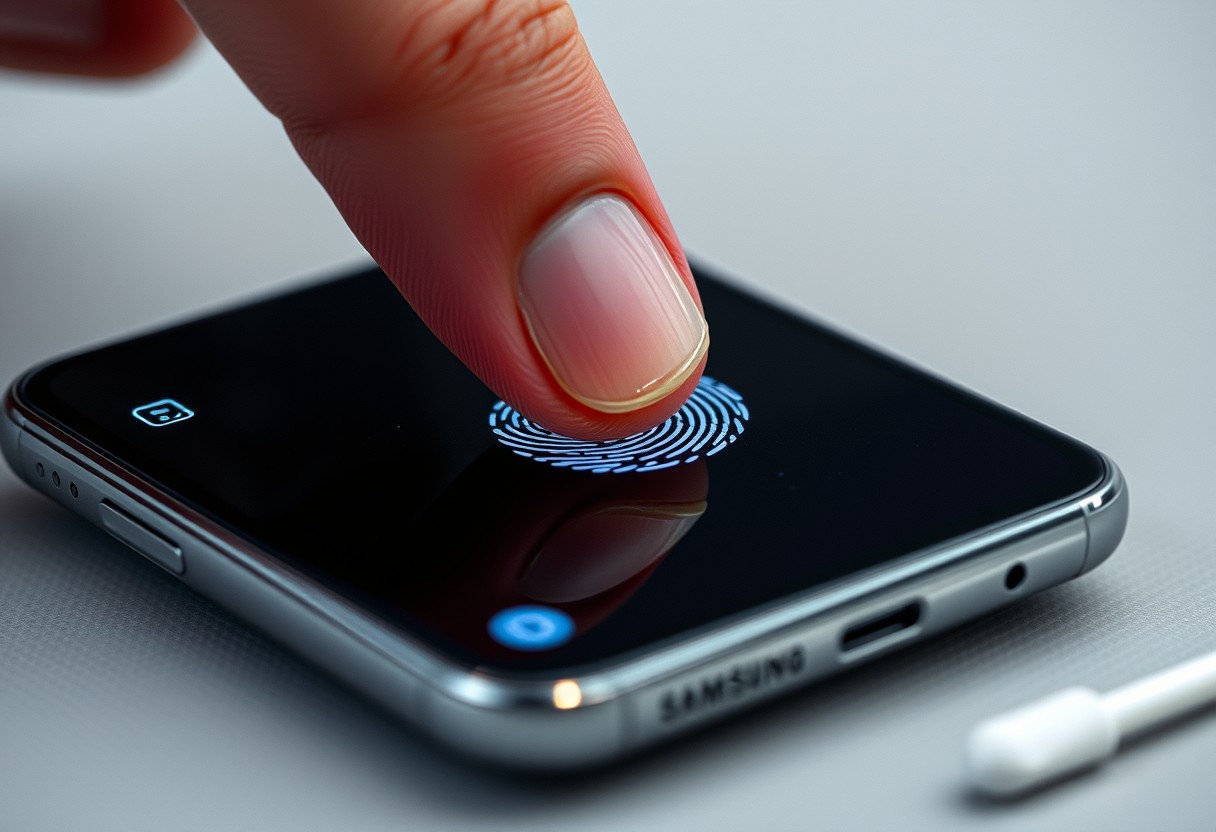
You’ve noticed your Samsung Galaxy’s fingerprint sensor isn’t responding like it used to-delays, missed scans, or complete failures. Before you re-register your prints, understand that a faulty sensor could stem from preventable issues like screen protectors, software glitches, or moisture. Re-registering too soon might erase a working template, making the problem worse. This guide walks you through what to verify first-so you don’t lose access or make a costly mistake.

Key Takeaways:
- Samsung Galaxy fingerprint sensors can degrade in performance not because of hardware failure, but due to minor screen protector misalignment or using the wrong type-especially thick or non-OEM films that interfere with under-display sensors.
- A software glitch or corrupted fingerprint data might be the real culprit; clearing the fingerprint cache through device settings often restores responsiveness without needing to re-enroll fingerprints.
- Physical damage to the screen, even if not visible, or prolonged wear from drops and pressure can subtly alter sensor alignment-checking for micro-fractures or pressure marks around the sensor area helps identify hidden issues affecting recognition.
The Surface of the Glass
Smudges, oils, and microscopic debris on your screen can severely disrupt fingerprint recognition accuracy. Your Galaxy’s sensor relies on precise touch contact, and even thin layers of grime from daily handling may block its ability to read ridge patterns. Clean the screen thoroughly with a microfiber cloth, ensuring no residue remains. Also, wash your hands before use-dirt or lotion on your finger impacts performance just as much. As one user noted in a thread about slowing sensors, seemingly random failures often trace back to physical interference, not hardware faults.
The Grime
Accumulated oil and dirt on your fingertip or display create a barrier that prevents full contact with the sensor. Over time, this layer builds up invisibly, reducing the scanner’s ability to detect fine details in your print. You might notice the phone works better in the morning after washing your hands, hinting at cleanliness playing a key role. Wipe both your finger and screen with a clean cloth before registering or using the sensor. Keeping surfaces free of grime ensures the clearest possible signal for accurate recognition.
The Moisture
Slight dampness on your skin or screen interferes with capacitive sensing, the technology behind most Galaxy fingerprint scanners. Even sweat or high humidity can distort readings, causing repeated rejections. A wet finger changes electrical conductivity, tricking the system into seeing a different pattern. Avoid using the sensor immediately after washing hands or being outdoors in rain. Let everything dry completely-moisture less than visible droplets can still disrupt function. Maintaining dry contact points dramatically improves reliability without any software intervention.
The Digital Ghost in the Machine
The Biometric Cache
Your phone stores fingerprint data in a secure biometric cache, a dedicated memory space that helps speed up recognition by keeping your scan patterns readily accessible. Over time, this cache can accumulate outdated or fragmented data, especially after repeated failed attempts or partial scans. When corrupted entries build up, they interfere with accurate matching, causing frustrating delays or rejections. Clearing this cache forces the system to rebuild its reference points from scratch, often restoring responsiveness. This reset is safe and does not compromise security, as encryption remains intact during the process.
The System Update
A recent software update may have altered how your Galaxy device processes fingerprint input, sometimes introducing bugs that degrade sensor performance. These changes can conflict with previously registered prints, making them less recognizable even if your finger hasn’t changed. In some cases, updates fail to fully apply, leaving components like the biometric module in an unstable state. Rebooting after an update ensures all systems align properly. Without a complete restart, critical background services might run on old instructions, undermining sensor accuracy until synchronization occurs.
The Barrier of Plastic and Glass
Physical barriers between your finger and the sensor often explain a sudden drop in recognition performance. Even high-quality screen protectors can interfere if they aren’t precisely aligned or made for your specific Galaxy model. Over time, microscopic wear degrades their transparency to fingerprint data, especially around the sensor zone. A poorly chosen protector doesn’t just reduce sensitivity-it can train the system to recognize distorted patterns, leading to persistent failures. Always verify compatibility and fit before assuming the sensor itself is at fault.
The Scratched Film
A thin layer of plastic or tempered glass might seem harmless, but micro-scratches over the sensor area can scatter the electrical field needed for accurate reading. These tiny imperfections aren’t always visible under normal light, yet they disrupt the fine mapping of your fingerprint ridges. If you’ve recently applied or replaced a screen protector, inspect the region around the sensor with a bright flashlight at an angle. Any sign of wear, haze, or abrasion means it’s time to replace the film-your phone’s ability to read your print depends on a flawless surface.
The Air Gap
Even a barely noticeable lift at the edge of your screen protector can introduce an air gap between your finger and the sensor, severely weakening signal accuracy. This tiny space distorts the capacitive response, making your fingerprint appear fragmented or incomplete. If the sensor only works when you press harder, that’s a telltale sign of misalignment. Ensure the protector sits flush across the entire display, especially over the fingerprint module. A warped or improperly installed film won’t just hinder performance-it can permanently degrade recognition reliability until replaced.
Power and the Sensor
Samsung’s fingerprint recognition relies on consistent power delivery to function properly, and aggressive battery-saving settings can interfere with sensor performance. Your device may limit background processes for the biometrics service when power restrictions are enabled, leading to delayed or failed authentication. Disabling battery optimization for the Biometrics app ensures the sensor remains responsive, especially after periods of inactivity. This simple software adjustment often restores functionality without requiring a full re-enrollment.
The Battery Saver
Battery Saver mode can restrict essential services, including your phone’s fingerprint authentication system. When activated, it may throttle the biometrics processor, causing noticeable delays or repeated scan failures. You might not realize this setting is active, especially if scheduled or triggered automatically. Turning off Battery Saver temporarily can immediately improve sensor response, revealing whether power management is the root cause. Check your quick settings or battery menu to confirm its status and disable it for testing.
The Optimization
Your Galaxy device may automatically optimize apps to extend battery life, but this can include limiting the Biometrics app’s ability to run efficiently. These background restrictions prevent the sensor from initializing quickly, resulting in inconsistent recognition. You need to manually exempt the biometrics service from power restrictions through the Settings app. Whitelisting this app stops interruptions and maintains reliable access. Look for “Battery” settings, then “App power management,” and adjust permissions specifically for Biometrics.
The Wear of Time and Impact
Physical damage from daily use can silently degrade your Galaxy’s fingerprint recognition over months or years. Even minor drops or pressure shifts may compromise the sensor’s ability to read your print accurately. Before assuming software is at fault, examine the hardware itself for signs of internal stress or wear that no settings menu can reveal. A deteriorating sensor might still function intermittently, giving false hope that a simple fix will suffice. What appears to be a glitch could in fact be irreversible hardware decline.
The Cracked Screen
A crack near or over the fingerprint sensor often disrupts its electrical field, leading to inconsistent readings or complete failure. Even hairline fractures invisible to the naked eye can interfere with capacitive detection. If you’ve had any impact incidents, inspect the screen closely under bright light. Replacing the screen may be unavoidable if damage is confirmed, as re-registering your fingerprint will not overcome a broken surface layer.
The Sensor Failure
Over time, the fingerprint sensor’s underlying components can degrade due to moisture exposure, repeated electrical cycles, or manufacturing variances. You might notice slower response times, increased false rejections, or unresponsiveness even with clean fingers and an intact screen. These signs point to internal sensor failure rather than user error. Once hardware failure is suspected, continued re-registration attempts will not restore function. Professional diagnostics become necessary to confirm the sensor’s condition.
Final Words
You may notice your Samsung Galaxy’s fingerprint recognition slowing down or failing more often, but rushing to re-register your print isn’t always the answer. First, check for simple fixes: clean the sensor area, remove screen protectors that interfere, ensure your software is up to date, and confirm the battery isn’t degraded. Physical wear, accidental damage, or even moisture buildup can impair performance over time. Addressing these factors could restore responsiveness without starting over. You’re better off diagnosing the root cause than assuming the system simply stopped working.
FAQ
Q: Why is my Samsung Galaxy fingerprint sensor not working as well as it used to?
A: Fingerprint recognition can degrade due to several factors including screen protector interference, software glitches, dirt buildup on the sensor, or physical damage. The sensor relies on precise readings of your fingerprint ridges, and even minor changes in the surface it reads from-like a scratched protector or oily residue-can disrupt accuracy. Software updates may also alter how the sensor processes input, and repeated drops or wear over time can misalign internal components.
Q: Should I remove my screen protector if the fingerprint isn’t working properly?
A: Yes, removing the screen protector is a quick way to test if it’s interfering with the sensor. Some protectors, especially thick tempered glass or low-quality films, create a gap between your finger and the under-display sensor. This gap distorts the optical reading. After removal, clean the screen with a microfiber cloth and test the sensor directly. If recognition improves, consider switching to a thinner, sensor-optimized protector designed for ultrasonic or optical readers.
Q: Can a software update cause fingerprint recognition issues?
A: Software updates sometimes reset biometric settings or introduce bugs in sensor calibration. After an update, the phone might require relearning your fingerprint patterns even if they were registered before. Clearing the fingerprint data and re-registering can help, but first check for any pending system patches that may address known issues. Also, apps running in the background or security policies from work profiles can temporarily disable or slow down sensor response.
Q: How does dirt or moisture affect the fingerprint sensor?
A: Oils, sweat, or dust on your finger or the screen surface scatter the light used by optical sensors or interfere with ultrasonic wave patterns. Even a thin layer of grime can prevent the sensor from capturing a clear image. Wipe your finger and the screen with a dry, lint-free cloth before use. Avoid using cleaning agents directly on the display. Keeping both clean significantly improves detection without needing to re-register.
Q: Is it possible the sensor is physically damaged?
A: Yes, drops or pressure on the screen can damage the under-display sensor or its connections. Cracks near the sensor area often disrupt functionality, even if the screen still works. In some cases, only a portion of the sensor responds, leading to inconsistent results. If cleaning, removing the protector, and re-registering don’t help, and the issue started after an impact, the hardware may need professional inspection or replacement through warranty or service centers.