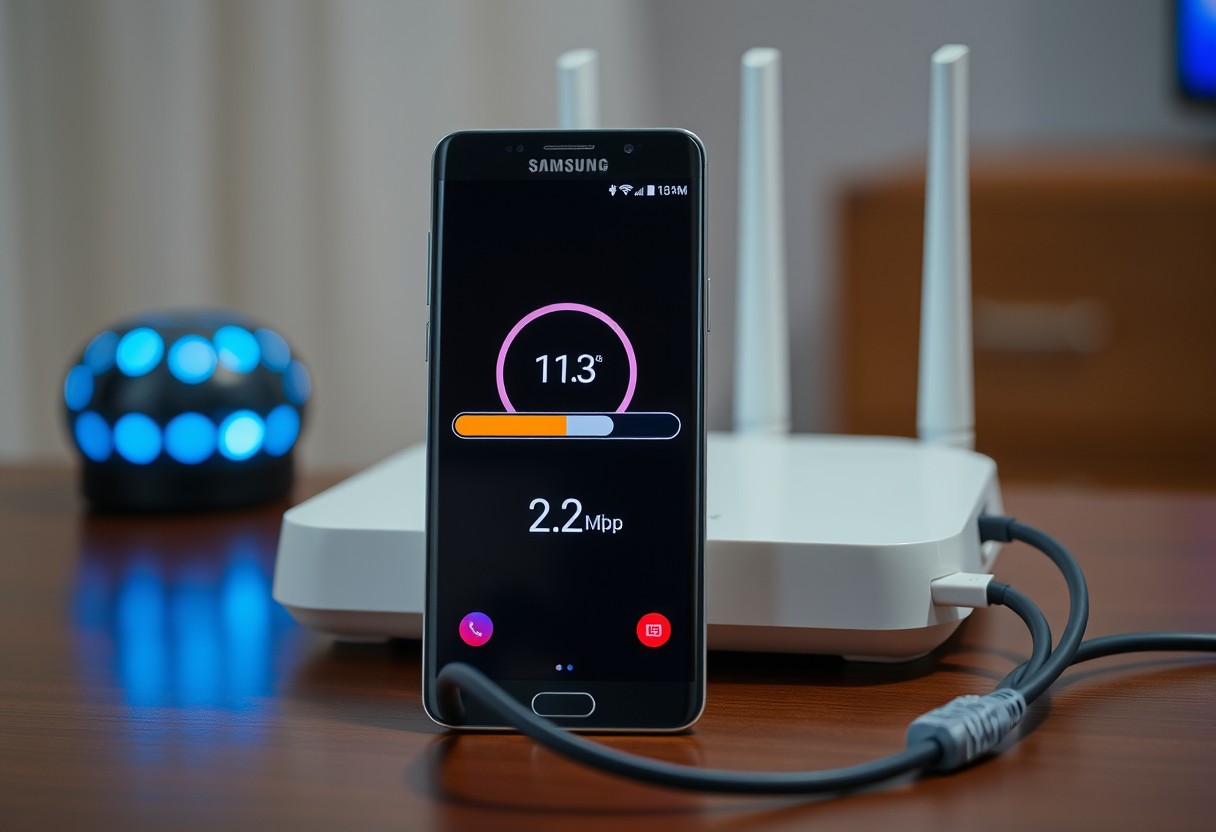
You see full bars on your Samsung Galaxy, yet web pages stall and videos buffer. A strong signal doesn’t guarantee fast internet-your connection could be congested, misconfigured, or shared without your knowledge. This disconnect can lead to frustration and wasted time, especially during video calls or large downloads. You need to know what’s really affecting your speed.
Key Takeaways:
- Samsung Galaxy devices can display full Wi-Fi signal bars while still experiencing slow internet due to network congestion, especially when multiple devices are connected or high-bandwidth activities like streaming or downloads are in progress.
- A strong signal doesn’t guarantee fast speeds-issues often stem from router placement, interference from walls or electronics, or outdated router firmware that limits performance despite apparent connectivity.
- Invisible bandwidth users, such as background app updates, cloud backups, or smart home devices, may be consuming data without notice, leaving less for browsing or video calls even when the connection appears solid.
The Mirage of Strength
Seeing full Wi-Fi signal bars on your Samsung Galaxy can be misleading-those bars only confirm your phone is connected to the router, not that data is flowing efficiently. A strong signal doesn’t guarantee fast speeds, especially if network congestion or background processes are consuming bandwidth. You might experience buffering or delayed loading despite the reassuring icon. This gap between appearance and reality often leaves users puzzled when tasks stall. Reports like Slow internet through wifi on phone, not on cell data, and … highlight how common this issue is across Galaxy models.
The icon’s lie
Your phone’s Wi-Fi indicator shows connection status, not performance, and this distinction is critical when diagnosing speed issues. Those five bars simply reflect signal strength from the router, not how much data is actually reaching your device. You can have a rock-solid link while experiencing near-zero throughput due to unseen network strain. This false sense of connectivity often delays troubleshooting because the interface suggests everything is fine. Don’t trust the icon alone-test actual download speeds to reveal the truth behind the display.
Throughput versus signal
Signal strength and throughput operate independently, and understanding this separation helps clarify why your Galaxy feels sluggish. A powerful signal ensures your device can “hear” the router, but throughput determines how much information gets through each second. Factors like distance from the router, physical obstructions, or device limitations can severely limit data transfer even with full bars. Run a speed test directly on your phone to measure real-world performance-this reveals whether the issue lies in connectivity or actual bandwidth delivery.
The Air is Heavy
Signals on the 2.4GHz band often appear strong, yet your Samsung Galaxy struggles to load pages. This happens because too many devices-routers, microwaves, baby monitors-compete for the same limited channels. When these channels become overcrowded, data slows dramatically, even if your phone shows full bars. You’re not imagining it: the airwaves around you are saturated. Performance drops significantly in dense environments like apartments or offices, where dozens of networks overlap and interfere with one another.
The 5GHz switch
Switching your Galaxy to the 5GHz Wi-Fi band can dramatically improve speed and responsiveness. This frequency offers more channels and far less interference than the congested 2.4GHz band. While the signal doesn’t travel as far through walls, it’s ideal for short-range, high-bandwidth tasks like streaming or video calls. You’ll likely notice faster load times and smoother performance when connected to 5GHz, especially in multi-device homes.
Neighboring noise
Your neighbors’ Wi-Fi networks may be silently degrading your connection. Even if you’re not using the same channel, nearby signals on overlapping 2.4GHz frequencies create electronic noise that disrupts data flow. This interference forces your Galaxy to retransmit data, causing delays and stuttering. Dense housing areas often suffer from this invisible congestion, making it harder to maintain stable speeds despite a strong signal display.
The Digital Map
Every time you type a website address, your phone relies on a DNS server to translate that name into an IP address-like looking up a contact in a global phonebook. Slow or overloaded DNS servers can drag down this process, making the internet feel sluggish even with full Wi-Fi signal. Switching to a faster provider can noticeably cut loading times and improve your browsing experience without changing your network connection.
Swapping to Cloudflare
You can reduce delays by changing your DNS settings to use Cloudflare’s 1.1.1.1 service. This public resolver is known for its speed and reliability, often returning results faster than default carrier options. On Android, go to network settings and assign 1.1.1.1 as your DNS under Wi-Fi properties. Many users report quicker page loads after this simple switch, especially on congested networks.
Manual IP entry
If you frequently access specific servers or local devices, assigning a static IP with custom DNS values gives you tighter control over connections. Enter the IP address and subnet manually in your phone’s advanced Wi-Fi settings, then specify preferred DNS addresses like 1.1.1.1 and 1.0.0.1. This bypasses slower defaults automatically assigned by routers and can stabilize performance for critical tasks.
The Weary Router
Routers, like any electronic device, can degrade in performance over time due to memory leaks, firmware glitches, or prolonged operation. Even if your Samsung Galaxy shows full Wi-Fi signal, a sluggish router may struggle to process data efficiently. A simple reboot often resolves these hidden bottlenecks by clearing temporary errors and restoring optimal functionality. You don’t need technical expertise-just a brief power cycle can make a noticeable difference in real-world speed.
The power cycle
Powering down your router completely and restarting it forces the system to reset its internal processes. Unplug the device from the wall, wait at least 30 seconds, then reconnect the power. This short break clears cached data and interrupts background processes that may be consuming resources. You’ll likely notice improved responsiveness across all connected devices, including your Galaxy, as the router re-establishes stable connections with fresh memory allocation and renewed signal clarity.
Heat and placement
Overheating can severely impact your router’s ability to maintain consistent performance. If it’s tucked inside a cabinet or near other heat-generating electronics, internal temperatures may rise beyond safe limits. Place the router in an open, well-ventilated area away from obstructions. Keeping it cool helps prevent thermal throttling, which slows processing speeds to avoid damage. A cooler operating environment supports sustained throughput and more reliable connectivity for your Galaxy and other devices.

The Silent Leeches
Hidden processes on your Samsung Galaxy can consume bandwidth without warning, making your connection feel sluggish despite full signal strength. VPNs encrypt all traffic, which adds processing overhead and often slows throughput, especially on lower-powered devices or weak servers. Background apps continuously sync emails, photos, and messages, draining available speed. These silent activities may not show obvious signs but collectively place heavy strain on your network performance. Identifying and managing them gives you back control over your real-world internet experience.
Disabling the VPN
If you’re using a virtual private network, it might be the main reason your browsing feels sluggish. Encryption routes all data through a remote server, often thousands of miles away, increasing latency and reducing download speeds. Some free VPN services operate on overloaded infrastructure, further degrading performance. Try turning off the VPN temporarily to test your connection speed. If internet responsiveness improves dramatically, consider switching to a more reliable provider or limit its use to when privacy is truly needed.
App data limits
Your device allows fine control over how much data individual apps can use in the background. Cloud backup tools, social media, and messaging apps frequently sync large files without your knowledge, consuming precious bandwidth. By setting strict background data limits in your app settings, you prevent unnecessary downloads from hogging your connection. This ensures critical tasks like browsing and video calls get priority, maintaining consistent performance even during peak usage times.
The Reset
Restoring your Samsung Galaxy’s network settings to factory defaults can resolve hidden glitches that prevent proper internet connectivity, even when the Wi-Fi signal appears strong. This action erases saved networks, Bluetooth pairings, and mobile preferences, giving your device a clean technical slate. It won’t delete personal data like photos or apps, but the reset may reveal underlying issues caused by corrupted configurations. If previous troubleshooting hasn’t helped, this step offers a powerful resolution worth taking before considering more complex fixes.
Clearing the cache
Over time, cached network data can become outdated or conflicting, causing connection delays despite full signal strength. By clearing this stored information, you allow your phone to rebuild its network memory from scratch. Access the reset through Settings > General Management > Reset > Reset Network Settings. After confirmation, your device will restart and discard all saved Wi-Fi passwords and Bluetooth connections. This small inconvenience often leads to a noticeable improvement in responsiveness, especially if background errors were interfering with data flow.
The fresh start
Your phone functions best when it reconnects to networks without legacy baggage. After the reset, manually rejoin your Wi-Fi and re-pair any Bluetooth devices, treating each connection as new. Watch how quickly pages load and services respond compared to before. Any lingering hesitation may point to external factors, but most users experience a clear boost in real-world performance. This clean setup ensures your Galaxy interprets network signals accurately, eliminating silent conflicts buried deep in system memory.
To wrap up
You’ve confirmed your Samsung Galaxy shows full Wi-Fi signal but still face slow internet, and now you understand why. Signal strength alone doesn’t guarantee speed-congestion, background apps, outdated firmware, or network throttling can all interfere. You’ve checked interference sources, reviewed connected devices, reset your router, and assessed your DNS settings. These steps target the real culprits behind sluggish performance. By systematically addressing each possibility, you restore not just speed, but confidence in your connection’s reliability. Your experience shapes how you manage it moving forward.
FAQ
Q: Why does my Samsung Galaxy show full Wi-Fi signal but the internet still feels slow?
A: A strong Wi-Fi signal only indicates proximity to the router, not actual internet performance. The signal strength reflects how well your phone connects to the router, but doesn’t account for bandwidth congestion, network interference, or issues with your internet service provider. Background apps may be using data, multiple devices could be sharing the connection, or the router might be struggling with outdated firmware. Your phone receives a solid signal, but the data flow can still be delayed or throttled downstream.
Q: Can other devices on the same network affect my Samsung Galaxy’s internet speed?
A: Yes. If several devices are streaming video, downloading large files, or running cloud backups, they consume available bandwidth. Even with full signal bars, your Galaxy shares the same pipe. A smart TV buffering 4K content or a laptop updating software can leave little room for your browsing or calls. Try limiting active devices temporarily or scheduling heavy downloads during off-peak hours to see if responsiveness improves.
Q: How do I check if an app on my Samsung Galaxy is slowing down my internet?
A: Open Settings > Data usage > Mobile data usage to review which apps are consuming data in the background. Some apps, like social media platforms or cloud storage services, sync constantly and can hog bandwidth without visible activity. Disable background data for nonessential apps through the same menu. You can also enable Data Saver mode to restrict background traffic system-wide and observe if page loading or streaming improves.
Q: Could my Wi-Fi router’s placement be causing slow speeds despite full signal?
A: Physical obstructions like thick walls, metal furniture, or electronic appliances such as microwaves and cordless phones can interfere with Wi-Fi quality even when signal bars appear full. Routers placed near the floor, inside cabinets, or close to large appliances often suffer from degraded throughput. Move the router to a central, elevated location away from electronics. Test speed again after repositioning to see if latency drops or download rates increase.
Q: Is restarting my Samsung Galaxy and router really effective for fixing slow internet?
A: Rebooting clears temporary glitches in both devices. Over time, routers accumulate memory leaks or failed connections that degrade performance. Similarly, Android phones can hold onto stale network states or stuck processes. Unplug the router for 30 seconds, then power it back on. Restart your Galaxy by holding the power button and selecting restart. After both reboot, test your connection. Many users report immediate improvements in responsiveness and download consistency after this step.