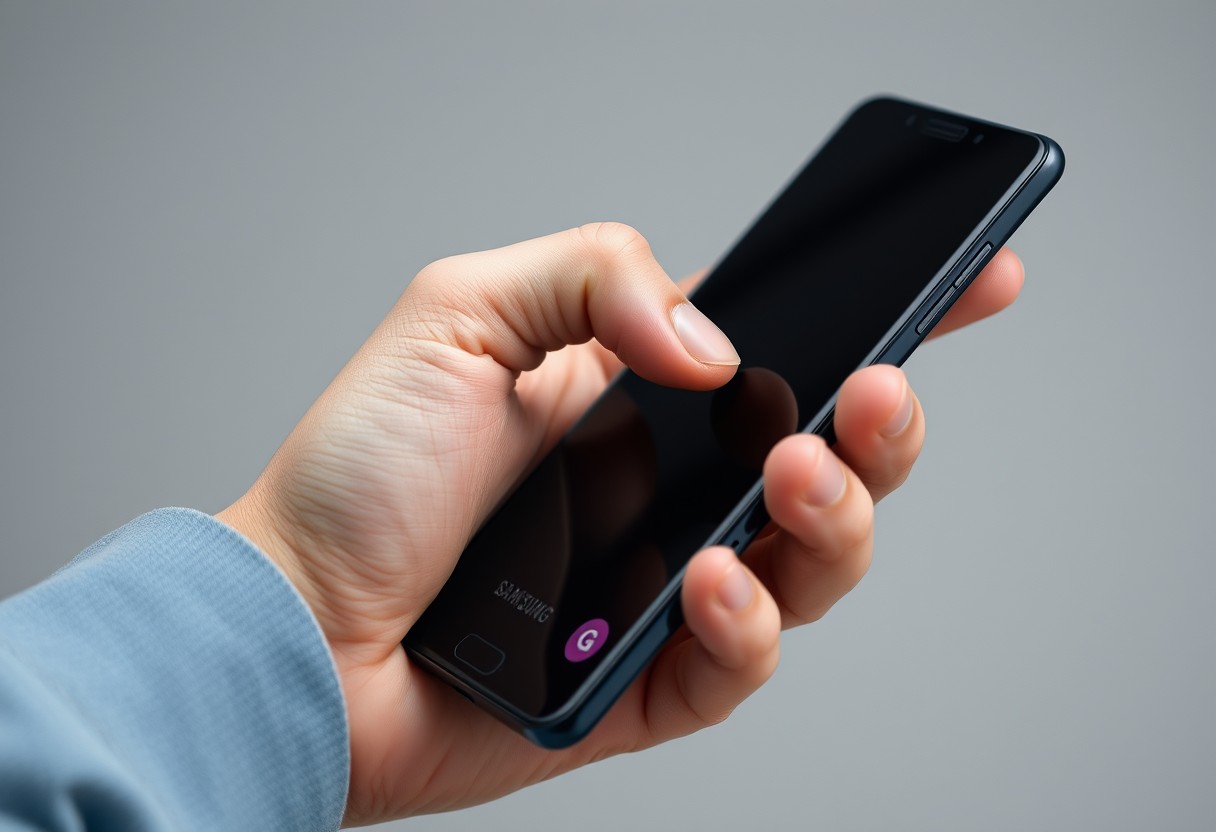
You can master one-handed use of your Galaxy phone without shrinking the display. Activating One-Handed Mode shrinks the screen temporarily, making top-edge controls reachable. Gesture customization reduces reliance on stretching or repositioning your grip. By adjusting settings already built into your device, you maintain full functionality while gaining comfort and safety in daily use.
Key Takeaways:
- Activate One-Handed Mode to temporarily shrink the screen, making it easier to reach top corners with a single thumb, without altering the actual display size or resolution.
- Customize Quick Settings and Edge Panels to place frequently used apps and tools within thumb range, reducing the need to stretch or reposition your grip.
- Adjust your home screen layout and enable keyboard resizing to keep essential functions accessible, improving overall one-handed usability across daily tasks.
Enabling One-Handed Mode Gestures
Samsung’s built-in one-handed mode lets you temporarily shrink the screen to reach top-edge content with ease. To activate it, go to Settings > Display > One-handed mode and toggle the feature on. Once enabled, you can trigger the shrunken view by swiping down from the bottom corner of the screen with one hand. The entire interface scales down smoothly, keeping all controls within thumb range without altering the actual display resolution or requiring app adjustments.
Activating the gesture or button shortcut
You can trigger one-handed mode using a simple swipe gesture or a software button. Swipe down twice quickly from either bottom corner of the screen to instantly shrink the display. Alternatively, enable the on-screen button in settings for a persistent tap-to-shrink option. The gesture method is faster and more intuitive once mastered, while the button offers reliability if accidental swipes are a concern. Choose what fits your grip style best.
Adjusting the placement of the reduced screen
After shrinking the screen, you can drag the floating window to position it on the left or right side of the display. This adjustment ensures the most important buttons and menus align with your thumb’s natural reach. Release the screen to lock it into place, and tap anywhere outside the reduced area or swipe up from the bottom to restore full size. Proper positioning dramatically improves comfort during prolonged use, especially when standing or moving.
Customizing the Quick Settings Layout
Adjusting your Quick Settings panel ensures frequently used toggles are easy to reach without stretching your thumb. By editing the layout, you can position the most important controls-like Wi-Fi, Flashlight, or Battery Saver-closer to the bottom of the screen. Dragging essential tiles to the first visible row minimizes strain and reduces accidental slips. This simple change keeps critical functions within natural thumb range, especially when holding the phone in your dominant hand. You don’t need to resize the display to gain comfort and efficiency.
Reordering the quick panel icons
Tap and hold any tile in the Quick Settings panel to enter edit mode, then drag the icons into a sequence that fits your daily use. Placing high-priority functions like Bluetooth or Dark Mode near the lower edge makes them instantly accessible with a single swipe. Rearranging these tiles ensures you spend less time scrolling or stretching across the screen. This small adjustment greatly improves reachability, especially when operating your Galaxy phone one-handed in tight spaces or on the move.
Enabling the full-screen swipe down gesture
Open the Quick Settings panel by swiping down anywhere on the screen with two fingers, or adjust your swipe sensitivity in Settings > Display > Full-screen gestures. Activating a full-screen swipe allows you to trigger the panel without aiming for the top edge, reducing finger strain significantly. This gesture expands accessibility across the entire display, making it easier to pull down notifications and toggles using only your thumb. It’s especially helpful when holding the phone in one hand while standing or walking.
Utilizing Edge Panels for App Access
Edge Panels let you access your most-used apps from a swipe on the side of the screen, reducing the need to stretch your thumb across the display. You can open tools like the calculator, calendar, or messaging app without leaving your current screen. Activating the panel is simple and works from nearly any interface, making it one of the fastest ways to switch tasks with one hand. The panel stays hidden until needed, so it doesn’t interfere with daily use or consume screen space.
Configuring the Apps edge panel
Your Apps Edge Panel holds up to five frequently used apps for instant access with a single swipe. To set it up, go to Settings > Display > Edge panels > Apps panel, then select the apps that matter most to your daily routine. You can reorder them by dragging to prioritize access, placing your most-used app at the top for faster reach. Once configured, the panel responds reliably from any screen, giving you consistent one-handed control without altering your home layout.
Adjusting handle position and transparency
The handle that pulls out the Edge Panel can be moved vertically to match your grip, letting you keep your thumb within comfortable range. In the Edge panels settings, tap “Handle position” and choose top, middle, or bottom based on how you hold your phone. You can also adjust the panel’s transparency to reduce visual distraction while still seeing underlying content. A lower opacity makes the panel feel lighter and less intrusive during use.
Optimizing Home Screen Icon Placement
Lowering the home screen grid density
You can reduce strain on your thumb by adjusting how many app icons appear per row and column. Samsung allows you to expand or compress the home screen grid, and setting a lower grid density-such as 4×5 instead of 5×6-creates more space between icons. This change makes it easier to tap the correct app without slipping, especially when holding the phone in one hand. With fewer icons crowded together, your taps become more accurate, reducing accidental opens and frustration during quick tasks.
Grouping essential apps into reachable folders
Placing frequently used apps within easy thumb reach at the bottom of the screen maximizes efficiency. Create folders for core functions like Communication, Daily Tools, or Quick Tasks, and position them in the lower-left or lower-right corners-areas naturally accessible with one hand. By consolidating messaging, camera, browser, and notes into a single tap-enabled folder, you minimize stretching across the display. This smart grouping keeps your most important tools just a swipe or tap away, enhancing speed and comfort.
Configuring the Samsung Keyboard for One-Handed Use
The default keyboard layout often stretches across the full width of your Galaxy phone’s screen, making it difficult to type with just one hand. You can adjust this by enabling a compact mode that shifts the entire keyboard to one side, bringing every key within easy reach of your thumb. Samsung’s built-in option resizes the interface without sacrificing access to essential keys. This change significantly reduces finger strain, especially when holding the device in your dominant hand while typing on the go.
Switching to one-handed keyboard mode
Swipe inward from either corner of the keyboard using two fingers to instantly collapse it into a smaller, side-aligned layout. This gesture activates one-handed mode, letting you choose between left or right positioning depending on which hand you’re using. Once triggered, the keys remain fully functional but are condensed into a more reachable area. You maintain full typing capabilities while minimizing hand movement, making it easier to respond to messages or search terms with single-thumb control.
Adjusting keyboard size and transparency
Open the Samsung Keyboard settings to manually fine-tune the keyboard’s height and width for better comfort. Sliding the size bar down creates a more compact layout, reducing the stretch your thumb must cover. You can also lower the transparency level to keep the background from interfering with readability. A slightly opaque keyboard improves key visibility without blocking content beneath, ensuring accurate input even during fast typing sessions.
Implementing Advanced Gesture Navigation
- Replace traditional navigation buttons with intuitive swipe gestures
- Enable smoother one-handed control without altering screen size
- Adjust gesture sensitivity to match your grip and thumb movement
| Feature | Benefit |
| Side-swipe navigation | Access app switcher, home, and back functions with thumb-only input |
| Gesture customization | Reduce accidental triggers and improve response accuracy |
Switching from buttons to swipe gestures
Modern Galaxy phones let you replace the on-screen navigation bar with gesture-based controls, enabling smoother one-handed operation. Instead of tapping buttons, you swipe up from the bottom edges to go back or switch apps. This change removes clutter and keeps your thumb within a comfortable range. Samsung’s gesture system is designed to feel natural, and once enabled, you’ll find navigating much faster. The transition takes minimal time, especially if you rely heavily on single-thumb use.
Customizing gesture sensitivity and back-swipe areas
You can fine-tune how your phone responds to swipes by adjusting sensitivity in the system settings. A lower sensitivity prevents accidental back gestures when scrolling, while higher responsiveness speeds up navigation. You’re able to define how far from the edge a swipe must start, making it easier to trigger actions without stretching your thumb. Proper calibration reduces strain and enhances control, especially during quick transitions between apps.
Final Words
You now have a complete set of tools to make your Galaxy phone easier to use with just one hand. By enabling one-handed mode, adjusting gesture navigation, and organizing your home screen and quick settings for thumb reach, you maintain full functionality without shrinking the display. Customizing the keyboard and using Edge Panels keeps frequently used apps and inputs within easy access. These built-in features are designed to work together, letting you operate your device efficiently and comfortably in everyday situations.
FAQ
Q: How do I enable one-handed mode on my Galaxy phone without resizing the screen?
A: Samsung’s One Hand Operation+ feature lets you temporarily shrink the screen area for easier reach. Go to Settings > Advanced Features > One Hand Operation, then toggle on “One-handed mode.” You can activate it by swiping down from a corner of the screen with two fingers or by tapping a button in the navigation bar. This shifts the entire display downward, so top-edge controls become accessible using just your thumb.
Q: Can I customize how I trigger one-handed mode?
A: Yes, you can choose between different activation methods. In the One Hand Operation menu, select “Activation method” to pick between “Swipe down with two fingers” or “Tap button in navigation bar.” The two-finger swipe works from either the top-left or top-right corner, depending on your handedness. The navigation button option adds a small icon to your on-screen controls that you tap to shrink the screen.
Q: Does using Edge Panels help with one-handed usage?
A: Edge Panels let you access apps, contacts, and tools with a single swipe from the side of the screen. Open the Edge Panel by swiping inward from the curved edge of the display. You can assign frequently used apps or tasks to specific panels, reducing the need to stretch across the screen. Set this up in Settings > Display > Edge Panels, then customize each panel with shortcuts that match your daily routines.
Q: Is it possible to adjust the keyboard for easier one-handed typing?
A: The Samsung Keyboard includes a one-handed typing mode that shifts keys closer to your thumb. While typing, long-press the comma or smiley key, then select the one-handed mode icon. Choose left or right alignment based on how you’re holding the phone. The entire keyboard compresses into one side, letting you type without shifting your grip or stretching your fingers across the screen.
Q: Will gesture navigation make one-handed use easier?
A: Samsung’s gesture system supports one-handed operation when configured properly. Instead of reaching for back or home buttons, you can swipe from screen edges. For example, a swipe inward from the bottom-left or bottom-right corner triggers the back function. These edge swipes require minimal thumb movement. Enable gestures in Settings > Display > Navigation Bar > Swipe gestures, then practice the motions to build muscle memory.